# BBJUR

Documentações de robôs que acessam o portal BBJUR

# bbjur-acordo-conduzir

#### **<span class="align-center" style="color: rgb(0, 0, 0);">1 Descrição do processo</span>**

#### <span class="align-center" style="color: rgb(0, 0, 0);">**1.2 Programas e Aplicações**  
</span>

<table border="1" id="bkmrk-nome-do-sistema-url-" style="width: 100%; border-collapse: collapse; height: 64.125px;"><colgroup><col style="width: 50.0508%;" width="60"></col><col style="width: 49.9492%;" width="81"></col></colgroup><tbody><tr style="height: 37.375px; background-color: rgb(41, 127, 213);"><td style="height: 37.375px;"><span style="color: rgb(255, 255, 255);">**Nome do Sistema**</span>

</td><td style="height: 37.375px;"><span style="color: rgb(255, 255, 255);">**URL**</span>

</td></tr><tr style="height: 26.75px;"><td style="height: 26.75px;"><span style="color: rgb(0, 0, 0);">**BB**</span>

</td><td style="height: 26.75px;"><span style="color: rgb(0, 0, 0);">https://loginweb.bb.com.br/sso/XUI/?realm=paj#login&amp;goto=https%3A%2F%2Fjuridico.bb.com.br%2F</span></td></tr></tbody></table>

#### <span style="color: rgb(0, 0, 0);">**2 Detalhamento do Processo**</span>

<table border="1" id="bkmrk-" style="border-collapse: collapse; width: 100%; height: 2706.22px;"><colgroup><col style="width: 99.8765%;"></col></colgroup><tbody><tr style="height: 29.7969px;"><td style="height: 29.7969px;"><span style="color: rgb(0, 0, 0);">**2.1 - Sistema**</span></td></tr><tr style="height: 238.781px;"><td style="height: 238.781px;">[![image.png](https://wiki.oystr.com.br/uploads/images/gallery/2024-03/scaled-1680-/Snlimage.png)](https://wiki.oystr.com.br/uploads/images/gallery/2024-03/Snlimage.png)

<span style="color: rgb(0, 0, 0);">  
</span>

<span style="color: rgb(0, 0, 0);">****Ação:**** Para início iremos acessar o site do ****[BB](https://loginweb.bb.com.br/sso/XUI/?realm=paj#login&goto=https%3A%2F%2Fjuridico.bb.com.br%2F).****</span>

</td></tr><tr style="height: 29.7969px;"><td style="height: 29.7969px;">**<span style="color: rgb(0, 0, 0);">2.2 - Login</span>**</td></tr><tr style="height: 122.781px;"><td style="height: 122.781px;">[![image.png](https://wiki.oystr.com.br/uploads/images/gallery/2024-03/scaled-1680-/6aIimage.png)](https://wiki.oystr.com.br/uploads/images/gallery/2024-03/6aIimage.png)

**<span style="color: rgb(0, 0, 0);">  
</span>**

**<span style="color: rgb(0, 0, 0);">**Ação:** </span>**<span style="color: rgb(0, 0, 0);">Para realizar login no sistema, iremos preencher o campo de </span>**<span style="color: rgb(0, 0, 0);">**“Login”.**</span>**

</td></tr><tr style="height: 276.172px;"><td style="height: 276.172px;">[![image.png](https://wiki.oystr.com.br/uploads/images/gallery/2024-03/scaled-1680-/oXximage.png)](https://wiki.oystr.com.br/uploads/images/gallery/2024-03/oXximage.png)

<span style="color: rgb(0, 0, 0);">**Ação:** Em seguida, iremos realizar a confirmação do **CAPTCHA.**</span>

</td></tr><tr style="height: 248.172px;"><td style="height: 248.172px;">[![image.png](https://wiki.oystr.com.br/uploads/images/gallery/2024-03/scaled-1680-/5afimage.png)](https://wiki.oystr.com.br/uploads/images/gallery/2024-03/5afimage.png)

<span style="color: rgb(0, 0, 0);">**Ação:** Na tela seguinte, iremos digitar a senha no campo **“Senha”.**</span>

</td></tr><tr style="height: 279.172px;"><td style="height: 279.172px;">[![image.png](https://wiki.oystr.com.br/uploads/images/gallery/2024-03/scaled-1680-/xaoimage.png)](https://wiki.oystr.com.br/uploads/images/gallery/2024-03/xaoimage.png)

**<span style="color: rgb(0, 0, 0);">Ação: </span>**<span style="color: rgb(0, 0, 0);">Após isso, basta clicar em </span>**<span style="color: rgb(0, 0, 0);">“Log in”.</span>**

</td></tr><tr style="height: 35.3906px;"><td style="height: 35.3906px;"><span style="color: rgb(0, 0, 0);">**2.3 - Acesso**</span>

</td></tr><tr style="height: 218.781px;"><td style="height: 218.781px;">[![image.png](https://wiki.oystr.com.br/uploads/images/gallery/2024-03/scaled-1680-/JCuimage.png)](https://wiki.oystr.com.br/uploads/images/gallery/2024-03/JCuimage.png)

<span style="color: rgb(0, 0, 0);">  
</span>

<span style="color: rgb(0, 0, 0);">****Ação:**** Feito isso, estaremos no sistema.</span>

</td></tr><tr style="height: 285.562px;"><td style="height: 285.562px;">[![image.png](https://wiki.oystr.com.br/uploads/images/gallery/2024-03/scaled-1680-/Spvimage.png)](https://wiki.oystr.com.br/uploads/images/gallery/2024-03/Spvimage.png)

**<span style="color: rgb(0, 0, 0);">**Ação:** </span>**<span style="color: rgb(0, 0, 0);">Para acessar os acordos, primeiro iremos ate o menu de</span>**<span style="color: rgb(0, 0, 0);"> **“Processos”** </span>**<span style="color: rgb(0, 0, 0);">e em seguida iremos acessar o sub-menu de</span>**<span style="color: rgb(0, 0, 0);"> **“Acordos”**</span>**

</td></tr><tr style="height: 150.172px;"><td style="height: 150.172px;">[![image.png](https://wiki.oystr.com.br/uploads/images/gallery/2024-03/scaled-1680-/SFBimage.png)](https://wiki.oystr.com.br/uploads/images/gallery/2024-03/SFBimage.png)

**<span style="color: rgb(0, 0, 0);">**Ação:** </span>**<span style="color: rgb(0, 0, 0);">Na tela, iremos digitar o **NPJ** desejado.</span>

</td></tr><tr style="height: 149.172px;"><td style="height: 149.172px;">[![image.png](https://wiki.oystr.com.br/uploads/images/gallery/2024-03/scaled-1680-/cBkimage.png)](https://wiki.oystr.com.br/uploads/images/gallery/2024-03/cBkimage.png)

**<span style="color: rgb(0, 0, 0);">**Ação:** </span>**<span style="color: rgb(0, 0, 0);">Feito isso, iremos clicar no botão </span>**<span style="color: rgb(0, 0, 0);">**“Buscar”.**</span>**

</td></tr><tr style="height: 103.172px;"><td style="height: 103.172px;">[![image.png](https://wiki.oystr.com.br/uploads/images/gallery/2024-03/scaled-1680-/ltmimage.png)](https://wiki.oystr.com.br/uploads/images/gallery/2024-03/ltmimage.png)

**<span style="color: rgb(0, 0, 0);">**Ação:** </span>**<span style="color: rgb(0, 0, 0);">Na tela será apresentado os dados do NPJ digitado.</span>

</td></tr><tr style="height: 156.172px;"><td style="height: 156.172px;">[![image.png](https://wiki.oystr.com.br/uploads/images/gallery/2024-03/scaled-1680-/sFkimage.png)](https://wiki.oystr.com.br/uploads/images/gallery/2024-03/sFkimage.png)

**<span style="color: rgb(0, 0, 0);">**Ação:** </span>**<span style="color: rgb(0, 0, 0);">Com o NPJ identificado, iremos realizar o</span>**<span style="color: rgb(0, 0, 0);"> **registro de acordo.**</span>**

</td></tr><tr style="height: 195.172px;"><td style="height: 195.172px;">[![image.png](https://wiki.oystr.com.br/uploads/images/gallery/2024-03/scaled-1680-/YYZimage.png)](https://wiki.oystr.com.br/uploads/images/gallery/2024-03/YYZimage.png)

**<span style="color: rgb(0, 0, 0);">**Ação:** </span>**<span style="color: rgb(0, 0, 0);">No processo, iremos acessar a aba de</span>**<span style="color: rgb(0, 0, 0);"> **“-&gt;”**</span>**

</td></tr><tr style="height: 130.172px;"><td style="height: 130.172px;">[![image.png](https://wiki.oystr.com.br/uploads/images/gallery/2024-03/scaled-1680-/Fl2image.png)](https://wiki.oystr.com.br/uploads/images/gallery/2024-03/Fl2image.png)

<span style="color: rgb(0, 0, 0);">**Ação:** Em seguida, iremos até a opção **“Conduzir acordo”** e iremos selecionar a opção **“Registrar acordo protocolizado”**</span>

</td></tr><tr style="height: 57.7812px;"><td style="height: 57.7812px;">[![image.png](https://wiki.oystr.com.br/uploads/images/gallery/2024-03/scaled-1680-/J8wimage.png)](https://wiki.oystr.com.br/uploads/images/gallery/2024-03/J8wimage.png)

**<span style="color: rgb(0, 0, 0);">**Ação:** </span>**<span style="color: rgb(0, 0, 0);">A baixo, serão abertos outros campos para preenchimento.</span>

</td></tr><tr><td>[![image.png](https://wiki.oystr.com.br/uploads/images/gallery/2024-03/scaled-1680-/VXrimage.png)](https://wiki.oystr.com.br/uploads/images/gallery/2024-03/VXrimage.png)

<span style="color: rgb(0, 0, 0);">**Ação:** No campo “**Valor Protocolizado**”, iremos inserir o valor do acordo.</span>

</td></tr><tr><td>[![image.png](https://wiki.oystr.com.br/uploads/images/gallery/2024-03/scaled-1680-/i5eimage.png)](https://wiki.oystr.com.br/uploads/images/gallery/2024-03/i5eimage.png)

<span style="color: rgb(0, 0, 0);">**Ação:** No campo **“Data do protocolo”**, iremos inserir a data do protocolo.</span>

</td></tr><tr><td>[![image.png](https://wiki.oystr.com.br/uploads/images/gallery/2024-03/scaled-1680-/1jnimage.png)](https://wiki.oystr.com.br/uploads/images/gallery/2024-03/1jnimage.png)

**<span style="color: rgb(0, 0, 0);">**Ação:** </span>**<span style="color: rgb(0, 0, 0);">No campo</span>**<span style="color: rgb(0, 0, 0);"> **“O acordo envolveu obrigação de fazer?”,** </span>**<span style="color: rgb(0, 0, 0);">iremos seleciona a opção </span>**<span style="color: rgb(0, 0, 0);">**“Não”.**</span>**

</td></tr><tr><td>[![image.png](https://wiki.oystr.com.br/uploads/images/gallery/2024-03/scaled-1680-/bKuimage.png)](https://wiki.oystr.com.br/uploads/images/gallery/2024-03/bKuimage.png)

**<span style="color: rgb(0, 0, 0);">**Ação:** </span>**<span style="color: rgb(0, 0, 0);">No campo</span>**<span style="color: rgb(0, 0, 0);"> **“Observação”**</span>**<span style="color: rgb(0, 0, 0);">, iremos inserir as observações do processo.</span>

</td></tr><tr><td>[![image.png](https://wiki.oystr.com.br/uploads/images/gallery/2024-03/scaled-1680-/Mxsimage.png)](https://wiki.oystr.com.br/uploads/images/gallery/2024-03/Mxsimage.png)

<span style="color: rgb(0, 0, 0);">**Ação:** No campo **“Documentos”,** iremos inserir os documentos do processo.</span>

</td></tr><tr><td>[![image.png](https://wiki.oystr.com.br/uploads/images/gallery/2024-03/scaled-1680-/aJqimage.png)](https://wiki.oystr.com.br/uploads/images/gallery/2024-03/aJqimage.png)

**<span style="color: rgb(0, 0, 0);">**Ação:** </span>**<span style="color: rgb(0, 0, 0);">Com todos os dados preenchidos, basta clicar em</span>**<span style="color: rgb(0, 0, 0);"> **“Salvar”.**</span>**

</td></tr><tr><td>[![image.png](https://wiki.oystr.com.br/uploads/images/gallery/2024-03/scaled-1680-/68Timage.png)](https://wiki.oystr.com.br/uploads/images/gallery/2024-03/68Timage.png)

**<span style="color: rgb(0, 0, 0);">**Ação:** </span>**<span style="color: rgb(0, 0, 0);">Com o NPJ identificado, iremos realizar o registro de acordo.</span>

</td></tr><tr><td>[![image.png](https://wiki.oystr.com.br/uploads/images/gallery/2024-03/scaled-1680-/bPwimage.png)](https://wiki.oystr.com.br/uploads/images/gallery/2024-03/bPwimage.png)

**<span style="color: rgb(0, 0, 0);">**Ação:** </span>**<span style="color: rgb(0, 0, 0);">No processo, iremos acessar a aba de</span>**<span style="color: rgb(0, 0, 0);"> **“-&gt;”**</span>**

</td></tr><tr><td>[![image.png](https://wiki.oystr.com.br/uploads/images/gallery/2024-03/scaled-1680-/zJrimage.png)](https://wiki.oystr.com.br/uploads/images/gallery/2024-03/zJrimage.png)

**<span style="color: rgb(0, 0, 0);">**Ação:** </span>**<span style="color: rgb(0, 0, 0);">Em seguida, iremos até a opção “**Conduzir acordo**” e iremos selecionar a opção “**Registrar acordo protocolizado**”</span>

</td></tr><tr><td>[![image.png](https://wiki.oystr.com.br/uploads/images/gallery/2024-03/scaled-1680-/5qmimage.png)](https://wiki.oystr.com.br/uploads/images/gallery/2024-03/5qmimage.png)

**<span style="color: rgb(0, 0, 0);">**Ação:** </span>**<span style="color: rgb(0, 0, 0);">A baixo, serão abertos outros campos para preenchimento.</span>

</td></tr><tr><td>[![image.png](https://wiki.oystr.com.br/uploads/images/gallery/2024-03/scaled-1680-/0J1image.png)](https://wiki.oystr.com.br/uploads/images/gallery/2024-03/0J1image.png)

**<span style="color: rgb(0, 0, 0);">**Ação:** </span>**<span style="color: rgb(0, 0, 0);">No campo</span>**<span style="color: rgb(0, 0, 0);"> **“Valor Protocolizado”**</span>**<span style="color: rgb(0, 0, 0);">, iremos inserir o valor do acordo.</span>

</td></tr><tr><td>[![image.png](https://wiki.oystr.com.br/uploads/images/gallery/2024-03/scaled-1680-/xS4image.png)](https://wiki.oystr.com.br/uploads/images/gallery/2024-03/xS4image.png)

**<span style="color: rgb(0, 0, 0);">**Ação:** </span>**<span style="color: rgb(0, 0, 0);">No campo</span>**<span style="color: rgb(0, 0, 0);"> **“Data do protocolo”**</span>**<span style="color: rgb(0, 0, 0);">, iremos inserir a data do protocolo.</span>

</td></tr><tr><td>[![image.png](https://wiki.oystr.com.br/uploads/images/gallery/2024-03/scaled-1680-/JzSimage.png)](https://wiki.oystr.com.br/uploads/images/gallery/2024-03/JzSimage.png)

**<span style="color: rgb(0, 0, 0);">**Ação:** </span>**<span style="color: rgb(0, 0, 0);">No campo</span>**<span style="color: rgb(0, 0, 0);"> **“O acordo envolveu obrigação de fazer?”,** i</span>**<span style="color: rgb(0, 0, 0);">remos selecionar a opção</span>**<span style="color: rgb(0, 0, 0);"> **“Sim”.**</span>**

</td></tr><tr><td>[![image.png](https://wiki.oystr.com.br/uploads/images/gallery/2024-03/scaled-1680-/LtRimage.png)](https://wiki.oystr.com.br/uploads/images/gallery/2024-03/LtRimage.png)

**<span style="color: rgb(0, 0, 0);">Ação:</span>** <span style="color: rgb(0, 0, 0);">A baixo, serão abertos outros campos para preenchimento.</span>

</td></tr><tr><td>[![image.png](https://wiki.oystr.com.br/uploads/images/gallery/2024-03/scaled-1680-/xB9image.png)](https://wiki.oystr.com.br/uploads/images/gallery/2024-03/xB9image.png)

**<span style="color: rgb(0, 0, 0);">**Ação:** </span>**<span style="color: rgb(0, 0, 0);">No campo </span>**<span style="color: rgb(0, 0, 0);">**“Valor da multa”**</span>**<span style="color: rgb(0, 0, 0);">, iremos inserir o valor da multa</span>

</td></tr><tr><td>[![image.png](https://wiki.oystr.com.br/uploads/images/gallery/2024-03/scaled-1680-/0Wbimage.png)](https://wiki.oystr.com.br/uploads/images/gallery/2024-03/0Wbimage.png)

**<span style="color: rgb(0, 0, 0);">**Ação:** </span>**<span style="color: rgb(0, 0, 0);">No campo</span>**<span style="color: rgb(0, 0, 0);"> **“Data limite”**</span>**<span style="color: rgb(0, 0, 0);">, iremos inserir a data limite da multa.</span>

</td></tr><tr><td>[![image.png](https://wiki.oystr.com.br/uploads/images/gallery/2024-03/scaled-1680-/IPhimage.png)](https://wiki.oystr.com.br/uploads/images/gallery/2024-03/IPhimage.png)

<span style="color: rgb(0, 0, 0);">**Ação:** No campo **“Observação”**, iremos inserir as observações do processo.</span>

</td></tr><tr><td>[![image.png](https://wiki.oystr.com.br/uploads/images/gallery/2024-03/scaled-1680-/OZlimage.png)](https://wiki.oystr.com.br/uploads/images/gallery/2024-03/OZlimage.png)

**<span style="color: rgb(0, 0, 0);">**Ação:** </span>**<span style="color: rgb(0, 0, 0);">No campo</span>**<span style="color: rgb(0, 0, 0);"> **“Documentos”**</span>**<span style="color: rgb(0, 0, 0);">, iremos inserir os documentos do processo.</span>

</td></tr><tr><td>[![image.png](https://wiki.oystr.com.br/uploads/images/gallery/2024-03/scaled-1680-/Z39image.png)](https://wiki.oystr.com.br/uploads/images/gallery/2024-03/Z39image.png)

**<span style="color: rgb(0, 0, 0);">**Ação:** </span>**<span style="color: rgb(0, 0, 0);">Com todos os dados preenchidos, basta clicar em </span>**<span style="color: rgb(0, 0, 0);">**“Salvar”.**</span>**

</td></tr></tbody></table>

#### <span style="color: rgb(0, 0, 0);">**3 **Regras de Negócio****</span>

#### <span style="color: rgb(0, 0, 0);">****3.1 **Arquivo de entrada do robô******</span>

#### <span style="color: rgb(0, 0, 0);">**3.1.1 XLS**</span>

<table border="1" id="bkmrk-descri%C3%87%C3%83o-propriedad" style="width: 100%; border-collapse: collapse; height: 64.125px;"><colgroup><col style="width: 50.0508%;" width="60"></col><col style="width: 49.9492%;" width="81"></col></colgroup><tbody><tr style="height: 37.375px; background-color: rgb(41, 127, 213);"><td style="height: 37.375px;"><span style="color: rgb(255, 255, 255);">**DESCRIÇÃO**</span>

</td><td style="height: 37.375px;"><span style="color: rgb(255, 255, 255);">**PROPRIEDADE**</span>

</td></tr><tr style="height: 26.75px;"><td style="height: 26.75px;"></td><td style="height: 26.75px;">  
</td></tr></tbody></table>

#### <span style="color: rgb(0, 0, 0);">**3.1.2 XML**</span>

<table border="1" id="bkmrk-descri%C3%87%C3%83o-propriedad-1" style="width: 100%; border-collapse: collapse; height: 64.125px;"><colgroup><col style="width: 50.0508%;" width="60"></col><col style="width: 49.9492%;" width="81"></col></colgroup><tbody><tr style="height: 37.375px; background-color: rgb(41, 127, 213);"><td style="height: 37.375px;"><span style="color: rgb(255, 255, 255);">**DESCRIÇÃO**</span>

</td><td style="height: 37.375px;"><span style="color: rgb(255, 255, 255);">**PROPRIEDADE**</span>

</td></tr><tr style="height: 26.75px;"><td style="height: 26.75px;"></td><td style="height: 26.75px;">  
</td></tr></tbody></table>

#### <span style="color: rgb(0, 0, 0);">**3.1.3 FILTROS**</span>

<table border="1" id="bkmrk-descri%C3%87%C3%83o-propriedad-2" style="width: 100%; border-collapse: collapse; height: 64.125px;"><colgroup><col style="width: 50.0508%;" width="60"></col><col style="width: 49.9492%;" width="81"></col></colgroup><tbody><tr style="height: 37.375px; background-color: rgb(41, 127, 213);"><td style="height: 37.375px;"><span style="color: rgb(255, 255, 255);">**DESCRIÇÃO**</span>

</td><td style="height: 37.375px;"><span style="color: rgb(255, 255, 255);">**PROPRIEDADE**</span>

</td></tr><tr style="height: 26.75px;"><td style="height: 26.75px;"></td><td style="height: 26.75px;">  
</td></tr></tbody></table>

#### <span style="color: rgb(0, 0, 0);">**3.1 **Arquivo de saída****</span>

# bbjur-baixa-documentos

#### **<span class="align-center" style="color: rgb(0, 0, 0);">1 Descrição do processo</span>**

#### <span class="align-center" style="color: rgb(0, 0, 0);">**1.2 Programas e Aplicações**  
</span>

<table border="1" id="bkmrk-nome-do-sistema-url-" style="width: 100%; border-collapse: collapse; height: 64.125px;"><colgroup><col style="width: 50.0508%;" width="60"></col><col style="width: 49.9492%;" width="81"></col></colgroup><tbody><tr style="height: 37.375px; background-color: rgb(41, 127, 213);"><td style="height: 37.375px;"><span style="color: rgb(255, 255, 255);">**Nome do Sistema**</span>

</td><td style="height: 37.375px;"><span style="color: rgb(255, 255, 255);">**URL**</span>

</td></tr><tr style="height: 26.75px;"><td style="height: 26.75px;"><span style="color: rgb(0, 0, 0);">**BBJUR**</span>

</td><td style="height: 26.75px;"><span style="color: rgb(0, 0, 0);">**[https://juridico.bb.com.br/paj/juridico](https://juridico.bb.com.br/paj/juridico)**</span></td></tr></tbody></table>

#### <span style="color: rgb(0, 0, 0);">**2 Detalhamento do Processo**</span>

<table border="1" id="bkmrk-" style="border-collapse: collapse; width: 100%;"><colgroup><col style="width: 99.8765%;"></col></colgroup><tbody><tr><td>**<span style="color: rgb(0, 0, 0);">2.1 - Sistema</span>**</td></tr><tr><td>[![image.png](https://wiki.oystr.com.br/uploads/images/gallery/2024-03/scaled-1680-/rI0image.png)](https://wiki.oystr.com.br/uploads/images/gallery/2024-03/rI0image.png)

**<span style="color: rgb(0, 0, 0);"><span style="color: rgb(0, 0, 0);">**Ação:** </span></span>**<span style="color: rgb(0, 0, 0);"><span style="color: rgb(0, 0, 0);">Para efetuar a inicialização do processo iremos acessar o site do</span></span>**<span style="color: rgb(0, 0, 0);"><span style="color: rgb(0, 0, 0);">**[ Banco do Brasil](https://loginweb.bb.com.br/sso/XUI/?realm=paj#login&goto=https%3A%2F%2Fjuridico.bb.com.br%2Fpaj%2Fjuridico).**</span></span>**

</td></tr><tr><td><span style="color: rgb(0, 0, 0);">**2.1 - Login**</span></td></tr><tr><td>[![image.png](https://wiki.oystr.com.br/uploads/images/gallery/2024-03/scaled-1680-/dbSimage.png)](https://wiki.oystr.com.br/uploads/images/gallery/2024-03/dbSimage.png)

<span style="color: rgb(0, 0, 0);">****Ação:**** Para realizar o login do sistema, iremos preencher o campo ****“Código de Usuário”**** e clicar em ****“Log In”.****</span>

</td></tr><tr><td>[![image.png](https://wiki.oystr.com.br/uploads/images/gallery/2024-03/scaled-1680-/NBSimage.png)](https://wiki.oystr.com.br/uploads/images/gallery/2024-03/NBSimage.png)

**<span style="color: rgb(0, 0, 0);">**Ação:**</span>**<span style="color: rgb(0, 0, 0);"> Após informarmos o campo de usuário devemos resolver o</span>**<span style="color: rgb(0, 0, 0);"> **“CAPTCHA”.**</span>**

</td></tr><tr><td>[![image.png](https://wiki.oystr.com.br/uploads/images/gallery/2024-03/scaled-1680-/rzximage.png)](https://wiki.oystr.com.br/uploads/images/gallery/2024-03/rzximage.png)

**<span style="color: rgb(0, 0, 0);">**Ação:** </span>**<span style="color: rgb(0, 0, 0);">Com o CAPTCHA resolvido, iremos preencher o campo </span>**<span style="color: rgb(0, 0, 0);">**“Senha”** </span>**<span style="color: rgb(0, 0, 0);">e clicar novamente em</span>**<span style="color: rgb(0, 0, 0);"> **“LOG IN”.**</span>**

</td></tr><tr><td>**<span style="color: rgb(0, 0, 0);">2.3 - Acesso</span>**

</td></tr><tr><td>**<span style="color: rgb(0, 0, 0);">  
</span>**

[![image.png](https://wiki.oystr.com.br/uploads/images/gallery/2024-03/scaled-1680-/Sgzimage.png)](https://wiki.oystr.com.br/uploads/images/gallery/2024-03/Sgzimage.png)

<span style="color: rgb(0, 0, 0);">****Ação:**** Ao entrarmos no sistema, iremos acessar o menu lateral e selecionar a opção ****“Central de Notificações”****, após isso iremos escolher a opção ****“Painel de Notificações”.****</span>

</td></tr><tr><td>**<span style="color: rgb(0, 0, 0);">  
</span>**

[![image.png](https://wiki.oystr.com.br/uploads/images/gallery/2024-03/scaled-1680-/0ltimage.png)](https://wiki.oystr.com.br/uploads/images/gallery/2024-03/0ltimage.png)

<span style="color: rgb(0, 0, 0);">****Ação:**** Após isso, o sistema abrirá uma nova página com todas as notificações e pendências existentes.</span>

</td></tr><tr><td>**<span style="color: rgb(0, 0, 0);">  
</span>**

[![image.png](https://wiki.oystr.com.br/uploads/images/gallery/2024-03/scaled-1680-/N1Vimage.png)](https://wiki.oystr.com.br/uploads/images/gallery/2024-03/N1Vimage.png)

<span style="color: rgb(0, 0, 0);">****Ação:**** Como próximo passo iremos clicar no ****botão em formato de seta****, como demonstrado na imagem.</span>

</td></tr><tr><td>**<span style="color: rgb(0, 0, 0);">  
</span>**

[![image.png](https://wiki.oystr.com.br/uploads/images/gallery/2024-03/scaled-1680-/0n7image.png)](https://wiki.oystr.com.br/uploads/images/gallery/2024-03/0n7image.png)

<span style="color: rgb(0, 0, 0);">****Ação:**** Ao abrir a notificação desejada a página será atualizada. Onde teremos acesso ao ****“Tipo”**** e ****“Subtipo”**** de cada notificação.</span>

</td></tr><tr><td>**<span style="color: rgb(0, 0, 0);">  
</span>**

[![image.png](https://wiki.oystr.com.br/uploads/images/gallery/2024-03/scaled-1680-/BZEimage.png)](https://wiki.oystr.com.br/uploads/images/gallery/2024-03/BZEimage.png)

<span style="color: rgb(0, 0, 0);">****Ação:**** Como próximo passo, iremos clicar no ****botão em formato de seta**** referente a cada subtipo, como demonstrado na imagem.</span>

</td></tr><tr><td>**<span style="color: rgb(0, 0, 0);">  
</span>**

[![image.png](https://wiki.oystr.com.br/uploads/images/gallery/2024-03/scaled-1680-/V3cimage.png)](https://wiki.oystr.com.br/uploads/images/gallery/2024-03/V3cimage.png)

<span style="color: rgb(0, 0, 0);">****Ação:**** Após clicar na seta, na mesma página, será carregado as notificações e/ou pendências referentes ao subtipo selecionado. Onde devemos salvar as informações de: ****“NPJ”, “Adverso Principal” e “Gerada em”.****</span>

</td></tr></tbody></table>

#### <span style="color: rgb(0, 0, 0);">**3 **Regras de Negócio****</span>

#### <span style="color: rgb(0, 0, 0);">****3.1 **Arquivo de entrada do robô******</span>

#### <span style="color: rgb(0, 0, 0);">**3.1.1 XLS**</span>

<table border="1" id="bkmrk-descri%C3%87%C3%83o-propriedad" style="width: 100%; border-collapse: collapse; height: 64.125px;"><colgroup><col style="width: 50.0508%;" width="60"></col><col style="width: 49.9492%;" width="81"></col></colgroup><tbody><tr style="height: 37.375px; background-color: rgb(41, 127, 213);"><td style="height: 37.375px;"><span style="color: rgb(255, 255, 255);">**DESCRIÇÃO**</span>

</td><td style="height: 37.375px;"><span style="color: rgb(255, 255, 255);">**PROPRIEDADE**</span>

</td></tr><tr style="height: 26.75px;"><td style="height: 26.75px;"></td><td style="height: 26.75px;">  
</td></tr></tbody></table>

#### <span style="color: rgb(0, 0, 0);">**3.1.2 XML**</span>

<table border="1" id="bkmrk-descri%C3%87%C3%83o-propriedad-1" style="width: 100%; border-collapse: collapse; height: 64.125px;"><colgroup><col style="width: 50.0508%;" width="60"></col><col style="width: 49.9492%;" width="81"></col></colgroup><tbody><tr style="height: 37.375px; background-color: rgb(41, 127, 213);"><td style="height: 37.375px;"><span style="color: rgb(255, 255, 255);">**DESCRIÇÃO**</span>

</td><td style="height: 37.375px;"><span style="color: rgb(255, 255, 255);">**PROPRIEDADE**</span>

</td></tr><tr style="height: 26.75px;"><td style="height: 26.75px;"></td><td style="height: 26.75px;">  
</td></tr></tbody></table>

#### <span style="color: rgb(0, 0, 0);">**3.1.3 FILTROS**</span>

<table border="1" id="bkmrk-descri%C3%87%C3%83o-propriedad-2" style="width: 100%; border-collapse: collapse; height: 64.125px;"><colgroup><col style="width: 50.0508%;" width="60"></col><col style="width: 49.9492%;" width="81"></col></colgroup><tbody><tr style="height: 37.375px; background-color: rgb(41, 127, 213);"><td style="height: 37.375px;"><span style="color: rgb(255, 255, 255);">**DESCRIÇÃO**</span>

</td><td style="height: 37.375px;"><span style="color: rgb(255, 255, 255);">**PROPRIEDADE**</span>

</td></tr><tr style="height: 26.75px;"><td style="height: 26.75px;"></td><td style="height: 26.75px;">  
</td></tr></tbody></table>

#### <span style="color: rgb(0, 0, 0);">**3.1 **Arquivo de saída****</span>

# bbjur-distribution-search

#### **<span class="align-center" style="color: rgb(0, 0, 0);">1 Descrição do processo</span>**

#### <span class="align-center" style="color: rgb(0, 0, 0);">**1.2 Programas e Aplicações**  
</span>

<table border="1" id="bkmrk-nome-do-sistema-url-" style="width: 100%; border-collapse: collapse; height: 64.125px;"><colgroup><col style="width: 50.0508%;" width="60"></col><col style="width: 49.9492%;" width="81"></col></colgroup><tbody><tr style="height: 37.375px; background-color: rgb(41, 127, 213);"><td style="height: 37.375px;"><span style="color: rgb(255, 255, 255);">**Nome do Sistema**</span>

</td><td style="height: 37.375px;"><span style="color: rgb(255, 255, 255);">**URL**</span>

</td></tr><tr style="height: 26.75px;"><td style="height: 26.75px;"><span style="color: rgb(0, 0, 0);"> **BBJUR**</span>

</td><td style="height: 26.75px;"><span style="color: rgb(0, 0, 0);">https://loginweb.bb.com.br/sso/XUI/?realm=paj#login&amp;goto=https%3A%2F%2Fjuridico.bb.com.br%2Fpaj</span></td></tr></tbody></table>

#### <span style="color: rgb(0, 0, 0);">**2 Detalhamento do Processo**</span>

<table border="1" id="bkmrk-" style="border-collapse: collapse; width: 100%; height: 4169.31px;"><colgroup><col style="width: 99.8765%;"></col></colgroup><tbody><tr style="height: 29.8785px;"><td style="height: 29.8785px;"><span style="color: rgb(0, 0, 0);">**2.1 - Sistema**</span></td></tr><tr style="height: 445.99px;"><td style="height: 445.99px;">[![image.png](https://wiki.oystr.com.br/uploads/images/gallery/2024-03/scaled-1680-/woGimage.png)](https://wiki.oystr.com.br/uploads/images/gallery/2024-03/woGimage.png)

<span style="color: rgb(0, 0, 0);">****Ação:**** Para efetuar a inicialização do processo iremos acessar o site do****[ Banco do Brasil](https://juridico.bb.com.br/paj/juridico).****</span>

</td></tr><tr style="height: 29.8785px;"><td style="height: 29.8785px;">**<span style="color: rgb(0, 0, 0);">2.2 - Login</span>**</td></tr><tr style="height: 428.837px;"><td style="height: 428.837px;">[![image.png](https://wiki.oystr.com.br/uploads/images/gallery/2024-03/scaled-1680-/VqGimage.png)](https://wiki.oystr.com.br/uploads/images/gallery/2024-03/VqGimage.png)

**<span style="color: rgb(0, 0, 0);">  
</span>**

<span style="color: rgb(0, 0, 0);">****Ação:**** Para realizar o login do sistema, iremos preencher o campo ****“Código de Usuário”**** e clicar em ****“Log In”.****</span>

</td></tr><tr style="height: 228.455px;"><td style="height: 228.455px;">[![image.png](https://wiki.oystr.com.br/uploads/images/gallery/2024-03/scaled-1680-/k21image.png)](https://wiki.oystr.com.br/uploads/images/gallery/2024-03/k21image.png)

**<span style="color: rgb(0, 0, 0);">**Ação:** </span>**<span style="color: rgb(0, 0, 0);">Após informarmos o campo de usuário devemos resolver o </span>**<span style="color: rgb(0, 0, 0);">**“CAPTCHA”.**</span>**

</td></tr><tr style="height: 299.462px;"><td style="height: 299.462px;">[![image.png](https://wiki.oystr.com.br/uploads/images/gallery/2024-03/scaled-1680-/w0nimage.png)](https://wiki.oystr.com.br/uploads/images/gallery/2024-03/w0nimage.png)

**<span style="color: rgb(0, 0, 0);">**Ação:** </span>**<span style="color: rgb(0, 0, 0);">Com o CAPTCHA resolvido, iremos preencher o campo</span>**<span style="color: rgb(0, 0, 0);"> **“Senha”** </span>**<span style="color: rgb(0, 0, 0);">e clicar novamente em </span>**<span style="color: rgb(0, 0, 0);">**“LOG IN”.**</span>**

</td></tr><tr style="height: 29.8785px;"><td style="height: 29.8785px;"><span style="color: rgb(0, 0, 0);">**2.3 - Acesso**</span></td></tr><tr style="height: 448.142px;"><td style="height: 448.142px;">[![image.png](https://wiki.oystr.com.br/uploads/images/gallery/2025-05/scaled-1680-/oPhimage.png)](https://wiki.oystr.com.br/uploads/images/gallery/2025-05/oPhimage.png)

  
<span style="color: rgb(0, 0, 0);">  
</span>

<span style="color: rgb(0, 0, 0);">****Ação:**** Ao entrarmos no sistema, iremos acessar o menu lateral e selecionar a opção </span>

<span style="color: rgb(0, 0, 0);">****1 - “Terceirização”****, após isso iremos escolher a opção; </span>

<span style="color: rgb(0, 0, 0);">****2 - “Consultar notificações de distribuição”.****</span>

</td></tr><tr style="height: 436.233px;"><td style="height: 436.233px;">[![image.png](https://wiki.oystr.com.br/uploads/images/gallery/2025-05/scaled-1680-/N8qimage.png)](https://wiki.oystr.com.br/uploads/images/gallery/2025-05/N8qimage.png)

  
**<span style="color: rgb(0, 0, 0);">**Ação:** </span>**<span style="color: rgb(0, 0, 0);">Após sermos redirecionados para a tela de buscar, </span>

<span style="color: rgb(0, 0, 0);">**1 -** Clique na aba **NPJ;** </span>

<span style="color: rgb(0, 0, 0);">**2** **-** Preencher o campo **NPJ;**</span>

<span style="color: rgb(0, 0, 0);">**3 -** Clique no botão **Pesquisar**</span>**<span style="color: rgb(0, 0, 0);">**.**</span>**

</td></tr><tr style="height: 273.681px;"><td style="height: 273.681px;">[![image.png](https://wiki.oystr.com.br/uploads/images/gallery/2025-05/scaled-1680-/9tKimage.png)](https://wiki.oystr.com.br/uploads/images/gallery/2025-05/9tKimage.png)

<span style="color: rgb(0, 0, 0);">**1 -** No resultado da pesquisar, devemos clicar no símbolo de “**Detalhar**”, como demonstrado na imagem.</span>**<span style="color: rgb(0, 0, 0);"></span>**

</td></tr><tr style="height: 203.542px;"><td style="height: 203.542px;">[![image.png](https://wiki.oystr.com.br/uploads/images/gallery/2025-05/scaled-1680-/odUimage.png)](https://wiki.oystr.com.br/uploads/images/gallery/2025-05/odUimage.png)

  
**<span style="color: rgb(0, 0, 0);">**Ação:** </span>**<span style="color: rgb(0, 0, 0);">Após a abertura de uma nova tela, teremos que coletar as informações e depois clicar na opção:</span>**<span style="color: rgb(0, 0, 0);"></span>**

**<span style="color: rgb(0, 0, 0);">**1 - “Abrir Detalhes do NPJ”.**</span>**

</td></tr><tr style="height: 409.062px;"><td style="height: 409.062px;">[![image.png](https://wiki.oystr.com.br/uploads/images/gallery/2024-03/scaled-1680-/ISwimage.png)](https://wiki.oystr.com.br/uploads/images/gallery/2024-03/ISwimage.png)

**<span style="color: rgb(0, 0, 0);">Ação: </span>**<span style="color: rgb(0, 0, 0);">O sistema abrirá uma nova aba, nela devemos ir na coluna de</span>**<span style="color: rgb(0, 0, 0);"> “PROCESSO” </span>**<span style="color: rgb(0, 0, 0);">e salvar as informações do campo</span>**<span style="color: rgb(0, 0, 0);"> “Primeira Audiência”.</span>**

**<span style="color: rgb(0, 0, 0);"> **<span style="color: rgb(224, 62, 45);">Importante: O robô já chega até essa parte, mas não salva as informações do campo “Primeira Audiência”. O cliente deseja que essas informações também sejam salvas.</span>**</span>**

</td></tr><tr style="height: 375.92px;"><td style="height: 375.92px;">[![image.png](https://wiki.oystr.com.br/uploads/images/gallery/2024-03/scaled-1680-/uEoimage.png)](https://wiki.oystr.com.br/uploads/images/gallery/2024-03/uEoimage.png)

**<span style="color: rgb(0, 0, 0);">**Ação:** </span>**<span style="color: rgb(0, 0, 0);">Após salvar as informações necessárias na coluna “Processo”, iremos descer a página e acessar a coluna de</span>**<span style="color: rgb(0, 0, 0);"> **“CLASSIFICAÇÕES/SUBTIPOS”**</span>**<span style="color: rgb(0, 0, 0);">, onde iremos visitar as informações nos campo de</span>**<span style="color: rgb(0, 0, 0);"> **“CADASTRO”** </span>**<span style="color: rgb(0, 0, 0);">e</span>**<span style="color: rgb(0, 0, 0);"> **“DISTRIBUÍDO”.**</span>**

</td></tr><tr style="height: 145.538px;"><td style="height: 145.538px;">[![image.png](https://wiki.oystr.com.br/uploads/images/gallery/2024-03/scaled-1680-/ksrimage.png)](https://wiki.oystr.com.br/uploads/images/gallery/2024-03/ksrimage.png)

**<span style="color: rgb(0, 0, 0);">**Ação:** </span>**<span style="color: rgb(0, 0, 0);">Para acessar as informações necessárias,</span>**<span style="color: rgb(0, 0, 0);"> </span>**<span style="color: rgb(0, 0, 0);">**iremos clicar no** </span>**<span style="color: rgb(0, 0, 0);">**símbolo**</span>**<span style="color: rgb(0, 0, 0);">, como exemplificado na imagem.</span>

</td></tr><tr style="height: 246.25px;"><td style="height: 246.25px;">[![image.png](https://wiki.oystr.com.br/uploads/images/gallery/2024-03/scaled-1680-/eWrimage.png)](https://wiki.oystr.com.br/uploads/images/gallery/2024-03/eWrimage.png)

**<span style="color: rgb(0, 0, 0);">**Ação:** </span>**<span style="color: rgb(0, 0, 0);">Ao clicar no símbolo um popup será aberto e nele devemos salvar as últimas informações dos campos</span>**<span style="color: rgb(0, 0, 0);"> **“DATA/HORA ATUALIZAÇÃO”** </span>**<span style="color: rgb(0, 0, 0);">e</span>**<span style="color: rgb(0, 0, 0);"> **“SUBTIPO DE CLASSIFICAÇÃO”.**</span>**

</td></tr></tbody></table>

#### <span style="color: rgb(0, 0, 0);">**3 **Regras de Negócio****</span>

#### <span style="color: rgb(0, 0, 0);">****3.1 **Arquivo de entrada do robô******</span>

#### <span style="color: rgb(0, 0, 0);">**3.1.1 XLS**</span>

<table border="1" id="bkmrk-descri%C3%87%C3%83o-propriedad" style="width: 100%; border-collapse: collapse; height: 64.125px;"><colgroup><col style="width: 50.0508%;" width="60"></col><col style="width: 49.9492%;" width="81"></col></colgroup><tbody><tr style="height: 37.375px; background-color: rgb(41, 127, 213);"><td style="height: 37.375px;"><span style="color: rgb(255, 255, 255);">**DESCRIÇÃO**</span>

</td><td style="height: 37.375px;"><span style="color: rgb(255, 255, 255);">**PROPRIEDADE**</span>

</td></tr><tr style="height: 26.75px;"><td style="height: 26.75px;"></td><td style="height: 26.75px;">  
</td></tr></tbody></table>

#### <span style="color: rgb(0, 0, 0);">**3.1.2 XML**</span>

<table border="1" id="bkmrk-descri%C3%87%C3%83o-propriedad-1" style="width: 100%; border-collapse: collapse; height: 64.125px;"><colgroup><col style="width: 50.0508%;" width="60"></col><col style="width: 49.9492%;" width="81"></col></colgroup><tbody><tr style="height: 37.375px; background-color: rgb(41, 127, 213);"><td style="height: 37.375px;"><span style="color: rgb(255, 255, 255);">**DESCRIÇÃO**</span>

</td><td style="height: 37.375px;"><span style="color: rgb(255, 255, 255);">**PROPRIEDADE**</span>

</td></tr><tr style="height: 26.75px;"><td style="height: 26.75px;"></td><td style="height: 26.75px;">  
</td></tr></tbody></table>

#### <span style="color: rgb(0, 0, 0);">**3.1.3 FILTROS**</span>

<table border="1" id="bkmrk-descri%C3%87%C3%83o-propriedad-2" style="width: 100%; border-collapse: collapse; height: 64.125px;"><colgroup><col style="width: 50.0508%;" width="60"></col><col style="width: 49.9492%;" width="81"></col></colgroup><tbody><tr style="height: 37.375px; background-color: rgb(41, 127, 213);"><td style="height: 37.375px;"><span style="color: rgb(255, 255, 255);">**DESCRIÇÃO**</span>

</td><td style="height: 37.375px;"><span style="color: rgb(255, 255, 255);">**PROPRIEDADE**</span>

</td></tr><tr style="height: 26.75px;"><td style="height: 26.75px;"></td><td style="height: 26.75px;">  
</td></tr></tbody></table>

#### <span style="color: rgb(0, 0, 0);">**3.1 **Arquivo de saída****</span>

# bbjur-event-query

#### **<span class="align-center" style="color: rgb(0, 0, 0);">1 Descrição do processo</span>**

#### <span class="align-center" style="color: rgb(0, 0, 0);">**1.2 Programas e Aplicações**  
</span>

<table border="1" id="bkmrk-nome-do-sistema-url-" style="width: 100%; border-collapse: collapse; height: 64.125px;"><colgroup><col style="width: 50.0508%;" width="60"></col><col style="width: 49.9492%;" width="81"></col></colgroup><tbody><tr style="height: 37.375px; background-color: rgb(41, 127, 213);"><td style="height: 37.375px;"><span style="color: rgb(255, 255, 255);">**Nome do Sistema**</span>

</td><td style="height: 37.375px;"><span style="color: rgb(255, 255, 255);">**URL**</span>

</td></tr><tr style="height: 26.75px;"><td style="height: 26.75px;"><span style="color: rgb(0, 0, 0);">**bbjur**</span>

</td><td style="height: 26.75px;"><span style="color: rgb(0, 0, 0);">**https://juridico.bb.com.br/paj/juridico**</span></td></tr></tbody></table>

#### <span style="color: rgb(0, 0, 0);">**2 Detalhamento do Processo**</span>

<table border="1" id="bkmrk-" style="border-collapse: collapse; width: 100%;"><colgroup><col style="width: 99.8765%;"></col></colgroup><tbody><tr><td>**<span style="color: rgb(0, 0, 0);">2.1 - Sistema</span>**  
</td></tr><tr><td>[![image.png](https://wiki.oystr.com.br/uploads/images/gallery/2024-03/scaled-1680-/tyYimage.png)](https://wiki.oystr.com.br/uploads/images/gallery/2024-03/tyYimage.png)

**<span style="color: rgb(0, 0, 0);">  
</span>**

<span style="color: rgb(0, 0, 0);">****Ação:**** Para inicio iremos acessar o site do ****[BBJUR](https://juridico.bb.com.br/paj/juridico).****</span>

</td></tr><tr><td><span style="color: rgb(0, 0, 0);">**2.2 - Login**</span></td></tr><tr><td>[![image.png](https://wiki.oystr.com.br/uploads/images/gallery/2024-03/scaled-1680-/P5kimage.png)](https://wiki.oystr.com.br/uploads/images/gallery/2024-03/P5kimage.png)

**<span style="color: rgb(0, 0, 0);">**Ação:** </span>**<span style="color: rgb(0, 0, 0);">Para realizar login no sistema, iremos preencher o campo </span>**<span style="color: rgb(0, 0, 0);">**“Código de Usuário”** </span>**<span style="color: rgb(0, 0, 0);">e clicar em </span>**<span style="color: rgb(0, 0, 0);">**“LOG IN”.**</span>**

</td></tr><tr><td>[![image.png](https://wiki.oystr.com.br/uploads/images/gallery/2024-03/scaled-1680-/JWdimage.png)](https://wiki.oystr.com.br/uploads/images/gallery/2024-03/JWdimage.png)

**<span style="color: rgb(0, 0, 0);">**Ação:** </span>**<span style="color: rgb(0, 0, 0);">Após clicar em login, realize a verificação de **captcha**.</span>

</td></tr><tr><td>[![image.png](https://wiki.oystr.com.br/uploads/images/gallery/2024-03/scaled-1680-/EWfimage.png)](https://wiki.oystr.com.br/uploads/images/gallery/2024-03/EWfimage.png)

<span style="color: rgb(0, 0, 0);">**Ação:** Após finalizar a verificação, preencha o campo **“Senha”** e clique novamente em **“LOG IN”.**</span>

</td></tr><tr><td>**<span style="color: rgb(0, 0, 0);">2.3 - Acesso</span>**</td></tr><tr><td>[![image.png](https://wiki.oystr.com.br/uploads/images/gallery/2024-03/scaled-1680-/su5image.png)](https://wiki.oystr.com.br/uploads/images/gallery/2024-03/su5image.png)

**<span style="color: rgb(0, 0, 0);">  
</span>**

<span style="color: rgb(0, 0, 0);">****Ação:**** Acesse os processos pesquisando em ****“Ache fácil”**** ou inserindo o ****NPJ.****</span>

</td></tr><tr><td>[![image.png](https://wiki.oystr.com.br/uploads/images/gallery/2024-03/scaled-1680-/qoximage.png)](https://wiki.oystr.com.br/uploads/images/gallery/2024-03/qoximage.png)

**<span style="color: rgb(0, 0, 0);">**Ação:** </span>**<span style="color: rgb(0, 0, 0);">Clique em</span>**<span style="color: rgb(0, 0, 0);"> **“Buscar”** </span>**<span style="color: rgb(0, 0, 0);">para pesquisar.</span>

</td></tr><tr><td>[![image.png](https://wiki.oystr.com.br/uploads/images/gallery/2024-03/scaled-1680-/7VEimage.png)](https://wiki.oystr.com.br/uploads/images/gallery/2024-03/7VEimage.png)

**<span style="color: rgb(0, 0, 0);">**Ação: C**</span>**<span style="color: rgb(0, 0, 0);">lique no ícone abaixo de</span>**<span style="color: rgb(0, 0, 0);"> **“Ações”.**</span>**

</td></tr><tr><td>[![image.png](https://wiki.oystr.com.br/uploads/images/gallery/2024-03/scaled-1680-/huBimage.png)](https://wiki.oystr.com.br/uploads/images/gallery/2024-03/huBimage.png)

<span style="color: rgb(0, 0, 0);">**Ação:** Role um pouco pra baixo e clique em **“Andamentos”.**</span>

</td></tr><tr><td>[![image.png](https://wiki.oystr.com.br/uploads/images/gallery/2024-03/scaled-1680-/9M8image.png)](https://wiki.oystr.com.br/uploads/images/gallery/2024-03/9M8image.png)

**<span style="color: rgb(0, 0, 0);">**Ação:** </span>**<span style="color: rgb(0, 0, 0);">Ao acessar a página, confira o andamento desejado.</span>

</td></tr></tbody></table>

#### <span style="color: rgb(0, 0, 0);">**3 **Regras de Negócio****</span>

#### <span style="color: rgb(0, 0, 0);">****3.1 **Arquivo de entrada do robô******</span>

#### <span style="color: rgb(0, 0, 0);">**3.1.1 XLS**</span>

<table border="1" id="bkmrk-descri%C3%87%C3%83o-propriedad" style="width: 100%; border-collapse: collapse; height: 64.125px;"><colgroup><col style="width: 50.0508%;" width="60"></col><col style="width: 49.9492%;" width="81"></col></colgroup><tbody><tr style="height: 37.375px; background-color: rgb(41, 127, 213);"><td style="height: 37.375px;"><span style="color: rgb(255, 255, 255);">**DESCRIÇÃO**</span>

</td><td style="height: 37.375px;"><span style="color: rgb(255, 255, 255);">**PROPRIEDADE**</span>

</td></tr><tr style="height: 26.75px;"><td style="height: 26.75px;"></td><td style="height: 26.75px;">  
</td></tr></tbody></table>

#### <span style="color: rgb(0, 0, 0);">**3.1.2 XML**</span>

<table border="1" id="bkmrk-descri%C3%87%C3%83o-propriedad-1" style="width: 100%; border-collapse: collapse; height: 64.125px;"><colgroup><col style="width: 50.0508%;" width="60"></col><col style="width: 49.9492%;" width="81"></col></colgroup><tbody><tr style="height: 37.375px; background-color: rgb(41, 127, 213);"><td style="height: 37.375px;"><span style="color: rgb(255, 255, 255);">**DESCRIÇÃO**</span>

</td><td style="height: 37.375px;"><span style="color: rgb(255, 255, 255);">**PROPRIEDADE**</span>

</td></tr><tr style="height: 26.75px;"><td style="height: 26.75px;"></td><td style="height: 26.75px;">  
</td></tr></tbody></table>

#### <span style="color: rgb(0, 0, 0);">**3.1.3 FILTROS**</span>

<table border="1" id="bkmrk-descri%C3%87%C3%83o-propriedad-2" style="width: 100%; border-collapse: collapse; height: 64.125px;"><colgroup><col style="width: 50.0508%;" width="60"></col><col style="width: 49.9492%;" width="81"></col></colgroup><tbody><tr style="height: 37.375px; background-color: rgb(41, 127, 213);"><td style="height: 37.375px;"><span style="color: rgb(255, 255, 255);">**DESCRIÇÃO**</span>

</td><td style="height: 37.375px;"><span style="color: rgb(255, 255, 255);">**PROPRIEDADE**</span>

</td></tr><tr style="height: 26.75px;"><td style="height: 26.75px;"></td><td style="height: 26.75px;">  
</td></tr></tbody></table>

#### <span style="color: rgb(0, 0, 0);">**3.1 **Arquivo de saída****</span>

# bbjur-event-update-api

#### **<span class="align-center" style="color: rgb(0, 0, 0);">1 Descrição do processo</span>**

#### <span class="align-center" style="color: rgb(0, 0, 0);">**1.2 Programas e Aplicações**  
</span>

<table border="1" id="bkmrk-nome-do-sistema-url-" style="width: 100%; border-collapse: collapse; height: 64.125px;"><colgroup><col style="width: 50.0508%;" width="60"></col><col style="width: 49.9492%;" width="81"></col></colgroup><tbody><tr style="height: 37.375px; background-color: rgb(41, 127, 213);"><td style="height: 37.375px;"><span style="color: rgb(255, 255, 255);">**Nome do Sistema**</span>

</td><td style="height: 37.375px;"><span style="color: rgb(255, 255, 255);">**URL**</span>

</td></tr><tr style="height: 26.75px;"><td style="height: 26.75px;">**<span style="color: rgb(0, 0, 0);">BBjur</span>**

</td><td style="height: 26.75px;"><span style="color: rgb(0, 0, 0);">https://loginweb.bb.com.br/sso/XUI/?realm=paj#login&amp;goto=https%3A%2F%2Fjuridico.bb.com.br%2Fpaj%2Fjuridico</span></td></tr></tbody></table>

#### <span style="color: rgb(0, 0, 0);">**2 Detalhamento do Processo**</span>

<table border="1" id="bkmrk-" style="border-collapse: collapse; width: 100%;"><colgroup><col style="width: 99.8765%;"></col></colgroup><tbody><tr><td>**<span style="color: rgb(0, 0, 0);">2.1 - Sistema</span>**  
</td></tr><tr><td>[![image.png](https://wiki.oystr.com.br/uploads/images/gallery/2024-03/scaled-1680-/luTimage.png)](https://wiki.oystr.com.br/uploads/images/gallery/2024-03/luTimage.png)

**<span style="color: rgb(0, 0, 0);">  
</span>**

<span style="color: rgb(0, 0, 0);">****Ação:**** Iremos acessar o site ****[do Banco do Brasil](https://loginweb.bb.com.br/sso/XUI/?realm=paj#login&goto=https%3A%2F%2Fjuridico.bb.com.br%2Fpaj%2Fjuridico).****</span>

</td></tr><tr><td>**<span style="color: rgb(0, 0, 0);">2.2 - Acesso</span>**</td></tr><tr><td>[![image.png](https://wiki.oystr.com.br/uploads/images/gallery/2024-03/scaled-1680-/qpQimage.png)](https://wiki.oystr.com.br/uploads/images/gallery/2024-03/qpQimage.png)

**<span style="color: rgb(0, 0, 0);">**Ação:** </span>**<span style="color: rgb(0, 0, 0);">Tendo em vista essa alteração no robô da Preâmbulo, a planilha de exportação contará com mais uma coluna chamada </span>**<span style="color: rgb(0, 0, 0);">**"ORIGEM ANDAMENTO".**</span>**

</td></tr></tbody></table>

#### <span style="color: rgb(0, 0, 0);">**3 **Regras de Negócio****</span>

#### <span style="color: rgb(0, 0, 0);">****3.1 **Arquivo de entrada do robô******</span>

#### <span style="color: rgb(0, 0, 0);">**3.1.1 CAMPOS**</span>

<table border="1" id="bkmrk-descri%C3%87%C3%83o-propriedad" style="width: 100%; border-collapse: collapse; height: 674.406px;"><colgroup><col style="width: 23.2386%;"></col><col style="width: 28.6774%;"></col><col style="width: 25.3399%;"></col><col style="width: 22.7441%;"></col></colgroup><tbody><tr style="height: 37.375px; background-color: rgb(41, 127, 213);"><td style="height: 37.375px;"><span style="color: rgb(255, 255, 255);">**PROPRIEDADE**</span>

</td><td style="height: 37.375px;"><span style="color: rgb(255, 255, 255);">**COLUNA**</span>

</td><td style="height: 37.375px;"><span style="color: rgb(255, 255, 255);">**XML**</span>

</td><td><span style="color: rgb(255, 255, 255);">**DESCRIÇÃO**</span>

</td></tr><tr style="height: 35.3906px;"><td style="height: 35.3906px;">pj

</td><td style="height: 35.3906px;">PJ

</td><td style="height: 35.3906px;">processo/PJ

</td><td></td></tr><tr style="height: 35.3906px;"><td style="height: 35.3906px;">npj

</td><td style="height: 35.3906px;">NPJ

</td><td style="height: 35.3906px;">processo/numero

</td><td></td></tr><tr style="height: 35.3906px;"><td style="height: 35.3906px;">andamento

</td><td style="height: 35.3906px;">ANDAMENTO

</td><td style="height: 35.3906px;">evento

</td><td></td></tr><tr style="height: 35.3906px;"><td style="height: 35.3906px;">eventoOriginal

</td><td style="height: 35.3906px;">EVENNTO\_ORIGINAL

</td><td style="height: 35.3906px;"></td><td></td></tr><tr style="height: 35.3906px;"><td style="height: 35.3906px;">siglaEventoOriginal

</td><td style="height: 35.3906px;">Evento Original Sigla

</td><td style="height: 35.3906px;"></td><td></td></tr><tr style="height: 35.3906px;"><td style="height: 35.3906px;">data

</td><td style="height: 35.3906px;">DATA

</td><td style="height: 35.3906px;">data\_evento

</td><td></td></tr><tr style="height: 35.3906px;"><td style="height: 35.3906px;">esclarecimento

</td><td style="height: 35.3906px;">ESCLARECIMENTO

</td><td style="height: 35.3906px;">observacao

</td><td></td></tr><tr style="height: 35.3906px;"><td style="height: 35.3906px;">outros

</td><td style="height: 35.3906px;">OUTROS

</td><td style="height: 35.3906px;"></td><td></td></tr><tr style="height: 35.3906px;"><td style="height: 35.3906px;">origemAndamento

</td><td style="height: 35.3906px;">ORIGEM\_ANDAMENTO

</td><td style="height: 35.3906px;">ORIGEM\_ANDAMENTO

</td><td>Destinado ao campo origem do portal\*</td></tr><tr><td>origem

</td><td>ORIGEM

</td><td>ORIGEM

</td><td>Destinado ao campo origem do portal\*

</td></tr><tr style="height: 35.3906px;"><td style="height: 35.3906px;">referencia

</td><td style="height: 35.3906px;">REFERENCIA

</td><td style="height: 35.3906px;"></td><td></td></tr><tr style="height: 35.3906px;"><td style="height: 35.3906px;">idTramitacao

</td><td style="height: 35.3906px;">ID\_TRAMITACAO

</td><td style="height: 35.3906px;">ID\_Tramitacao

</td><td></td></tr><tr style="height: 35.3906px;"><td style="height: 35.3906px;">grupoTrabalho

</td><td style="height: 35.3906px;">GRUPO\_TRABALHO

</td><td style="height: 35.3906px;"></td><td></td></tr><tr style="height: 35.3906px;"><td style="height: 35.3906px;">advogadoResponsavel

</td><td style="height: 35.3906px;">ADVOGADO\_RESPONSAVEL

</td><td style="height: 35.3906px;"></td><td></td></tr><tr style="height: 35.3906px;"><td style="height: 35.3906px;">tipoLancamento

</td><td style="height: 35.3906px;">TIPO\_LANCAMENTO

</td><td style="height: 35.3906px;"></td><td></td></tr><tr style="height: 35.3906px;"><td style="height: 35.3906px;">valorLancamento

</td><td style="height: 35.3906px;">VALOR\_LANCAMENTO

</td><td style="height: 35.3906px;"></td><td></td></tr><tr style="height: 35.3906px;"><td style="height: 35.3906px;">unidade

</td><td style="height: 35.3906px;">UNIDADE

</td><td style="height: 35.3906px;"></td><td></td></tr><tr style="height: 35.3906px;"><td style="height: 35.3906px;">tipoDocumento

</td><td style="height: 35.3906px;">Evento Equivalente 2

</td><td style="height: 35.3906px;">evento\_equivalente\_2

</td><td></td></tr><tr style="height: 35.3906px;"><td style="height: 35.3906px;">arquivo

</td><td style="height: 35.3906px;">ARQUIVO

</td><td style="height: 35.3906px;">arquivos/arquivo

</td><td></td></tr></tbody></table>

\* O campo ORIGEM\_ANDAMENTO e ORIGEM tem a mesma funcionalidade. Deve ser utilizado um ou outro.

#### <span style="color: rgb(0, 0, 0);">**3.1.3 FILTROS**</span>

<table border="1" id="bkmrk-descri%C3%87%C3%83o-propriedad-2" style="width: 100%; border-collapse: collapse; height: 298.531px;"><colgroup><col style="width: 14.9567%;" width="60"></col><col style="width: 41.0296%;" width="81"></col><col style="width: 44.0136%;"></col></colgroup><tbody><tr style="height: 37.375px; background-color: rgb(41, 127, 213);"><td style="height: 37.375px;"><span style="color: rgb(255, 255, 255);">**PROPRIEDADE**</span>

</td><td class="align-center" style="height: 37.375px;"><span style="color: rgb(255, 255, 255);">**DESCRIÇÃO**</span>

</td><td style="height: 37.375px;"><span style="color: rgb(255, 255, 255);">**AÇÃO**</span>

</td></tr><tr style="height: 113.781px;"><td style="height: 113.781px;">renameFile</td><td class="align-center" style="height: 113.781px;">Renomear arquivo através do campo evento\_equivalente\_2?</td><td class="align-center" style="height: 113.781px;">Caso acionado o robô irá renomear o nome do arquivo e colocar o valor do campo **evento\_equivalente\_2** concatenado com o numero npj  
  
&lt;&lt;**EVENTO\_EQUIVALENTE\_2**&gt;&gt;\_&lt;&lt;**NPJ**&gt;&gt;.EXTENSÃO</td></tr><tr style="height: 147.375px;"><td style="height: 147.375px;">removeNpj

</td><td class="align-center" style="height: 147.375px;">Remover NPJ ao renomear arquivo?</td><td class="align-center" style="height: 147.375px;">Esse campo só funciona se o campo **renameFile** estiver marcado.   
  
Quando acionado ele vai tirar o NPJ do nome do arquivo deixando somente o enviado no campo **evento\_equivalente\_2.**  
</td></tr></tbody></table>

#### <span style="color: rgb(0, 0, 0);">**3.1 **Arquivo de saída****</span>

# bbjur-event-update-api

### **<span class="align-center" style="color: rgb(0, 0, 0);">1 Introdução</span>**

#### <span class="align-center" style="color: rgb(0, 0, 0);">**1.1 Objetivo** </span>

O robô tem como objeito acessar o portal do BBJUR e realizar uma consulta e obtenção de dados. Para isso, o robô pesquisa o processo pelo seu número de NPJ, acessa e salva as informações da lista na aba de "Terceirização".

#### <span class="align-center" style="color: rgb(0, 0, 0);">**1.2 Portal**</span>

<table border="1" id="bkmrk-sistema-url" style="border-collapse: collapse; width: 100%; height: 59.5938px;"><colgroup><col style="width: 49.0705%;"></col><col style="width: 50.9295%;"></col></colgroup><tbody><tr style="height: 29.7969px;"><td style="height: 29.7969px;">SISTEMA</td><td style="height: 29.7969px;">URL</td></tr><tr style="height: 29.7969px;"><td style="height: 29.7969px;">bbjur</td><td style="height: 29.7969px;">https://loginweb.bb.com.br/sso/XUI/?realm=paj#login&amp;goto=https%3A%2F%2Fjuridico.bb.com.br%2Fpaj%2Fjuridico</td></tr><tr><td>Link da documentação</td><td>[Doc.](https://drive.google.com/file/d/1ykgGGLHiB0wX8ovgh9D6BX5jEtv0B2cf/view "Doc.")</td></tr></tbody></table>

#### <span class="align-center" style="color: rgb(0, 0, 0);">**1.3 **Escopo****</span>

**Escopo da Documentação:**

- Resolução de Captcha;
- Validação da busca do processo pelo número de NPJ;
- Listar informações;
- Trazer como resposta do robô as informações listadas.

### <span style="color: rgb(0, 0, 0);">**2 Fluxo de Trabalho**</span>

#### <span class="align-center" style="color: rgb(0, 0, 0);">**2.1 **Login****</span>

<table border="1" id="bkmrk-1---valide-o-campo-%22" style="border-collapse: collapse; width: 100%;"><colgroup><col style="width: 99.8765%;"></col></colgroup><tbody><tr><td>1 - Valide o campo "Usuário" e clique em "Login".

[![image.png](https://wiki.oystr.com.br/uploads/images/gallery/2024-08/scaled-1680-/27timage.png)](https://wiki.oystr.com.br/uploads/images/gallery/2024-08/27timage.png)

</td></tr><tr><td>2 - Resolva o **captcha.**

[![image.png](https://wiki.oystr.com.br/uploads/images/gallery/2024-08/scaled-1680-/RiQimage.png)](https://wiki.oystr.com.br/uploads/images/gallery/2024-08/RiQimage.png)

</td></tr><tr><td>3 - Valide o campo "**Senha**" e clique em "**Log In**".

[![image.png](https://wiki.oystr.com.br/uploads/images/gallery/2024-08/scaled-1680-/r7Aimage.png)](https://wiki.oystr.com.br/uploads/images/gallery/2024-08/r7Aimage.png)

</td></tr></tbody></table>

#### <span class="align-center" style="color: rgb(0, 0, 0);">**2.2 Bot** </span>

<table border="1" id="bkmrk-1---informe-o-n%C3%BAmero" style="border-collapse: collapse; width: 100%;"><colgroup><col style="width: 99.8765%;"></col></colgroup><tbody><tr><td>1 - Informe o número de "**NPJ**" e clique em "**Buscar**".

[![image.png](https://wiki.oystr.com.br/uploads/images/gallery/2024-08/scaled-1680-/Xjzimage.png)](https://wiki.oystr.com.br/uploads/images/gallery/2024-08/Xjzimage.png)

</td></tr><tr><td>2 - Clique no ícone destacado "**Detalhar**".

[![image.png](https://wiki.oystr.com.br/uploads/images/gallery/2024-08/scaled-1680-/1DOimage.png)](https://wiki.oystr.com.br/uploads/images/gallery/2024-08/1DOimage.png)

</td></tr><tr><td>3 - Clique na opção "**Andamentos**".

[![image.png](https://wiki.oystr.com.br/uploads/images/gallery/2025-03/scaled-1680-/DqCimage.png)](https://wiki.oystr.com.br/uploads/images/gallery/2025-03/DqCimage.png)

</td></tr><tr><td>4 - Botão Editar "**Ao clicar em Editar irá apresenta o botão NOVO ANDAMENTO".[![image.png](https://wiki.oystr.com.br/uploads/images/gallery/2025-03/scaled-1680-/LiLimage.png)](https://wiki.oystr.com.br/uploads/images/gallery/2025-03/LiLimage.png)**

[![image.png](https://wiki.oystr.com.br/uploads/images/gallery/2025-03/scaled-1680-/7pbimage.png)](https://wiki.oystr.com.br/uploads/images/gallery/2025-03/7pbimage.png)

</td></tr><tr><td>5 - Formulário de cadastro: "**Os campos em destaque e com \* são obrigatórios**".

[![image.png](https://wiki.oystr.com.br/uploads/images/gallery/2025-03/scaled-1680-/01limage.png)](https://wiki.oystr.com.br/uploads/images/gallery/2025-03/01limage.png)

</td></tr></tbody></table>

#### <span class="align-center" style="color: rgb(0, 0, 0);">**2.3 Referências**</span>

<table border="1" id="bkmrk-se%C3%87%C3%83o-propriedade-co" style="width: 100%;"><tbody><tr><td style="width: 19.1595%;">SEÇÃO</td><td style="width: 18.9122%;">PROPRIEDADE</td><td style="width: 16.5637%;">COLUNA</td><td style="width: 14.3422%;">  
</td><td style="width: 31.0224%;">DESCRIÇÃO</td></tr><tr><td style="width: 19.1595%;">-</td><td style="width: 18.9122%;">integracao</td><td style="width: 16.5637%;">INTEGRACAO</td><td style="width: 14.3422%;">Opcional</td><td style="width: 31.0224%;">Referência para o código da pasta no sistema jurídico, utilizado para identificar e localizar documentos e processos de forma eficiente.</td></tr><tr><td style="width: 19.1595%;">-</td><td style="width: 18.9122%;">idTramitacao</td><td style="width: 16.5637%;">ID\_TRAMITACAO</td><td style="width: 14.3422%;">Opcional</td><td style="width: 31.0224%;">Referência para o código da tramitação no sistema jurídico, utilizado para acompanhar e identificar o status e o progresso dos processos dentro do sistema.</td></tr><tr><td style="width: 19.1595%;">2.2.1</td><td style="width: 18.9122%;">Evento</td><td style="width: 16.5637%;">EVENTO</td><td style="width: 14.3422%;">**Obrigatório**</td><td style="width: 31.0224%;">Informação referente ao EVENTO, que consta no sistema do BBJUR.</td></tr><tr><td style="width: 19.1595%;">2.2.3</td><td style="width: 18.9122%;">Origem do Andamento</td><td style="width: 16.5637%;">CONTRATADO</td><td style="width: 14.3422%;">**Obrigatório**</td><td style="width: 31.0224%;">Informação referente a origem do andamento.</td></tr><tr><td style="width: 19.1595%;">2.2.3</td><td style="width: 18.9122%;">Data do Andamento</td><td style="width: 16.5637%;">DATA</td><td style="width: 14.3422%;">**Obrigatório**</td><td style="width: 31.0224%;">  
</td></tr><tr><td style="width: 19.1595%;">2.2.3</td><td style="width: 18.9122%;">Confidencialidade</td><td style="width: 16.5637%;">  
</td><td style="width: 14.3422%;">**Obrigatório**</td><td style="width: 31.0224%;">  
</td></tr><tr><td style="width: 19.1595%;">2.2.3</td><td style="width: 18.9122%;">Descrição</td><td style="width: 16.5637%;">  
</td><td style="width: 14.3422%;">**Obrigatório**</td><td style="width: 31.0224%;">  
</td></tr><tr><td style="width: 19.1595%;">2.2.3</td><td style="width: 18.9122%;">Documento</td><td style="width: 16.5637%;">  
</td><td style="width: 14.3422%;"> </td><td style="width: 31.0224%;">  
</td></tr></tbody></table>

<span class="align-center" style="color: rgb(0, 0, 0);">  
</span>

### **3 Restrições e Premissas** 

#### **3.1 - Restrições**

1. **Tipo de busca**
    - O sistema realiza a busca do processo no formato NPJ.
2. **Campos a serem obtidos:**  
    
    - O robô apenas pode obter os campos presentes na aba "Andamentos";

#### **3.2 - Premissas**

1. **Número de NPJ:**
    - É assumido que o número de NPJ informado existe.
2. **Listar informações:**  
    
    - É assumido que, no processo informado, exista as informações necessárias;

### **4 Critérios de Aceitação**

1. **Captcha:**
    - O robô deve ser capaz de resolver captcha.
2. **Busca do Processo:**
    - O robô deve ser capaz de realizar a busca do processo pelo número de NPJ.
3. **Listar informações:**  
    
    -
4. **Confirmação da Tarefa:**  
    
    - O robô deve ser capaz de salvar e trazer como resposta as informações obtidas.


### **5 Descrição Funcional**

#### <span class="align-center" style="color: rgb(0, 0, 0);">**5.1 **Funcionalidades****</span>

O robô desenvolvido possui as seguintes funcionalidades:

1. **Captcha:**
    - O robô é capaz de solucionar captcha, para logar no sistema.
2. **Busca do processo:**
    - O robô é capaz de realizar a busca do processo pelo número de NPJ.
3. **Listar informações:**  
    
    - O robô é capaz de obter as informações presentes nos campos: "Contratado", "Fatura", "Evento", "Data", "Pagamento", "Valor".
4. **Confirmação da Tarefa:**  
    
    - O robô é capaz de salvar e trazer como resposta as informações obtidas.

#### <span class="align-center" style="color: rgb(0, 0, 0);">**5.2 **Requisitos Funcionais****</span>

Para que o robô funcione corretamente, os seguintes requisitos funcionais devem ser atendidos:

1. **Busca do processo:**
    - O sistema deve validar se o número de NPJ informado na busca está correto e retorna resposta, antes de permitir que o robô siga para o próximo passo - *Referência (2.2 Bot - subtópico 2.2.1 - Busca Processo )*;
2. **Informações Necessárias:**  
    
    - O sistema deve possuir informações nas colunas dos campos: "Contratado", "Fatura", "Evento", "Data", "Pagamento", "Valor" - *Referência(3.1 Restrições - subtópico 2)*.

# bbjur-intimacao

### **<span class="align-center">1 Introdução</span>**

#### <span class="align-center">**1.1 **Escopo****</span>

<p class="callout warning"><span class="align-center">****Esse tipo de robô é 2 em 1 (ProtoQueue) o primeiro fluxo ele coletar as informações e segundo fluxo ele processa.**** </span></p>

> Esta documentação abrange todas as funcionalidades e configurações do **bbjur-intimacao** , incluindo:
> 
> - Indo ate as notificações do sistema;
> - Selecionar o tipo de notificação;
> - Coletar todos os dados da notificações;

#### <span class="align-center">**1.2 Url de acesso**</span>

https://loginweb.bb.com.br/sso/XUI/?realm=/paj&amp;goto=https://juridico.bb.com.br/paj#login

### **2 Fluxo de Trabalho**

#### <span class="align-center">**2.1 **Login (Se houver)****</span>

<span class="align-center">****Exemplo:****</span>

<table border="1" id="bkmrk-1---valide-os-campos" style="border-collapse: collapse; width: 100%; height: 3149.94px;"><colgroup><col style="width: 100%;"></col></colgroup><tbody><tr style="height: 1156.91px;"><td style="height: 1156.91px;">Login

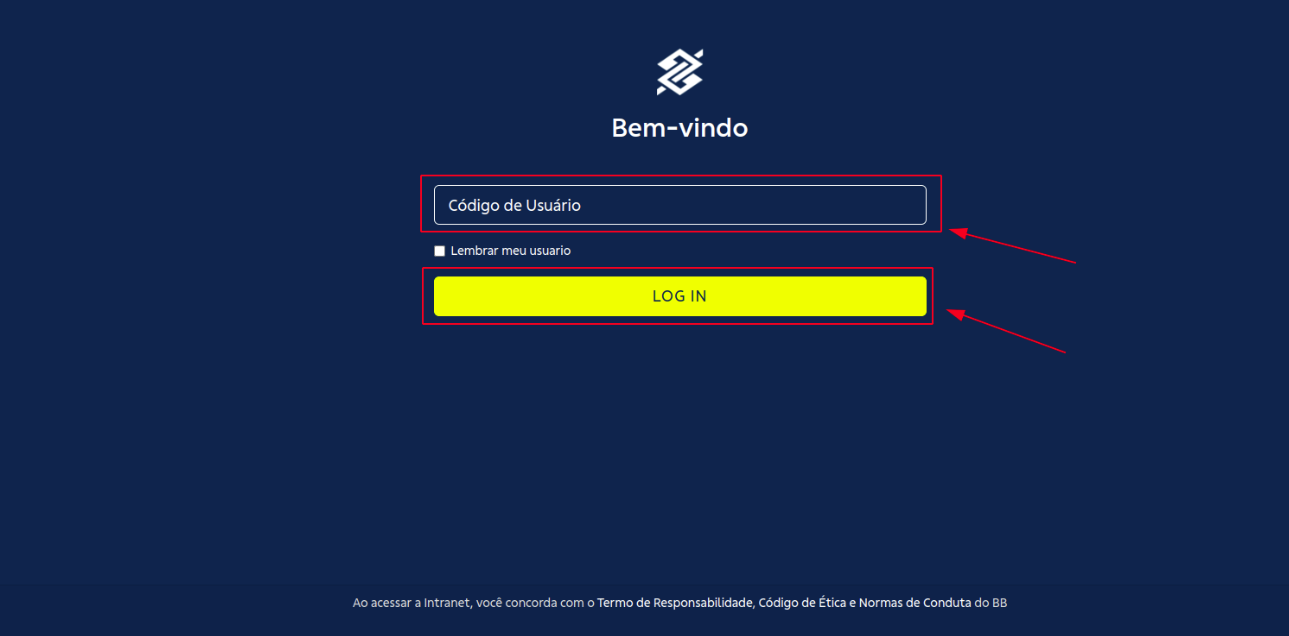
**Ação:** Para realizar o login, primeiro preencha o "**Código de Usuário**" e clique em "**LOG IN**".

[![image.png](https://wiki.oystr.com.br/uploads/images/gallery/2025-07/scaled-1680-/4sSimage.png)](https://wiki.oystr.com.br/uploads/images/gallery/2025-07/4sSimage.png)
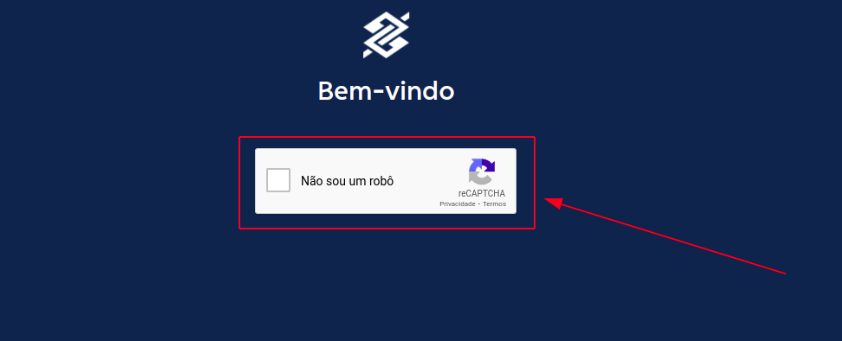
**Ação:** Conclua a verificação captcha.

[![image.png](https://wiki.oystr.com.br/uploads/images/gallery/2025-07/scaled-1680-/x4ximage.png)](https://wiki.oystr.com.br/uploads/images/gallery/2025-07/x4ximage.png)
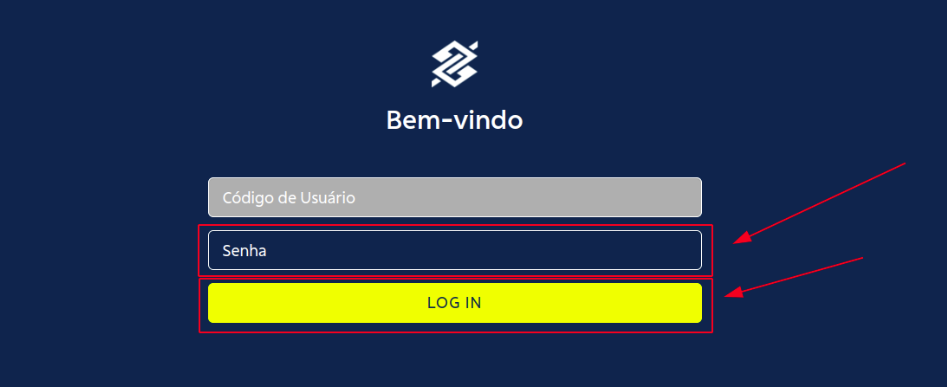
**Ação:** Preencha a "**Senha**" e clique em "**LOG IN**" novamente.

[![image.png](https://wiki.oystr.com.br/uploads/images/gallery/2025-07/scaled-1680-/1hoimage.png)](https://wiki.oystr.com.br/uploads/images/gallery/2025-07/1hoimage.png)
</td></tr><tr style="height: 479.344px;"><td style="height: 479.344px;">####  1º Fluxo coletar as notificações

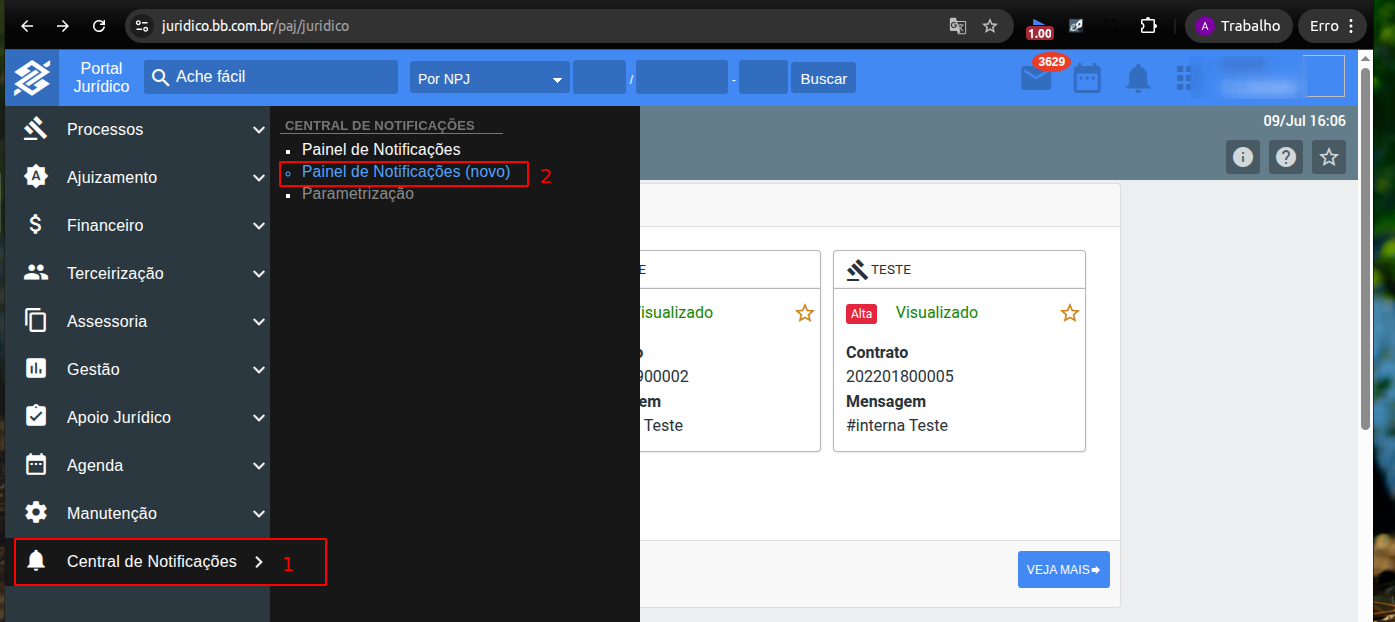
**Ação:** Ao acessar o portal, clique em "**Central de Notificações**" e então em "**Painel de Notificações (novo)**".

[![Primeira tela.png](https://wiki.oystr.com.br/uploads/images/gallery/2025-07/scaled-1680-/primeira-tela.png)](https://wiki.oystr.com.br/uploads/images/gallery/2025-07/primeira-tela.png)
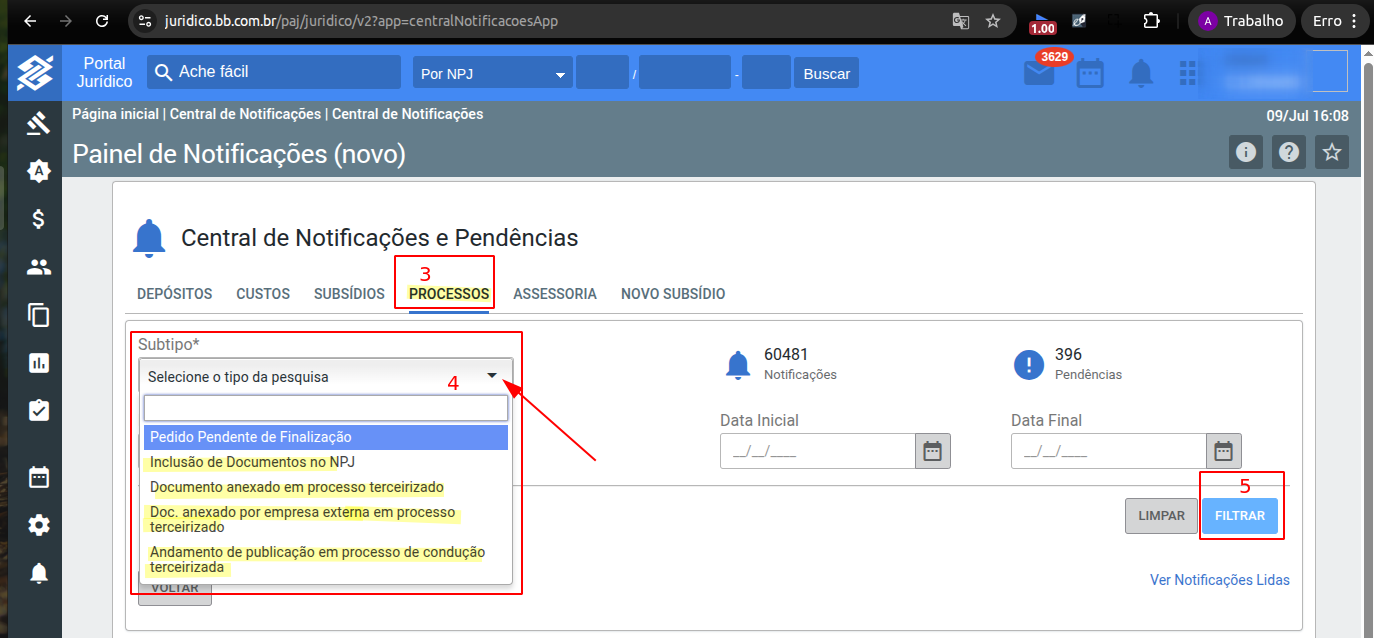
</td></tr><tr style="height: 409.531px;"><td style="height: 409.531px;">**Ação:** Clique na "**ABA PROCESSO**" depois selecione o **SUBTIPO** deseja e clique em "**FILTRAR**".

[![Segunda tela.png](https://wiki.oystr.com.br/uploads/images/gallery/2025-07/scaled-1680-/segunda-tela.png)](https://wiki.oystr.com.br/uploads/images/gallery/2025-07/segunda-tela.png)
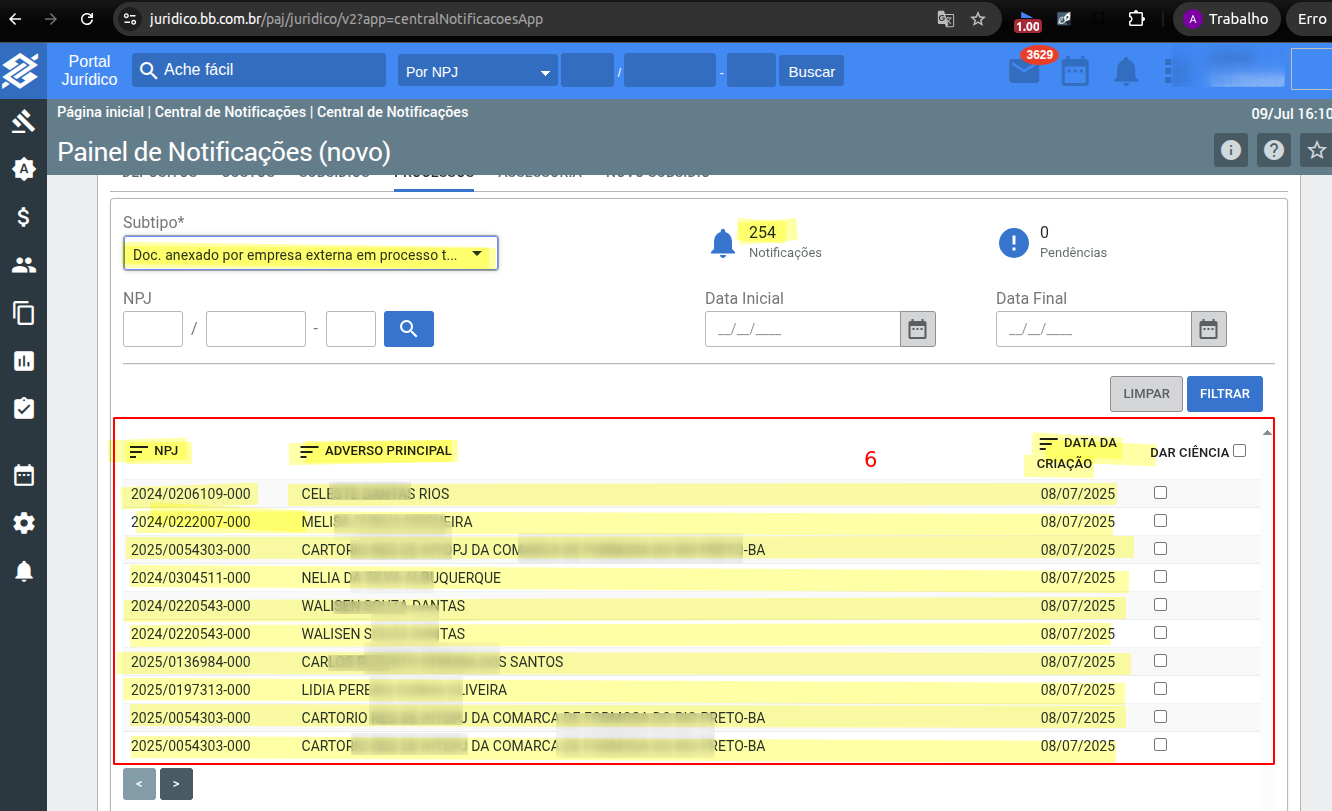
</td></tr><tr style="height: 598.203px;"><td style="height: 598.203px;">**Ação:**  Após listar as notificações coletar todo os dados.

[![Terceria tela.png](https://wiki.oystr.com.br/uploads/images/gallery/2025-07/scaled-1680-/terceria-tela.png)](https://wiki.oystr.com.br/uploads/images/gallery/2025-07/terceria-tela.png)
##### <span style="background-color: rgb(241, 196, 15);">Fim do 1 fluxo</span>

</td></tr><tr style="height: 505.953px;"><td style="height: 505.953px;">####  2º Fluxo processar as informações.

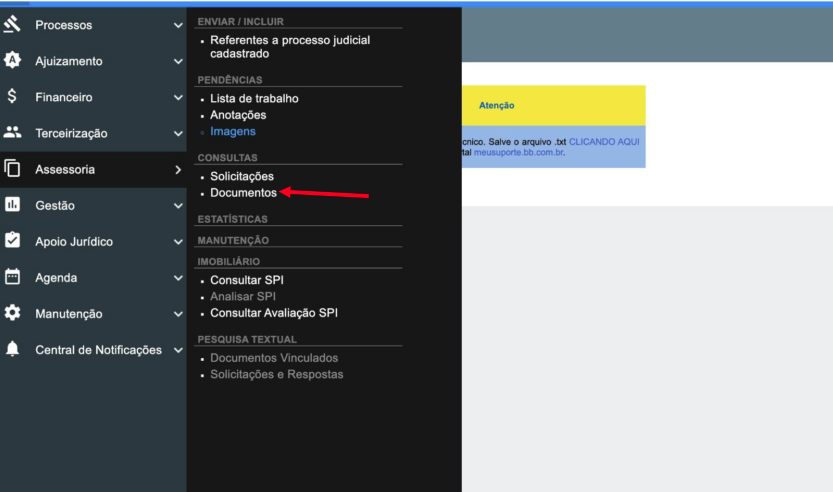
1 - Acessa o menu ASSESSORIA;

2 - Acessa o submenu DOCUMENTOS que se encontra do GRUPO CONSULTAS.

[![image.png](https://wiki.oystr.com.br/uploads/images/gallery/2025-07/scaled-1680-/xXsimage.png)](https://wiki.oystr.com.br/uploads/images/gallery/2025-07/xXsimage.png)
</td></tr><tr><td>2º Passo – Pesquisar pelo numero de Rastreamento

[![image.png](https://wiki.oystr.com.br/uploads/images/gallery/2025-07/scaled-1680-/je9image.png)](https://wiki.oystr.com.br/uploads/images/gallery/2025-07/je9image.png)
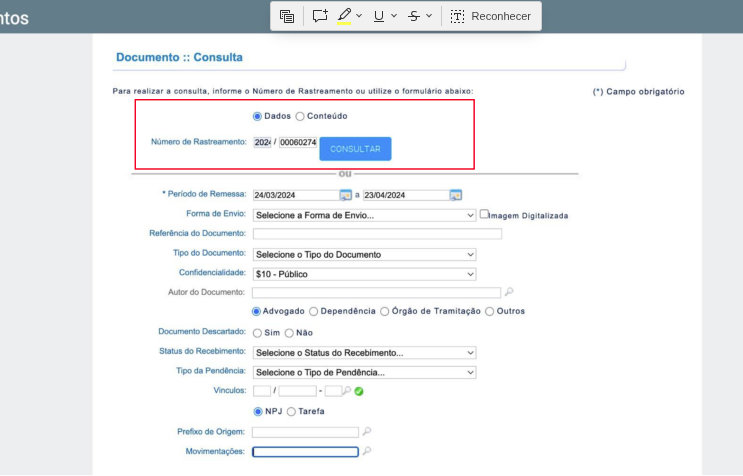
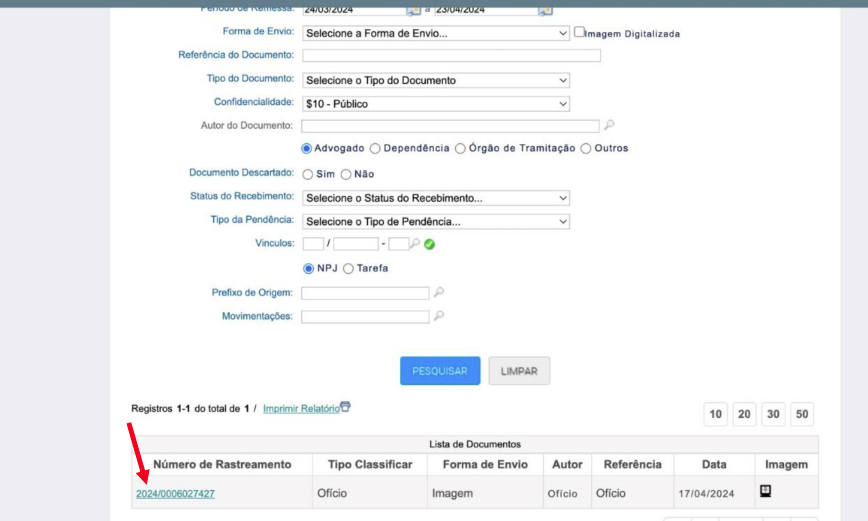
</td></tr><tr><td>3º Passo - Após consultar, seguir até o final da página e localizar o resultado da pesquisa e o numero de rastreio destacado em azul e clicar

[![image.png](https://wiki.oystr.com.br/uploads/images/gallery/2025-07/scaled-1680-/mcRimage.png)](https://wiki.oystr.com.br/uploads/images/gallery/2025-07/mcRimage.png)
</td></tr><tr><td>4º Passo – Dentro do rastreamento, estará localizado o documento, e o link para download em “Imagem digitalizada”

[![image.png](https://wiki.oystr.com.br/uploads/images/gallery/2025-07/scaled-1680-/TKDimage.png)](https://wiki.oystr.com.br/uploads/images/gallery/2025-07/TKDimage.png)
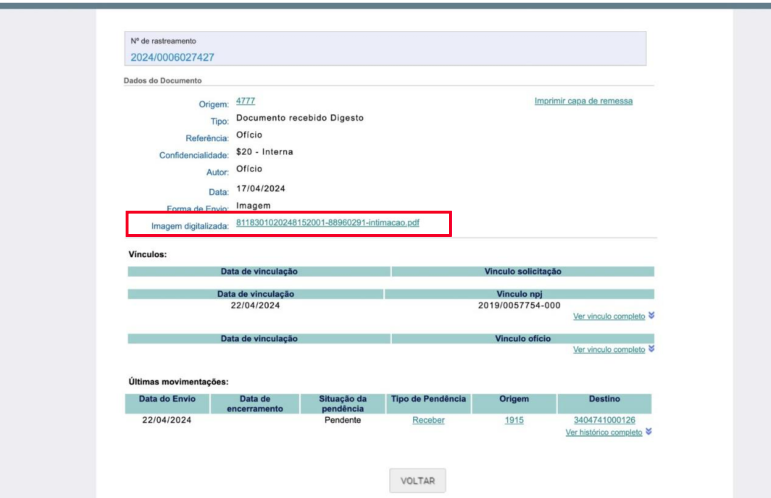
</td></tr><tr><td>  
</td></tr></tbody></table>

#### <span class="align-center">**2.2 Proto Queue** </span>

### SIM --&gt; BBJurIntimacaoQueueBot.class

#### <span class="align-center">**2.3 Bot** </span>

### **3 Dados de entrada**

<p class="callout info"><span class="align-center"> **Tabela XLS/XML**</span></p>

<p class="callout warning">Campo **FORMATAÇÃO** deve ser preenchido apenas se a formatação do campo for restritiva, ex: regex @Pattern no QueueLoader</p>

<table border="1" id="bkmrk-se%C3%87%C3%83o-propriedade-co" style="width: 108.642%; height: 464.313px;"><tbody><tr style="height: 46.5938px;"><td style="width: 8.28183%; height: 46.5938px;">SEÇÃO</td><td style="width: 13.8443%; height: 46.5938px;">PROPRIEDADE</td><td style="width: 12.979%; height: 46.5938px;">XLS</td><td style="width: 12.8577%; height: 46.5938px;">XML</td><td style="width: 15.4489%; height: 46.5938px;">CAMPO OBRIGATÓRIO</td><td style="width: 16.6873%; height: 46.5938px;">FORMATAÇÃO</td><td style="width: 19.9011%; height: 46.5938px;">DESCRIÇÃO</td><td style="width: 0%; height: 46.5938px;">  
</td><td style="width: 0%; height: 46.5938px;">  
</td><td style="width: 0.123609%; height: 46.5938px;">  
</td></tr><tr style="height: 147.375px;"><td style="width: 8.28183%; height: 147.375px;">  
</td><td style="width: 13.8443%; height: 147.375px;">integracao</td><td style="width: 12.979%; height: 147.375px;">INTEGRACAO</td><td style="width: 12.8577%; height: 147.375px;">integracao</td><td style="width: 15.4489%; height: 147.375px;">Sim</td><td style="width: 16.6873%; height: 147.375px;">  
</td><td style="width: 19.9011%; height: 147.375px;">Referência para o código da pasta no sistema jurídico, utilizado para identificar e localizar documentos e processos de forma eficiente.</td><td style="width: 0%; height: 147.375px;">  
</td><td style="width: 0%; height: 147.375px;">  
</td><td style="width: 0.123609%; height: 147.375px;">  
</td></tr><tr style="height: 80.1875px;"><td style="width: 8.28183%; height: 80.1875px;">2.2.1 </td><td style="width: 13.8443%; height: 80.1875px;">número do processo</td><td style="width: 12.979%; height: 80.1875px;">PROCESSO</td><td style="width: 12.8577%; height: 80.1875px;">processo</td><td style="width: 15.4489%; height: 80.1875px;">Sim</td><td style="width: 16.6873%; height: 80.1875px;">0001515-15.2025.8.15.1515</td><td style="width: 19.9011%; height: 80.1875px;">Número do processo/pasta que será utilizado para realizar a busca.</td><td style="width: 0%; height: 80.1875px;">  
</td><td style="width: 0%; height: 80.1875px;">  
</td><td style="width: 0.123609%; height: 80.1875px;">  
</td></tr><tr style="height: 63.375px;"><td style="width: 8.28183%; height: 63.375px;">2.2.2</td><td style="width: 13.8443%; height: 63.375px;">andamento</td><td style="width: 12.979%; height: 63.375px;">TIPO\_ANDAMENTO</td><td style="width: 12.8577%; height: 63.375px;">tipo\_andamento</td><td style="width: 15.4489%; height: 63.375px;">Sim</td><td style="width: 16.6873%; height: 63.375px;">  
</td><td style="width: 19.9011%; height: 63.375px;">Tipo do andamento do processo.</td><td style="width: 0%; height: 63.375px;">  
</td><td style="width: 0%; height: 63.375px;">  
</td><td style="width: 0.123609%; height: 63.375px;">  
</td></tr><tr style="height: 46.5938px;"><td style="width: 8.28183%; height: 46.5938px;">2.x.x</td><td style="width: 13.8443%; height: 46.5938px;">Data do andamento</td><td style="width: 12.979%; height: 46.5938px;">DATA\_ANDAMENTO</td><td style="width: 12.8577%; height: 46.5938px;">data\_evento</td><td style="width: 15.4489%; height: 46.5938px;">  
</td><td style="width: 16.6873%; height: 46.5938px;">01/01/2000</td><td style="width: 19.9011%; height: 46.5938px;">  
</td><td style="width: 0%; height: 46.5938px;">  
</td><td style="width: 0.123609%; height: 46.5938px;">  
</td></tr><tr style="height: 80.1875px;"><td style="width: 8.28183%; height: 80.1875px;">2.2.2</td><td style="width: 13.8443%; height: 80.1875px;">natureza</td><td style="width: 12.979%; height: 80.1875px;">NATUREZA</td><td style="width: 12.8577%; height: 80.1875px;">natureza</td><td style="width: 15.4489%; height: 80.1875px;">  
</td><td style="width: 16.6873%; height: 80.1875px;">  
</td><td style="width: 19.9011%; height: 80.1875px;">Natureza do andamento. (Processual, Voluntário, etc).</td><td style="width: 0%; height: 80.1875px;">  
</td><td style="width: 0%; height: 80.1875px;">  
</td><td style="width: 0.123609%; height: 80.1875px;">  
</td></tr></tbody></table>

<p class="callout info">**Tabela Scheduler**</p>

<table border="1" id="bkmrk-nome-valor" style="border-collapse: collapse; width: 100%; height: 59.5938px;"><colgroup><col style="width: 24.9691%;"></col><col style="width: 24.9691%;"></col><col style="width: 50.0618%;"></col></colgroup><tbody><tr style="height: 29.7969px;"><td style="height: 29.7969px;">Nome</td><td>Valor</td><td style="height: 29.7969px;">  
</td></tr><tr style="height: 29.7969px;"><td style="height: 29.7969px;">  
</td><td>  
</td><td style="height: 29.7969px;">  
</td></tr></tbody></table>

#### **4 Restrições e Premissas**


&lt;!-- Descreva quaisquer limitações ou condições assumidas durante a definição dos requisitos. --&gt;

> **Exemplo:**
> 
> - Campo DATA\_ não pode conter uma data anterior ao campo DATA\_PROCESSO
> - Processo deve estar ativo, não pode estar encerrado
> - Arquivos devem estar em tal formato aceito pelo portal (".pdf, .txt")

# bbjur-intimacao-distribuicao

### **<span class="align-center" style="color: rgb(0, 0, 0);">1 Descrição do processo</span>**

#### <span class="align-center" style="color: rgb(0, 0, 0);">**1.2 Programas e Aplicações**  
</span>

<table border="1" id="bkmrk-nome-do-sistema-url-" style="width: 100%; border-collapse: collapse; height: 72.7656px;"><colgroup><col style="width: 50.0508%;" width="60"></col><col style="width: 49.9492%;" width="81"></col></colgroup><tbody><tr style="height: 37.375px; background-color: rgb(41, 127, 213);"><td style="height: 37.375px;"><span style="color: rgb(255, 255, 255);">**Nome do Sistema**</span>

</td><td style="height: 37.375px;"><span style="color: rgb(255, 255, 255);">**URL**</span>

</td></tr><tr style="height: 35.3906px;"><td style="height: 35.3906px;">**BBJUR**

</td><td style="height: 35.3906px;">https://loginweb.bb.com.br/sso/XUI/?realm=paj#login&amp;goto=https%3A%2F%2Fjuridico.bb.com.br%2Fpaj%2Fjuridico</td></tr></tbody></table>

### <span style="color: rgb(0, 0, 0);">**2 Detalhamento do Processo**</span>

#### <span style="color: rgb(0, 0, 0);">**2.1 Robô**</span>

<table border="1" id="bkmrk-" style="border-collapse: collapse; width: 100%; height: 29.7969px;"><colgroup><col style="width: 99.8765%;"></col></colgroup><tbody><tr style="height: 29.7969px;"><td style="height: 29.7969px;">**Sistema**  
</td></tr><tr><td>[![image.png](https://wiki.oystr.com.br/uploads/images/gallery/2024-06/scaled-1680-/QU0image.png)](https://wiki.oystr.com.br/uploads/images/gallery/2024-06/QU0image.png)

</td></tr><tr><td>**Ação:** Para inicio acesse o site do [BBJUR](https://loginweb.bb.com.br/sso/XUI/?realm=paj#login&goto=https%3A%2F%2Fjuridico.bb.com.br%2Fpaj%2Fjuridico).</td></tr></tbody></table>

<table border="1" id="bkmrk-login-a%C3%A7%C3%A3o%3A%C2%A0para-rea" style="border-collapse: collapse; width: 100%;"><colgroup><col style="width: 99.8765%;"></col></colgroup><tbody><tr><td>**Login**  
</td></tr><tr><td>[![image.png](https://wiki.oystr.com.br/uploads/images/gallery/2024-06/scaled-1680-/gnLimage.png)](https://wiki.oystr.com.br/uploads/images/gallery/2024-06/gnLimage.png)

</td></tr><tr><td>**Ação:** Para realizar o login, primeiro preencha o "**Código de Usuário**" e clique em "**LOG IN**".  
</td></tr><tr><td>[![image.png](https://wiki.oystr.com.br/uploads/images/gallery/2024-06/scaled-1680-/i7Limage.png)](https://wiki.oystr.com.br/uploads/images/gallery/2024-06/i7Limage.png)

</td></tr><tr><td>**Ação:** Conclua a verificação captcha.</td></tr><tr><td>[![image.png](https://wiki.oystr.com.br/uploads/images/gallery/2024-06/scaled-1680-/1iFimage.png)](https://wiki.oystr.com.br/uploads/images/gallery/2024-06/1iFimage.png)

</td></tr><tr><td>**Ação:** Preencha a "**Senha**" e clique em "**LOG IN**" novamente.</td></tr></tbody></table>


<table border="1" id="bkmrk-passo-a-passo-a%C3%A7%C3%A3o%3A%C2%A0" style="border-collapse: collapse; width: 100%; height: 1854.03px;"><colgroup><col style="width: 99.8765%;"></col></colgroup><tbody><tr style="height: 29.7969px;"><td style="height: 29.7969px;">**Passo a passo**  
</td></tr><tr style="height: 400.906px;"><td style="height: 400.906px;">[![image.png](https://wiki.oystr.com.br/uploads/images/gallery/2024-06/scaled-1680-/7iiimage.png)](https://wiki.oystr.com.br/uploads/images/gallery/2024-06/7iiimage.png)

</td></tr><tr style="height: 29.7969px;"><td style="height: 29.7969px;">**Ação:** Ao acessar o portal, clique em "**Assessoria**" e então em "**Documentos**".  
</td></tr><tr style="height: 394.125px;"><td style="height: 394.125px;">[![image.png](https://wiki.oystr.com.br/uploads/images/gallery/2024-06/scaled-1680-/4dBimage.png)](https://wiki.oystr.com.br/uploads/images/gallery/2024-06/4dBimage.png)

</td></tr><tr style="height: 29.7969px;"><td style="height: 29.7969px;">**Ação:** Insira o "**Número de Rastreamento**" e clique em "**Consultar**".</td></tr><tr style="height: 394.641px;"><td style="height: 394.641px;">[![image.png](https://wiki.oystr.com.br/uploads/images/gallery/2024-06/scaled-1680-/UR9image.png)](https://wiki.oystr.com.br/uploads/images/gallery/2024-06/UR9image.png)

</td></tr><tr style="height: 29.7969px;"><td style="height: 29.7969px;">**Ação:** Ao encontrar, clique no número de rastreio destacado.</td></tr><tr style="height: 515.375px;"><td style="height: 515.375px;">[![image.png](https://wiki.oystr.com.br/uploads/images/gallery/2024-06/scaled-1680-/LStimage.png)](https://wiki.oystr.com.br/uploads/images/gallery/2024-06/LStimage.png)

</td></tr><tr style="height: 29.7969px;"><td style="height: 29.7969px;">**Ação:** Ao entrar, clique no texto destacado ao lado de "**Imagem digitalizada**" e faça o download do documento.</td></tr></tbody></table>

#### <span style="color: rgb(0, 0, 0);">**2.1 Alterações**</span>

### <span style="color: rgb(0, 0, 0);">**3 **Regras de Negócio****</span>

#### <span style="color: rgb(0, 0, 0);">****3.1 **Arquivo de entrada do robô******</span>

##### <span style="color: rgb(0, 0, 0);">**3.1.1 XLS**</span>

<table border="1" id="bkmrk-descri%C3%87%C3%83o-propriedad" style="width: 100%; border-collapse: collapse; height: 64.125px;"><colgroup><col style="width: 50.0508%;" width="60"></col><col style="width: 49.9492%;" width="81"></col></colgroup><tbody><tr style="height: 37.375px; background-color: rgb(41, 127, 213);"><td style="height: 37.375px;"><span style="color: rgb(255, 255, 255);">**DESCRIÇÃO**</span>

</td><td style="height: 37.375px;"><span style="color: rgb(255, 255, 255);">**PROPRIEDADE**</span>

</td></tr><tr style="height: 26.75px;"><td style="height: 26.75px;"></td><td style="height: 26.75px;">  
</td></tr></tbody></table>

##### <span style="color: rgb(0, 0, 0);">**3.1.2 XML**</span>

<table border="1" id="bkmrk-descri%C3%87%C3%83o-propriedad-1" style="width: 100%; border-collapse: collapse; height: 64.125px;"><colgroup><col style="width: 50.0508%;" width="60"></col><col style="width: 49.9492%;" width="81"></col></colgroup><tbody><tr style="height: 37.375px; background-color: rgb(41, 127, 213);"><td style="height: 37.375px;"><span style="color: rgb(255, 255, 255);">**DESCRIÇÃO**</span>

</td><td style="height: 37.375px;"><span style="color: rgb(255, 255, 255);">**PROPRIEDADE**</span>

</td></tr><tr style="height: 26.75px;"><td style="height: 26.75px;"></td><td style="height: 26.75px;">  
</td></tr></tbody></table>

##### <span style="color: rgb(0, 0, 0);">**3.1.3 FILTROS**</span>

<table border="1" id="bkmrk-descri%C3%87%C3%83o-propriedad-2" style="width: 100%; border-collapse: collapse; height: 64.125px;"><colgroup><col style="width: 50.0508%;" width="60"></col><col style="width: 49.9492%;" width="81"></col></colgroup><tbody><tr style="height: 37.375px; background-color: rgb(41, 127, 213);"><td style="height: 37.375px;"><span style="color: rgb(255, 255, 255);">**DESCRIÇÃO**</span>

</td><td style="height: 37.375px;"><span style="color: rgb(255, 255, 255);">**PROPRIEDADE**</span>

</td></tr><tr style="height: 26.75px;"><td style="height: 26.75px;"></td><td style="height: 26.75px;">  
</td></tr></tbody></table>

#### <span style="color: rgb(0, 0, 0);">**3.1 **Arquivo de saída****</span>

# bbjur-novo-custas-consulta

### **<span class="align-center">1 Introdução</span>**

#### <span class="align-center">**1.1 **Escopo****</span>

> Esta documentação abrange todas as funcionalidades e configurações do \[bbjur-novo-custas-consulta\] , incluindo:
> 
> - Pesquisa uma nova solicitação de custa pelo NPJ;
> - Acesso ao NPJ;
> - Preencher os campos do formulário e anexar o documento;
> - Validação dos campos;
> - Selecionar a forma de liquidação e concluir.

#### <span class="align-center">**1.2 Url de acesso**</span>

> https://juridico.bb.com.br/paj/juridico

### **2 Fluxo de Trabalho**

<p class="callout info">Deve conter prints de **TODO** o processo do robô, indicando por meio de setas/caixas onde clicar. Se necessário, pode conter texto explicando detalhes e nuances do processo do portal.</p>

#### <span class="align-center">**2.1 **Login**** </span>

<table border="1" id="bkmrk-1---valide-os-campos" style="border-collapse: collapse; width: 100%;"><colgroup><col style="width: 99.8765%;"></col></colgroup><tbody><tr><td>1 - Digite o usuário e clicar em "**LOG IN"** .[![vTPimage.png](https://wiki.oystr.com.br/uploads/images/gallery/2025-04/scaled-1680-/vtpimage.png)](https://wiki.oystr.com.br/uploads/images/gallery/2025-04/vtpimage.png)
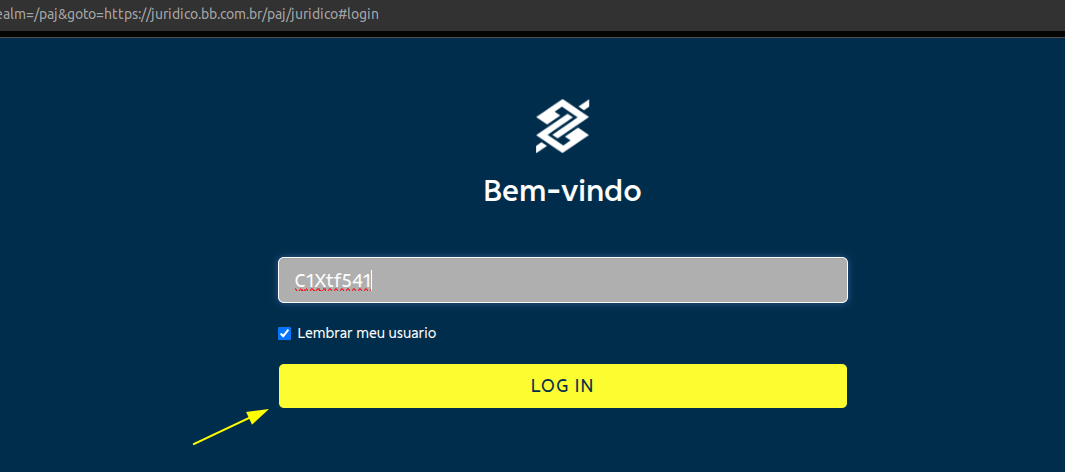
[![image.png](https://wiki.oystr.com.br/uploads/images/gallery/2025-04/scaled-1680-/KRjimage.png)](https://wiki.oystr.com.br/uploads/images/gallery/2025-04/KRjimage.png)
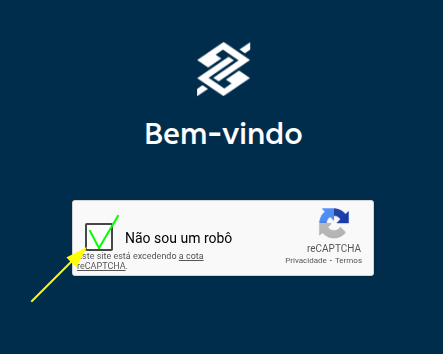
</td></tr><tr><td>2 - Digite a senha e clicar em "**LOG IN**".

[![image.png](https://wiki.oystr.com.br/uploads/images/gallery/2025-04/scaled-1680-/YKHimage.png)](https://wiki.oystr.com.br/uploads/images/gallery/2025-04/YKHimage.png)
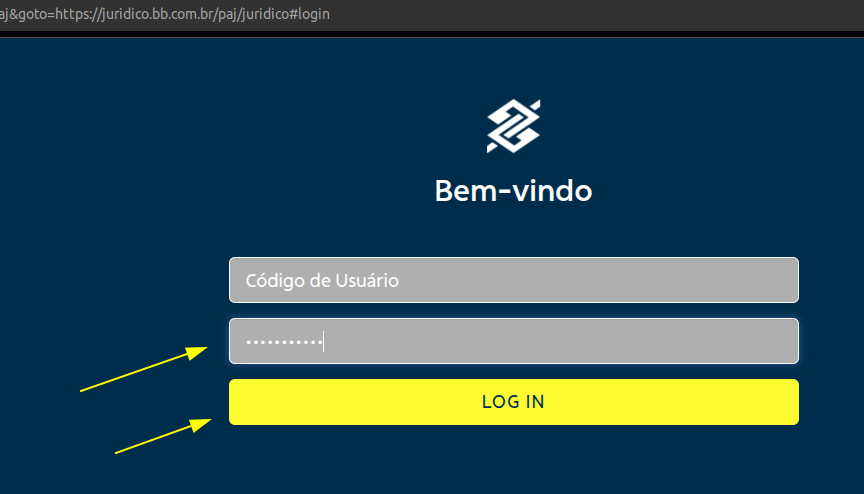
</td></tr><tr><td>Acesse o portal:  
1 – Clique em financeiro  
2 – Clique em novo custo

[![image.png](https://wiki.oystr.com.br/uploads/images/gallery/2025-05/scaled-1680-/yiaimage.png)](https://wiki.oystr.com.br/uploads/images/gallery/2025-05/yiaimage.png)
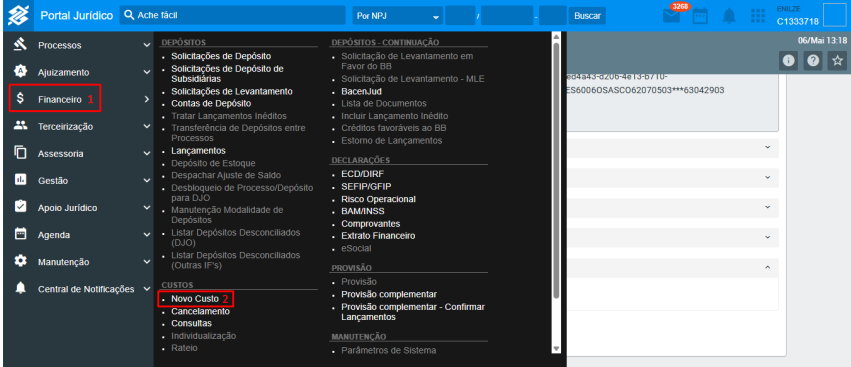
</td></tr><tr><td>3 – Insira o NPJ  
4 – Busque a custa, conforme dados enviados na planilha  
5 – Encontrada a custa respectiva, clique no ícone i

[![image.png](https://wiki.oystr.com.br/uploads/images/gallery/2025-05/scaled-1680-/9HFimage.png)](https://wiki.oystr.com.br/uploads/images/gallery/2025-05/9HFimage.png)
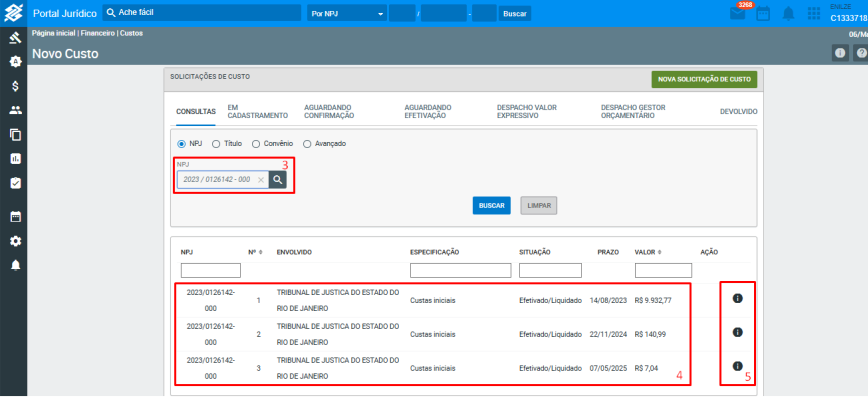
</td></tr><tr><td>6 – Desça a barra de rolagem e clique em Comprovantes  
7 – Clique na opção de download do comprovante

[![image.png](https://wiki.oystr.com.br/uploads/images/gallery/2025-05/scaled-1680-/mPDimage.png)](https://wiki.oystr.com.br/uploads/images/gallery/2025-05/mPDimage.png)
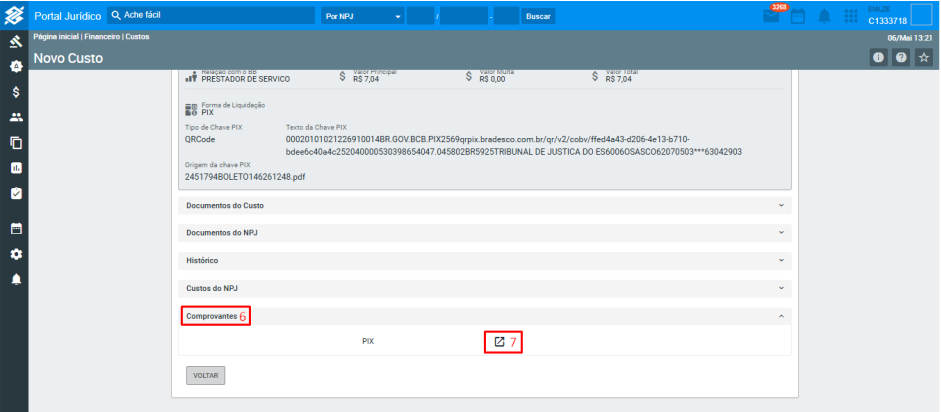
</td></tr><tr><td>8 - Comprovante será disponibilizado:

[![image.png](https://wiki.oystr.com.br/uploads/images/gallery/2025-05/scaled-1680-/sMcimage.png)](https://wiki.oystr.com.br/uploads/images/gallery/2025-05/sMcimage.png)

</td></tr></tbody></table>


####  

#### <span class="align-center">**2.2 Proto Queue (Se houver)**</span>

#### <span class="align-center">**2.3 Bot**</span>

- <span class="align-center"><span style="color: rgb(35, 111, 161);">BBJurConsultaCustoBot.class</span>  
    </span>

### **3 Dados de entrada**

<p class="callout info"><span class="align-center"> **Tabela XLS/XML**</span></p>

<p class="callout warning">Campo **FORMATAÇÃO** deve ser preenchido apenas se a formatação do campo for restritiva, ex: regex @Pattern no QueueLoader</p>

<table border="1" id="bkmrk-se%C3%87%C3%83o-propriedade-co" style="width: 100%; height: 883.646px;"><tbody><tr style="height: 46.6667px;"><td style="width: 8.90129%; height: 46.6667px;">SEÇÃO</td><td style="width: 17.5553%; height: 46.6667px;">PROPRIEDADE</td><td style="width: 17.5553%; height: 46.6667px;">XLS</td><td style="width: 16.5663%; height: 46.6667px;">CAMPO OBRIGATÓRIO</td><td style="width: 17.9262%; height: 46.6667px;">FORMATAÇÃO</td><td style="width: 21.3878%; height: 46.6667px;">DESCRIÇÃO</td><td style="width: 0%; height: 46.6667px;">  
</td><td style="width: 0%; height: 46.6667px;">  
</td><td style="width: 0.123629%; height: 46.6667px;">  
</td></tr><tr style="height: 147.396px;"><td style="width: 8.90129%; height: 147.396px;">1</td><td style="width: 17.5553%; height: 147.396px;">integracao</td><td style="width: 17.5553%; height: 147.396px;">INTEGRACAO</td><td style="width: 16.5663%; height: 147.396px;">Sim</td><td style="width: 17.9262%; height: 147.396px;">  
</td><td style="width: 21.3878%; height: 147.396px;">Referência para o código da pasta no sistema jurídico, utilizado para identificar e localizar documentos e processos de forma eficiente.</td><td style="width: 0%; height: 147.396px;">  
</td><td style="width: 0%; height: 147.396px;">  
</td><td style="width: 0.123629%; height: 147.396px;">  
</td></tr><tr style="height: 80.2431px;"><td style="width: 8.90129%; height: 80.2431px;">2 </td><td style="width: 17.5553%; height: 80.2431px;">npj</td><td style="width: 17.5553%; height: 80.2431px;">NPJ</td><td style="width: 16.5663%; height: 80.2431px;">Sim</td><td style="width: 17.9262%; height: 80.2431px;">20110119718000</td><td style="width: 21.3878%; height: 80.2431px;">Número do processo/pasta que será utilizado para realizar a busca.</td><td style="width: 0%; height: 80.2431px;">  
</td><td style="width: 0%; height: 80.2431px;">  
</td><td style="width: 0.123629%; height: 80.2431px;">  
</td></tr><tr style="height: 63.3681px;"><td style="width: 8.90129%; height: 63.3681px;">3</td><td style="width: 17.5553%; height: 63.3681px;">barCode</td><td style="width: 17.5553%; height: 63.3681px;">NUMERO\_BOLETO</td><td style="width: 16.5663%; height: 63.3681px;">Sim</td><td style="width: 17.9262%; height: 63.3681px;">  
</td><td style="width: 21.3878%; height: 63.3681px;">Tipo do andamento do processo.</td><td style="width: 0%; height: 63.3681px;">  
</td><td style="width: 0%; height: 63.3681px;">  
</td><td style="width: 0.123629%; height: 63.3681px;">  
</td></tr><tr style="height: 46.5799px;"><td style="width: 8.90129%; height: 46.5799px;">4</td><td style="width: 17.5553%; height: 46.5799px;">Data</td><td style="width: 17.5553%; height: 46.5799px;">PRAZO</td><td style="width: 16.5663%; height: 46.5799px;">Sim</td><td style="width: 17.9262%; height: 46.5799px;">01/01/2000</td><td style="width: 21.3878%; height: 46.5799px;">  
</td><td style="width: 0%; height: 46.5799px;">  
</td><td style="width: 0.123629%; height: 46.5799px;">  
</td></tr><tr style="height: 80.2431px;"><td style="width: 8.90129%; height: 80.2431px;">5</td><td style="width: 17.5553%; height: 80.2431px;">cpf</td><td style="width: 17.5553%; height: 80.2431px;">NATUREZA</td><td style="width: 16.5663%; height: 80.2431px;">  
</td><td style="width: 17.9262%; height: 80.2431px;">  
</td><td style="width: 21.3878%; height: 80.2431px;">Natureza do andamento. (Processual, Voluntário, etc).</td><td style="width: 0%; height: 80.2431px;">  
</td><td style="width: 0%; height: 80.2431px;">  
</td><td style="width: 0.123629%; height: 80.2431px;">  
</td></tr><tr style="height: 46.5451px;"><td style="width: 8.90129%; height: 46.5451px;">6</td><td style="width: 17.5553%; height: 46.5451px;">involved</td><td style="width: 17.5553%; height: 46.5451px;">BENEFICIARIO</td><td style="width: 16.5663%; height: 46.5451px;">Sim</td><td style="width: 17.9262%; height: 46.5451px;">  
</td><td style="width: 21.3878%; height: 46.5451px;">  
</td><td style="width: 0%; height: 46.5451px;">  
</td><td style="width: 0.123629%; height: 46.5451px;">  
</td></tr><tr style="height: 46.5451px;"><td style="width: 8.90129%; height: 46.5451px;">7</td><td style="width: 17.5553%; height: 46.5451px;">isBoundDoc</td><td style="width: 17.5553%; height: 46.5451px;">  
</td><td style="width: 16.5663%; height: 46.5451px;">  
</td><td style="width: 17.9262%; height: 46.5451px;">  
</td><td style="width: 21.3878%; height: 46.5451px;">  
</td><td style="width: 0%; height: 46.5451px;">  
</td><td style="width: 0.123629%; height: 46.5451px;">  
</td></tr><tr style="height: 46.6667px;"><td style="width: 8.90129%; height: 46.6667px;">8</td><td style="width: 17.5553%; height: 46.6667px;">numDocument</td><td style="width: 17.5553%; height: 46.6667px;">NUMERO\_DOCUMENTO</td><td style="width: 16.5663%; height: 46.6667px;">Sim</td><td style="width: 17.9262%; height: 46.6667px;">  
</td><td style="width: 21.3878%; height: 46.6667px;">  
</td><td style="width: 0%; height: 46.6667px;">  
</td><td style="width: 0.123629%; height: 46.6667px;">  
</td></tr><tr style="height: 46.5451px;"><td style="width: 8.90129%; height: 46.5451px;">9</td><td style="width: 17.5553%; height: 46.5451px;">page</td><td style="width: 17.5553%; height: 46.5451px;">  
</td><td style="width: 16.5663%; height: 46.5451px;">  
</td><td style="width: 17.9262%; height: 46.5451px;">  
</td><td style="width: 21.3878%; height: 46.5451px;">  
</td><td style="width: 0%; height: 46.5451px;">  
</td><td style="width: 0.123629%; height: 46.5451px;">  
</td></tr><tr style="height: 46.5451px;"><td style="width: 8.90129%; height: 46.5451px;">10</td><td style="width: 17.5553%; height: 46.5451px;">situation</td><td style="width: 17.5553%; height: 46.5451px;">  
</td><td style="width: 16.5663%; height: 46.5451px;">  
</td><td style="width: 17.9262%; height: 46.5451px;">  
</td><td style="width: 21.3878%; height: 46.5451px;">  
</td><td style="width: 0%; height: 46.5451px;">  
</td><td style="width: 0.123629%; height: 46.5451px;">  
</td></tr><tr style="height: 46.5451px;"><td style="width: 8.90129%; height: 46.5451px;">11</td><td style="width: 17.5553%; height: 46.5451px;">specification</td><td style="width: 17.5553%; height: 46.5451px;">ESPECIFICACAO</td><td style="width: 16.5663%; height: 46.5451px;">  
</td><td style="width: 17.9262%; height: 46.5451px;">  
</td><td style="width: 21.3878%; height: 46.5451px;">  
</td><td style="width: 0%; height: 46.5451px;">  
</td><td style="width: 0.123629%; height: 46.5451px;">  
</td></tr><tr style="height: 46.5451px;"><td style="width: 8.90129%; height: 46.5451px;">12</td><td style="width: 17.5553%; height: 46.5451px;">tipoBusca</td><td style="width: 17.5553%; height: 46.5451px;">  
</td><td style="width: 16.5663%; height: 46.5451px;">  
</td><td style="width: 17.9262%; height: 46.5451px;">  
</td><td style="width: 21.3878%; height: 46.5451px;">  
</td><td style="width: 0%; height: 46.5451px;">  
</td><td style="width: 0.123629%; height: 46.5451px;">  
</td></tr><tr style="height: 46.6667px;"><td style="width: 8.90129%; height: 46.6667px;">13</td><td style="width: 17.5553%; height: 46.6667px;">typeDocument</td><td style="width: 17.5553%; height: 46.6667px;">TIPOS\_DOCUMENTO</td><td style="width: 16.5663%; height: 46.6667px;">Sim</td><td style="width: 17.9262%; height: 46.6667px;">  
</td><td style="width: 21.3878%; height: 46.6667px;">  
</td><td style="width: 0%; height: 46.6667px;">  
</td><td style="width: 0.123629%; height: 46.6667px;">  
</td></tr><tr style="height: 46.5451px;"><td style="width: 8.90129%; height: 46.5451px;">14</td><td style="width: 17.5553%; height: 46.5451px;">valor</td><td style="width: 17.5553%; height: 46.5451px;">VALOR\_PRINCIPAL</td><td style="width: 16.5663%; height: 46.5451px;">Sim</td><td style="width: 17.9262%; height: 46.5451px;">  
</td><td style="width: 21.3878%; height: 46.5451px;">  
</td><td style="width: 0%; height: 46.5451px;">  
</td><td style="width: 0.123629%; height: 46.5451px;">  
</td></tr></tbody></table>

<p class="callout info">**Tabela Scheduler**</p>

<table border="1" id="bkmrk-nome-valor" style="border-collapse: collapse; width: 100%; height: 328.663px;"><colgroup><col style="width: 29.787%;"></col><col style="width: 20.1581%;"></col><col style="width: 50.0687%;"></col></colgroup><tbody><tr style="height: 29.8785px;"><td style="height: 29.8785px;">**NOME**</td><td style="height: 29.8785px;">**VALOR**</td><td style="height: 29.8785px;">  
</td></tr><tr style="height: 29.8785px;"><td style="height: 29.8785px;">**Trazer:**</td><td style="height: 29.8785px;">**Opções de Filtro**</td><td style="height: 29.8785px;">  
</td></tr><tr style="height: 29.8785px;"><td style="height: 29.8785px;">Apenas comprovante</td><td style="height: 29.8785px;">comprovante</td><td style="height: 29.8785px;">  
</td></tr><tr style="height: 29.8785px;"><td style="height: 29.8785px;">Guia e comprovante</td><td style="height: 29.8785px;">guia-comprovante</td><td style="height: 29.8785px;">  
</td></tr><tr style="height: 29.8785px;"><td style="height: 29.8785px;">Todos os arquivos da solicitação</td><td style="height: 29.8785px;">todos-arquivos</td><td style="height: 29.8785px;">  
</td></tr><tr style="height: 29.8785px;"><td style="height: 29.8785px;">  
</td><td style="height: 29.8785px;">  
</td></tr><tr style="height: 29.8785px;"><td style="height: 29.8785px;">**Pesquisar por:**</td><td style="height: 29.8785px;">**Opções de Filtro**</td><td style="height: 29.8785px;">  
</td></tr><tr style="height: 29.8785px;"><td style="height: 29.8785px;">Processo</td><td style="height: 29.8785px;">processo</td><td style="height: 29.8785px;">  
</td></tr><tr style="height: 29.8785px;"><td style="height: 29.8785px;">Código de barras</td><td style="height: 29.8785px;">codBarras</td><td style="height: 29.8785px;">  
</td></tr><tr style="height: 29.8785px;"><td style="height: 29.8785px;">CPF</td><td style="height: 29.8785px;">avancadoCpf</td><td style="height: 29.8785px;">  
</td></tr><tr style="height: 29.8785px;"><td style="height: 29.8785px;">NPJ e Valor</td><td style="height: 29.8785px;">npjValor</td><td style="height: 29.8785px;">  
</td></tr><tr><td>NPJ e Codigo de barras</td><td>barraprocesso</td><td>  
</td></tr><tr><td>  
</td><td>  
</td><td>  
</td></tr><tr><td>**Remover primeira página da consulta quando fizer download:**</td><td>**Opções de Filtro**</td><td>  
</td></tr><tr><td>Sim</td><td>yes</td><td>  
</td></tr><tr><td>Não</td><td>no</td><td>  
</td></tr></tbody></table>


#### **4 Restrições e Premissas**


&lt;!-- Descreva quaisquer limitações ou condições assumidas durante a definição dos requisitos. --&gt;

> **Exemplo:**
> 
> - Campo DATA\_ não pode conter uma data anterior ao campo DATA\_PROCESSO
> - Processo deve estar ativo, não pode estar encerrado
> - Arquivos devem estar em tal formato aceito pelo portal (".pdf, .txt")

# bbjur-npj-consulta-financeiro

### **<span class="align-center" style="color: rgb(0, 0, 0);">1 Introdução</span>**

#### <span class="align-center" style="color: rgb(0, 0, 0);">**1.1 Objetivo** </span>

O robô tem como objeito acessar o portal do BBJUR e realizar uma consulta e obtenção de dados. Para isso, o robô pesquisa o processo pelo seu número de NPJ, acessa e salva as informações da lista na aba de "Terceirização".

#### <span class="align-center" style="color: rgb(0, 0, 0);">**1.2 Portal**</span>

<table border="1" id="bkmrk-sistema-url" style="border-collapse: collapse; width: 100%; height: 59.5938px;"><colgroup><col style="width: 49.0705%;"></col><col style="width: 50.9295%;"></col></colgroup><tbody><tr style="height: 29.7969px;"><td style="height: 29.7969px;">SISTEMA</td><td style="height: 29.7969px;">URL</td></tr><tr style="height: 29.7969px;"><td style="height: 29.7969px;">bbjur</td><td style="height: 29.7969px;">https://loginweb.bb.com.br/sso/XUI/?realm=paj#login&amp;goto=https%3A%2F%2Fjuridico.bb.com.br%2Fpaj%2Fjuridico</td></tr></tbody></table>

#### <span class="align-center" style="color: rgb(0, 0, 0);">**1.3 **Escopo****</span>

**Escopo da Documentação:**

- Resolução de Captcha;
- Validação da busca do processo pelo número de NPJ;
- Listar informações;
- Trazer como resposta do robô as informações listadas.

### <span style="color: rgb(0, 0, 0);">**2 Fluxo de Trabalho**</span>

#### <span class="align-center" style="color: rgb(0, 0, 0);">**2.1 **Login****</span>

<table border="1" id="bkmrk-1---valide-o-campo-%22" style="border-collapse: collapse; width: 100%;"><colgroup><col style="width: 99.8765%;"></col></colgroup><tbody><tr><td>1 - Valide o campo "Usuário" e clique em "Login".

[![image.png](https://wiki.oystr.com.br/uploads/images/gallery/2024-08/scaled-1680-/27timage.png)](https://wiki.oystr.com.br/uploads/images/gallery/2024-08/27timage.png)

</td></tr><tr><td>2 - Resolva o **captcha.**

[![image.png](https://wiki.oystr.com.br/uploads/images/gallery/2024-08/scaled-1680-/RiQimage.png)](https://wiki.oystr.com.br/uploads/images/gallery/2024-08/RiQimage.png)

</td></tr><tr><td>3 - Valide o campo "**Senha**" e clique em "**Log In**".

[![image.png](https://wiki.oystr.com.br/uploads/images/gallery/2024-08/scaled-1680-/r7Aimage.png)](https://wiki.oystr.com.br/uploads/images/gallery/2024-08/r7Aimage.png)

</td></tr></tbody></table>

#### <span class="align-center" style="color: rgb(0, 0, 0);">**2.2 Bot** </span>

<table border="1" id="bkmrk-1---informe-o-n%C3%BAmero" style="border-collapse: collapse; width: 100%;"><colgroup><col style="width: 99.8765%;"></col></colgroup><tbody><tr><td>1 - Informe o número de "**NPJ**" e clique em "**Buscar**".

[![image.png](https://wiki.oystr.com.br/uploads/images/gallery/2024-08/scaled-1680-/Xjzimage.png)](https://wiki.oystr.com.br/uploads/images/gallery/2024-08/Xjzimage.png)

</td></tr><tr><td>2 - Clique no ícone destacado "**Detalhar**".

[![image.png](https://wiki.oystr.com.br/uploads/images/gallery/2024-08/scaled-1680-/1DOimage.png)](https://wiki.oystr.com.br/uploads/images/gallery/2024-08/1DOimage.png)

</td></tr><tr><td>3 - Clique na opção "**Financeiro**".

[![image.png](https://wiki.oystr.com.br/uploads/images/gallery/2024-08/scaled-1680-/HuWimage.png)](https://wiki.oystr.com.br/uploads/images/gallery/2024-08/HuWimage.png)

</td></tr><tr><td>4 - Acesse a aba "**Terceirização**".

[![image.png](https://wiki.oystr.com.br/uploads/images/gallery/2024-08/scaled-1680-/BIpimage.png)](https://wiki.oystr.com.br/uploads/images/gallery/2024-08/BIpimage.png)

</td></tr><tr><td>5 - Liste todos os dados das colunas: "**Contratado**", "**Fatura**", "**Evento**", "**Data**", "**Pagamento**", "**Valor**".

[![image.png](https://wiki.oystr.com.br/uploads/images/gallery/2024-08/scaled-1680-/WHximage.png)](https://wiki.oystr.com.br/uploads/images/gallery/2024-08/WHximage.png)

</td></tr></tbody></table>

#### <span class="align-center" style="color: rgb(0, 0, 0);">**2.3 Referências**</span>

<table border="1" id="bkmrk-se%C3%87%C3%83o-propriedade-co" style="width: 100%;"><tbody><tr><td style="width: 19.1595%;">SEÇÃO</td><td style="width: 18.9122%;">PROPRIEDADE</td><td style="width: 16.5637%;">COLUNA</td><td style="width: 14.3422%;">  
</td><td style="width: 31.0224%;">DESCRIÇÃO</td></tr><tr><td style="width: 19.1595%;">-</td><td style="width: 18.9122%;">integracao</td><td style="width: 16.5637%;">INTEGRACAO</td><td style="width: 14.3422%;">Opcional</td><td style="width: 31.0224%;">Referência para o código da pasta no sistema jurídico, utilizado para identificar e localizar documentos e processos de forma eficiente.</td></tr><tr><td style="width: 19.1595%;">-</td><td style="width: 18.9122%;">idTramitacao</td><td style="width: 16.5637%;">ID\_TRAMITACAO</td><td style="width: 14.3422%;">Opcional</td><td style="width: 31.0224%;">Referência para o código da tramitação no sistema jurídico, utilizado para acompanhar e identificar o status e o progresso dos processos dentro do sistema.</td></tr><tr><td style="width: 19.1595%;">2.2.1</td><td style="width: 18.9122%;">processo</td><td style="width: 16.5637%;">PROCESSO</td><td style="width: 14.3422%;">**Obrigatório**</td><td style="width: 31.0224%;">Número do NPJ que será utilizado na validação do campo referente a pesquisa no sistema</td></tr><tr><td style="width: 19.1595%;">2.2.3</td><td style="width: 18.9122%;">contratado</td><td style="width: 16.5637%;">CONTRATADO</td><td style="width: 14.3422%;">**Obrigatório**</td><td style="width: 31.0224%;">Informação referente ao Contratado, que consta no sistema do BBJUR.</td></tr><tr><td style="width: 19.1595%;">2.2.3</td><td style="width: 18.9122%;">fatura</td><td style="width: 16.5637%;">FATURA</td><td style="width: 14.3422%;">**Obrigatório**</td><td style="width: 31.0224%;">Informação referente a FATURA, que consta no sistema do BBJUR.</td></tr><tr><td style="width: 19.1595%;">2.2.3</td><td style="width: 18.9122%;">evento</td><td style="width: 16.5637%;">EVENTO</td><td style="width: 14.3422%;">**Obrigatório**</td><td style="width: 31.0224%;">Informação referente ao EVENTO, que consta no sistema do BBJUR.</td></tr><tr><td style="width: 19.1595%;">2.2.3</td><td style="width: 18.9122%;">data</td><td style="width: 16.5637%;">DATA</td><td style="width: 14.3422%;">**Obrigatório**</td><td style="width: 31.0224%;">Informação referente a Data, que consta no sistema do BBJUR.</td></tr><tr><td style="width: 19.1595%;">2.2.3</td><td style="width: 18.9122%;">pagamento</td><td style="width: 16.5637%;">PAGAMENTO</td><td style="width: 14.3422%;">**Obrigatório**</td><td style="width: 31.0224%;">Informação referente ao PAGAMENTO, que consta no sistema do BBJUR.</td></tr><tr><td style="width: 19.1595%;">2.2.3</td><td style="width: 18.9122%;">valor</td><td style="width: 16.5637%;">VALOR</td><td style="width: 14.3422%;">**Obrigatório**</td><td style="width: 31.0224%;">Informação referente ao VALOR, que consta no sistema do BBJUR.</td></tr></tbody></table>

<span class="align-center" style="color: rgb(0, 0, 0);">  
</span>

### **3 Restrições e Premissas** 

#### **3.1 - Restrições**

1. **Tipo de busca**
    - O sistema realiza a busca do processo no formato NPJ.
2. **Campos a serem obtidos:**  
    
    - O robô apenas pode obter os campos presentes na aba "Terceirização";
    - Campos: "Contratado", "Fatura", "Evento", "Data", "Pagamento", "Valor".

#### **3.2 - Premissas**

1. **Número de NPJ:**
    - É assumido que o número de NPJ informado existe.
2. **Listar informações:**  
    
    - É assumido que, no processo informado, exista as informações necessárias;
    - Informações necessária das colunas: "Contratado", "Fatura", "Evento", "Data", "Pagamento", "Valor".

### **4 Critérios de Aceitação**

1. **Captcha:**
    - O robô deve ser capaz de resolver captcha.
2. **Busca do Processo:**
    - O robô deve ser capaz de realizar a busca do processo pelo número de NPJ.
3. **Listar informações:**  
    
    - O robô deve ser capaz de obter as informações presentes nos campos: "Contratado", "Fatura", "Evento", "Data", "Pagamento", "Valor".
4. **Confirmação da Tarefa:**  
    
    - O robô deve ser capaz de salvar e trazer como resposta as informações obtidas.


### **5 Descrição Funcional**

#### <span class="align-center" style="color: rgb(0, 0, 0);">**5.1 **Funcionalidades****</span>

O robô desenvolvido possui as seguintes funcionalidades:

1. **Captcha:**
    - O robô é capaz de solucionar captcha, para logar no sistema.
2. **Busca do processo:**
    - O robô é capaz de realizar a busca do processo pelo número de NPJ.
3. **Listar informações:**  
    
    - O robô é capaz de obter as informações presentes nos campos: "Contratado", "Fatura", "Evento", "Data", "Pagamento", "Valor".
4. **Confirmação da Tarefa:**  
    
    - O robô é capaz de salvar e trazer como resposta as informações obtidas.

#### <span class="align-center" style="color: rgb(0, 0, 0);">**5.2 **Requisitos Funcionais****</span>

Para que o robô funcione corretamente, os seguintes requisitos funcionais devem ser atendidos:

1. **Busca do processo:**
    - O sistema deve validar se o número de NPJ informado na busca está correto e retorna resposta, antes de permitir que o robô siga para o próximo passo - *Referência (2.2 Bot - subtópico 2.2.1 - Busca Processo )*;
2. **Informações Necessárias:**  
    
    - O sistema deve possuir informações nas colunas dos campos: "Contratado", "Fatura", "Evento", "Data", "Pagamento", "Valor" - *Referência(3.1 Restrições - subtópico 2)*.

# bbjur-provision-new

### **<span class="align-center">1 Introdução</span>**

#### <span class="align-center">**1.1 **Escopo****</span>

> Esta documentação abrange todas as funcionalidades e configurações do bbjur-provision-new , incluindo:
> 
> - Pesquisa pelo número do processo;
> - Acesso ao Processo;
> - Criação de um novo custo;
> - Validação dos campos;

#### <span class="align-center">**1.2 Url de acesso**</span>

[<span class="align-center">https://loginweb.bb.com.br/sso/XUI/?realm=/paj&amp;goto=https://juridico.bb.com.br/paj/juridico#login</span>](https://loginweb.bb.com.br/sso/XUI/?realm=/paj&amp;goto=https://juridico.bb.com.br/paj/juridico#login)

### **2 Fluxo de Trabalho**

#### <span class="align-center">**2.1 **Login (Se houver)****</span>

<span class="align-center">****Exemplo:****</span>

<table border="1" id="bkmrk-1---valide-os-campos" style="border-collapse: collapse; width: 100%;"><colgroup><col style="width: 100%;"></col></colgroup><tbody><tr><td>1 - Preencher o **usuário**;

2 - Clique em **LOGIN**;

[![image.png](https://wiki.oystr.com.br/uploads/images/gallery/2025-06/scaled-1680-/8rximage.png)](https://wiki.oystr.com.br/uploads/images/gallery/2025-06/8rximage.png)
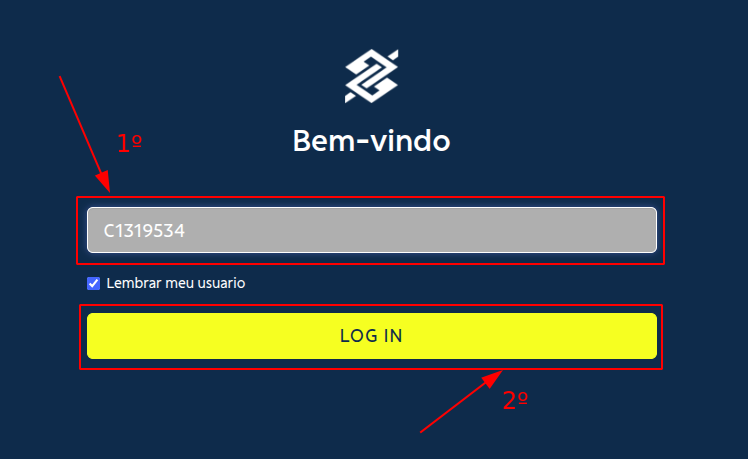
[![image.png](https://wiki.oystr.com.br/uploads/images/gallery/2025-06/scaled-1680-/8Fkimage.png)](https://wiki.oystr.com.br/uploads/images/gallery/2025-06/8Fkimage.png)
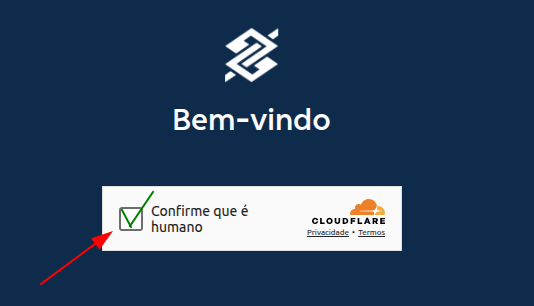
</td></tr><tr><td>1 - Preencher a senha;

2 - Clique em LOGIN.

[![image.png](https://wiki.oystr.com.br/uploads/images/gallery/2025-06/scaled-1680-/fV1image.png)](https://wiki.oystr.com.br/uploads/images/gallery/2025-06/fV1image.png)
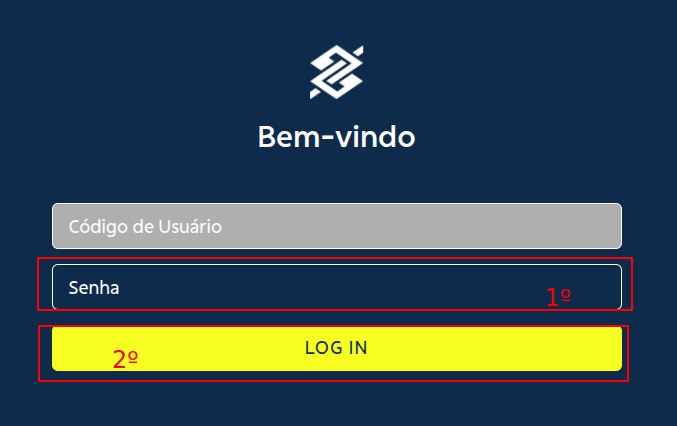
</td></tr><tr><td>Após acessar

1 - Clique no menu **Financeiro**;

2 - Clique no sub-menu **Novo Custo**.

[![image.png](https://wiki.oystr.com.br/uploads/images/gallery/2025-06/scaled-1680-/PZsimage.png)](https://wiki.oystr.com.br/uploads/images/gallery/2025-06/PZsimage.png)
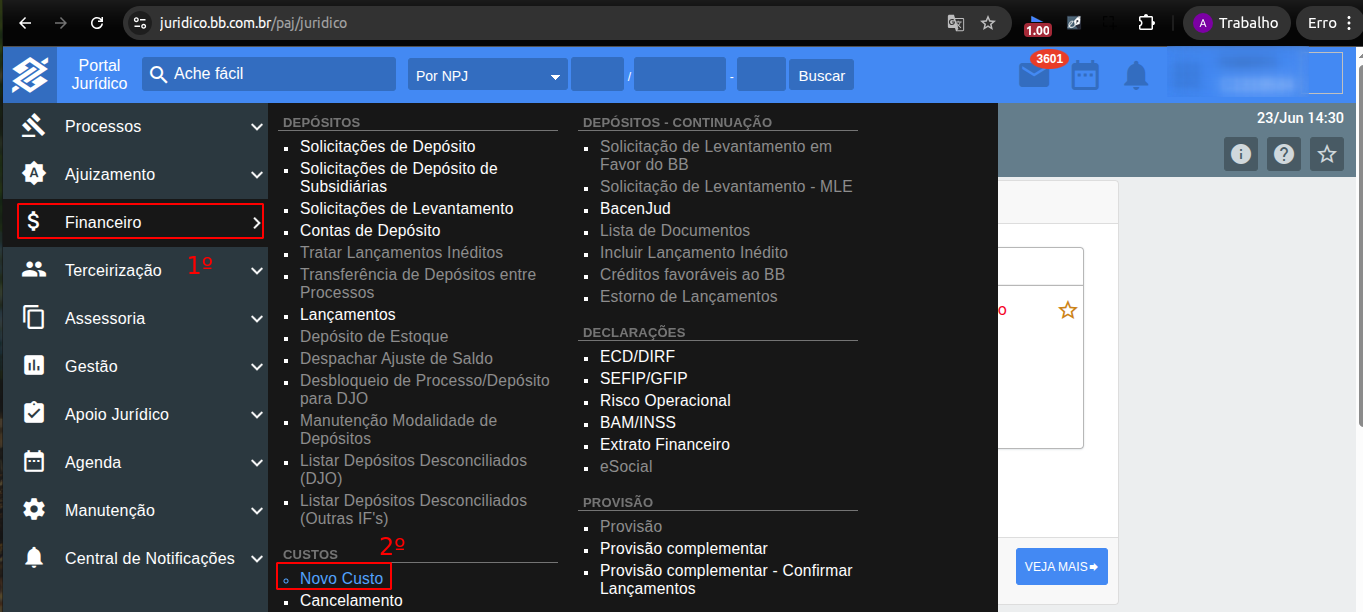
</td></tr><tr><td>Na tela de solicitação de custo

1 - Clique no botão **NOVA SOLICITAÇÃO DE CUSTO**

[![image.png](https://wiki.oystr.com.br/uploads/images/gallery/2025-06/scaled-1680-/6h1image.png)](https://wiki.oystr.com.br/uploads/images/gallery/2025-06/6h1image.png)
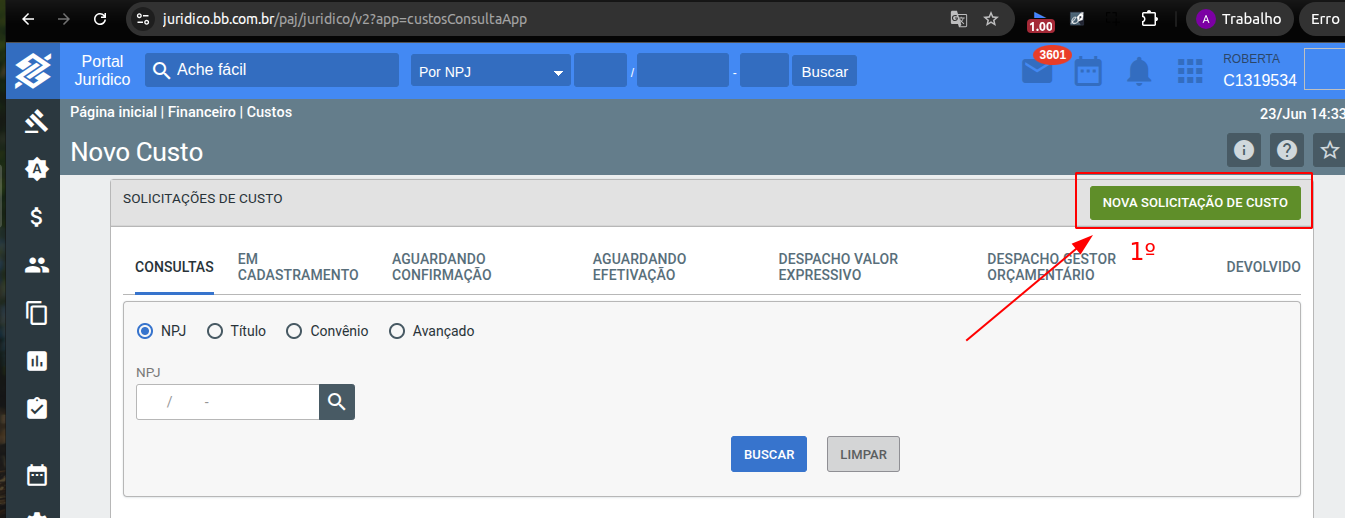
</td></tr><tr><td>Em nova solicitação de Custa  
1 - Preencher **NPJ**;

2 - Clique em **SELECIONAR**.

[![image.png](https://wiki.oystr.com.br/uploads/images/gallery/2025-06/scaled-1680-/pGvimage.png)](https://wiki.oystr.com.br/uploads/images/gallery/2025-06/pGvimage.png)
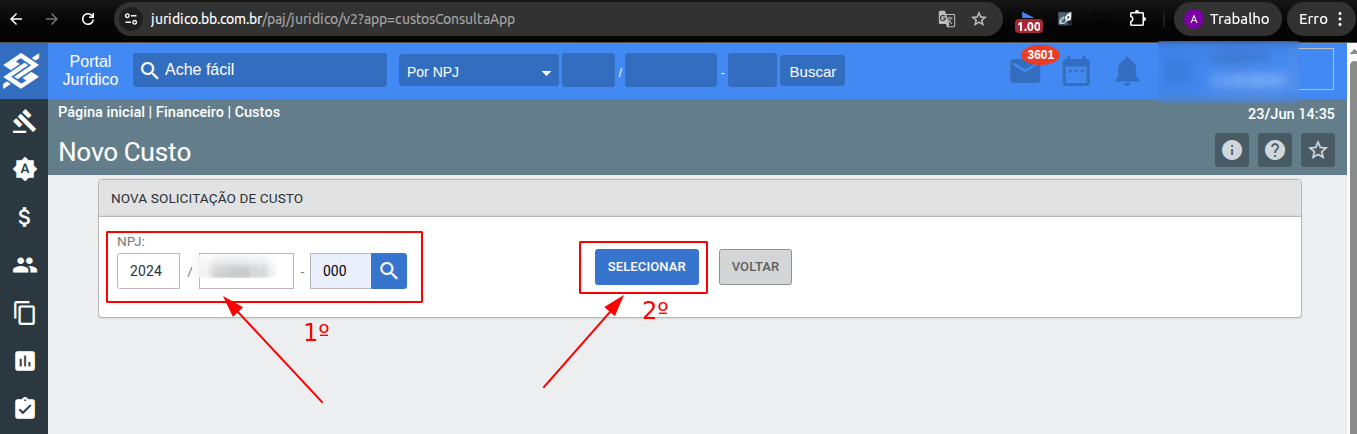
</td></tr><tr><td>Nessa tela de NOVO CUSTO

1 - Preencher todos os campos.

2 - Clique no botão **PRÓXIMO PASSO**.

[![image.png](https://wiki.oystr.com.br/uploads/images/gallery/2025-06/scaled-1680-/CAiimage.png)](https://wiki.oystr.com.br/uploads/images/gallery/2025-06/CAiimage.png)
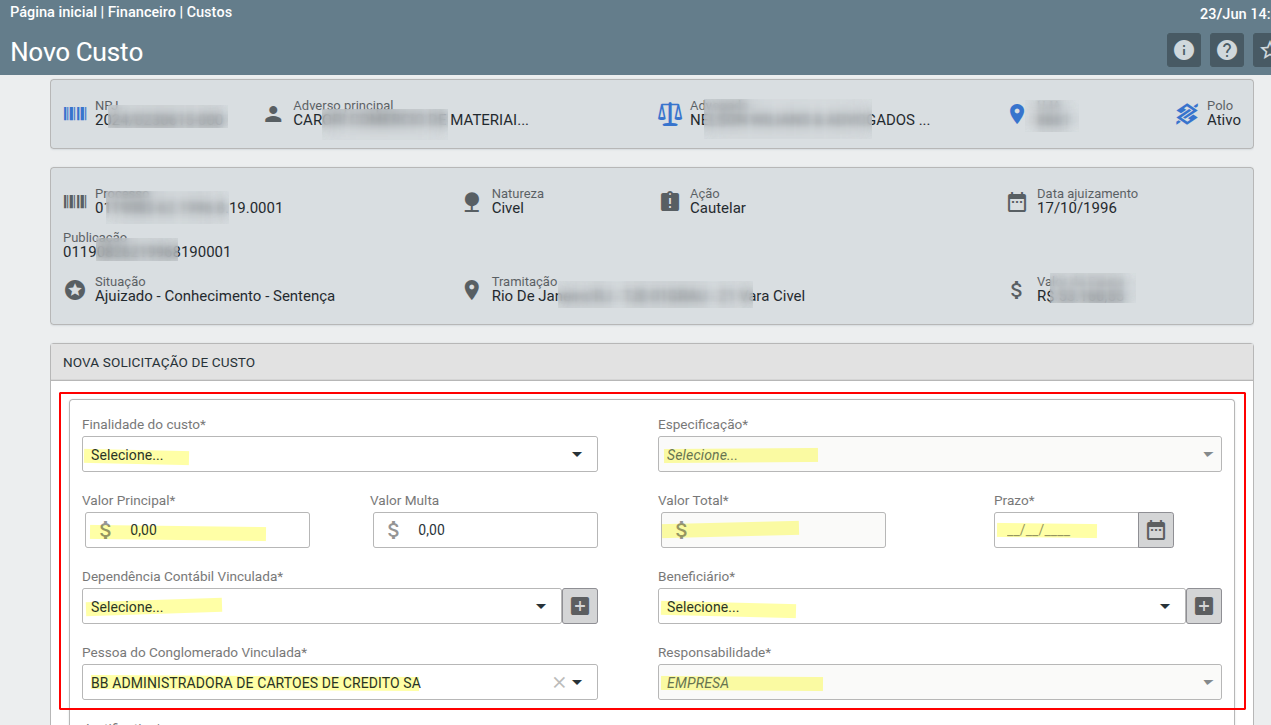
[![image.png](https://wiki.oystr.com.br/uploads/images/gallery/2025-06/scaled-1680-/uB0image.png)](https://wiki.oystr.com.br/uploads/images/gallery/2025-06/uB0image.png)
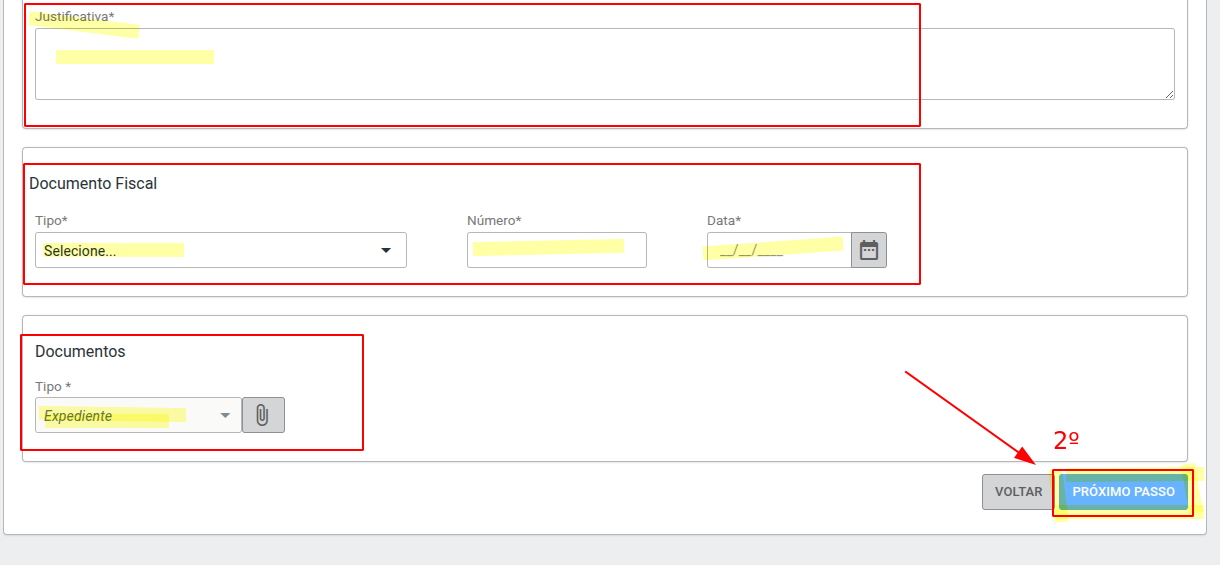
</td></tr><tr><td>Após clicar em Próximo passo, abrirá um novo passo, e descendo a página irá encontrar a tela abaixo.  
10: Selecione a opção de forma de liquidação constante na planilha, neste caso específico seria PIX. Após selecionar PIX, abrirá outras opções  
abaixo.  
11: Selecione a opção Decodificar QRCode do Anexo  
12: Nos documentos do custo, aparecerá os documentos que foram anexados anteriormente. Nesta etapa específica deverá selecionar o  
documento BOLETO.

[![image.png](https://wiki.oystr.com.br/uploads/images/gallery/2025-06/scaled-1680-/rmJimage.png)](https://wiki.oystr.com.br/uploads/images/gallery/2025-06/rmJimage.png)
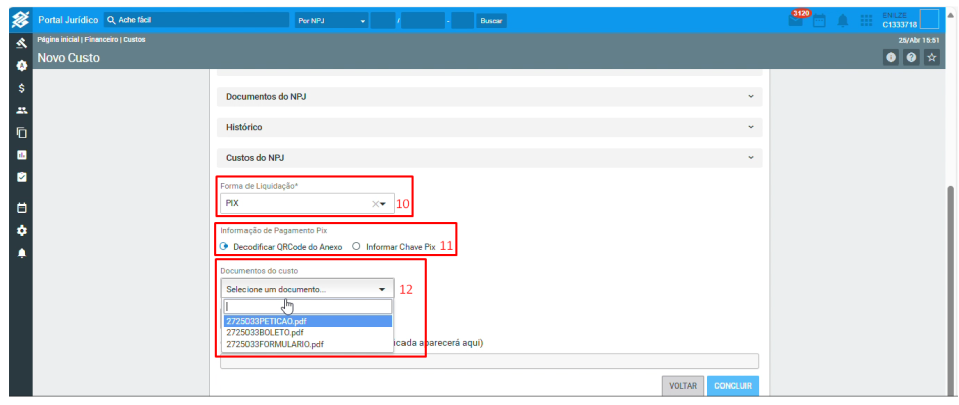
</td></tr><tr><td>13: Selecione a opção BOLETO  
14: Clique em decodificar QRCODE  
15: Clique em CONCLUIR

[![image.png](https://wiki.oystr.com.br/uploads/images/gallery/2025-06/scaled-1680-/7P7image.png)](https://wiki.oystr.com.br/uploads/images/gallery/2025-06/7P7image.png)
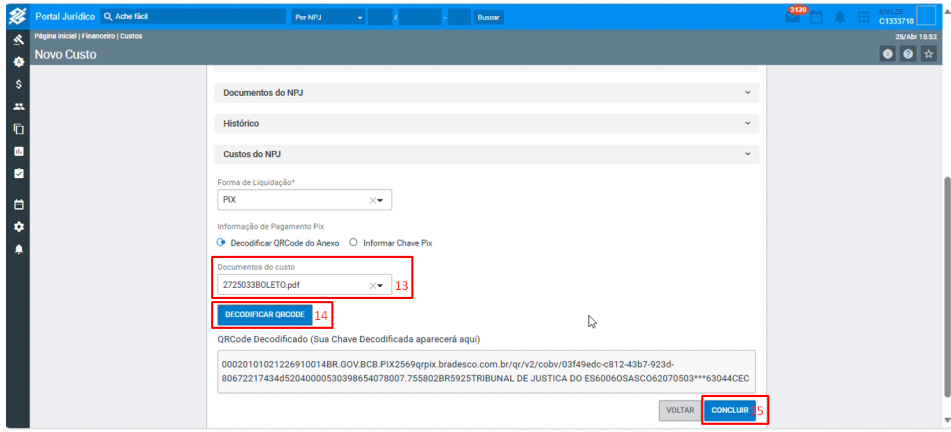
</td></tr></tbody></table>

#### <span class="align-center">**2.2 Proto Queue (Se houver)**</span>

#### <span class="align-center">**2.3 Bot** </span>

### **3 Dados de entrada**

<p class="callout info"><span class="align-center"> **Tabela XLS/XML**</span></p>

<p class="callout warning">Campo **FORMATAÇÃO** deve ser preenchido apenas se a formatação do campo for restritiva, ex: regex @Pattern no QueueLoader</p>

<table border="1" id="bkmrk-se%C3%87%C3%83o-propriedade-co" style="width: 108.642%; height: 464.313px;"><tbody><tr style="height: 46.5938px;"><td style="width: 8.28183%; height: 46.5938px;">SEÇÃO</td><td style="width: 13.8443%; height: 46.5938px;">PROPRIEDADE</td><td style="width: 12.979%; height: 46.5938px;">XLS</td><td style="width: 12.8577%; height: 46.5938px;">XML</td><td style="width: 15.4489%; height: 46.5938px;">CAMPO OBRIGATÓRIO</td><td style="width: 16.6873%; height: 46.5938px;">FORMATAÇÃO</td><td style="width: 19.9011%; height: 46.5938px;">DESCRIÇÃO</td><td style="width: 0%; height: 46.5938px;">  
</td><td style="width: 0%; height: 46.5938px;">  
</td><td style="width: 0.123609%; height: 46.5938px;">  
</td></tr><tr style="height: 147.375px;"><td style="width: 8.28183%; height: 147.375px;">  
</td><td style="width: 13.8443%; height: 147.375px;">integracao</td><td style="width: 12.979%; height: 147.375px;">INTEGRACAO</td><td style="width: 12.8577%; height: 147.375px;">integracao</td><td style="width: 15.4489%; height: 147.375px;">Sim</td><td style="width: 16.6873%; height: 147.375px;">  
</td><td style="width: 19.9011%; height: 147.375px;">Referência para o código da pasta no sistema jurídico, utilizado para identificar e localizar documentos e processos de forma eficiente.</td><td style="width: 0%; height: 147.375px;">  
</td><td style="width: 0%; height: 147.375px;">  
</td><td style="width: 0.123609%; height: 147.375px;">  
</td></tr><tr style="height: 80.1875px;"><td style="width: 8.28183%; height: 80.1875px;">2.2.1 </td><td style="width: 13.8443%; height: 80.1875px;">número NPJ</td><td style="width: 12.979%; height: 80.1875px;">NPJ</td><td style="width: 12.8577%; height: 80.1875px;">processo</td><td style="width: 15.4489%; height: 80.1875px;">Sim</td><td style="width: 16.6873%; height: 80.1875px;">0001515-15.2025.8.15.1515</td><td style="width: 19.9011%; height: 80.1875px;">Número do processo/pasta que será utilizado para realizar a busca.</td><td style="width: 0%; height: 80.1875px;">  
</td><td style="width: 0%; height: 80.1875px;">  
</td><td style="width: 0.123609%; height: 80.1875px;">  
</td></tr><tr style="height: 63.375px;"><td style="width: 8.28183%; height: 63.375px;">2.2.2</td><td style="width: 13.8443%; height: 63.375px;">  
</td><td style="width: 12.979%; height: 63.375px;">  
</td><td style="width: 12.8577%; height: 63.375px;">  
</td><td style="width: 15.4489%; height: 63.375px;">  
</td><td style="width: 16.6873%; height: 63.375px;">  
</td><td style="width: 19.9011%; height: 63.375px;">  
</td><td style="width: 0%; height: 63.375px;">  
</td><td style="width: 0.123609%; height: 63.375px;">  
</td></tr><tr style="height: 46.5938px;"><td style="width: 8.28183%; height: 46.5938px;">2.x.x</td><td style="width: 13.8443%; height: 46.5938px;">  
</td><td style="width: 12.979%; height: 46.5938px;">  
</td><td style="width: 12.8577%; height: 46.5938px;">  
</td><td style="width: 15.4489%; height: 46.5938px;">  
</td><td style="width: 16.6873%; height: 46.5938px;">  
</td><td style="width: 19.9011%; height: 46.5938px;">  
</td><td style="width: 0%; height: 46.5938px;">  
</td><td style="width: 0.123609%; height: 46.5938px;">  
</td></tr><tr style="height: 80.1875px;"><td style="width: 8.28183%; height: 80.1875px;">2.2.2</td><td style="width: 13.8443%; height: 80.1875px;">  
</td><td style="width: 12.979%; height: 80.1875px;">  
</td><td style="width: 12.8577%; height: 80.1875px;">  
</td><td style="width: 15.4489%; height: 80.1875px;">  
</td><td style="width: 16.6873%; height: 80.1875px;">  
</td><td style="width: 19.9011%; height: 80.1875px;">  
</td><td style="width: 0%; height: 80.1875px;">  
</td><td style="width: 0.123609%; height: 80.1875px;">  
</td></tr></tbody></table>

<p class="callout info">**Tabela Scheduler**</p>

<table border="1" id="bkmrk-nome-valor" style="border-collapse: collapse; width: 100%; height: 59.5938px;"><colgroup><col style="width: 24.9691%;"></col><col style="width: 24.9691%;"></col><col style="width: 50.0618%;"></col></colgroup><tbody><tr style="height: 29.7969px;"><td style="height: 29.7969px;">Nome</td><td>Valor</td><td style="height: 29.7969px;">  
</td></tr><tr style="height: 29.7969px;"><td style="height: 29.7969px;">  
</td><td>  
</td><td style="height: 29.7969px;">  
</td></tr></tbody></table>

#### **4 Restrições e Premissas**


&lt;!-- Descreva quaisquer limitações ou condições assumidas durante a definição dos requisitos. --&gt;

> **Exemplo:**
> 
> - Campo DATA\_ não pode conter uma data anterior ao campo DATA\_PROCESSO
> - Processo deve estar ativo, não pode estar encerrado
> - Arquivos devem estar em tal formato aceito pelo portal (".pdf, .txt")

# bbjur-subsidy-insert

#### **<span class="align-center" style="color: rgb(0, 0, 0);">1 Descrição do processo</span>**

#### <span class="align-center" style="color: rgb(0, 0, 0);">**1.2 Programas e Aplicações**  
</span>

<table border="1" id="bkmrk-nome-do-sistema-url-" style="width: 100%; border-collapse: collapse; height: 64.125px;"><colgroup><col style="width: 50.0508%;" width="60"></col><col style="width: 49.9492%;" width="81"></col></colgroup><tbody><tr style="height: 37.375px; background-color: rgb(41, 127, 213);"><td style="height: 37.375px;"><span style="color: rgb(255, 255, 255);">**Nome do Sistema**</span>

</td><td style="height: 37.375px;"><span style="color: rgb(255, 255, 255);">**URL**</span>

</td></tr><tr style="height: 26.75px;"><td style="height: 26.75px;">**<span style="color: rgb(0, 0, 0);">BBjur</span>**

</td><td style="height: 26.75px;"><span style="color: rgb(0, 0, 0);">**[ juridico.bb.com.br/paj/juridico](http://juridico.bb.com.br/paj/juridico)**</span></td></tr></tbody></table>

#### <span style="color: rgb(0, 0, 0);">**2 Detalhamento do Processo**</span>

<table border="1" id="bkmrk-" style="border-collapse: collapse; width: 100%;"><colgroup><col style="width: 99.8765%;"></col></colgroup><tbody><tr><td><span style="color: rgb(0, 0, 0);">**2.1 - Sistema**</span>  
</td></tr><tr><td>[![image.png](https://wiki.oystr.com.br/uploads/images/gallery/2024-03/scaled-1680-/qGCimage.png)](https://wiki.oystr.com.br/uploads/images/gallery/2024-03/qGCimage.png)

<span style="color: rgb(0, 0, 0);">  
</span>

<span style="color: rgb(0, 0, 0);">****Ação:**** Para efetuar a inicialização do processo iremos acessar o site do ****[Banco do Brasil](http://juridico.bb.com.br/paj/juridico).****</span>

</td></tr><tr><td>**<span style="color: rgb(0, 0, 0);">2.2 - Login</span>**</td></tr><tr><td>[![image.png](https://wiki.oystr.com.br/uploads/images/gallery/2024-03/scaled-1680-/sVkimage.png)](https://wiki.oystr.com.br/uploads/images/gallery/2024-03/sVkimage.png)

**<span style="color: rgb(0, 0, 0);">  
</span>**

<span style="color: rgb(0, 0, 0);">****Ação:**** Para realizar o login do sistema, iremos preencher o campo ****“Código de Usuário”**** e clicar em ****“Log In”.****</span>

</td></tr><tr><td>[![image.png](https://wiki.oystr.com.br/uploads/images/gallery/2024-03/scaled-1680-/u9dimage.png)](https://wiki.oystr.com.br/uploads/images/gallery/2024-03/u9dimage.png)

**<span style="color: rgb(0, 0, 0);">**Ação:** </span>**<span style="color: rgb(0, 0, 0);">Após informarmos o campo de usuário devemos resolver o </span>**<span style="color: rgb(0, 0, 0);">**“CAPTCHA”.**</span>**

</td></tr><tr><td>[![image.png](https://wiki.oystr.com.br/uploads/images/gallery/2024-03/scaled-1680-/WYeimage.png)](https://wiki.oystr.com.br/uploads/images/gallery/2024-03/WYeimage.png)

**<span style="color: rgb(0, 0, 0);">**Ação:** </span>**<span style="color: rgb(0, 0, 0);">Com o CAPTCHA resolvido, iremos preencher o campo</span>**<span style="color: rgb(0, 0, 0);"> **“Senha”** </span>**<span style="color: rgb(0, 0, 0);">e clicar novamente em</span>**<span style="color: rgb(0, 0, 0);"> **“LOG IN”.**</span>**

</td></tr><tr><td>**<span style="color: rgb(0, 0, 0);">2.3 - Acesso</span>**</td></tr><tr><td>[![image.png](https://wiki.oystr.com.br/uploads/images/gallery/2024-03/scaled-1680-/8x4image.png)](https://wiki.oystr.com.br/uploads/images/gallery/2024-03/8x4image.png)

<span style="color: rgb(0, 0, 0);">****Ação:**** Ao entrarmos no sistema, iremos na parte superior do site, onde poderemos realizar uma pesquisa ****“Por NPJ”**** informando, no campo demarcado, o número de NPJ e, após isso, clicando no botão ****“Buscar”.****</span>

</td></tr><tr><td>[![image.png](https://wiki.oystr.com.br/uploads/images/gallery/2024-03/scaled-1680-/nQ0image.png)](https://wiki.oystr.com.br/uploads/images/gallery/2024-03/nQ0image.png)

**<span style="color: rgb(0, 0, 0);">**Ação:** </span>**<span style="color: rgb(0, 0, 0);">Após realizar a pesquisa por número de NPJ, uma nova página será carregada onde devemos clicar no símbolo de</span>**<span style="color: rgb(0, 0, 0);"> **“Detalhar”**</span>**<span style="color: rgb(0, 0, 0);">, como mostrado pela imagem.</span>

</td></tr><tr><td>[![image.png](https://wiki.oystr.com.br/uploads/images/gallery/2024-03/scaled-1680-/MSsimage.png)](https://wiki.oystr.com.br/uploads/images/gallery/2024-03/MSsimage.png)

**<span style="color: rgb(0, 0, 0);">**Ação:** </span>**<span style="color: rgb(0, 0, 0);">Após isso, iremos na tabela lateral</span>**<span style="color: rgb(0, 0, 0);"> **“Dados do Processo”** </span>**<span style="color: rgb(0, 0, 0);">onde devemos escolher a opção</span>**<span style="color: rgb(0, 0, 0);"> **“Subsídios”.**</span>**

</td></tr><tr><td>[![image.png](https://wiki.oystr.com.br/uploads/images/gallery/2024-03/scaled-1680-/ir4image.png)](https://wiki.oystr.com.br/uploads/images/gallery/2024-03/ir4image.png)

**<span style="color: rgb(0, 0, 0);">**Ação:** </span>**<span style="color: rgb(0, 0, 0);">Após acessarmos Subsídios, devemos clicar no símbolo de</span>**<span style="color: rgb(0, 0, 0);"> **“Detalhar”**</span>**<span style="color: rgb(0, 0, 0);">, como exemplificado pela imagem.</span>

</td></tr><tr><td>[![image.png](https://wiki.oystr.com.br/uploads/images/gallery/2024-03/scaled-1680-/oyximage.png)](https://wiki.oystr.com.br/uploads/images/gallery/2024-03/oyximage.png)

**<span style="color: rgb(0, 0, 0);">**Ação:** </span>**<span style="color: rgb(0, 0, 0);">Ao clicar no símbolo uma nova janela será aberta, já com o número de **NPJ preenchido**, e nela devemos clicar no botão</span>**<span style="color: rgb(0, 0, 0);"> **“NOVO SUBSÍDIO”.**</span>**

</td></tr><tr><td>[![image.png](https://wiki.oystr.com.br/uploads/images/gallery/2024-03/scaled-1680-/hfbimage.png)](https://wiki.oystr.com.br/uploads/images/gallery/2024-03/hfbimage.png)

<span style="color: rgb(0, 0, 0);">**Ação:** Na nova página, devemos primeiro selecionar o campo “**Tipo de Subsídio**” e nele devemos selecionar as opções **“BB AUTOR: Indicação de Preposto”** ou **“BB RÉU: Indicação de Preposto”.**</span>

**<span style="color: rgb(0, 0, 0);"> **<span style="color: rgb(224, 62, 45);">Importante: Os tipos de subsídios devem ser especificados na planilha.</span>**</span>**

</td></tr><tr><td>[![image.png](https://wiki.oystr.com.br/uploads/images/gallery/2024-03/scaled-1680-/fNfimage.png)](https://wiki.oystr.com.br/uploads/images/gallery/2024-03/fNfimage.png)

<span style="color: rgb(0, 0, 0);">**Ação:** Após selecionar o tipo de subsídio, devemos preencher as informações de: **“Prazo para Atendimento”; “Data do Evento”; “Hora do Evento”.**</span>

**<span style="color: rgb(0, 0, 0);"> **<span style="color: rgb(224, 62, 45);">Importante: As opções de “Audiência de Instrução/Una” e “Risco de Perda de Prazo” devem ser informados pelo cliente caso seja necessário selecioná-los. Para o caso de “Risco de Perda de Prazo” for marcado, também será necessário preencher o campo de “Justificativa para perda de prazo”.</span>**</span>**

</td></tr><tr><td>[![image.png](https://wiki.oystr.com.br/uploads/images/gallery/2024-03/scaled-1680-/vuyimage.png)](https://wiki.oystr.com.br/uploads/images/gallery/2024-03/vuyimage.png)

**<span style="color: rgb(0, 0, 0);">**Ação:** </span>**<span style="color: rgb(0, 0, 0);">O campo de</span>**<span style="color: rgb(0, 0, 0);"> **“Multa”** </span>**<span style="color: rgb(0, 0, 0);">só deve ser marcado caso seja especificado pelo cliente. Ocorrendo isso, também será necessário preencher o campo de </span>**<span style="color: rgb(0, 0, 0);">**“Descrição da Multa”.**</span>**

</td></tr><tr><td>[![image.png](https://wiki.oystr.com.br/uploads/images/gallery/2024-03/scaled-1680-/Hteimage.png)](https://wiki.oystr.com.br/uploads/images/gallery/2024-03/Hteimage.png)

**<span style="color: rgb(0, 0, 0);">**Ação:** </span>**<span style="color: rgb(0, 0, 0);">Após o campo Multa, devemos preencher o campo </span>**<span style="color: rgb(0, 0, 0);">**“Dependência de Destino”**</span>**<span style="color: rgb(0, 0, 0);">. Caso a opção de preenchimento informada seja </span>**<span style="color: rgb(0, 0, 0);">**“0-Outras Dependências”** </span>**<span style="color: rgb(0, 0, 0);">será necessário o preenchimento do campo ao lado, chamado de</span>**<span style="color: rgb(0, 0, 0);"> **“Outras Dependências”.**</span>**

</td></tr><tr><td>[![image.png](https://wiki.oystr.com.br/uploads/images/gallery/2024-03/scaled-1680-/xBsimage.png)](https://wiki.oystr.com.br/uploads/images/gallery/2024-03/xBsimage.png)

**<span style="color: rgb(0, 0, 0);">**Ação:** </span>**<span style="color: rgb(0, 0, 0);">Em Advogado Solicitante, devemos preencher os campos de:</span>**<span style="color: rgb(0, 0, 0);"> **“Nome”; “Telefone”; “E-mail”** </span>**<span style="color: rgb(0, 0, 0);">e </span>**<span style="color: rgb(0, 0, 0);">**“Tipo”.**</span>**

</td></tr><tr><td>[![image.png](https://wiki.oystr.com.br/uploads/images/gallery/2024-03/scaled-1680-/H74image.png)](https://wiki.oystr.com.br/uploads/images/gallery/2024-03/H74image.png)

**<span style="color: rgb(0, 0, 0);">**Ação:** </span>**<span style="color: rgb(0, 0, 0);">Com os campos previamente preenchidos, iremos clicar na opção </span>**<span style="color: rgb(0, 0, 0);">**“Selecionar”**</span>**<span style="color: rgb(0, 0, 0);">, demonstrada na imagem.</span>

</td></tr><tr><td>[![image.png](https://wiki.oystr.com.br/uploads/images/gallery/2024-03/scaled-1680-/FR5image.png)](https://wiki.oystr.com.br/uploads/images/gallery/2024-03/FR5image.png)

**<span style="color: rgb(0, 0, 0);">**Ação:** </span>**<span style="color: rgb(0, 0, 0);">Nessa etapa, será necessário selecionar o arquivo, previamente determinado pelo cliente, e clicar em</span>**<span style="color: rgb(0, 0, 0);"> **“Open”/”Abrir”.**</span>**

</td></tr><tr><td>[![image.png](https://wiki.oystr.com.br/uploads/images/gallery/2024-03/scaled-1680-/uAsimage.png)](https://wiki.oystr.com.br/uploads/images/gallery/2024-03/uAsimage.png)

**<span style="color: rgb(0, 0, 0);">**Ação:** </span>**<span style="color: rgb(0, 0, 0);">Com o arquivo carregado na página, devemos clicar no botão de </span>**<span style="color: rgb(0, 0, 0);">**“SALVAR”** </span>**<span style="color: rgb(0, 0, 0);">para finalizar o processo.</span>

</td></tr></tbody></table>

#### <span style="color: rgb(0, 0, 0);">**3 **Regras de Negócio****</span>

#### <span style="color: rgb(0, 0, 0);">****3.1 **Arquivo de entrada do robô******</span>

#### <span style="color: rgb(0, 0, 0);">**3.1.1 XLS**</span>

<table border="1" id="bkmrk-descri%C3%87%C3%83o-propriedad" style="width: 100%; border-collapse: collapse; height: 64.125px;"><colgroup><col style="width: 50.0508%;" width="60"></col><col style="width: 49.9492%;" width="81"></col></colgroup><tbody><tr style="height: 37.375px; background-color: rgb(41, 127, 213);"><td style="height: 37.375px;"><span style="color: rgb(255, 255, 255);">**DESCRIÇÃO**</span>

</td><td style="height: 37.375px;"><span style="color: rgb(255, 255, 255);">**PROPRIEDADE**</span>

</td></tr><tr style="height: 26.75px;"><td style="height: 26.75px;"></td><td style="height: 26.75px;">  
</td></tr></tbody></table>

#### <span style="color: rgb(0, 0, 0);">**3.1.2 XML**</span>

<table border="1" id="bkmrk-descri%C3%87%C3%83o-propriedad-1" style="width: 100%; border-collapse: collapse; height: 64.125px;"><colgroup><col style="width: 50.0508%;" width="60"></col><col style="width: 49.9492%;" width="81"></col></colgroup><tbody><tr style="height: 37.375px; background-color: rgb(41, 127, 213);"><td style="height: 37.375px;"><span style="color: rgb(255, 255, 255);">**DESCRIÇÃO**</span>

</td><td style="height: 37.375px;"><span style="color: rgb(255, 255, 255);">**PROPRIEDADE**</span>

</td></tr><tr style="height: 26.75px;"><td style="height: 26.75px;"></td><td style="height: 26.75px;">  
</td></tr></tbody></table>

#### <span style="color: rgb(0, 0, 0);">**3.1.3 FILTROS**</span>

<table border="1" id="bkmrk-descri%C3%87%C3%83o-propriedad-2" style="width: 100%; border-collapse: collapse; height: 64.125px;"><colgroup><col style="width: 50.0508%;" width="60"></col><col style="width: 49.9492%;" width="81"></col></colgroup><tbody><tr style="height: 37.375px; background-color: rgb(41, 127, 213);"><td style="height: 37.375px;"><span style="color: rgb(255, 255, 255);">**DESCRIÇÃO**</span>

</td><td style="height: 37.375px;"><span style="color: rgb(255, 255, 255);">**PROPRIEDADE**</span>

</td></tr><tr style="height: 26.75px;"><td style="height: 26.75px;"></td><td style="height: 26.75px;">  
</td></tr></tbody></table>

#### <span style="color: rgb(0, 0, 0);">**3.1 **Arquivo de saída****</span>

# consulta-de-custas

#### **<span class="align-center" style="color: rgb(0, 0, 0);">1 Descrição do processo</span>**

#### <span class="align-center" style="color: rgb(0, 0, 0);">**1.2 Programas e Aplicações**  
</span>

<table border="1" id="bkmrk-nome-do-sistema-url-" style="width: 100%; border-collapse: collapse; height: 64.125px;"><colgroup><col style="width: 50.0508%;" width="60"></col><col style="width: 49.9492%;" width="81"></col></colgroup><tbody><tr style="height: 37.375px; background-color: rgb(41, 127, 213);"><td style="height: 37.375px;"><span style="color: rgb(255, 255, 255);">**Nome do Sistema**</span>

</td><td style="height: 37.375px;"><span style="color: rgb(255, 255, 255);">**URL**</span>

</td></tr><tr style="height: 26.75px;"><td style="height: 26.75px;"></td><td style="height: 26.75px;"> </td></tr></tbody></table>

#### <span style="color: rgb(0, 0, 0);">**2 Detalhamento do Processo**</span>

<table border="1" id="bkmrk-" style="border-collapse: collapse; width: 100%;"><colgroup><col style="width: 99.8765%;"></col></colgroup><tbody><tr><td>**<span style="color: rgb(0, 0, 0);">2.1 - Acesso</span>**  
</td></tr><tr><td>![](https://lh7-us.googleusercontent.com/T1H9yFfQsbLrkld8sFgb2LfC6hFVAiw5MVC0WEyxw7MX_wn8mgAjczwu1k_h3GH4HHCB9yh_aDlsb_Dl51NB7aeZA4Hcdq01FkfP4ZjpkwEUEsKiqt9C2ihItIfyNguJ7owrghTmD21GmX0LsIGT1w)

<span style="color: rgb(0, 0, 0);">**Ação:** No robô, iremos procurar pela opção **“Guia e comprovante”.**</span>

**<span style="color: rgb(0, 0, 0);">  
</span>**

**<span style="color: rgb(224, 62, 45);">Importante: Parametrizar o robô para que ele faça exclusivamente a captura da guia de pagamento e do comprovante.</span>**

</td></tr><tr><td><span id="bkmrk--1" style="font-weight: normal;"><span style="font-size: 9pt; font-family: 'Open Sans', sans-serif; color: rgb(0, 0, 0); background-color: transparent; font-weight: 400; font-style: normal; font-variant: normal; white-space-collapse: preserve;"><span style="border-width: initial; border-style: none; display: inline-block; overflow: hidden; width: 364px; height: 183px;">![](https://lh7-us.googleusercontent.com/IVa8aNDBIBdo-m0PmaTJGiPy30jgfqvHjEvbX3XNRzh_LUSSODbPNic9cOry9DOng4iLzrEUrovNxt2VHZf6pH5IjnM0vCO3apQy63fn6k1a1el0lCKt5qAm4y9bk6wgmkt9Ik5mO2BlukVO9BWyOg)</span></span></span>

**<span style="color: rgb(0, 0, 0);">**Ação:** </span>**<span style="color: rgb(0, 0, 0);">O comprovante deve ser igual ao apresentado pelo banco.</span>

</td></tr></tbody></table>

#### <span style="color: rgb(0, 0, 0);">**3 **Regras de Negócio****</span>

#### <span style="color: rgb(0, 0, 0);">****3.1 **Arquivo de entrada do robô******</span>

#### <span style="color: rgb(0, 0, 0);">**3.1.1 XLS**</span>

<table border="1" id="bkmrk-descri%C3%87%C3%83o-propriedad" style="width: 100%; border-collapse: collapse; height: 64.125px;"><colgroup><col style="width: 50.0508%;" width="60"></col><col style="width: 49.9492%;" width="81"></col></colgroup><tbody><tr style="height: 37.375px; background-color: rgb(41, 127, 213);"><td style="height: 37.375px;"><span style="color: rgb(255, 255, 255);">**DESCRIÇÃO**</span>

</td><td style="height: 37.375px;"><span style="color: rgb(255, 255, 255);">**PROPRIEDADE**</span>

</td></tr><tr style="height: 26.75px;"><td style="height: 26.75px;"></td><td style="height: 26.75px;">  
</td></tr></tbody></table>

#### <span style="color: rgb(0, 0, 0);">**3.1.2 XML**</span>

<table border="1" id="bkmrk-descri%C3%87%C3%83o-propriedad-1" style="width: 100%; border-collapse: collapse; height: 64.125px;"><colgroup><col style="width: 50.0508%;" width="60"></col><col style="width: 49.9492%;" width="81"></col></colgroup><tbody><tr style="height: 37.375px; background-color: rgb(41, 127, 213);"><td style="height: 37.375px;"><span style="color: rgb(255, 255, 255);">**DESCRIÇÃO**</span>

</td><td style="height: 37.375px;"><span style="color: rgb(255, 255, 255);">**PROPRIEDADE**</span>

</td></tr><tr style="height: 26.75px;"><td style="height: 26.75px;"></td><td style="height: 26.75px;">  
</td></tr></tbody></table>

#### <span style="color: rgb(0, 0, 0);">**3.1.3 FILTROS**</span>

<table border="1" id="bkmrk-descri%C3%87%C3%83o-propriedad-2" style="width: 100%; border-collapse: collapse; height: 64.125px;"><colgroup><col style="width: 50.0508%;" width="60"></col><col style="width: 49.9492%;" width="81"></col></colgroup><tbody><tr style="height: 37.375px; background-color: rgb(41, 127, 213);"><td style="height: 37.375px;"><span style="color: rgb(255, 255, 255);">**DESCRIÇÃO**</span>

</td><td style="height: 37.375px;"><span style="color: rgb(255, 255, 255);">**PROPRIEDADE**</span>

</td></tr><tr style="height: 26.75px;"><td style="height: 26.75px;"></td><td style="height: 26.75px;">  
</td></tr></tbody></table>

#### <span style="color: rgb(0, 0, 0);">**3.1 **Arquivo de saída****</span>