# Tutoriais Aplicativos

# App de Intimações


# 1. Comece aqui!

<span style="color: rgb(0, 0, 0);">Olá, **Usuário Oystr**! </span><span style="color: rgb(0, 0, 0);">Seja bem-vindo à Wiki do App de Intimações </span>**👋**

<span style="color: rgb(0, 0, 0);">Este é o ponto de partida ideal para você dominar todas as funcionalidades do nosso **aplicativo de intimações**. Aqui, **reunimos uma série de tutoriais detalhados que irão guiá-lo passo a passo**, desde as tarefas mais básicas até os recursos mais avançados.</span>

<span style="color: rgb(0, 0, 0);">Seja você um novo usuário ou já tenha experiência com o app, **esta seção foi criada para facilitar sua jornada** e garantir que você aproveite ao máximo todas as funcionalidades que o nosso app tem a oferecer. </span>

<span style="color: rgb(0, 0, 0);">Recomendamos seguir a ordem dos tutoriais, mesmo que eles não sejam interdependentes, pois isso ajudará a construir um entendimento mais sólido e progressivo sobre o uso do App.</span>

<span style="color: rgb(0, 0, 0);">**Sinta-se à vontade para explorar cada tutorial no seu próprio ritmo!** 🚀</span>

<span style="color: rgb(9, 18, 237);">**&lt; VOLTAR AO SUMÁRIO IR PARA A PRÓXIMA PÁGINA &gt;**</span>

# 2. O que é o App de Intimações?

<span style="color: rgb(0, 0, 0);">O **App de Intimações** da Oystr é uma ferramenta projetada para tornar o recebimento e o gerenciamento de intimações mais simples e eficiente. Com ele, você pode **centralizar o controle dessas comunicações**, acompanhando-as através da página de gestão.</span>

<span style="color: rgb(0, 0, 0);">Além disso, o App oferece a funcionalidade de **acompanhamento das execuções**, permitindo que você verifique quais foram concluídas com sucesso, quais apresentaram erros e quais estão em andamento. Também é possível **criar perfis** **personalizados** para cada estado e tribunal, adaptáveis às rotinas e preferências de cada usuário. Outra função importante é a possibilidade de **cadastrar processos e partes sensíveis**, que ficam separados dos demais para garantir um controle mais rigoroso e seguro.</span>

<span style="color: rgb(0, 0, 0);">O App também possui um **módulo de auditoria** que oferece uma camada adicional de segurança. Esse recurso funciona como um "double check", permitindo que você revise e verifique as intimações que já deram ciência, com detalhes sobre quando foram abertas e se a abertura foi realizada automaticamente pelo robô ou manualmente por alguém. </span>

<span style="color: rgb(0, 0, 0);">Há ainda a funcionalidade de **envio de relatórios por e-mail**, o que chamamos de "report". Com essa função ativada, você pode receber resumos detalhados das atividades de intimações diretamente no seu e-mail, com a frequência que preferir, seja diariamente ou semanalmente. Isso proporciona conveniência e praticidade, garantindo que você esteja sempre atualizado sobre o andamento das intimações, sem mesmo precisar abrir o painel.</span>

<span style="color: rgb(0, 0, 0);">Desta forma, o App de Intimações permite automatizar as tarefas repetitivas do seu dia a dia, oferecendo maior controle e economizando um tempo valioso para o essencial: advogar. Com isso, você assegura que todas as intimações sejam gerenciadas com precisão, respeitando os prazos estabelecidos e aumentando a **eficiência na gestão de suas atividades jurídicas**. </span>

⚠️<span style="color: rgb(0, 0, 0);"> **<span style="color: rgb(9, 18, 237);">RESTOU ALGUMA DÚVIDA?</span>**</span>

<span style="color: rgb(0, 0, 0);">Acessa a nossa página de **perguntas frequentes** clicando **aqui.** </span><span style="color: rgb(0, 0, 0);">Caso não seja suficiente, entre em contato conosco através do **canal de suporte**:</span>

- <span style="color: rgb(0, 0, 0);">Via WhatsApp, pelo número[ **+55 (41) 9148-7519**](https://w.app/3oHVNP);</span>
- <span style="color: rgb(0, 0, 0);">Via e-mail, através do endereço [**suporte@oystr.com.br**;](mailto:suporte@oystr.com.br)</span>
- <span style="color: rgb(0, 0, 0);">Via console, através do **[Painel de Controle](https://console4.oystr.com.br/)**.</span>

<span style="color: rgb(9, 18, 237);">**&lt; VOLTAR À PÁGINA ANTERIOR IR PARA A PRÓXIMA PÁGINA &gt;**</span>

# 3. Qual a abrangência do App de Intimações?

<span style="color: rgb(0, 0, 0);">O App de Intimações da Oystr oferece ampla cobertura para o **gerenciamento de intimações em diversos tribunais e sistemas,** abrangendo os seguintes:</span>

- <span style="color: rgb(0, 0, 0);">**PJE (1º E 2º GRAU):** </span>AP, RO, RN, PI, PB, PA, PE, MT, MA, DF, BA, CE, JFAL, JFCE, JFAP, JFPE, JFRN, JFSE, TRF6, TJSE, TRE's, MG (1º grau e Recursal), MG (PJe - 2º grau), ES (1º grau e Recursal), RJ (1º grau), TRF1, TRF3 e TRF5 (antigo e novo), CNJ, Corregedoria Nacional e Corregedoria Geral PB.
- <span style="color: rgb(0, 0, 0);">**PJE (PAUTAS E RPV):** </span>TRF5, JFAL, JFCE, JFPB, JFPE, JFRN e JFSE.

- <span style="color: rgb(0, 0, 0);">**PJE (TRT):** </span>1 ao 24.

- <span style="color: rgb(0, 0, 0);">**PROJUDI (1º E 2º GRAU):** </span>AM, BA, ES, GO, MT, PR e PI.

- <span style="color: rgb(0, 0, 0);">**EPROC (1º E 2º GRAU):** </span>RS, SC, TO, TRF2, JFES, JFRJ, TRF4, JFPR, JFRS e JFSC.

- <span style="color: rgb(0, 0, 0);">**CRETA:** </span>TRF5, JFAL, JFCE, JFPB, JFPE, JFRN e JFSE.

- <span style="color: rgb(0, 0, 0);">**SEGWEB (1º E 2º GRAU):** </span>RJ.

- <span style="color: rgb(0, 0, 0);">**STJ (SISTEMA PRÓPRIO):** </span>STJ.

- <span style="color: rgb(0, 0, 0);">**TUCUJURIS:** </span>AP.

- <span style="color: rgb(0, 0, 0);">**E-CINT:** </span>TRF1, JF3, JFAM, JFAP, JFBA, JFDF, JFGO, JFMA, JFMG, JFMT, JFPA, JFPI, JFRR e JFTO.

- <span style="color: rgb(0, 0, 0);">**PDPJ:** </span>Domicílio Judicial.

<span style="color: rgb(0, 0, 0);">Com essa abrangência, você poderá gerenciar intimações de forma mais eficaz, aproveitando a ampla variedade de tribunais e sistemas suportados.</span>

⚠️<span style="color: rgb(0, 0, 0);"> **<span style="color: rgb(9, 18, 237);">RESTOU ALGUMA DÚVIDA?</span>**</span>

<span style="color: rgb(0, 0, 0);">Acessa a nossa página de **perguntas frequentes** clicando **aqui.** </span><span style="color: rgb(0, 0, 0);">Caso não seja suficiente, entre em contato conosco através do **canal de suporte**:</span>

- <span style="color: rgb(0, 0, 0);">Via WhatsApp, pelo número[ **+55 (41) 9148-7519**](https://w.app/3oHVNP);</span>
- <span style="color: rgb(0, 0, 0);">Via e-mail, através do endereço [**suporte@oystr.com.br**;](mailto:suporte@oystr.com.br)</span>
- <span style="color: rgb(0, 0, 0);">Via console, através do **[Painel de Controle](https://console4.oystr.com.br/)**.</span>

<span style="color: rgb(9, 18, 237);">**&lt; VOLTAR À PÁGINA ANTERIOR IR PARA A PRÓXIMA PÁGINA &gt;**</span>

# 4. O que são os robôs e quais são os tipos?

<span style="color: rgb(0, 0, 0);">O **robô de automação de intimações** é uma ferramenta programada para realizar a extração automática de intimações, monitorando continuamente os sistemas dos tribunais e capturando as novas intimações assim que disponibilizadas. </span><span style="color: rgb(0, 0, 0);">Devido às variações nos sistemas utilizados pelo judiciário brasileiro, cada tribunal requer um robô específico para sua operação. Por isso, a Oystr disponibiliza atualmente os seguintes robôs de intimação:</span>

- <span style="color: rgb(0, 0, 0);">**Para o sistema EPROC:** "eproc-intimacao" </span>
- <span style="color: rgb(0, 0, 0);">**Para o sistema PJE:** "pje-tj-intimation" </span>
- <span style="color: rgb(0, 0, 0);">**Para o sistema PROJUDI:** "projudi-intimacao"</span>
- <span style="color: rgb(0, 0, 0);">**Para o sistema CRETA:** "creta-intimacao"</span>
- <span style="color: rgb(0, 0, 0);">**Para o sistema TUCUJURIS:** "tucujuris-tj-ap-intimacao"</span>
- <span style="color: rgb(0, 0, 0);">**Para o sistema próprio do TJ/RJ:** "tj-rj-intimacao"</span>

<span style="color: rgb(0, 0, 0);">A principal **diferença entre os robôs e o App de Intimações** é que, enquanto os robôs executam as tarefas de extração e monitoramento de intimações, o aplicativo organiza essas informações de maneira acessível e visualmente prática para o advogado. O app oferece um painel de gestão online que permite a visualização detalhada das execuções realizadas pelo robô, além de fornecer análises descritivas de perfis, processos, e partes sensíveis, bem como permite a geração de relatórios personalizados e oferece outras funcionalidades, como a auditoria.</span>

<span style="color: rgb(0, 0, 0);">Ademais, a Oystr oferece a **opção de integração**, permitindo conectar nosso robô de intimações a plataformas de gestão já utilizadas pelo usuário, como CPJ, Adwin ou LegalOne. Dessa forma, não é necessário alterar a rotina já estabelecida no escritório, garantindo uma transição suave e a manutenção dos fluxos de trabalho existentes, enquanto se automatizam tarefas repetitivas com eficiência.</span>

<span style="color: rgb(0, 0, 0);">Com a eficiência dos robôs e a praticidade do App de Intimações, a Oystr oferece uma solução integrada para que os advogados tenham sempre informações atualizadas e organizadas à disposição.</span>

⚠️<span style="color: rgb(0, 0, 0);"> **<span style="color: rgb(9, 18, 237);">RESTOU ALGUMA DÚVIDA?</span>**</span>

<span style="color: rgb(0, 0, 0);">Acessa a nossa página de **perguntas frequentes** clicando **aqui.** </span><span style="color: rgb(0, 0, 0);">Caso não seja suficiente, entre em contato conosco através do **canal de suporte**:</span>

- <span style="color: rgb(0, 0, 0);">Via WhatsApp, pelo número[ **+55 (41) 9148-7519**](https://w.app/3oHVNP);</span>
- <span style="color: rgb(0, 0, 0);">Via e-mail, através do endereço [**suporte@oystr.com.br**;](mailto:suporte@oystr.com.br)</span>
- <span style="color: rgb(0, 0, 0);">Via console, através do **[Painel de Controle](https://console4.oystr.com.br/)**.</span>

<span style="color: rgb(9, 18, 237);">**&lt; VOLTAR À PÁGINA ANTERIOR IR PARA A PRÓXIMA PÁGINA &gt;**</span>

# 5. Aba de execuções: o que é e como utilizar?

<span style="color: rgb(0, 0, 0);">A **aba de execuções** do App de Intimações é a principal página da gestão, permitindo ao usuário monitorar de forma eficaz o status das intimações processadas pelo robô. Nela, é possível verificar quais intimações foram puxadas com sucesso, identificar aquelas que apresentaram erros durante o processo de listagem, e detectar os perfis que não receberam nenhuma intimação. A visualização da aba é estruturada da seguinte forma:</span>

<span style="color: rgb(0, 0, 0);">[![image.png](https://wiki.oystr.com.br/uploads/images/gallery/2024-08/scaled-1680-/icZimage.png)](https://wiki.oystr.com.br/uploads/images/gallery/2024-08/icZimage.png)</span>

<span style="color: rgb(0, 0, 0);">Assim, o usuário pode simplesmente clicar nos nomes "Erro ao listar", "Finalizado" ou "Sem intimações" para expandir e visualizar a listagem integral e detalhada dos perfis em cada categoria. </span>

**<span style="color: rgb(0, 0, 0);">1. ERROS AO LISTAR:</span>**

<span style="color: rgb(0, 0, 0);">Ao clicar em **"Erro ao listar"**, os perfis com erros serão exibidos em uma coluna vertical à esquerda. Para identificar a causa específica de cada erro, basta clicar no nome do perfil e em seguida, a opção "Detalhamentos de erro" aparecerá, exibindo a descrição detalhada do problema ocorrido naquela situação específica, conforme demonstra a imagem abaixo:</span>

<span style="color: rgb(0, 0, 0);">[![image.png](https://wiki.oystr.com.br/uploads/images/gallery/2024-08/scaled-1680-/LNuimage.png)](https://wiki.oystr.com.br/uploads/images/gallery/2024-08/LNuimage.png)</span>

**<span style="color: rgb(0, 0, 0);">2. TRATAMENTO DE ERROS AO LISTAR:</span>**

- **<span style="color: rgb(0, 0, 0);">Senha ou usuário inválidos: </span>**
- **<span style="color: rgb(0, 0, 0);">Senha expirada:</span>**
- **<span style="color: rgb(0, 0, 0);">Falha na autenticação de 2 fatores:</span>**
- **<span style="color: rgb(0, 0, 0);">Não foi possível validar a assinatura do login:</span>**
- **<span style="color: rgb(0, 0, 0);">Não foi possível logar:</span>**
- **<span style="color: rgb(0, 0, 0);">O Pin do certificado não é válido:</span>**
- **<span style="color: rgb(0, 0, 0);">O certificado está expirado:</span>**
- **<span style="color: rgb(0, 0, 0);">Erro desconhecido:</span>**
- **<span style="color: rgb(0, 0, 0);">O Advogado não tem cadastro no tribunal:</span>**
- **<span style="color: rgb(0, 0, 0);">A credencial configurada não existe no Vault:</span>**
- **<span style="color: rgb(0, 0, 0);">Nome de usuário ou senha inválida:</span>**
- **<span style="color: rgb(0, 0, 0);">Não foi possível fazer login após 3 tentativas:</span>**
- **<span style="color: rgb(0, 0, 0);">Erro ao recuperar dados do certificado digital, validar no portal:</span>**
- **<span style="color: rgb(0, 0, 0);">Falha ao logar: </span>**

**<span style="color: rgb(0, 0, 0);">3. EXECUÇÕES FINALIZADAS:</span>**

<span style="color: rgb(0, 0, 0);">Ao clicar em **"Finalizado"**, os perfis que receberam intimações serão exibidos. Para visualizar os detalhes de um perfil específico, basta clicar sobre ele; o App então mostrará informações como o número do processo, a data de início, o evento registrado e a parte envolvida.</span>

<span style="color: rgb(0, 0, 0);">[![image.png](https://wiki.oystr.com.br/uploads/images/gallery/2024-08/scaled-1680-/9dQimage.png)](https://wiki.oystr.com.br/uploads/images/gallery/2024-08/9dQimage.png)</span>

**<span style="color: rgb(0, 0, 0);">4. EXECUÇÕES SEM INTIMAÇÕES:</span>**

<span style="color: rgb(0, 0, 0);">Já ao clicar em **"Sem intimações"**, será exibida a lista de perfis que não localizaram nenhuma intimação:</span>

<span style="color: rgb(0, 0, 0);">[![image.png](https://wiki.oystr.com.br/uploads/images/gallery/2024-08/scaled-1680-/Go8image.png)](https://wiki.oystr.com.br/uploads/images/gallery/2024-08/Go8image.png)</span>

**<span style="color: rgb(0, 0, 0);">5. BUSCA DE PERFIS:</span>**

<span style="color: rgb(0, 0, 0);">Caso deseje **encontrar algum perfil específico**, é possível buscá-lo através do buscador, bastando digitar o nome e clicar na lupa, conforme a imagem abaixo:</span>

<span style="color: rgb(0, 0, 0);">[![image.png](https://wiki.oystr.com.br/uploads/images/gallery/2024-08/scaled-1680-/UL7image.png)](https://wiki.oystr.com.br/uploads/images/gallery/2024-08/UL7image.png)</span>

**<span style="color: rgb(0, 0, 0);">6. GERAÇÃO DE RELATÓRIOS:</span>**

<span style="color: rgb(0, 0, 0);">Por fim, é possível **gerar relatórios** para a análise de períodos pré-determinados de até 7 dias anteriores ou a frente, que serão disponibilizados tanto na página do App, quanto em formato Excel. Para isso, basta preencher os campos conforme indicado na imagem abaixo:</span>

<span style="color: rgb(0, 0, 0);">[![image.png](https://wiki.oystr.com.br/uploads/images/gallery/2024-08/scaled-1680-/AJ4image.png)](https://wiki.oystr.com.br/uploads/images/gallery/2024-08/AJ4image.png)</span>

<span style="color: rgb(0, 0, 0);">Em conclusão, a aba de execuções é uma das seções mais cruciais do App de Intimações. Ela foi desenvolvida para facilitar a administração e análise das intimações, permitindo que você otimize a eficiência no gerenciamento dos processos ao aproveitar suas funcionalidades.</span>

<span style="color: rgb(0, 0, 0);">**7. GERAÇÃO DE EXECUÇÃO:**</span>

<span style="color: rgb(0, 0, 0);">**8. GERAÇÃO DE REEXECUÇÃO:** </span>

⚠️<span style="color: rgb(0, 0, 0);"> **<span style="color: rgb(9, 18, 237);">RESTOU ALGUMA DÚVIDA?</span>**</span>

<span style="color: rgb(0, 0, 0);">Acessa a nossa página de **perguntas frequentes** clicando **aqui**. </span><span style="color: rgb(0, 0, 0);">Caso não seja suficiente, entre em contato conosco através do **canal de suporte**:</span>

- <span style="color: rgb(0, 0, 0);">Via WhatsApp, pelo número[ **+55 (41) 9148-7519**](https://w.app/3oHVNP);</span>
- <span style="color: rgb(0, 0, 0);">Via e-mail, através do endereço [**suporte@oystr.com.br**;](mailto:suporte@oystr.com.br)</span>
- <span style="color: rgb(0, 0, 0);">Via console, através do **[Painel de Controle](https://console4.oystr.com.br/)**.</span>

<span style="color: rgb(9, 18, 237);">**&lt; VOLTAR À PÁGINA ANTERIOR IR PARA A PRÓXIMA PÁGINA &gt;**</span>

# 6. Aba de perfis: o que é e como utilizar?

<span style="color: rgb(0, 0, 0);">A **aba de perfis** do App de Intimações vem com o objetivo de **administrar** os perfis já existentes, **criar novos** e **inativar antigos**. Nesta aba, é possível dar nomes aos perfis, definir a credencial a ser utilizada, escolher as especificidades da rotina que o perfil seguirá, agendar os dias e horários que o perfil será executado, bem como definir demais configurações e filtros. Inicialmente, a página é a seguinte: </span>

<span style="color: rgb(0, 0, 0);">[![image.png](https://wiki.oystr.com.br/uploads/images/gallery/2024-08/scaled-1680-/FaNimage.png)](https://wiki.oystr.com.br/uploads/images/gallery/2024-08/FaNimage.png)</span>

<span style="color: rgb(0, 0, 0);">**1. CRIAÇÃO DE NOVOS PERFIS:**</span>

<span style="color: rgb(0, 0, 0);">No botão **"Criar novo perfil"** é possível configurar um novo perfil do zero:</span>

<span style="color: rgb(0, 0, 0);">[![image.png](https://wiki.oystr.com.br/uploads/images/gallery/2024-08/scaled-1680-/zPMimage.png)](https://wiki.oystr.com.br/uploads/images/gallery/2024-08/zPMimage.png)</span>

<span style="color: rgb(0, 0, 0);">Ao clicá-lo, a seguinte aba será aberta:</span>

<span style="color: rgb(0, 0, 0);">[![image.png](https://wiki.oystr.com.br/uploads/images/gallery/2024-08/scaled-1680-/wDRimage.png)](https://wiki.oystr.com.br/uploads/images/gallery/2024-08/wDRimage.png)</span>

<span style="color: rgb(0, 0, 0);">Esta aba permite a **configuração de um novo perfil do zero**, possibilitando a escolha do nome, dos dias de funcionamento, do horário de início, do horário limite, do tipo de perfil, do meio de comunicação e do tribunal que o perfil acessará. Para realizar a configuração corretamente é interessante seguir o passo a passo referente a cada um dos campos, conforme as explicações abaixo:</span>

- <span style="color: rgb(0, 0, 0);">**"Nome da execução":** </span>

<span style="color: rgb(0, 0, 0);">Insira um nome de identificação para este perfil. É importante que o nome seja específico e distinto dos outros perfis para facilitar a identificação e localização posteriores. Por exemplo, use "PJE - 1º GRAU - João" para incluir o nome, grau e o proprietário do token, em vez de usar apenas "PJE".</span>

- <span style="color: rgb(0, 0, 0);">**"Executar nos dias":** </span>

<span style="color: rgb(0, 0, 0);">Selecione os dias da semana em que deseja que o robô funcione. Essa opção deve ser ajustada de acordo com a rotina e as necessidades do usuário. No entanto, recomendamos <span style="color: rgb(186, 55, 42); background-color: rgb(241, 196, 15);">**\[inserir recomendação específica aqui\].**</span></span>

- <span style="color: rgb(0, 0, 0);">**"Agendado para":** </span>

<span style="color: rgb(0, 0, 0);">Escolha o horário em que deseja que o robô execute suas tarefas. Novamente, essa configuração depende das necessidades individuais, mas sugerimos que o robô seja programado para rodar nos horários <span style="background-color: rgb(241, 196, 15);"><span style="color: rgb(186, 55, 42);">**\[inserir recomendação\]**</span>,</span> considerando que <span style="background-color: rgb(241, 196, 15);">**<span style="color: rgb(186, 55, 42);">\[inserir justificativa\].</span>**</span></span>

- <span style="color: rgb(0, 0, 0);">**"Horário limite":** </span>

<span style="color: rgb(0, 0, 0);">Defina o horário final de operação do robô. Este campo é crucial, pois, após o horário limite, o robô não funcionará automaticamente. Caso precise que ele opere fora do horário selecionado, será necessário acioná-lo manualmente.</span>

- <span style="color: rgb(0, 0, 0);">**"Tipo de perfil":** </span>

<span style="color: rgb(0, 0, 0);">Especifique o tipo de perfil que o robô deve utilizar para buscar as intimações no sistema, como o perfil de advogado, perito ou representante. Se desejar um tipo específico, preencha o campo com a escolha. Para que o perfil busque todos os tipos, deixe o campo em branco.</span>

- <span style="color: rgb(0, 0, 0);">**"Meio de comunicação":** </span>

<span style="color: rgb(0, 0, 0);">Indique o meio pelo qual deseja que o robô acesse as intimações expedidas, seja por Expedição Eletrônica, Diário Eletrônico, Correios ou Central de Mandados. Assim como no campo "Tipo de perfil", escreva o meio específico se desejar restringir a busca. Caso contrário, deixe o campo em branco para que o robô busque em todos os meios disponíveis.</span>

- <span style="color: rgb(0, 0, 0);">**"Selecione o tribunal":** </span>

<span style="color: rgb(0, 0, 0);">Por fim, utilize o menu suspenso para selecionar o tribunal de onde deseja buscar as intimações.</span>

<span style="color: rgb(0, 0, 0);">Ao clicar no botão **"Próximo"**, a seguinte tela aparecerá:</span>

[![image.png](https://wiki.oystr.com.br/uploads/images/gallery/2024-08/scaled-1680-/Imoimage.png)](https://wiki.oystr.com.br/uploads/images/gallery/2024-08/Imoimage.png)

Sendo as rotinas disponíveis para escolha as seguintes:

[![image.png](https://wiki.oystr.com.br/uploads/images/gallery/2024-08/scaled-1680-/1qaimage.png)](https://wiki.oystr.com.br/uploads/images/gallery/2024-08/1qaimage.png)

<span style="color: rgb(0, 0, 0);">Para ajudá-lo a escolher a **"Rotina"** que melhor se adequa ao seu perfil, organizamos recomendações específicas para cada tipo de rotina:</span>

- <span style="color: rgb(0, 0, 0);">**"Últimos 3 dias":** </span>

<span style="color: rgb(0, 0, 0);">O robô listará somente as intimações expedidas nos últimos 3 dias. </span><span style="color: rgb(0, 0, 0);">Exemplo: O robô rodou dia 12/09 e então listará as intimações dos dias 11/09, 10/09 e 09/09. </span><span style="color: rgb(0, 0, 0);">Objetivo da rotina: É a mais indicada para perfis que não rodarão diariamente. </span><span style="color: rgb(0, 0, 0);">Agrupador ideal: Listar e dar ciência.</span>

- <span style="color: rgb(0, 0, 0);">**"Ontem":** </span>

<span style="color: rgb(0, 0, 0);">O robô listará todas as intimações disponibilizadas no dia anterior à execução, realizando execuções todos os 7 dias da semana. Exemplo: O robô rodou dia 12/09 e então listará todas as intimações expedidas no dia 11/09. Objetivo da rotina: Evitar duplicidades. Agrupador ideal: Listar e não dar ciência.</span>

- <span style="color: rgb(0, 0, 0);">**"Ontem e antes":** </span>

<span style="color: rgb(0, 0, 0);">O robô listará todas as intimações que estão em aberto, exceto as do dia atual. Exemplo: O robô rodou dia 12/09 e então listará todas as intimações que estão em aberto do dia 11/09 e anteriores. Objetivo da rotina: Evitar duplicidades. Agrupador ideal: Listar e dar ciência.</span>

- <span style="color: rgb(0, 0, 0);">**"Todos":** </span>

<span style="color: rgb(0, 0, 0);">O robô listará todas as intimações que estão em aberto, independente da data que foram expedidas. Exemplo: O robô rodou em 12/09 e então listará todas as intimações que estiverem “pendentes de leitura”. Objetivo da rotina: É a rotina mais indicada, pois listará todas as pendências até o horário definido para a listagem do robô, sem distinções de data de expedição de intimações. Agrupador ideal: Listar e dar ciência.</span>

- <span style="color: rgb(0, 0, 0);">**"X dias e antes":** </span>

<span style="color: rgb(0, 0, 0);">O robô listará somente as intimações do dia “X” para trás, de modo que a data será escolhida por você. Exemplo: “9 dias e antes”, o robô listará e abrirá somente as intimações que se enquadram no 9º dia e as anteriores ao dia escolhido; Objetivo da rotina: Abrir as intimações no 8º, 9º ou 10º dia. Agrupador ideal: Listar e dar ciência.</span>

- <span style="color: rgb(0, 0, 0);">**"Últimos X dias":** </span>

<span style="color: rgb(0, 0, 0);">O robô listará somente as intimações específicas dos dias escolhidos por você. Exemplo: O robô listará as intimações expedidas nos últimos 8 dias. Isto é, se o robô rodar no dia 10/09, ele então listará as intimações expedidas entre os dias 02/09 e 09/09. Objetivo da rotina: Aplica-se para os perfis que não rodam diariamente, com objetivo de listar intimações pendentes de ciência ou aguardando cumprimento, a depender do escritório. Agrupador ideal: Listar, dar ciência e aguardando cumprimento.</span>

<span style="color: rgb(0, 0, 0);">**2. BUSCA DE PERFIS:**</span>

<span style="color: rgb(0, 0, 0);">Após selecionar a rotina desejada, o painel retorna à tela principal, onde você verá a funcionalidade exibida na imagem abaixo. Na seção **"Rotina de intimações"**, é possível localizar um perfil específico digitando seu nome no campo de busca **"Busque um perfil":**</span>

<span style="color: rgb(0, 0, 0);">[![image.png](https://wiki.oystr.com.br/uploads/images/gallery/2024-08/scaled-1680-/GFoimage.png)](https://wiki.oystr.com.br/uploads/images/gallery/2024-08/GFoimage.png)</span>

<span style="color: rgb(0, 0, 0);">**3. PERFIS INATIVOS:** </span>

<span style="color: rgb(0, 0, 0);">No lado direito, o botão **"Mostrar perfis inativos"** permite exibir no painel os perfis que não estão em execução, mas que já foram previamente criados e/ou configurados. Para visualizá-los, basta clicar no botão; ele mudará para a cor azul, e os perfis inativos serão automaticamente exibidos no painel.</span>

<span style="color: rgb(0, 0, 0);">[![image.png](https://wiki.oystr.com.br/uploads/images/gallery/2024-08/scaled-1680-/c8bimage.png) ](https://wiki.oystr.com.br/uploads/images/gallery/2024-08/c8bimage.png)[![image.png](https://wiki.oystr.com.br/uploads/images/gallery/2024-08/scaled-1680-/dPiimage.png)](https://wiki.oystr.com.br/uploads/images/gallery/2024-08/dPiimage.png)</span>

<span style="color: rgb(0, 0, 0);">**4. CONFIGURAÇÕES DE TODOS OS PERFIS:** </span>

<span style="color: rgb(0, 0, 0);">Ao final do lado direito, você encontrará o botão **"Baixar configuração de todos os perfis".** Ao clicar, será gerado um documento em Excel que reúne todas as configurações dos perfis existentes em formato de planilha. </span>

<span style="color: rgb(0, 0, 0);">[![image.png](https://wiki.oystr.com.br/uploads/images/gallery/2024-08/scaled-1680-/ri6image.png)](https://wiki.oystr.com.br/uploads/images/gallery/2024-08/ri6image.png)</span>

<span style="color: rgb(0, 0, 0);">Essa planilha inclui as seguintes informações:</span>

- <span style="color: rgb(0, 0, 0);">ID's;</span>
- <span style="color: rgb(0, 0, 0);">Nome dos perfis;</span>
- <span style="color: rgb(0, 0, 0);">Status de ativação dos perfis;</span>
- <span style="color: rgb(0, 0, 0);">Tipo de robô associado a cada perfil;</span>
- <span style="color: rgb(0, 0, 0);">Dias de execução de cada perfil;</span>
- <span style="color: rgb(0, 0, 0);">Horários de agendamento de cada perfil;</span>
- <span style="color: rgb(0, 0, 0);">Hórarios limite de cada perfil;</span>
- <span style="color: rgb(0, 0, 0);">Dias de execução para usuários com o módulo de auditoria contratado;</span>
- <span style="color: rgb(0, 0, 0);">Horário de agendamento para execução para quem possui o módulo de auditoria contratado;</span>
- <span style="color: rgb(0, 0, 0);">Credenciais utilizadas em cada perfil;</span>
- <span style="color: rgb(0, 0, 0);">Demais configurações do robô;</span>
- <span style="color: rgb(0, 0, 0);">Filtros aplicados para cada perfil;</span>
- <span style="color: rgb(0, 0, 0);">Data de criação dos perfis.</span>

<span style="color: rgb(0, 0, 0);">**5. EXIBIÇÃO DO PERFIL:**</span>

<span style="color: rgb(0, 0, 0);">Após concluir a criação e configuração dos perfis, eles aparecerão na tela principal da seguinte forma:</span>

<span style="color: rgb(0, 0, 0);">[![image.png](https://wiki.oystr.com.br/uploads/images/gallery/2024-08/scaled-1680-/93Bimage.png)](https://wiki.oystr.com.br/uploads/images/gallery/2024-08/93Bimage.png)</span>

<span style="color: rgb(0, 0, 0);">Cada perfil exibirá, na ordem:</span>

- <span style="color: rgb(0, 0, 0);">Nome do perfil;</span>
- <span style="color: rgb(0, 0, 0);">Grau do tribunal;</span>
- <span style="color: rgb(0, 0, 0);">Credencial associada ao perfil;</span>
- <span style="color: rgb(0, 0, 0);">Rotina utilizada;</span>
- <span style="color: rgb(0, 0, 0);">Horário agendado.</span>

<span style="color: rgb(0, 0, 0);">Ao lado, o **ícone de lápis** permite editar o perfil, enquanto o **ícone de olho** oferece uma visualização completa das configurações do perfil. O **botão azul** localizado no final da imagem é utilizado para ativar ou desativar o perfil: se estiver azul, o perfil está ativado; se estiver cinza, o perfil está desativado.</span>

<span style="color: rgb(0, 0, 0);">Com isso, concluímos a explicação sobre a aba de perfis. Todas as funcionalidades e opções disponíveis foram detalhadas para garantir que você possa gerenciar e configurar seus perfis de maneira eficaz. </span>

<span style="color: rgb(0, 0, 0);">**6. EDIÇÃO DE NOME DE PERFIS:**</span>

⚠️<span style="color: rgb(0, 0, 0);"> **<span style="color: rgb(9, 18, 237);">RESTOU ALGUMA DÚVIDA?</span>**</span>

<span style="color: rgb(0, 0, 0);">Acessa a nossa página de **perguntas frequentes** clicando **aqui.** </span><span style="color: rgb(0, 0, 0);">Caso não seja suficiente, entre em contato conosco através do **canal de suporte**:</span>

- <span style="color: rgb(0, 0, 0);">Via WhatsApp, pelo número[ **+55 (41) 9148-7519**](https://w.app/3oHVNP);</span>
- <span style="color: rgb(0, 0, 0);">Via e-mail, através do endereço [**suporte@oystr.com.br**;](mailto:suporte@oystr.com.br)</span>
- <span style="color: rgb(0, 0, 0);">Via console, através do **[Painel de Controle](https://console4.oystr.com.br/)**.</span>

<span style="color: rgb(9, 18, 237);">**&lt; VOLTAR À PÁGINA ANTERIOR IR PARA A PRÓXIMA PÁGINA &gt;**</span>

# 7. Aba de auditoria: o que é e como utilizar?

<span style="color: rgb(0, 0, 0);">A próxima aba do painel do App de Intimações é a de Auditoria. O **módulo de auditoria** é recomendado para monitorar intimações com ciência já dada. Ele captura todas as intimações de um período específico, identificando quando foram abertas e se isso ocorreu pelo robô ou manualmente. Focado no controle rigoroso de processos, especialmente em casos de ciência manual ou uso do DJE, este módulo precisa ser contratado separadamente, pois não faz parte do pacote padrão do App de Intimações.</span>

<span style="color: rgb(0, 0, 0);">Inicialmente, é possível visualizá-lo desta forma: </span>

<span style="color: rgb(0, 0, 0);">[![image.png](https://wiki.oystr.com.br/uploads/images/gallery/2024-08/scaled-1680-/Xw2image.png)](https://wiki.oystr.com.br/uploads/images/gallery/2024-08/Xw2image.png)</span>

<span style="color: rgb(0, 0, 0);">**1. SEÇÃO DE PERFIS:**</span>

<span style="color: rgb(0, 0, 0);">Através da seção **"perfis"**, é possível acessar os relatórios de auditoria gerados clicando no ícone de atualizar, conforme mostrado na imagem abaixo:</span>

<span style="color: rgb(0, 0, 0);">[![image.png](https://wiki.oystr.com.br/uploads/images/gallery/2024-08/scaled-1680-/Ny0image.png)](https://wiki.oystr.com.br/uploads/images/gallery/2024-08/Ny0image.png)</span>

<span style="color: rgb(0, 0, 0);">Ao clicar, a seguinte tela será exibida, mostrando a **listagem dos relatórios de auditoria emitidos**. Nesta tela, é possível verificar informações como o código do relatório, o estado (se foi ou não finalizado), a ocorrência de erros, a data de criação, a última tentativa do robô, a data de download e o período coberto pelo relatório:</span>

<span style="color: rgb(0, 0, 0);">[![image.png](https://wiki.oystr.com.br/uploads/images/gallery/2024-08/scaled-1680-/1f0image.png)](https://wiki.oystr.com.br/uploads/images/gallery/2024-08/1f0image.png)</span>

<span style="color: rgb(0, 0, 0);">A opção **"marcar como visto"**, serve para atualizar a informação na planilha, indicando que a intimação já foi visualizada e que o cumprimento do prazo foi realizado. No painel, ele aparece da seguinte forma:</span>

[![image.png](https://wiki.oystr.com.br/uploads/images/gallery/2024-09/scaled-1680-/7CPimage.png)](https://wiki.oystr.com.br/uploads/images/gallery/2024-09/7CPimage.png)

Já na planilha, ele aparecerá da seguinte forma:

<span id="bkmrk--5" style="font-weight: normal;">![](https://lh7-rt.googleusercontent.com/slidesz/AGV_vUe-FpKdQFKH68m0ZUbA6k1dVTH_sWjr_8njChz_t7iJ_6_ZxT3GoT-L63ypG3znIrHMds67MGdOOFNZsY6lsRDNItrP88Kaxp5bYP825_LHlxWwhOxo884kEEJ58nScf5czbEBb6PCFJETfx1wTlM0-7denXtdepMZUfaNyH78fLWrhA7mDf_c=s2048?key=au-_-EIbYe28ABFDU9I0nw)</span>

<span style="color: rgb(0, 0, 0);">Com a opção **"ver mais"**, você poderá visualizar os perfis encontrados na busca, a etapa de cada perfil e o momento em que a auditoria foi executada:</span>

[![image.png](https://wiki.oystr.com.br/uploads/images/gallery/2024-09/scaled-1680-/7GVimage.png)](https://wiki.oystr.com.br/uploads/images/gallery/2024-09/7GVimage.png)

Ao clicar nele, a tela abaixo é gerada, onde é possível uma visualização mais detalhada:

[![image.png](https://wiki.oystr.com.br/uploads/images/gallery/2024-09/scaled-1680-/pgLimage.png)](https://wiki.oystr.com.br/uploads/images/gallery/2024-09/pgLimage.png)

<span style="color: rgb(0, 0, 0);">Já o botão **"download",** permite que você baixe um relatório completo de cada auditoria realizada, que será gerado em formato de Excel:</span>

[![image.png](https://wiki.oystr.com.br/uploads/images/gallery/2024-09/scaled-1680-/SWkimage.png)](https://wiki.oystr.com.br/uploads/images/gallery/2024-09/SWkimage.png)

[![image.png](https://wiki.oystr.com.br/uploads/images/gallery/2024-09/scaled-1680-/IM4image.png)](https://wiki.oystr.com.br/uploads/images/gallery/2024-09/IM4image.png)

<span style="color: rgb(0, 0, 0);">Até agora, explicamos como consultar auditorias já realizadas e interpretar as informações fornecidas pelo nosso sistema. Mas afinal, **como você, enquanto usuário, pode iniciar uma nova auditoria?**</span>

<span style="color: rgb(0, 0, 0);">O processo é simples e prático: basta selecionar a data inicial e final do período que deseja auditar utilizando a funcionalidade disponível no painel, conforme mostrado abaixo.</span>

[![image.png](https://wiki.oystr.com.br/uploads/images/gallery/2024-09/scaled-1680-/o9Cimage.png)](https://wiki.oystr.com.br/uploads/images/gallery/2024-09/o9Cimage.png)

<span style="color: rgb(0, 0, 0);">Aqui, é importante destacar **duas observações**: a auditoria só é executada após as 18 horas, e, embora não seja possível identificar quem abriu a intimação, como no caso do DJE, é possível determinar se a abertura ocorreu fora do robô, informação disponibilizada através do relatório gerado. </span>

<span style="color: rgb(0, 0, 0);">**3. SEÇÃO DE INTEGRAÇÃO:**</span>

[![image.png](https://wiki.oystr.com.br/uploads/images/gallery/2024-09/scaled-1680-/ovZimage.png)](https://wiki.oystr.com.br/uploads/images/gallery/2024-09/ovZimage.png)

[![image.png](https://wiki.oystr.com.br/uploads/images/gallery/2024-09/scaled-1680-/9WCimage.png)](https://wiki.oystr.com.br/uploads/images/gallery/2024-09/9WCimage.png)

<span style="color: rgb(0, 0, 0);">**4. SEÇÃO DO LEGALONE:**</span>

[![image.png](https://wiki.oystr.com.br/uploads/images/gallery/2024-09/scaled-1680-/1A4image.png)](https://wiki.oystr.com.br/uploads/images/gallery/2024-09/1A4image.png)

⚠️<span style="color: rgb(0, 0, 0);"> **<span style="color: rgb(9, 18, 237);">RESTOU ALGUMA DÚVIDA?</span>**</span>

<span style="color: rgb(0, 0, 0);">Acessa a nossa página de **perguntas frequentes** clicando **aqui.** </span><span style="color: rgb(0, 0, 0);">Caso não seja suficiente, entre em contato conosco através do **canal de suporte**:</span>

- <span style="color: rgb(0, 0, 0);">Via WhatsApp, pelo número[ **+55 (41) 9148-7519**](https://w.app/3oHVNP);</span>
- <span style="color: rgb(0, 0, 0);">Via e-mail, através do endereço [**suporte@oystr.com.br**;](mailto:suporte@oystr.com.br)</span>
- <span style="color: rgb(0, 0, 0);">Via console, através do **[Painel de Controle](https://console4.oystr.com.br/)**.</span>

<span style="color: rgb(9, 18, 237);">**&lt; VOLTAR À PÁGINA ANTERIOR IR PARA A PRÓXIMA PÁGINA &gt;**</span>

# 8. Aba de partes sensíveis: o que é e como utilizar?

<span style="color: rgb(0, 0, 0);">A **aba de partes sensíveis** permite que você cadastre partes que precisam ser bloqueadas ou barradas durante a listagem das intimações. Isso significa que, ao encontrar essas partes, o robô não executará nem listará essas intimações junto com as demais, independentemente dos filtros aplicados ao criar um perfil.</span>

<span style="color: rgb(0, 0, 0);">Embora essa funcionalidade seja bastante útil, é importante lembrar que a margem de erro pode ser maior para partes sensíveis, porque os nomes cadastrados em processos podem variar, mesmo se referindo à mesma entidade. Por exemplo, o Banco do Brasil pode ser registrado de várias maneiras, como Banco do Brasil, BB, BB Leasing, ou Banco do Brasil S.A.</span>

<span style="color: rgb(0, 0, 0);">Para **criar uma parte sensível** no painel, é bem simples. No menu superior, a seguinte função estará visível:</span>

[![image.png](https://wiki.oystr.com.br/uploads/images/gallery/2024-09/scaled-1680-/S53image.png)](https://wiki.oystr.com.br/uploads/images/gallery/2024-09/S53image.png)

Ao clicar, será exibida a seguinte tela, que te permitirá adicionar o nome da parte que deseja classificar como sensível. Para manter as buscas sempre ativas, basta manter a funcionalidade "habilitada" ativa, deixando o botão em azul e após, salvar, conforme vemos:

[![image.png](https://wiki.oystr.com.br/uploads/images/gallery/2024-09/scaled-1680-/hT6image.png)](https://wiki.oystr.com.br/uploads/images/gallery/2024-09/hT6image.png)

<span style="color: rgb(0, 0, 0);">Após, a parte sensível criada será exibida no painel e será possível visualizá-la junto as demais, bem como buscar através do campo **"busque uma parte"**:</span>

[![Captura de tela 2024-09-03 114148.png](https://wiki.oystr.com.br/uploads/images/gallery/2024-09/scaled-1680-/captura-de-tela-2024-09-03-114148.png)](https://wiki.oystr.com.br/uploads/images/gallery/2024-09/captura-de-tela-2024-09-03-114148.png)

<span style="color: rgb(0, 0, 0);">Caso não deseje manter a parte como sensível, basta desabilitá-la, clicando no botão azul. Quando o botão ficar cinza, você saberá que a funcionalidade está desabilitada para aquela parte em específico: </span>

- <span style="color: rgb(0, 0, 0);">Funcionalidade habilitada:</span>

<span style="color: rgb(0, 0, 0);">[![image.png](https://wiki.oystr.com.br/uploads/images/gallery/2024-09/scaled-1680-/2S6image.png)](https://wiki.oystr.com.br/uploads/images/gallery/2024-09/2S6image.png)</span>

- <span style="color: rgb(0, 0, 0);">Funcionalidade desabilitada:</span>

[![image.png](https://wiki.oystr.com.br/uploads/images/gallery/2024-09/scaled-1680-/WSzimage.png)](https://wiki.oystr.com.br/uploads/images/gallery/2024-09/WSzimage.png)

<span style="color: rgb(0, 0, 0);">Assim, você mantém total controle sobre as intimações, ajustando o sistema de acordo com suas necessidades específicas.</span>

⚠️<span style="color: rgb(0, 0, 0);"> **<span style="color: rgb(9, 18, 237);">RESTOU ALGUMA DÚVIDA?</span>**</span>

<span style="color: rgb(0, 0, 0);">Acessa a nossa página de **perguntas frequentes** clicando **aqui.** </span><span style="color: rgb(0, 0, 0);">Caso não seja suficiente, entre em contato conosco através do **canal de suporte**:</span>

- <span style="color: rgb(0, 0, 0);">Via WhatsApp, pelo número[ **+55 (41) 9148-7519**](https://w.app/3oHVNP);</span>
- <span style="color: rgb(0, 0, 0);">Via e-mail, através do endereço [**suporte@oystr.com.br**;](mailto:suporte@oystr.com.br)</span>
- <span style="color: rgb(0, 0, 0);">Via console, através do **[Painel de Controle](https://console4.oystr.com.br/)**.</span>

<span style="color: rgb(9, 18, 237);">**&lt; VOLTAR À PÁGINA ANTERIOR IR PARA A PRÓXIMA PÁGINA &gt;**</span>

# 9. Aba de processos sensíveis: o que é e como utilizar?

<span style="color: rgb(0, 0, 0);">A **aba de processos sensíveis** permite que você cadastre processos que precisam ser bloqueados ou barrados durante a listagem das intimações. Isso significa que, ao encontrar esses processos específicos, o robô não executará nem listará essas intimações junto com as demais, independentemente dos filtros aplicados ao criar um perfil.</span>

<span style="color: rgb(0, 0, 0);">Esta é a funcionalidade mais recomendada, se comparada a funcionalidade de partes sensíveis, visto que o número dos autos processuais é único e não há risco de erros. Para **criar um processo sensível** no painel, é bem simples. No menu superior, a seguinte função estará visível:</span>

<span style="color: rgb(0, 0, 0);">[![image.png](https://wiki.oystr.com.br/uploads/images/gallery/2024-09/scaled-1680-/U7Nimage.png)](https://wiki.oystr.com.br/uploads/images/gallery/2024-09/U7Nimage.png)</span>

<span style="color: rgb(0, 0, 0);">Ao clicar, será exibida a seguinte tela, que te permitirá adicionar o nome da parte que deseja classificar como sensível. Para manter as buscas sempre ativas, basta manter a funcionalidade "habilitada" ativa, deixando o botão em azul e após, salvar, conforme vemos:</span>

<span style="color: rgb(0, 0, 0);">[![image.png](https://wiki.oystr.com.br/uploads/images/gallery/2024-09/scaled-1680-/7ePimage.png)](https://wiki.oystr.com.br/uploads/images/gallery/2024-09/7ePimage.png)</span>

<span style="color: rgb(0, 0, 0);">Após, a parte sensível criada será exibida no painel e será possível visualizá-la junto as demais, bem como buscar através do campo **"busque um processo"**:</span>

<span style="color: rgb(0, 0, 0);">[![Captura de tela 2024-09-03 133932.png](https://wiki.oystr.com.br/uploads/images/gallery/2024-09/scaled-1680-/captura-de-tela-2024-09-03-133932.png)](https://wiki.oystr.com.br/uploads/images/gallery/2024-09/captura-de-tela-2024-09-03-133932.png)</span>

<span style="color: rgb(0, 0, 0);">Caso não deseje manter o processo como sensível, basta desabilitá-lo clicando no botão azul. Quando o botão ficar cinza, você saberá que a funcionalidade está desabilitada para aquela parte em específico: </span>

- <span style="color: rgb(0, 0, 0);">Funcionalidade habilitada:</span>

<span style="color: rgb(0, 0, 0);">[![image.png](https://wiki.oystr.com.br/uploads/images/gallery/2024-09/scaled-1680-/2S6image.png)](https://wiki.oystr.com.br/uploads/images/gallery/2024-09/2S6image.png)</span>

- <span style="color: rgb(0, 0, 0);">Funcionalidade desabilitada:</span>

<span style="color: rgb(0, 0, 0);">[![image.png](https://wiki.oystr.com.br/uploads/images/gallery/2024-09/scaled-1680-/WSzimage.png)](https://wiki.oystr.com.br/uploads/images/gallery/2024-09/WSzimage.png)</span>

<span style="color: rgb(0, 0, 0);">Assim, você mantém total controle sobre as intimações, ajustando o sistema de acordo com suas necessidades específicas.</span>

⚠️<span style="color: rgb(0, 0, 0);"> **<span style="color: rgb(9, 18, 237);">RESTOU ALGUMA DÚVIDA?</span>**</span>

<span style="color: rgb(0, 0, 0);">Acessa a nossa página de **perguntas frequentes** clicando **aqui.** </span><span style="color: rgb(0, 0, 0);">Caso não seja suficiente, entre em contato conosco através do **canal de suporte**:</span>

- <span style="color: rgb(0, 0, 0);">Via WhatsApp, pelo número[ **+55 (41) 9148-7519**](https://w.app/3oHVNP);</span>
- <span style="color: rgb(0, 0, 0);">Via e-mail, através do endereço [**suporte@oystr.com.br**;](mailto:suporte@oystr.com.br)</span>
- <span style="color: rgb(0, 0, 0);">Via console, através do **[Painel de Controle](https://console4.oystr.com.br/)**.</span>

<span style="color: rgb(9, 18, 237);">**&lt; VOLTAR À PÁGINA ANTERIOR IR PARA A PRÓXIMA PÁGINA &gt;**</span>

# 10. Report via e-mail: como receber?

<span style="color: rgb(0, 0, 0);">A funcionalidade de recebimento de reports faz com que o usuário possa acompanhar de forma ainda mais detalhada o que acontece em seu app de intimações, diretamente em seu e-mail.</span>

<span style="color: rgb(0, 0, 0);">Os reports disponíveis são **dois**: o relatório semanal de erros via e-mail e o relatório de alteração e erros recorrentes via e-mail.</span>

<span style="color: rgb(0, 0, 0);">**Relatório semanal de erros:**</span>  
<span style="color: rgb(0, 0, 0);">O Relatório semanal de erros, é um relatório enviado uma vez na semana para o usuário via e-mail, com o objetivo de realizar um acompanhamento geral de tudo o que ocorreu nos últimos sete dias. Ele especifica as execuções longas, os erros de integração via API, os perfis que apresentaram erros de credencial, a descrição dos erros conhecidos e também dos erros que, por algum motivo, não foram mapeados. </span>

<span style="color: rgb(0, 0, 0);">**Relatório de alteração e erros recorrentes:**</span>  
<span style="color: rgb(0, 0, 0);">O Relatório de alteração e erros recorrentes, é um relatório enviado uma vez por dia para o usuário via e-mail, com o objetivo de realizar umacompanhamento geral de tudo o que ocorreu nas últimas 24 horas. Ele especifica as alterações em perfis, as alteraçõesde configuração e, ainda, indica os perfis que apresentam erros recorrentes.</span>

<span style="color: rgb(0, 0, 0);">**3. COMO GERAR UM REPORT?** </span>

<span style="color: rgb(0, 0, 0);">Através do link abaixo, acesse o seu **painel Oyst**r:</span>

- <span style="color: rgb(0, 0, 0);">[https://console4.oystr.com.br/](https://console4.oystr.com.br/)</span>

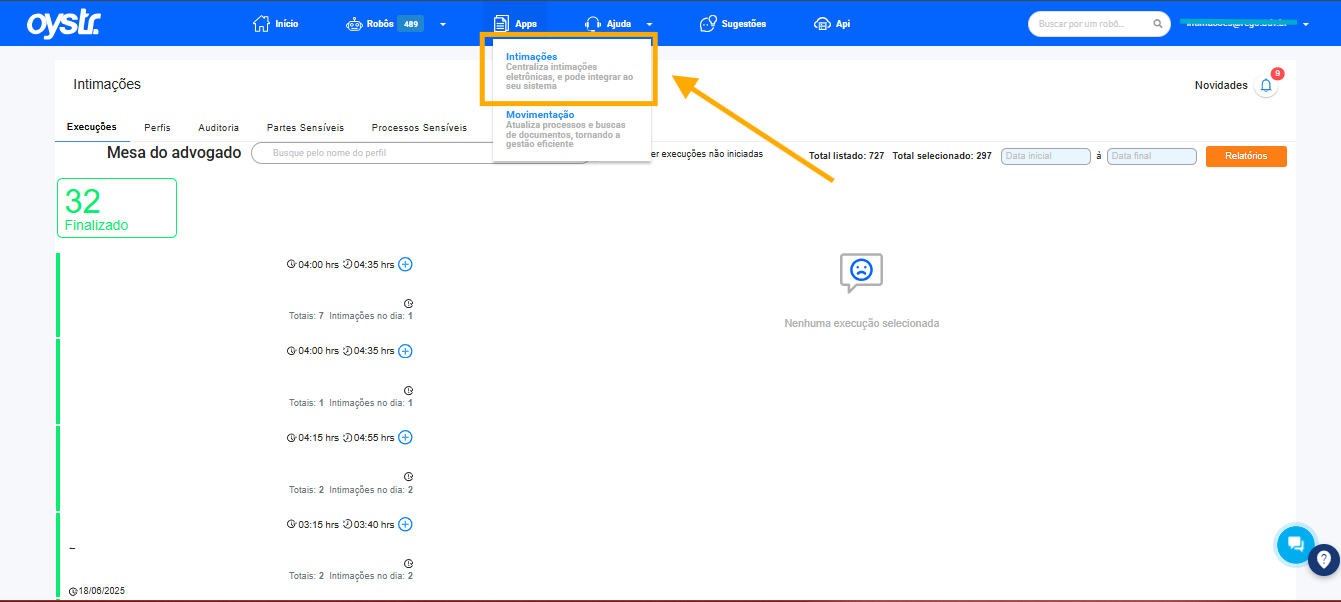
<span style="color: rgb(0, 0, 0);">Clique em **“Apps”** e após, em **“Intimações”**:</span>

<span style="color: rgb(0, 0, 0);"><span id="bkmrk--1" style="font-weight: normal;">![](https://lh7-rt.googleusercontent.com/slidesz/AGV_vUctjSF8syNKxgKjtqYkRaeJ-jluTRVGMpe4TXPiAJE5eB9JK9do-tMI6RfjEOAfv8ESFVF6rZ4vpb8vZtbJ6rbP60isboXv4U8g81UD_ycpB2XVX_4zkrX0DTdI1EtSQ2_ECty1bHOzgrHw3hM_7VPl4dCt7DEb=s2048?key=K047FU3GoEniN4etLjEO6w)</span></span>

<span style="color: rgb(0, 0, 0);">Clique em **“Perfis”**:</span>

<span style="color: rgb(0, 0, 0);"><span id="bkmrk--3" style="font-weight: normal;">![](https://lh7-rt.googleusercontent.com/slidesz/AGV_vUds40vdxK4Z-R7EgppOIxH0JYRfCQBsiuOw7KjsAUVDNU8zw6BTBgbn4fYeTauiLAvleLqXCol-6gBmyZkjlPl6ndZHSAlTMU9b4flrXhYHBJU53DvWjEWNAmz-2pOoVcMPVoxPH3apsTM_Cq07COvZDYvdN-45=s2048?key=K047FU3GoEniN4etLjEO6w)</span></span>

<span style="color: rgb(0, 0, 0);">Clique em **“Configurações”**:</span>

<span style="color: rgb(0, 0, 0);">![](https://lh7-rt.googleusercontent.com/slidesz/AGV_vUcQFtR4jKN5eCuxbeO1SYkvle1V552qvEXe5YfAlARlYmHM8-ktlGSJOhvTy5Er_ojNG5QvrofULftqJYbyPf-FBZIzirrC6bUdF4tJJKZVRPA_0NNv1XxGxhc9iChj2n20vqudWYYElc4G3lJI7ww_e5cFuqkp=s2048?key=K047FU3GoEniN4etLjEO6w)</span>

<span style="color: rgb(0, 0, 0);">Um pop-up aparecerá, arraste-o para baixo e digite o e-mail que deseja receber o relatório:</span>

<span style="color: rgb(0, 0, 0);"><span id="bkmrk-%C2%A0%C2%A0-1" style="font-weight: normal;">![](https://lh7-rt.googleusercontent.com/slidesz/AGV_vUcFr4aPTm9R5gKE2TqwV038L1nJsvG33RB2HxOQ9X85AmflyjPeVtOE8w1LFMJGDHZpftjTGR4DgQz8b7_cOkuJp6HFc6wpDH5_OjHOoKE4hHX2Jqd1leDHxyK51Zq8NAHxR-Jpq_qozTgRqKeBTcFs1qOpmK0=s2048?key=K047FU3GoEniN4etLjEO6w)  </span></span>

<span style="color: rgb(0, 0, 0);">Após, selecione qual tipo de relatório deseja receber e clique em **“Salvar”.** </span>

<span style="color: rgb(0, 0, 0);">Pronto! De agora em diante, **os relatórios chegarão em seu e-mail escolhido**!</span>

⚠️<span style="color: rgb(0, 0, 0);"> **<span style="color: rgb(9, 18, 237);">RESTOU ALGUMA DÚVIDA?</span>**</span>

<span style="color: rgb(0, 0, 0);">Acessa a nossa página de **perguntas frequentes** clicando **aqui.** </span><span style="color: rgb(0, 0, 0);">Caso não seja suficiente, entre em contato conosco através do **canal de suporte**:</span>

- <span style="color: rgb(0, 0, 0);">Via WhatsApp, pelo número[ **+55 (41) 9148-7519**](https://w.app/3oHVNP);</span>
- <span style="color: rgb(0, 0, 0);">Via e-mail, através do endereço [**suporte@oystr.com.br**;](mailto:suporte@oystr.com.br)</span>
- <span style="color: rgb(0, 0, 0);">Via console, através do **[Painel de Controle](https://console4.oystr.com.br/)**.</span>

<span style="color: rgb(9, 18, 237);">**&lt; VOLTAR À PÁGINA ANTERIOR IR PARA A PRÓXIMA PÁGINA &gt;**</span>

# 11. Aba inbox: o que é e como utilizar?


# 12. Perguntas frequentes

<span style="color: rgb(0, 0, 0);">Neste capítulo, vamos explorar as **perguntas mais comuns que recebemos sobre o App de Intimações.** Preparamos este guia para ajudar você a entender ainda melhor as funcionalidades do aplicativo e resolver possíveis dúvidas. Nossa expectativa é que, ao final, você se sinta mais confiante em usar o app e saiba exatamente como lidar com qualquer questão que possa surgir.</span>

1. <span style="color: rgb(0, 0, 0);">**O App consegue trabalhar com processos físicos?**</span>
2. <span style="color: rgb(0, 0, 0);">**O App trabalha com o sistema E-SAJ, que atua no estado de São Paulo?**</span>
3. <span style="color: rgb(0, 0, 0);">**O App puxa intimações do diário oficial?**</span>
4. <span style="color: rgb(0, 0, 0);">**Há limite para criação de perfis ou para cadastro de advogados no painel da Oystr?**</span>

<span style="color: rgb(0, 0, 0);">Se, ao final deste guia, você ainda tiver dúvidas ou precisar de ajuda adicional, **não hesite em entrar em contato com o nosso suporte**. Estamos aqui para garantir que você tenha a melhor experiência possível com o App de Intimações e para ajudar em qualquer questão que possa surgir! Para nos acionar, é fácil:</span>

- <span style="color: rgb(0, 0, 0);">Via WhatsApp, pelo número[ **+55 (41) 9148-7519**](https://w.app/3oHVNP);</span>
- <span style="color: rgb(0, 0, 0);">Via e-mail, através do endereço [**suporte@oystr.com.br**;](mailto:suporte@oystr.com.br)</span>
- <span style="color: rgb(0, 0, 0);">Via console, através do **[Painel de Controle](https://console4.oystr.com.br/)**.</span>

<span style="color: rgb(9, 18, 237);">**&lt; VOLTAR À PÁGINA ANTERIOR** </span>

# 13.  Como se adequar a nova resolução do CNJ - Criando perfis do DJEN e DJE

<span style="font-size: 13.999999999999998pt; font-family: Tahoma,sans-serif; color: #0000ff; background-color: transparent; font-weight: bold; font-style: normal; font-variant: normal; text-decoration: none; vertical-align: baseline; white-space: pre-wrap;">TUTORIAL - COMO SE ADEQUAR A NOVA RESOLUÇÃO DO CNJ</span>

<span style="font-size: 11pt; font-family: Tahoma,sans-serif; color: #000000; background-color: transparent; font-weight: 400; font-style: normal; font-variant: normal; text-decoration: none; vertical-align: baseline; white-space: pre-wrap;">Olá, usuário Oystr! 👋  
  
</span>

<span style="font-size: 11pt; font-family: Tahoma,sans-serif; color: #000000; background-color: transparent; font-weight: 400; font-style: normal; font-variant: normal; text-decoration: none; vertical-align: baseline; white-space: pre-wrap;">Este tutorial foi desenvolvido com o intuito de auxiliá-lo a se adequar a nova Resolução nº 569/CNJ. </span>

<span style="font-size: 13.999999999999998pt; font-family: Tahoma,sans-serif; color: #0000ff; background-color: transparent; font-weight: bold; font-style: normal; font-variant: normal; text-decoration: none; vertical-align: baseline; white-space: pre-wrap;">PARTE 1:</span>

<span style="font-size: 13.999999999999998pt; font-family: Tahoma,sans-serif; color: #0000ff; background-color: transparent; font-weight: bold; font-style: normal; font-variant: normal; text-decoration: none; vertical-align: baseline; white-space: pre-wrap;">CRIAÇÃO DE PERFIL EXCLUSIVO PARA O DJEN</span>

<span style="font-size: 11pt; font-family: Tahoma,sans-serif; color: #000000; background-color: transparent; font-weight: bold; font-style: normal; font-variant: normal; text-decoration: none; vertical-align: baseline; white-space: pre-wrap;">1º PASSO: </span><span style="font-size: 11pt; font-family: Tahoma,sans-serif; color: #000000; background-color: transparent; font-weight: 400; font-style: normal; font-variant: normal; text-decoration: none; vertical-align: baseline; white-space: pre-wrap;">Ao logar em seu perfil, na tela inicial, clique em “Apps”.   
  
</span>

[![image.png](https://wiki.oystr.com.br/uploads/images/gallery/2025-05/scaled-1680-/ZYtimage.png)](https://wiki.oystr.com.br/uploads/images/gallery/2025-05/ZYtimage.png)

<span style="font-size: 11pt; font-family: Tahoma,sans-serif; color: #000000; background-color: transparent; font-weight: bold; font-style: normal; font-variant: normal; text-decoration: none; vertical-align: baseline; white-space: pre-wrap;">2º PASSO: </span><span style="font-size: 11pt; font-family: Tahoma,sans-serif; color: #000000; background-color: transparent; font-weight: 400; font-style: normal; font-variant: normal; text-decoration: none; vertical-align: baseline; white-space: pre-wrap;">Clique em “Intimações” e após na aba “Perfis”.  
  
</span>

[![image.png](https://wiki.oystr.com.br/uploads/images/gallery/2025-05/scaled-1680-/RwNimage.png)](https://wiki.oystr.com.br/uploads/images/gallery/2025-05/RwNimage.png)

<span style="font-size: 11pt; font-family: Tahoma,sans-serif; color: #000000; background-color: transparent; font-weight: 400; font-style: normal; font-variant: normal; text-decoration: none; vertical-align: baseline; white-space: pre-wrap;">  
</span>

<span style="font-size: 11pt; font-family: Tahoma,sans-serif; color: #000000; background-color: transparent; font-weight: 400; font-style: normal; font-variant: normal; text-decoration: none; vertical-align: baseline; white-space: pre-wrap;">  
**3º PASSO:** Clique em “Criar perfil DJEN”.  
</span>

[![image.png](https://wiki.oystr.com.br/uploads/images/gallery/2025-05/scaled-1680-/5Erimage.png)](https://wiki.oystr.com.br/uploads/images/gallery/2025-05/5Erimage.png)

<span style="font-size: 11pt; font-family: Tahoma,sans-serif; color: #000000; background-color: transparent; font-weight: bold; font-style: normal; font-variant: normal; text-decoration: none; vertical-align: baseline; white-space: pre-wrap;">4º PASSO:</span><span style="font-size: 11pt; font-family: Tahoma,sans-serif; color: #000000; background-color: transparent; font-weight: 400; font-style: normal; font-variant: normal; text-decoration: none; vertical-align: baseline; white-space: pre-wrap;"> Aberta a tela de criação, escolha o nome da execução, quais dias deseja executar, os horários de início e fim, o número da OAB que deseja utilizar, bem como sua UF, selecione o tribunal “Intimação DJEN”, por fim, a rotina que deseja utilizar. Ao final, clique em “Salvar”. </span><span style="font-size: 11pt; font-family: Tahoma,sans-serif; color: #000000; background-color: transparent; font-weight: bold; font-style: normal; font-variant: normal; text-decoration: none; vertical-align: baseline; white-space: pre-wrap;"> </span>

[![image.png](https://wiki.oystr.com.br/uploads/images/gallery/2025-05/scaled-1680-/sAqimage.png)](https://wiki.oystr.com.br/uploads/images/gallery/2025-05/sAqimage.png)

<span style="font-size: 11pt; font-family: Tahoma,sans-serif; color: #000000; background-color: transparent; font-weight: 400; font-style: normal; font-variant: normal; text-decoration: none; vertical-align: baseline; white-space: pre-wrap;">O </span><span style="font-size: 11pt; font-family: Tahoma,sans-serif; color: #000000; background-color: transparent; font-weight: bold; font-style: normal; font-variant: normal; text-decoration: none; vertical-align: baseline; white-space: pre-wrap;">nome da execução</span><span style="font-size: 11pt; font-family: Tahoma,sans-serif; color: #000000; background-color: transparent; font-weight: 400; font-style: normal; font-variant: normal; text-decoration: none; vertical-align: baseline; white-space: pre-wrap;"> refere-se ao nome do perfil, recomendamos identificar como um perfil do DJEN seguido pela identificação da OAB (ex.: DJEN - OAB MG12345).  
  
</span>

<span style="font-size: 11pt; font-family: Tahoma,sans-serif; color: #000000; background-color: transparent; font-weight: 400; font-style: normal; font-variant: normal; text-decoration: none; vertical-align: baseline; white-space: pre-wrap;">A opção </span><span style="font-size: 11pt; font-family: Tahoma,sans-serif; color: #000000; background-color: transparent; font-weight: bold; font-style: normal; font-variant: normal; text-decoration: none; vertical-align: baseline; white-space: pre-wrap;">executar nos dias</span><span style="font-size: 11pt; font-family: Tahoma,sans-serif; color: #000000; background-color: transparent; font-weight: 400; font-style: normal; font-variant: normal; text-decoration: none; vertical-align: baseline; white-space: pre-wrap;"> define os dias que o perfil / automação irá rodar, recomendamos que o perfil rode todos os dias, ou seja, contemple todos os dias da semana.  
  
</span>

<span style="font-size: 11pt; font-family: Tahoma,sans-serif; color: #000000; background-color: transparent; font-weight: 400; font-style: normal; font-variant: normal; text-decoration: none; vertical-align: baseline; white-space: pre-wrap;">A opção </span><span style="font-size: 11pt; font-family: Tahoma,sans-serif; color: #000000; background-color: transparent; font-weight: bold; font-style: normal; font-variant: normal; text-decoration: none; vertical-align: baseline; white-space: pre-wrap;">agendado para</span><span style="font-size: 11pt; font-family: Tahoma,sans-serif; color: #000000; background-color: transparent; font-weight: 400; font-style: normal; font-variant: normal; text-decoration: none; vertical-align: baseline; white-space: pre-wrap;"> refere-se ao horário que o perfil irá iniciar sua captura, ficando a critério do escritório sua configuração. Recomendamos configurarem um horário superior a 0h, pois a meia-noite diversas intimações são disponibilizadas.  
  
</span>

<span style="font-size: 11pt; font-family: Tahoma,sans-serif; color: #000000; background-color: transparent; font-weight: 400; font-style: normal; font-variant: normal; text-decoration: none; vertical-align: baseline; white-space: pre-wrap;">A opção </span><span style="font-size: 11pt; font-family: Tahoma,sans-serif; color: #000000; background-color: transparent; font-weight: bold; font-style: normal; font-variant: normal; text-decoration: none; vertical-align: baseline; white-space: pre-wrap;">horário limite</span><span style="font-size: 11pt; font-family: Tahoma,sans-serif; color: #000000; background-color: transparent; font-weight: 400; font-style: normal; font-variant: normal; text-decoration: none; vertical-align: baseline; white-space: pre-wrap;"> refere-se exatamente ao horário limite que o perfil pode rodar (não ao horário de término da automação). É utilizado principalmente quando há a ocorrência de erros e o perfil não conseguiu rodar em sua primeira captura, sendo assim, o perfil irá realizar novas tentativas de rodagem a cada 30 minutos, até o horário limite definido.  
  
</span>

<span style="font-size: 11pt; font-family: Tahoma,sans-serif; color: #000000; background-color: transparent; font-weight: 400; font-style: normal; font-variant: normal; text-decoration: none; vertical-align: baseline; white-space: pre-wrap;">Os campos </span><span style="font-size: 11pt; font-family: Tahoma,sans-serif; color: #000000; background-color: transparent; font-weight: bold; font-style: normal; font-variant: normal; text-decoration: none; vertical-align: baseline; white-space: pre-wrap;">número e UF da OAB</span><span style="font-size: 11pt; font-family: Tahoma,sans-serif; color: #000000; background-color: transparent; font-weight: 400; font-style: normal; font-variant: normal; text-decoration: none; vertical-align: baseline; white-space: pre-wrap;"> referem-se exatamente ao número e estado da OAB do advogado, respectivamente.  
  
</span>

<span style="font-size: 11pt; font-family: Tahoma,sans-serif; color: #000000; background-color: transparent; font-weight: 400; font-style: normal; font-variant: normal; text-decoration: none; vertical-align: baseline; white-space: pre-wrap;">O campo </span><span style="font-size: 11pt; font-family: Tahoma,sans-serif; color: #000000; background-color: transparent; font-weight: bold; font-style: normal; font-variant: normal; text-decoration: none; vertical-align: baseline; white-space: pre-wrap;">selecione um tribunal</span><span style="font-size: 11pt; font-family: Tahoma,sans-serif; color: #000000; background-color: transparent; font-weight: 400; font-style: normal; font-variant: normal; text-decoration: none; vertical-align: baseline; white-space: pre-wrap;"> refere-se a automação a ser escolhida, selecione a primeira opção Intimação DJEN.  
  
</span>

<span style="font-size: 11pt; font-family: Tahoma,sans-serif; color: #000000; background-color: transparent; font-weight: 400; font-style: normal; font-variant: normal; text-decoration: none; vertical-align: baseline; white-space: pre-wrap;">A </span><span style="font-size: 11pt; font-family: Tahoma,sans-serif; color: #000000; background-color: transparent; font-weight: bold; font-style: normal; font-variant: normal; text-decoration: none; vertical-align: baseline; white-space: pre-wrap;">rotina</span><span style="font-size: 11pt; font-family: Tahoma,sans-serif; color: #000000; background-color: transparent; font-weight: 400; font-style: normal; font-variant: normal; text-decoration: none; vertical-align: baseline; white-space: pre-wrap;"> a ser definida pelo escritório refere-se a rotina de captura. Recomendamos fortemente a opção </span><span style="font-size: 11pt; font-family: Tahoma,sans-serif; color: #000000; background-color: transparent; font-weight: bold; font-style: normal; font-variant: normal; text-decoration: none; vertical-align: baseline; white-space: pre-wrap;">capturar todo dia</span><span style="font-size: 11pt; font-family: Tahoma,sans-serif; color: #000000; background-color: transparent; font-weight: 400; font-style: normal; font-variant: normal; text-decoration: none; vertical-align: baseline; white-space: pre-wrap;">, que se define pela captura de todas as intimações disponíveis, independente da data de expedição, gerando maior segurança ao escritório.</span>

<span style="font-size: 11pt; font-family: Tahoma,sans-serif; color: #000000; background-color: transparent; font-weight: bold; font-style: normal; font-variant: normal; text-decoration: none; vertical-align: baseline; white-space: pre-wrap;">5º PASSO:</span><span style="font-size: 11pt; font-family: Tahoma,sans-serif; color: #000000; background-color: transparent; font-weight: 400; font-style: normal; font-variant: normal; text-decoration: none; vertical-align: baseline; white-space: pre-wrap;"> Criado o perfil, ele deverá aparecer na aba “Perfis”, conforme se vê:</span>

[![image.png](https://wiki.oystr.com.br/uploads/images/gallery/2025-05/scaled-1680-/OVfimage.png)](https://wiki.oystr.com.br/uploads/images/gallery/2025-05/OVfimage.png)

<span style="font-size: 11pt; font-family: Tahoma,sans-serif; color: #000000; background-color: transparent; font-weight: 400; font-style: normal; font-variant: normal; text-decoration: none; vertical-align: baseline; white-space: pre-wrap;">Perfeito! Agora o seu perfil já está criado e pronto para receber as intimações do DJEN. </span>

<span style="text-decoration: underline;"><span style="font-size: 11pt; font-family: Tahoma, sans-serif; color: rgb(237, 27, 8); background-color: transparent; font-weight: bold; font-style: normal; font-variant: normal; text-decoration: underline; vertical-align: baseline; white-space: pre-wrap;">Importante:   
  
</span></span>

1. <span style="font-size: 11pt; font-family: Tahoma,sans-serif; color: #000000; background-color: transparent; font-weight: bold; font-style: normal; font-variant: normal; text-decoration: none; vertical-align: baseline; white-space: pre-wrap;">No caso de intimações capturadas pelo DJEN, é necessário criar um perfil específico no App de Intimações.   
      
    </span>
2. <span style="font-size: 11pt; font-family: Tahoma,sans-serif; color: #000000; background-color: transparent; font-weight: bold; font-style: normal; font-variant: normal; text-decoration: none; vertical-align: baseline; white-space: pre-wrap;">As conferências serão feitas na aba “Execuções” do App, e não na tela inicial do Painel de Controle, pois as capturas são feitas via API e não por robô — por isso, não geram execução no painel inicial.  
      
    </span>[![image.png](https://wiki.oystr.com.br/uploads/images/gallery/2025-05/scaled-1680-/fijimage.png)](https://wiki.oystr.com.br/uploads/images/gallery/2025-05/fijimage.png)
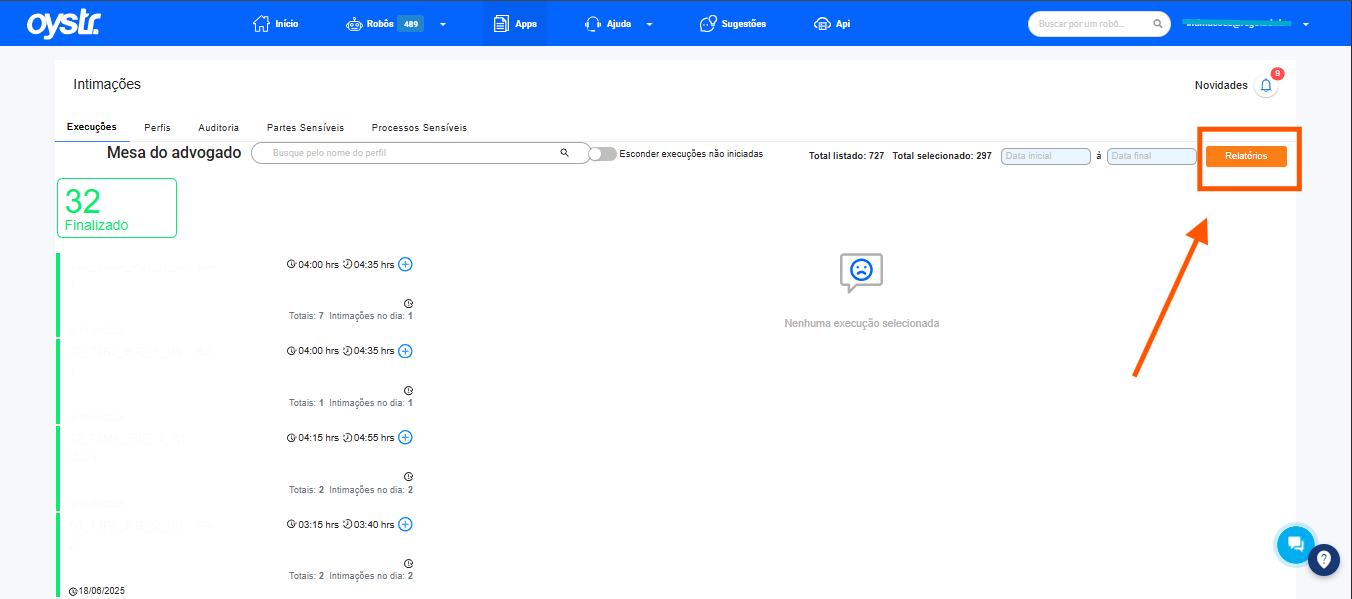
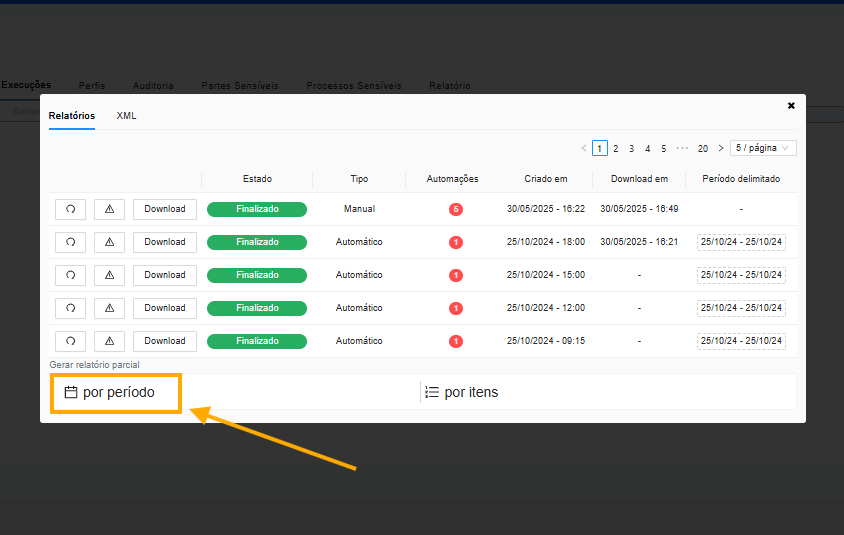
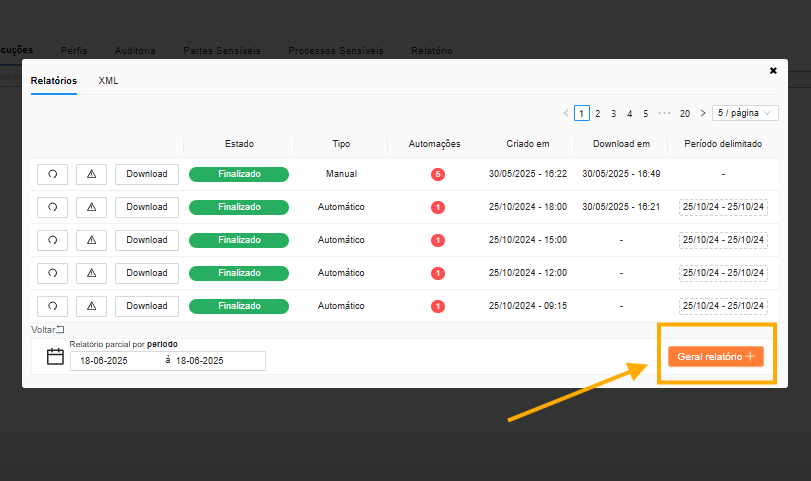
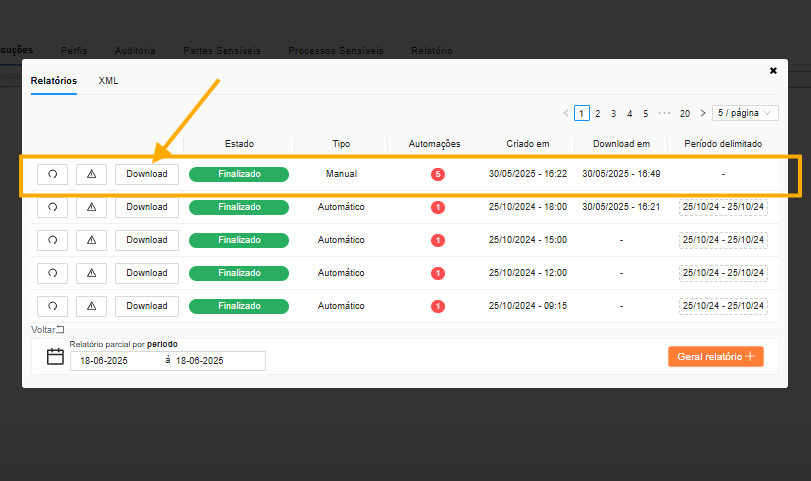
3. <span style="font-size: 11pt; font-family: Tahoma,sans-serif; color: #000000; background-color: transparent; font-weight: bold; font-style: normal; font-variant: normal; text-decoration: none; vertical-align: baseline; white-space: pre-wrap;">Conferências mais detalhadas podem ser realizadas pelo relatório do app de intimações.</span>

[![image.png](https://wiki.oystr.com.br/uploads/images/gallery/2025-05/scaled-1680-/oqtimage.png)](https://wiki.oystr.com.br/uploads/images/gallery/2025-05/oqtimage.png)

<span style="font-size: 13.999999999999998pt; font-family: Tahoma,sans-serif; color: #0000ff; background-color: transparent; font-weight: bold; font-style: normal; font-variant: normal; text-decoration: none; vertical-align: baseline; white-space: pre-wrap;">PARTE 2:</span>

<span style="font-size: 13.999999999999998pt; font-family: Tahoma,sans-serif; color: #0000ff; background-color: transparent; font-weight: bold; font-style: normal; font-variant: normal; text-decoration: none; vertical-align: baseline; white-space: pre-wrap;">CRIAÇÃO DE PERFIL EXCLUSIVO PARA O DJE</span>

<span style="font-size: 11pt; font-family: Tahoma,sans-serif; color: #000000; background-color: transparent; font-weight: bold; font-style: normal; font-variant: normal; text-decoration: none; vertical-align: baseline; white-space: pre-wrap;">1º PASSO: </span><span style="font-size: 11pt; font-family: Tahoma,sans-serif; color: #000000; background-color: transparent; font-weight: 400; font-style: normal; font-variant: normal; text-decoration: none; vertical-align: baseline; white-space: pre-wrap;">Ao logar em seu perfil, na tela inicial, clique em “Apps”. </span>

[![image.png](https://wiki.oystr.com.br/uploads/images/gallery/2025-05/scaled-1680-/ZYtimage.png)](https://wiki.oystr.com.br/uploads/images/gallery/2025-05/ZYtimage.png)

<span style="font-size: 11pt; font-family: Tahoma,sans-serif; color: #000000; background-color: transparent; font-weight: bold; font-style: normal; font-variant: normal; text-decoration: none; vertical-align: baseline; white-space: pre-wrap;">2º PASSO: </span><span style="font-size: 11pt; font-family: Tahoma,sans-serif; color: #000000; background-color: transparent; font-weight: 400; font-style: normal; font-variant: normal; text-decoration: none; vertical-align: baseline; white-space: pre-wrap;">Clique em “Intimações” e após na aba “Perfis”.</span>

<span style="font-size: 11pt; font-family: Tahoma,sans-serif; color: #000000; background-color: transparent; font-weight: 400; font-style: normal; font-variant: normal; text-decoration: none; vertical-align: baseline; white-space: pre-wrap;">  
</span>[![image.png](https://wiki.oystr.com.br/uploads/images/gallery/2025-05/scaled-1680-/RwNimage.png)](https://wiki.oystr.com.br/uploads/images/gallery/2025-05/RwNimage.png)

<span style="font-size: 11pt; font-family: Tahoma,sans-serif; color: #000000; background-color: transparent; font-weight: bold; font-style: normal; font-variant: normal; text-decoration: none; vertical-align: baseline; white-space: pre-wrap;">3º PASSO:</span><span style="font-size: 11pt; font-family: Tahoma,sans-serif; color: #000000; background-color: transparent; font-weight: 400; font-style: normal; font-variant: normal; text-decoration: none; vertical-align: baseline; white-space: pre-wrap;"> Clique em “Criar novo perfil”.</span>

<span style="font-size: 11pt; font-family: Tahoma,sans-serif; color: #000000; background-color: transparent; font-weight: 400; font-style: normal; font-variant: normal; text-decoration: none; vertical-align: baseline; white-space: pre-wrap;"><span style="border: none; display: inline-block; overflow: hidden; width: 541px; height: 92px;">![](https://lh7-rt.googleusercontent.com/docsz/AD_4nXfzTe2C3uHGpBUXfMZp8ukQRZ6qeLSYm4F5igIaw2oEpgblGRqVvmpkmKvLP5eTeLedI8j__BYrU3pD9S7vX3_MHcA6RfBFN3ZcXTe1LlYGGfL-r_TAapMblXTTLUSVe5EmQ-0t?key=B7BDNQwpoNXnNUl7JtqIwA)</span></span>

<span style="font-size: 11pt; font-family: Tahoma,sans-serif; color: #000000; background-color: transparent; font-weight: bold; font-style: normal; font-variant: normal; text-decoration: none; vertical-align: baseline; white-space: pre-wrap;">4º PASSO: </span><span style="font-size: 11pt; font-family: Tahoma,sans-serif; color: #000000; background-color: transparent; font-weight: 400; font-style: normal; font-variant: normal; text-decoration: none; vertical-align: baseline; white-space: pre-wrap;">Aberta a tela de criação, insira o nome da execução, selecione os dias que deseja que o perfil funcione, escolha o horário para início e fim da execução do robô do DJE e após, selecione o tribunal “PDPJ - Domicílio Eletrônico” e escolha a rotina “Capturar Todo Dia”. </span>

<span style="font-size: 11pt; font-family: Tahoma,sans-serif; color: #000000; background-color: transparent; font-weight: bold; font-style: normal; font-variant: normal; text-decoration: none; vertical-align: baseline; white-space: pre-wrap;"><span style="border: none; display: inline-block; overflow: hidden; width: 472px; height: 511px;">![](https://lh7-rt.googleusercontent.com/docsz/AD_4nXcr-QVxwcz1JeZ0czsXO2acCIhoBU7lvolEuvx_WNGD-iS8jLh6sHB5bEWNY2pqligIHlpfDM_2psTxIFlfDe9v6wugDzwIeOU6ct9CzYispJ7fjVkQGiwnQ9W5p-rr3ZvkUfAr_A?key=B7BDNQwpoNXnNUl7JtqIwA)</span></span>

<span style="font-size: 11pt; font-family: Tahoma,sans-serif; color: #000000; background-color: transparent; font-weight: 400; font-style: normal; font-variant: normal; text-decoration: none; vertical-align: baseline; white-space: pre-wrap;">O </span><span style="font-size: 11pt; font-family: Tahoma,sans-serif; color: #000000; background-color: transparent; font-weight: bold; font-style: normal; font-variant: normal; text-decoration: none; vertical-align: baseline; white-space: pre-wrap;">nome da execução</span><span style="font-size: 11pt; font-family: Tahoma,sans-serif; color: #000000; background-color: transparent; font-weight: 400; font-style: normal; font-variant: normal; text-decoration: none; vertical-align: baseline; white-space: pre-wrap;"> refere-se ao nome do perfil, recomendamos identificar como um perfil do Domicílio seguido pela identificação do advogado (ex.: Domicílio - Dr. Oystr).  
  
</span>

<span style="font-size: 11pt; font-family: Tahoma,sans-serif; color: #000000; background-color: transparent; font-weight: 400; font-style: normal; font-variant: normal; text-decoration: none; vertical-align: baseline; white-space: pre-wrap;">A opção </span><span style="font-size: 11pt; font-family: Tahoma,sans-serif; color: #000000; background-color: transparent; font-weight: bold; font-style: normal; font-variant: normal; text-decoration: none; vertical-align: baseline; white-space: pre-wrap;">executar nos dias</span><span style="font-size: 11pt; font-family: Tahoma,sans-serif; color: #000000; background-color: transparent; font-weight: 400; font-style: normal; font-variant: normal; text-decoration: none; vertical-align: baseline; white-space: pre-wrap;"> define os dias que o perfil / automação irá rodar, recomendamos também que o perfil rode todos os dias, ou seja, contemple todos os dias da semana.  
  
</span>

<span style="font-size: 11pt; font-family: Tahoma,sans-serif; color: #000000; background-color: transparent; font-weight: 400; font-style: normal; font-variant: normal; text-decoration: none; vertical-align: baseline; white-space: pre-wrap;">A opção </span><span style="font-size: 11pt; font-family: Tahoma,sans-serif; color: #000000; background-color: transparent; font-weight: bold; font-style: normal; font-variant: normal; text-decoration: none; vertical-align: baseline; white-space: pre-wrap;">agendado para</span><span style="font-size: 11pt; font-family: Tahoma,sans-serif; color: #000000; background-color: transparent; font-weight: 400; font-style: normal; font-variant: normal; text-decoration: none; vertical-align: baseline; white-space: pre-wrap;"> refere-se ao horário que o perfil irá iniciar sua captura, ficando a critério do escritório sua configuração. Recomendamos configurarem um horário superior a 0h, pois a meia-noite diversas intimações são disponibilizadas.  
  
</span>

<span style="font-size: 11pt; font-family: Tahoma,sans-serif; color: #000000; background-color: transparent; font-weight: 400; font-style: normal; font-variant: normal; text-decoration: none; vertical-align: baseline; white-space: pre-wrap;">A opção </span><span style="font-size: 11pt; font-family: Tahoma,sans-serif; color: #000000; background-color: transparent; font-weight: bold; font-style: normal; font-variant: normal; text-decoration: none; vertical-align: baseline; white-space: pre-wrap;">horário limite</span><span style="font-size: 11pt; font-family: Tahoma,sans-serif; color: #000000; background-color: transparent; font-weight: 400; font-style: normal; font-variant: normal; text-decoration: none; vertical-align: baseline; white-space: pre-wrap;"> refere-se exatamente ao horário limite que o perfil pode rodar. É utilizado principalmente quando há a ocorrência de erros e o perfil não conseguiu rodar em sua primeira captura, sendo assim, o perfil irá realizar novas tentativas de rodagem a cada 30 minutos, até o horário limite definido.  
  
</span>

<span style="font-size: 11pt; font-family: Tahoma,sans-serif; color: #000000; background-color: transparent; font-weight: 400; font-style: normal; font-variant: normal; text-decoration: none; vertical-align: baseline; white-space: pre-wrap;">O campo </span><span style="font-size: 11pt; font-family: Tahoma,sans-serif; color: #000000; background-color: transparent; font-weight: bold; font-style: normal; font-variant: normal; text-decoration: none; vertical-align: baseline; white-space: pre-wrap;">tipo de perfil </span><span style="font-size: 11pt; font-family: Tahoma,sans-serif; color: #000000; background-color: transparent; font-weight: 400; font-style: normal; font-variant: normal; text-decoration: none; vertical-align: baseline; white-space: pre-wrap;">deve ser utilizado apenas nos casos em que o escritório deseja restringir as intimações a serem capturadas pelo robô. Caso o escritório opte pela captura geral, basta manter o campo vazio.  
  
</span>

<span style="font-size: 11pt; font-family: Tahoma,sans-serif; color: #000000; background-color: transparent; font-weight: 400; font-style: normal; font-variant: normal; text-decoration: none; vertical-align: baseline; white-space: pre-wrap;">O campo </span><span style="font-size: 11pt; font-family: Tahoma,sans-serif; color: #000000; background-color: transparent; font-weight: bold; font-style: normal; font-variant: normal; text-decoration: none; vertical-align: baseline; white-space: pre-wrap;">meio de comunicação </span><span style="font-size: 11pt; font-family: Tahoma,sans-serif; color: #000000; background-color: transparent; font-weight: 400; font-style: normal; font-variant: normal; text-decoration: none; vertical-align: baseline; white-space: pre-wrap;">deve ser utilizado quando optarem pela restrição de algum meio de comunicação. Caso o escritório opte pela captura geral, basta manter o campo vazio.  
  
</span>

<span style="font-size: 11pt; font-family: Tahoma,sans-serif; color: #000000; background-color: transparent; font-weight: 400; font-style: normal; font-variant: normal; text-decoration: none; vertical-align: baseline; white-space: pre-wrap;">O campo </span><span style="font-size: 11pt; font-family: Tahoma,sans-serif; color: #000000; background-color: transparent; font-weight: bold; font-style: normal; font-variant: normal; text-decoration: none; vertical-align: baseline; white-space: pre-wrap;">selecione um tribunal</span><span style="font-size: 11pt; font-family: Tahoma,sans-serif; color: #000000; background-color: transparent; font-weight: 400; font-style: normal; font-variant: normal; text-decoration: none; vertical-align: baseline; white-space: pre-wrap;"> refere-se a automação a ser escolhida, selecione a opção </span><span style="font-size: 11pt; font-family: Tahoma,sans-serif; color: #000000; background-color: transparent; font-weight: bold; font-style: normal; font-variant: normal; text-decoration: none; vertical-align: baseline; white-space: pre-wrap;">PDPJ Domicílio Eletrônico</span><span style="font-size: 11pt; font-family: Tahoma,sans-serif; color: #000000; background-color: transparent; font-weight: 400; font-style: normal; font-variant: normal; text-decoration: none; vertical-align: baseline; white-space: pre-wrap;">.  
  
</span>

<span style="font-size: 11pt; font-family: Tahoma,sans-serif; color: #000000; background-color: transparent; font-weight: 400; font-style: normal; font-variant: normal; text-decoration: none; vertical-align: baseline; white-space: pre-wrap;">A </span><span style="font-size: 11pt; font-family: Tahoma,sans-serif; color: #000000; background-color: transparent; font-weight: bold; font-style: normal; font-variant: normal; text-decoration: none; vertical-align: baseline; white-space: pre-wrap;">rotina</span><span style="font-size: 11pt; font-family: Tahoma,sans-serif; color: #000000; background-color: transparent; font-weight: 400; font-style: normal; font-variant: normal; text-decoration: none; vertical-align: baseline; white-space: pre-wrap;"> a ser definida pelo escritório refere-se a rotina de captura. Recomendamos fortemente a opção </span><span style="font-size: 11pt; font-family: Tahoma,sans-serif; color: #000000; background-color: transparent; font-weight: bold; font-style: normal; font-variant: normal; text-decoration: none; vertical-align: baseline; white-space: pre-wrap;">capturar todo dia</span><span style="font-size: 11pt; font-family: Tahoma,sans-serif; color: #000000; background-color: transparent; font-weight: 400; font-style: normal; font-variant: normal; text-decoration: none; vertical-align: baseline; white-space: pre-wrap;">, que se define pela captura de todas as publicações disponíveis, independente da data de expedição, gerando maior segurança ao escritório.  
  
</span>

<span style="font-size: 11pt; font-family: Tahoma,sans-serif; color: #000000; background-color: transparent; font-weight: 400; font-style: normal; font-variant: normal; text-decoration: none; vertical-align: baseline; white-space: pre-wrap;">A opção </span><span style="font-size: 11pt; font-family: Tahoma,sans-serif; color: #000000; background-color: transparent; font-weight: bold; font-style: normal; font-variant: normal; text-decoration: none; vertical-align: baseline; white-space: pre-wrap;">tipo de leitura </span><span style="font-size: 11pt; font-family: Tahoma,sans-serif; color: #000000; background-color: transparent; font-weight: 400; font-style: normal; font-variant: normal; text-decoration: none; vertical-align: baseline; white-space: pre-wrap;">refere-se ao filtro a ser aplicado para captura das publicações, aguardando leitura ou aguardando cumprimento. Recomendamos a configuração para </span><span style="font-size: 11pt; font-family: Tahoma,sans-serif; color: #000000; background-color: transparent; font-weight: bold; font-style: normal; font-variant: normal; text-decoration: none; vertical-align: baseline; white-space: pre-wrap;">aguardando leitura</span><span style="font-size: 11pt; font-family: Tahoma,sans-serif; color: #000000; background-color: transparent; font-weight: 400; font-style: normal; font-variant: normal; text-decoration: none; vertical-align: baseline; white-space: pre-wrap;">, capturando as intimações e citações pendentes de ciência.  
  
</span>

<span style="font-size: 11pt; font-family: Tahoma,sans-serif; color: #000000; background-color: transparent; font-weight: 400; font-style: normal; font-variant: normal; text-decoration: none; vertical-align: baseline; white-space: pre-wrap;">O campo </span><span style="font-size: 11pt; font-family: Tahoma,sans-serif; color: #000000; background-color: transparent; font-weight: bold; font-style: normal; font-variant: normal; text-decoration: none; vertical-align: baseline; white-space: pre-wrap;">tipo intimação</span><span style="font-size: 11pt; font-family: Tahoma,sans-serif; color: #000000; background-color: transparent; font-weight: 400; font-style: normal; font-variant: normal; text-decoration: none; vertical-align: baseline; white-space: pre-wrap;"> refere-se as publicações disponíveis no Domicílio, citações e intimações, caso queira capturar apenas uma dessas publicações, basta selecioná-la, caso optem por uma captura geral, selecionem “Todos”.  
  
</span>

<span style="font-size: 11pt; font-family: Tahoma,sans-serif; color: #000000; background-color: transparent; font-weight: 400; font-style: normal; font-variant: normal; text-decoration: none; vertical-align: baseline; white-space: pre-wrap;">O campo </span><span style="font-size: 11pt; font-family: Tahoma,sans-serif; color: #000000; background-color: transparent; font-weight: bold; font-style: normal; font-variant: normal; text-decoration: none; vertical-align: baseline; white-space: pre-wrap;">perfil </span><span style="font-size: 11pt; font-family: Tahoma,sans-serif; color: #000000; background-color: transparent; font-weight: 400; font-style: normal; font-variant: normal; text-decoration: none; vertical-align: baseline; white-space: pre-wrap;">refere-se a mesma restrição informada anteriormente, visando restringir a captura.  
  
</span>

<span style="font-size: 11pt; font-family: Tahoma,sans-serif; color: #000000; background-color: transparent; font-weight: 400; font-style: normal; font-variant: normal; text-decoration: none; vertical-align: baseline; white-space: pre-wrap;">Os campos </span><span style="font-size: 11pt; font-family: Tahoma,sans-serif; color: #000000; background-color: transparent; font-weight: bold; font-style: normal; font-variant: normal; text-decoration: none; vertical-align: baseline; white-space: pre-wrap;">data inicial de consulta </span><span style="font-size: 11pt; font-family: Tahoma,sans-serif; color: #000000; background-color: transparent; font-weight: 400; font-style: normal; font-variant: normal; text-decoration: none; vertical-align: baseline; white-space: pre-wrap;">e</span><span style="font-size: 11pt; font-family: Tahoma,sans-serif; color: #000000; background-color: transparent; font-weight: bold; font-style: normal; font-variant: normal; text-decoration: none; vertical-align: baseline; white-space: pre-wrap;"> data final da consulta </span><span style="font-size: 11pt; font-family: Tahoma,sans-serif; color: #000000; background-color: transparent; font-weight: 400; font-style: normal; font-variant: normal; text-decoration: none; vertical-align: baseline; white-space: pre-wrap;">referem-se a campos de restrição da data de captura. Recomendamos que os campos permaneçam vazios, para que a captura do perfil seja generalista, capturando todas as publicações pendentes.  
  
</span>

<span style="font-size: 11pt; font-family: Tahoma,sans-serif; color: #000000; background-color: transparent; font-weight: 400; font-style: normal; font-variant: normal; text-decoration: none; vertical-align: baseline; white-space: pre-wrap;">O campo </span><span style="font-size: 11pt; font-family: Tahoma,sans-serif; color: #000000; background-color: transparent; font-weight: bold; font-style: normal; font-variant: normal; text-decoration: none; vertical-align: baseline; white-space: pre-wrap;">filtro representantes</span><span style="font-size: 11pt; font-family: Tahoma,sans-serif; color: #000000; background-color: transparent; font-weight: 400; font-style: normal; font-variant: normal; text-decoration: none; vertical-align: baseline; white-space: pre-wrap;"> refere-se a restrição de captura a algum representado, constante na tela inicial, logo após o login. Caso o escritório opte pela captura geral, basta manter o campo vazio.  
  
</span>

<span style="font-size: 11pt; font-family: Tahoma,sans-serif; color: #000000; background-color: transparent; font-weight: 400; font-style: normal; font-variant: normal; text-decoration: none; vertical-align: baseline; white-space: pre-wrap;">O campo </span><span style="font-size: 11pt; font-family: Tahoma,sans-serif; color: #000000; background-color: transparent; font-weight: bold; font-style: normal; font-variant: normal; text-decoration: none; vertical-align: baseline; white-space: pre-wrap;">validar credenciais</span><span style="font-size: 11pt; font-family: Tahoma,sans-serif; color: #000000; background-color: transparent; font-weight: 400; font-style: normal; font-variant: normal; text-decoration: none; vertical-align: baseline; white-space: pre-wrap;"> visa selecionar a credencial cadastrada para o robô do domicílio (acesse o passo a passo para cadastro da credencial).   
  
</span>

<span style="font-size: 11pt; font-family: Tahoma,sans-serif; color: #000000; background-color: transparent; font-weight: 400; font-style: normal; font-variant: normal; text-decoration: none; vertical-align: baseline; white-space: pre-wrap;">Após selecionada a credencial, clique em </span><span style="font-size: 11pt; font-family: Tahoma,sans-serif; color: #000000; background-color: transparent; font-weight: bold; font-style: normal; font-variant: normal; text-decoration: none; vertical-align: baseline; white-space: pre-wrap;">testar </span><span style="font-size: 11pt; font-family: Tahoma,sans-serif; color: #000000; background-color: transparent; font-weight: 400; font-style: normal; font-variant: normal; text-decoration: none; vertical-align: baseline; white-space: pre-wrap;">e depois em </span><span style="font-size: 11pt; font-family: Tahoma,sans-serif; color: #000000; background-color: transparent; font-weight: bold; font-style: normal; font-variant: normal; text-decoration: none; vertical-align: baseline; white-space: pre-wrap;">salvar</span><span style="font-size: 11pt; font-family: Tahoma,sans-serif; color: #000000; background-color: transparent; font-weight: 400; font-style: normal; font-variant: normal; text-decoration: none; vertical-align: baseline; white-space: pre-wrap;">.  
</span>

<span style="font-size: 11pt; font-family: Tahoma,sans-serif; color: #000000; background-color: transparent; font-weight: bold; font-style: normal; font-variant: normal; text-decoration: none; vertical-align: baseline; white-space: pre-wrap;">5º PASSO:</span><span style="font-size: 11pt; font-family: Tahoma,sans-serif; color: #000000; background-color: transparent; font-weight: 400; font-style: normal; font-variant: normal; text-decoration: none; vertical-align: baseline; white-space: pre-wrap;"> Criado o perfil, ele deverá aparecer na aba “Perfis”. Dessa forma, o seu perfil já está criado e pronto para receber as intimações do DJEN. </span>

<span style="font-size: 13.999999999999998pt; font-family: Tahoma,sans-serif; color: #0000ff; background-color: transparent; font-weight: bold; font-style: normal; font-variant: normal; text-decoration: none; vertical-align: baseline; white-space: pre-wrap;">OBSERVAÇÕES IMPORTANTES</span>

<span style="font-size: 11pt; font-family: Tahoma,sans-serif; color: #000000; background-color: transparent; font-weight: bold; font-style: normal; font-variant: normal; text-decoration: underline; -webkit-text-decoration-skip: none; text-decoration-skip-ink: none; vertical-align: baseline; white-space: pre-wrap;">CONTAGEM DE PRAZO - DJE</span><span style="font-size: 11pt; font-family: Tahoma,sans-serif; color: #000000; background-color: transparent; font-weight: bold; font-style: normal; font-variant: normal; text-decoration: none; vertical-align: baseline; white-space: pre-wrap;">:</span>

- <span style="font-size: 10pt; font-family: Tahoma,sans-serif; color: #000000; background-color: transparent; font-weight: bold; font-style: normal; font-variant: normal; text-decoration: none; vertical-align: baseline; white-space: pre-wrap;">Citação eletrônica confirmada:</span>

<span style="font-size: 10pt; font-family: Tahoma,sans-serif; color: #000000; background-color: transparent; font-weight: 400; font-style: normal; font-variant: normal; text-decoration: none; vertical-align: baseline; white-space: pre-wrap;">O prazo inicia no 5º dia útil após confirmação de leitura.   
  
</span>

- <span style="font-size: 10pt; font-family: Tahoma,sans-serif; color: #000000; background-color: transparent; font-weight: bold; font-style: normal; font-variant: normal; text-decoration: none; vertical-align: baseline; white-space: pre-wrap;">Citação eletrônica não confirmada:</span>

<span style="font-size: 10pt; font-family: Tahoma,sans-serif; color: #000000; background-color: transparent; font-weight: 400; font-style: normal; font-variant: normal; text-decoration: none; vertical-align: baseline; white-space: pre-wrap;">Para </span><span style="font-size: 10pt; font-family: Tahoma,sans-serif; color: #000000; background-color: transparent; font-weight: 400; font-style: normal; font-variant: normal; text-decoration: underline; -webkit-text-decoration-skip: none; text-decoration-skip-ink: none; vertical-align: baseline; white-space: pre-wrap;">pessoas jurídicas de direito público</span><span style="font-size: 10pt; font-family: Tahoma,sans-serif; color: #000000; background-color: transparent; font-weight: 400; font-style: normal; font-variant: normal; text-decoration: none; vertical-align: baseline; white-space: pre-wrap;">, o prazo inicia 10 dias corridos após envio da citação ao DJE. Para </span><span style="font-size: 10pt; font-family: Tahoma,sans-serif; color: #000000; background-color: transparent; font-weight: 400; font-style: normal; font-variant: normal; text-decoration: underline; -webkit-text-decoration-skip: none; text-decoration-skip-ink: none; vertical-align: baseline; white-space: pre-wrap;">pessoas jurídicas de direito privado</span><span style="font-size: 10pt; font-family: Tahoma,sans-serif; color: #000000; background-color: transparent; font-weight: 400; font-style: normal; font-variant: normal; text-decoration: none; vertical-align: baseline; white-space: pre-wrap;">, o prazo não se inicia e a citação deve ser refeita, considerando que a ausência de confirmação deve ser justificada (pena de multa).   
  
</span>

- <span style="font-size: 10pt; font-family: Tahoma,sans-serif; color: #000000; background-color: transparent; font-weight: bold; font-style: normal; font-variant: normal; text-decoration: none; vertical-align: baseline; white-space: pre-wrap;">Demais intimações e comunicações processuais:</span>

<span style="font-size: 10pt; font-family: Tahoma,sans-serif; color: #000000; background-color: transparent; font-weight: 400; font-style: normal; font-variant: normal; text-decoration: none; vertical-align: baseline; white-space: pre-wrap;">As </span><span style="font-size: 10pt; font-family: Tahoma,sans-serif; color: #000000; background-color: transparent; font-weight: 400; font-style: normal; font-variant: normal; text-decoration: underline; -webkit-text-decoration-skip: none; text-decoration-skip-ink: none; vertical-align: baseline; white-space: pre-wrap;">confirmadas</span><span style="font-size: 10pt; font-family: Tahoma,sans-serif; color: #000000; background-color: transparent; font-weight: 400; font-style: normal; font-variant: normal; text-decoration: none; vertical-align: baseline; white-space: pre-wrap;">, o prazo conta a partir da data da confirmação e, se ocorrendo em dia não útil, o prazo inicia no próximo dia útil. As </span><span style="font-size: 10pt; font-family: Tahoma,sans-serif; color: #000000; background-color: transparent; font-weight: 400; font-style: normal; font-variant: normal; text-decoration: underline; -webkit-text-decoration-skip: none; text-decoration-skip-ink: none; vertical-align: baseline; white-space: pre-wrap;">não confirmadas</span><span style="font-size: 10pt; font-family: Tahoma,sans-serif; color: #000000; background-color: transparent; font-weight: 400; font-style: normal; font-variant: normal; text-decoration: none; vertical-align: baseline; white-space: pre-wrap;">, o prazo inicia 10 dias corridos após o envio da comunicação.   
  
</span>

- 

<span style="font-size: 11pt; font-family: Tahoma,sans-serif; color: #000000; background-color: transparent; font-weight: bold; font-style: normal; font-variant: normal; text-decoration: underline; -webkit-text-decoration-skip: none; text-decoration-skip-ink: none; vertical-align: baseline; white-space: pre-wrap;">CONTAGEM DE PRAZO - DJEN</span><span style="font-size: 11pt; font-family: Tahoma,sans-serif; color: #000000; background-color: transparent; font-weight: bold; font-style: normal; font-variant: normal; text-decoration: none; vertical-align: baseline; white-space: pre-wrap;">:</span>

- <span style="font-size: 10pt; font-family: Tahoma,sans-serif; color: #000000; background-color: transparent; font-weight: 400; font-style: normal; font-variant: normal; text-decoration: none; vertical-align: baseline; white-space: pre-wrap;">O prazo processual inicia no primeiro dia útil seguinte à data da publicação no DJEN. </span>
- <span style="font-size: 10pt; font-family: Tahoma,sans-serif; color: #000000; background-color: transparent; font-weight: 400; font-style: normal; font-variant: normal; text-decoration: none; vertical-align: baseline; white-space: pre-wrap;">**Disponibilização**: Dia útil seguinte à data do envio (data constante no DJEN e disponibilizada pela automação).  
    **Publicação**: Dia útil seguinte à data dadisponibilização.  
    **Começo do prazo**: Dia útil seguinte à data dapublicação.</span>

<span style="font-size: 13.999999999999998pt; font-family: Tahoma,sans-serif; color: #0000ff; background-color: transparent; font-weight: bold; font-style: normal; font-variant: normal; text-decoration: none; vertical-align: baseline; white-space: pre-wrap;">FAQ</span>

<span style="font-size: 11pt; font-family: Tahoma,sans-serif; color: #000000; background-color: transparent; font-weight: bold; font-style: normal; font-variant: normal; text-decoration: none; vertical-align: baseline; white-space: pre-wrap;">1) Considerando que o DJEN e o DJE são os novos canais de comunicação, devo excluir os meus outros perfis no meu painel de controle do App de Intimações da Oystr?</span>

<span style="font-size: 11pt; font-family: Tahoma,sans-serif; color: #000000; background-color: transparent; font-weight: bold; font-style: normal; font-variant: normal; text-decoration: none; vertical-align: baseline; white-space: pre-wrap;">R: </span><span style="font-size: 10pt; font-family: Tahoma,sans-serif; color: #000000; background-color: transparent; font-weight: 400; font-style: normal; font-variant: normal; text-decoration: none; vertical-align: baseline; white-space: pre-wrap;">Não. A nossa recomendação é que configure seu aplicativo de intimações para capturar as intimações em todas as fontes possíveis (DJEN, DJE e Tribunais), visando não acarretar em ausência de captura de intimação.</span>

<span style="font-size: 11pt; font-family: Tahoma,sans-serif; color: #000000; background-color: transparent; font-weight: bold; font-style: normal; font-variant: normal; text-decoration: none; vertical-align: baseline; white-space: pre-wrap;">2) Ter vários perfis criados (DJE, DJEN e Tribunais) em meu painel pode causar duplicidade no recebimento das intimações?</span>

<span style="font-size: 11pt; font-family: Tahoma,sans-serif; color: #000000; background-color: transparent; font-weight: bold; font-style: normal; font-variant: normal; text-decoration: none; vertical-align: baseline; white-space: pre-wrap;">R: </span><span style="font-size: 10pt; font-family: Tahoma,sans-serif; color: #000000; background-color: transparent; font-weight: 400; font-style: normal; font-variant: normal; text-decoration: none; vertical-align: baseline; white-space: pre-wrap;">Sim. Atualmente, o App de Intimações trata as intimações como diferentes, mesmo quando se trata da mesma intimação publicada em locais distintos. A Oystr já está trabalhando nesta frente para eliminação das duplicidades.</span>

<span style="font-size: 11pt; font-family: Tahoma,sans-serif; color: #000000; background-color: transparent; font-weight: bold; font-style: normal; font-variant: normal; text-decoration: none; vertical-align: baseline; white-space: pre-wrap;">3) Devo criar somente um perfil do DJEN no meu painel do App de Intimações ou vários perfis?</span>

<span style="font-size: 11pt; font-family: Tahoma,sans-serif; color: #000000; background-color: transparent; font-weight: bold; font-style: normal; font-variant: normal; text-decoration: none; vertical-align: baseline; white-space: pre-wrap;">R: </span><span style="font-size: 10pt; font-family: Tahoma,sans-serif; color: #000000; background-color: transparent; font-weight: 400; font-style: normal; font-variant: normal; text-decoration: none; vertical-align: baseline; white-space: pre-wrap;">Sendo OABs com números diferentes, crie um perfil para cada uma. Tratando-se de OABs suplementares (mesmo número em diferentes estados), um único perfil é suficiente.</span>

<span style="font-size: 11pt; font-family: Tahoma,sans-serif; color: #000000; background-color: transparent; font-weight: bold; font-style: normal; font-variant: normal; text-decoration: none; vertical-align: baseline; white-space: pre-wrap;">4) Qual tipo de “rotina” devo utilizar em meu perfil do DJEN?</span>

<span style="font-size: 11pt; font-family: Tahoma,sans-serif; color: #000000; background-color: transparent; font-weight: bold; font-style: normal; font-variant: normal; text-decoration: none; vertical-align: baseline; white-space: pre-wrap;">R:</span><span style="font-size: 11pt; font-family: Tahoma,sans-serif; color: #000000; background-color: transparent; font-weight: 400; font-style: normal; font-variant: normal; text-decoration: none; vertical-align: baseline; white-space: pre-wrap;"> </span><span style="font-size: 10pt; font-family: Tahoma,sans-serif; color: #000000; background-color: transparent; font-weight: 400; font-style: normal; font-variant: normal; text-decoration: none; vertical-align: baseline; white-space: pre-wrap;">O perfil do DJEN deve ser configurado com o tipo de rotina “Capturar todo dia”. Este tipo de rotina buscará todas as intimações disponíveis no momento da captura.</span>

<span style="font-size: 11pt; font-family: Tahoma,sans-serif; color: #000000; background-color: transparent; font-weight: bold; font-style: normal; font-variant: normal; text-decoration: none; vertical-align: baseline; white-space: pre-wrap;">5) Somente a criação de perfis é suficiente dentro do painel de controle da Oystr?</span>

<span style="font-size: 11pt; font-family: Tahoma,sans-serif; color: #000000; background-color: transparent; font-weight: bold; font-style: normal; font-variant: normal; text-decoration: none; vertical-align: baseline; white-space: pre-wrap;">R: </span><span style="font-size: 10pt; font-family: Tahoma,sans-serif; color: #000000; background-color: transparent; font-weight: 400; font-style: normal; font-variant: normal; text-decoration: none; vertical-align: baseline; white-space: pre-wrap;">A criação dos perfis é suficiente para a captura de intimações. Contudo, a inserção de credenciais e de autenticações de dois fatores são passos necessários para que os perfis criados funcionem em seu perfeito estado. Caso não tenha conhecimento de como inserir credenciais e autenticações de dois fatores em nosso painel, acesse o seguinte link: </span>[<span style="font-size: 10pt; font-family: Tahoma,sans-serif; color: #1155cc; background-color: transparent; font-weight: 400; font-style: normal; font-variant: normal; text-decoration: underline; -webkit-text-decoration-skip: none; text-decoration-skip-ink: none; vertical-align: baseline; white-space: pre-wrap;">https://wiki.oystr.com.br/</span>](https://wiki.oystr.com.br/)<span style="font-size: 10pt; font-family: Tahoma,sans-serif; color: #000000; background-color: transparent; font-weight: 400; font-style: normal; font-variant: normal; text-decoration: none; vertical-align: baseline; white-space: pre-wrap;"> , clique em “Tutoriais e FAQ’s” e verifique o passo a passo para ambos os casos. </span>

<span style="font-size: 11pt; font-family: Tahoma,sans-serif; color: #000000; background-color: transparent; font-weight: bold; font-style: normal; font-variant: normal; text-decoration: none; vertical-align: baseline; white-space: pre-wrap;">6) O "perfil DJEN", disponibilizado no painel de controle da Oystr, faz a pesquisa de informações no painel do DJEN ou no painel dos tribunais?</span>

<span style="font-size: 11pt; font-family: Tahoma,sans-serif; color: #000000; background-color: transparent; font-weight: bold; font-style: normal; font-variant: normal; text-decoration: none; vertical-align: baseline; white-space: pre-wrap;">R: </span><span style="font-size: 10pt; font-family: Tahoma,sans-serif; color: #000000; background-color: transparent; font-weight: 400; font-style: normal; font-variant: normal; text-decoration: none; vertical-align: baseline; white-space: pre-wrap;">O perfil DJEN realiza buscas exclusivamente dentro do sistema DJEN, que é a fonte configurada para esse perfil. Ele não acessa os portais dos tribunais individualmente para coletar informações. Como o DJEN já consolida intimações de diversos tribunais, é possível que algumas informações encontradas por esse perfil também estejam disponíveis em outros sistemas. No entanto, o perfil em si não navega por outros portais — ele apenas exibe aquilo que o próprio DJEN entrega.</span>

<span style="font-size: 11pt; font-family: Tahoma,sans-serif; color: #000000; background-color: transparent; font-weight: bold; font-style: normal; font-variant: normal; text-decoration: none; vertical-align: baseline; white-space: pre-wrap;">7) Utilizo somente o robô de intimações e não o App de Intimações. Consigo capturar intimações do DJEN por meio de robô? </span>

<span style="font-size: 11pt; font-family: Tahoma,sans-serif; color: #000000; background-color: transparent; font-weight: bold; font-style: normal; font-variant: normal; text-decoration: none; vertical-align: baseline; white-space: pre-wrap;">R: </span><span style="font-size: 10pt; font-family: Tahoma,sans-serif; color: #000000; background-color: transparent; font-weight: 400; font-style: normal; font-variant: normal; text-decoration: none; vertical-align: baseline; white-space: pre-wrap;">Não. No caso de intimações capturadas pelo DJEN, é necessário criar um perfil específico no App de Intimações. As conferências devem ser feitas na aba “Execuções” do App, e não na tela inicial do Painel de Controle, pois as capturas são feitas via API e não por robô — por isso, não geram execução no painel inicial.</span>

<span style="font-size: 11pt; font-family: Tahoma,sans-serif; color: #000000; background-color: transparent; font-weight: bold; font-style: normal; font-variant: normal; text-decoration: none; vertical-align: baseline; white-space: pre-wrap;">8) Caso verifique que alguma intimação não foi capturada ou apresentou erro, o que fazer?</span>

<span style="font-size: 11pt; font-family: Tahoma,sans-serif; color: #000000; background-color: transparent; font-weight: bold; font-style: normal; font-variant: normal; text-decoration: none; vertical-align: baseline; white-space: pre-wrap;">R:</span><span style="font-size: 10pt; font-family: Tahoma,sans-serif; color: #000000; background-color: transparent; font-weight: bold; font-style: normal; font-variant: normal; text-decoration: none; vertical-align: baseline; white-space: pre-wrap;"> </span><span style="font-size: 10pt; font-family: Tahoma,sans-serif; color: #000000; background-color: transparent; font-weight: 400; font-style: normal; font-variant: normal; text-decoration: none; vertical-align: baseline; white-space: pre-wrap;">Entre em contato imediatamente com o suporte técnico da Oystr. Você pode acioná-los por WhatsApp</span><span style="font-size: 10pt; font-family: Tahoma,sans-serif; color: #000000; background-color: #ffffff; font-weight: 400; font-style: normal; font-variant: normal; text-decoration: none; vertical-align: baseline; white-space: pre-wrap;">: (41) 99148-7519, </span><span style="font-size: 10pt; font-family: Tahoma,sans-serif; color: #000000; background-color: transparent; font-weight: 400; font-style: normal; font-variant: normal; text-decoration: none; vertical-align: baseline; white-space: pre-wrap;">Painel de controle, na aba “Ajuda”; ou ainda por e-mail: </span>[<span style="font-size: 10pt; font-family: Tahoma,sans-serif; color: #1155cc; background-color: transparent; font-weight: 400; font-style: normal; font-variant: normal; text-decoration: underline; -webkit-text-decoration-skip: none; text-decoration-skip-ink: none; vertical-align: baseline; white-space: pre-wrap;">suporte@oystr.com.br</span>](mailto:suporte@oystr.com.br)<span style="font-size: 10pt; font-family: Tahoma,sans-serif; color: #000000; background-color: transparent; font-weight: 400; font-style: normal; font-variant: normal; text-decoration: none; vertical-align: baseline; white-space: pre-wrap;">. </span><span style="font-size: 10pt; font-family: Tahoma,sans-serif; color: #000000; background-color: transparent; font-weight: bold; font-style: normal; font-variant: normal; text-decoration: none; vertical-align: baseline; white-space: pre-wrap;">Importante:</span><span style="font-size: 10pt; font-family: Tahoma,sans-serif; color: #000000; background-color: transparent; font-weight: 400; font-style: normal; font-variant: normal; text-decoration: none; vertical-align: baseline; white-space: pre-wrap;"> como são equipes diferentes em cada canal, evite acionar todos ao mesmo tempo — isso pode gerar retrabalho interno e atrasar seu atendimento. Caso o suporte não consiga resolver sua demanda por qualquer motivo, entre em contato com seu gerente de conta pelo e-mail exclusivo.</span>

<span style="font-size: 11pt; font-family: Tahoma,sans-serif; color: #000000; background-color: transparent; font-weight: bold; font-style: normal; font-variant: normal; text-decoration: none; vertical-align: baseline; white-space: pre-wrap;">⚠️ Restou alguma dúvida?</span>

<span style="font-size: 11pt; font-family: Tahoma,sans-serif; color: #0000ff; background-color: transparent; font-weight: 400; font-style: normal; font-variant: normal; text-decoration: none; vertical-align: baseline; white-space: pre-wrap;">Entre em contato conosco através do canal de suporte.</span>

# 14. Como baixar um relatório de duplicidades?

A funcionalidade de **Verificação de Intimações Duplicadas**, foi desenvolvida para oferecer mais organização, segurança e controle sobre as intimações que sua equipe recebe.

O objetivo desse sistema é evitar o recebimento de **intimações repetidas**, que podem chegar por diferentes canais, como **Tribunais e DJEN**, garantindo que seu fluxo de trabalho seja mais limpo, eficiente e sem retrabalho.

### Tutorial de como acessar o relatório de duplicidades

<table border="1" id="bkmrk-no-menu-superior%2C-em" style="border-collapse: collapse; width: 100%;"><colgroup><col style="width: 99.8765%;"></col></colgroup><tbody><tr><td>[![image.png](https://wiki.oystr.com.br/uploads/images/gallery/2025-06/scaled-1680-/uOqimage.png)](https://wiki.oystr.com.br/uploads/images/gallery/2025-06/uOqimage.png)

</td></tr><tr><td>No menu superior, em Apps, selecione a opção "Intimações"</td></tr></tbody></table>

<table border="1" id="bkmrk-selecione-o-bot%C3%A3o-%22r" style="border-collapse: collapse; width: 100%;"><colgroup><col style="width: 99.8765%;"></col></colgroup><tbody><tr><td>[![image.png](https://wiki.oystr.com.br/uploads/images/gallery/2025-06/scaled-1680-/4lsimage.png)](https://wiki.oystr.com.br/uploads/images/gallery/2025-06/4lsimage.png)

</td></tr><tr><td>Selecione o botão "Relatórios"</td></tr></tbody></table>

<table border="1" id="bkmrk-ent%C3%A3o-abrir%C3%A1-a-tela-" style="border-collapse: collapse; width: 100%;"><colgroup><col style="width: 99.8765%;"></col></colgroup><tbody><tr><td>[![image.png](https://wiki.oystr.com.br/uploads/images/gallery/2025-06/scaled-1680-/QHwimage.png)](https://wiki.oystr.com.br/uploads/images/gallery/2025-06/QHwimage.png)

</td></tr><tr><td>Então abrirá a tela de relatórios, nela será selecionado a data que deseja gerar o relatório no campo apontado na imagem.</td></tr></tbody></table>

<table border="1" id="bkmrk-ap%C3%B3s-isso%2C-basta-cli" style="border-collapse: collapse; width: 100%; height: 519.187px;"><colgroup><col style="width: 99.8765%;"></col></colgroup><tbody><tr style="height: 489.062px;"><td style="height: 489.062px;">[![image.png](https://wiki.oystr.com.br/uploads/images/gallery/2025-06/scaled-1680-/6p3image.png)](https://wiki.oystr.com.br/uploads/images/gallery/2025-06/6p3image.png)

</td></tr><tr style="height: 30.125px;"><td style="height: 30.125px;">Após isso, basta clicar no botão "Gerar relatório"</td></tr></tbody></table>

<table border="1" id="bkmrk-ap%C3%B3s-isso%2C-o-relat%C3%B3r" style="border-collapse: collapse; width: 100%;"><colgroup><col style="width: 99.8765%;"></col></colgroup><tbody><tr><td>[![image.png](https://wiki.oystr.com.br/uploads/images/gallery/2025-06/scaled-1680-/mCFimage.png)](https://wiki.oystr.com.br/uploads/images/gallery/2025-06/mCFimage.png)

</td></tr><tr><td>Após isso, o relatório será gerado. Ao finalizar o carregamento ele ficará disponível para baixar, então é só clicar no botão de "Download".</td></tr></tbody></table>

<table border="1" id="bkmrk-%C2%A0-%C2%A0-com-o-arquivo-do" style="border-collapse: collapse; width: 100%;"><colgroup><col style="width: 99.8765%;"></col></colgroup><tbody><tr><td>[![image.png](https://wiki.oystr.com.br/uploads/images/gallery/2025-06/scaled-1680-/qZSimage.png)](https://wiki.oystr.com.br/uploads/images/gallery/2025-06/qZSimage.png)

</td></tr><tr><td>Com o arquivo do relatório já aberto em seu computador, acesse a terceira aba com o nome "Comparação de duplicatas".</td></tr></tbody></table>

### Conclusão

Com essa nova funcionalidade, sua operação passa a contar com uma ferramenta que traz mais segurança, organização e eficiência no controle de intimações, eliminando publicações duplicadas de forma inteligente. É fundamental que, seja feita a validação diária dos relatórios para garantir que o sistema está funcionando corretamente.

Em caso de dúvidas e informações entre em contato nos nossos canais de atendimento:

Atendimento através do chat Console Oystr  
WhatsApp (41) 9148-7519  
suporte@oystr.com.br

# Como identificar intimações duplicadas?

#### **<u><span lang="EN-US" style="mso-bidi-font-family: 'Browallia New'; color: #0f9ed5; mso-themecolor: accent4; mso-style-textoutline-type: none; mso-style-textoutline-outlinestyle-dpiwidth: 0pt; mso-style-textoutline-outlinestyle-linecap: flat; mso-style-textoutline-outlinestyle-join: round; mso-style-textoutline-outlinestyle-pctmiterlimit: 0%; mso-style-textoutline-outlinestyle-dash: solid; mso-style-textoutline-outlinestyle-align: center; mso-style-textoutline-outlinestyle-compound: simple; mso-bevel-captop-bevelstyle: 2; mso-bevel-captop-dpiwidth: 2.0pt; mso-bevel-captop-dpiheight: 3.0pt; mso-bevel-capbot-bevelstyle: 0; mso-bevel-capbot-dpiwidth: 0pt; mso-bevel-capbot-dpiheight: 0pt; mso-bevel-material: 12; mso-bevel-dpiextrusion: 4.5pt; mso-bevel-dpicontour: 0pt; mso-ansi-language: EN-US;">IDENTIFICANDO A DUPLICIDADE:</span></u>**

<span lang="EN-US" style="font-size: 12.0pt; line-height: 115%; font-family: 'Aptos',sans-serif; mso-ascii-theme-font: minor-latin; mso-fareast-font-family: Aptos; mso-fareast-theme-font: minor-latin; mso-hansi-theme-font: minor-latin; mso-bidi-font-family: 'Browallia New'; mso-ansi-language: EN-US; mso-fareast-language: EN-US; mso-bidi-language: AR-SA;"> No painel de controle, você identifica uma **<span style="color: #002060;">intimação duplicada</span>**<span style="color: #002060;"> </span>através de um **<span style="color: #002060;">ponto vermelho</span>**:  
  
**<span style="mso-no-proof: yes;"> </span>**</span>![](https://wiki.oystr.com.br/uploads/images/gallery/2025-10/embedded-image-65iqx2en.png)

  
<span class="align-center" lang="EN-US" style="font-size: 12.0pt; line-height: 115%; font-family: 'Aptos',sans-serif; mso-ascii-theme-font: minor-latin; mso-fareast-font-family: Aptos; mso-fareast-theme-font: minor-latin; mso-hansi-theme-font: minor-latin; mso-bidi-font-family: 'Browallia New'; mso-ansi-language: EN-US; mso-fareast-language: EN-US; mso-bidi-language: AR-SA; mso-no-proof: yes;"> Ao passar o cursor do mouse em cima, de forma rápida o app indica que há duplicidade:  
  
 ![](https://wiki.oystr.com.br/uploads/images/gallery/2025-10/embedded-image-pbvhup7v.png)  
  
</span>

#### **<u><span lang="EN-US" style="mso-bidi-font-family: 'Browallia New'; color: #0f9ed5; mso-themecolor: accent4; mso-style-textoutline-type: none; mso-style-textoutline-outlinestyle-dpiwidth: 0pt; mso-style-textoutline-outlinestyle-linecap: flat; mso-style-textoutline-outlinestyle-join: round; mso-style-textoutline-outlinestyle-pctmiterlimit: 0%; mso-style-textoutline-outlinestyle-dash: solid; mso-style-textoutline-outlinestyle-align: center; mso-style-textoutline-outlinestyle-compound: simple; mso-bevel-captop-bevelstyle: 2; mso-bevel-captop-dpiwidth: 2.0pt; mso-bevel-captop-dpiheight: 3.0pt; mso-bevel-capbot-bevelstyle: 0; mso-bevel-capbot-dpiwidth: 0pt; mso-bevel-capbot-dpiheight: 0pt; mso-bevel-material: 12; mso-bevel-dpiextrusion: 4.5pt; mso-bevel-dpicontour: 0pt; mso-ansi-language: EN-US; mso-no-proof: yes;">VERIFICANDO AS FONTES DA DUPLICIDADE:</span></u>**

<span lang="EN-US" style="mso-bidi-font-family: 'Browallia New'; mso-ansi-language: EN-US;">Ao clicar no **<span style="color: #002060;">ponto vermelho</span>**, a informação se expande e de **<span style="color: #002060;">forma completa você identifica de quais fontes corresponde a duplicidade</span>**:</span>

<span lang="EN-US" style="mso-bidi-font-family: 'Browallia New'; mso-ansi-language: EN-US; mso-no-proof: yes;"> ![Interface gráfica do usuário, Texto, Aplicativo, chat ou mensagem de texto

O conteúdo gerado por IA pode estar incorreto.](https://wiki.oystr.com.br/uploads/images/gallery/2025-10/embedded-image-57iwnpag.png)</span>

<span lang="EN-US" style="mso-bidi-font-family: 'Browallia New'; mso-ansi-language: EN-US;"> </span>

<span lang="EN-US" style="mso-bidi-font-family: 'Browallia New'; mso-ansi-language: EN-US;"> </span>

#### **<u><span lang="EN-US" style="mso-bidi-font-family: 'Browallia New'; color: #0f9ed5; mso-themecolor: accent4; mso-style-textoutline-type: none; mso-style-textoutline-outlinestyle-dpiwidth: 0pt; mso-style-textoutline-outlinestyle-linecap: flat; mso-style-textoutline-outlinestyle-join: round; mso-style-textoutline-outlinestyle-pctmiterlimit: 0%; mso-style-textoutline-outlinestyle-dash: solid; mso-style-textoutline-outlinestyle-align: center; mso-style-textoutline-outlinestyle-compound: simple; mso-bevel-captop-bevelstyle: 2; mso-bevel-captop-dpiwidth: 2.0pt; mso-bevel-captop-dpiheight: 3.0pt; mso-bevel-capbot-bevelstyle: 0; mso-bevel-capbot-dpiwidth: 0pt; mso-bevel-capbot-dpiheight: 0pt; mso-bevel-material: 12; mso-bevel-dpiextrusion: 4.5pt; mso-bevel-dpicontour: 0pt; mso-ansi-language: EN-US;">RECEBENDO O RELATÓRIO COM A COMPARAÇÃO DAS DUPLICATAS:</span></u>**

<span lang="EN-US" style="mso-bidi-font-family: 'Browallia New'; mso-ansi-language: EN-US;">Na **<span style="color: #002060;">planilha abaixo</span>**, o sistema identifica quando a **<span style="color: #002060;">mesma intimação aparece em mais de uma fonte</span>**:  
  
</span>

<span lang="EN-US" style="mso-bidi-font-family: 'Browallia New'; mso-ansi-language: EN-US;">  
<span style="mso-no-proof: yes;">![Interface gráfica do usuário, Texto, Aplicativo

O conteúdo gerado por IA pode estar incorreto.](https://wiki.oystr.com.br/uploads/images/gallery/2025-10/embedded-image-z9nzxij0.png)</span></span>

<span lang="EN-US" style="mso-bidi-font-family: 'Browallia New'; mso-ansi-language: EN-US;"></span>

# Falta de clareza nos prazos? Com a Oystr nunca mais!

<span style="font-size: 11.0pt; line-height: 115%; mso-bidi-font-family: 'Browallia New'; color: black; mso-themecolor: text1;">A chegada do DJEN gerou falta de clareza nos prazos, o que contribuiu para a dispersão das informações e aumentou os riscos de perda de prazos processuais, trazendo possíveis prejuízos financeiros </span>

<span style="font-size: 11.0pt; line-height: 115%; mso-bidi-font-family: 'Browallia New'; color: black; mso-themecolor: text1;"> </span>

<span style="font-size: 11.0pt; line-height: 115%; mso-bidi-font-family: 'Browallia New';">Mas a **<span style="color: #002060;">OYSTR</span>** está inovando em **<span style="color: #002060;">soluções</span>** para garantir **<span style="color: #002060;">segurança nos prazos</span>**, **<span style="color: #002060;">e reduzir os riscos </span>**<span style="color: black; mso-themecolor: text1;">trazidos pelo DJEN!</span>**<span style="color: #002060;">  
  
</span>**</span>**<u><span lang="EN-US" style="font-size: 14.0pt; line-height: 115%; mso-bidi-font-family: 'Browallia New'; color: #002060; mso-ansi-language: EN-US;">Mas e na prática, como isso funciona?</span></u>**

<span style="font-size: 11.0pt; line-height: 115%; mso-bidi-font-family: 'Browallia New';">Como já mostramos anteriormente, as duplicidades podem ser visualizadas através do relatório gerado pelo App, na aba “Comparação de duplicatas”.</span>

<span style="font-size: 11.0pt; line-height: 115%; mso-bidi-font-family: 'Browallia New';">E nessa mesma aba, você encontra as **<span style="color: #002060;">informações dos prazos</span>**, onde te entregamos de forma mais clara:</span>

<span style="font-size: 11.0pt; line-height: 115%; mso-bidi-font-family: 'Browallia New';"> </span>

- <span style="font-size: 11.0pt; line-height: 115%; font-family: Symbol; mso-fareast-font-family: Symbol; mso-bidi-font-family: Symbol; mso-bidi-font-weight: bold;"><span style="mso-list: Ignore;"><span style="font: 7.0pt 'Times New Roman';"> </span></span></span><span style="font-size: 11.0pt; line-height: 115%; mso-bidi-font-family: 'Browallia New';">Uma **<span style="color: #002060;">dupla checagem</span>** entre **<span style="color: #002060;">duas fontes;</span>**</span>
- <span style="font-size: 11.0pt; line-height: 115%; font-family: Symbol; mso-fareast-font-family: Symbol; mso-bidi-font-family: Symbol;"><span style="mso-list: Ignore;"><span style="font: 7.0pt 'Times New Roman';"> </span></span></span><span style="font-size: 11.0pt; line-height: 115%; mso-bidi-font-family: 'Browallia New';">Confirmação final, garantindo que o **<span style="color: #002060;">prazo final seja o mais correto</span>** possível;</span>

<span style="font-size: 11.0pt; line-height: 115%; mso-bidi-font-family: 'Browallia New'; color: #002060;"> </span>

<span style="mso-no-proof: yes;">![Tabela

O conteúdo gerado por IA pode estar incorreto.](https://wiki.oystr.com.br/uploads/images/gallery/2025-10/embedded-image-x6hpvao7.png)</span><span style="mso-bidi-font-family: 'Browallia New';">  
  
</span><span style="font-size: 11.0pt; line-height: 115%; mso-bidi-font-family: 'Browallia New';">A **<span style="color: #002060;">OYSTR</span>** vem transformando o processo de contagem de prazos em um fluxo **<span style="color: #002060;">mais seguro</span>, <span style="color: #002060;">validado e automatizado</span>**, trazendo **<span style="color: #002060;">tranquilidade e precisão</span>** tanto para escritórios quanto para clientes e **<span style="color: #002060;">minimizando significativamente o risco de perda de prazos</span>**<span style="color: #002060;">.  
  
</span></span>

<span style="font-size: 11.0pt; line-height: 115%; mso-bidi-font-family: 'Browallia New';"> </span>

**<u><span style="mso-bidi-font-family: 'Browallia New'; color: #0f9ed5; mso-themecolor: accent4; mso-style-textoutline-type: none; mso-style-textoutline-outlinestyle-dpiwidth: 0pt; mso-style-textoutline-outlinestyle-linecap: flat; mso-style-textoutline-outlinestyle-join: round; mso-style-textoutline-outlinestyle-pctmiterlimit: 0%; mso-style-textoutline-outlinestyle-dash: solid; mso-style-textoutline-outlinestyle-align: center; mso-style-textoutline-outlinestyle-compound: simple; mso-bevel-captop-bevelstyle: 2; mso-bevel-captop-dpiwidth: 2.0pt; mso-bevel-captop-dpiheight: 3.0pt; mso-bevel-capbot-bevelstyle: 0; mso-bevel-capbot-dpiwidth: 0pt; mso-bevel-capbot-dpiheight: 0pt; mso-bevel-material: 12; mso-bevel-dpiextrusion: 4.5pt; mso-bevel-dpicontour: 0pt;"><span style="text-decoration: none;"> </span></span></u>**

***<span style="font-size: 18.0pt; line-height: 115%; mso-bidi-font-family: 'Browallia New'; color: #002060;">OYSTR.</span>***<span style="font-size: 18.0pt; line-height: 115%; mso-bidi-font-family: 'Browallia New';">  
Dedique seu tempo ao que realmente importa!</span>

# 🚀 Comparativo Rápido: Problemas x Solução Oystr

#### <span style="text-decoration: underline;">**<span lang="EN-US" style="color: rgb(0, 32, 96); text-decoration: underline;">Veja de forma simples como a Oystr transforma a gestão de intimações: </span>**</span>

<table border="1" cellpadding="0" cellspacing="0" class="MsoTableGrid" id="bkmrk-%E2%9A%A0%EF%B8%8F-problemas-de-hoje" style="border-collapse: collapse; border: none; height: 504px; width: 106.543%;"><tbody><tr style="mso-yfti-irow: 0; mso-yfti-firstrow: yes;"><td class="align-center" style="width: 49.9536%; border: 1pt solid windowtext; background: rgb(47, 84, 150); padding: 0cm 5.4pt;" valign="top" width="288">##### **<span lang="EN-US" style="font-size: 12.0pt; mso-bidi-font-size: 11.0pt; color: white;">⚠️ Problemas de Hoje</span>**

</td><td class="align-center" style="width: 49.9536%; border-top: 1pt solid windowtext; border-right: 1pt solid windowtext; border-bottom: 1pt solid windowtext; border-image: initial; border-left: none; background: rgb(47, 84, 150); padding: 0cm 5.4pt;" valign="top" width="288">##### **<span lang="EN-US" style="font-size: 12.0pt; mso-bidi-font-size: 11.0pt; color: white;">✅ Solução Oystr</span>**

</td></tr><tr style="mso-yfti-irow: 1;"><td class="align-center" style="width: 49.9536%; border-right: 1pt solid windowtext; border-bottom: 1pt solid windowtext; border-left: 1pt solid windowtext; border-image: initial; border-top: none; background: rgb(217, 225, 242); padding: 0cm 5.4pt;" valign="top" width="288">##### <span lang="EN-US" style="color: black; mso-color-alt: windowtext;">📂 Muitas fontes diferentes → confusão e retrabalho.</span>

</td><td class="align-center" style="width: 49.9536%; border-top: none; border-left: none; border-bottom: 1pt solid windowtext; border-right: 1pt solid windowtext; background: rgb(217, 225, 242); padding: 0cm 5.4pt;" valign="top" width="288">##### <span lang="EN-US" style="color: black; mso-color-alt: windowtext;">📲 Tudo centralizado em um único app.</span>

</td></tr><tr style="mso-yfti-irow: 2;"><td class="align-center" style="width: 49.9536%; border-right: 1pt solid windowtext; border-bottom: 1pt solid windowtext; border-left: 1pt solid windowtext; border-image: initial; border-top: none; padding: 0cm 5.4pt;" valign="top" width="288">##### <span lang="EN-US">⏰ Alto risco de perder prazos.</span>

</td><td class="align-center" style="width: 49.9536%; border-top: none; border-left: none; border-bottom: 1pt solid windowtext; border-right: 1pt solid windowtext; padding: 0cm 5.4pt;" valign="top" width="288">##### <span lang="EN-US">🛡️ Sistema confere prazos e sugere o mais seguro.</span>

</td></tr><tr style="mso-yfti-irow: 3;"><td class="align-center" style="width: 49.9536%; border-right: 1pt solid windowtext; border-bottom: 1pt solid windowtext; border-left: 1pt solid windowtext; border-image: initial; border-top: none; background: rgb(217, 225, 242); padding: 0cm 5.4pt;" valign="top" width="288">##### <span lang="EN-US" style="color: black; mso-color-alt: windowtext;">🔄 Equipe gasta tempo em tarefas repetitivas.</span>

</td><td class="align-center" style="width: 49.9536%; border-top: none; border-left: none; border-bottom: 1pt solid windowtext; border-right: 1pt solid windowtext; background: rgb(217, 225, 242); padding: 0cm 5.4pt;" valign="top" width="288">##### <span lang="EN-US" style="color: black; mso-color-alt: windowtext;">🚀 Redução expressiva de tempo e erros</span>

</td></tr><tr style="mso-yfti-irow: 4;"><td class="align-center" style="width: 49.9536%; border-right: 1pt solid windowtext; border-bottom: 1pt solid windowtext; border-left: 1pt solid windowtext; border-image: initial; border-top: none; padding: 0cm 5.4pt;" valign="top" width="288">##### <span lang="EN-US">📑 Publicações duplicadas atrapalham ainda mais.</span>

</td><td class="align-center" style="width: 49.9536%; border-top: none; border-left: none; border-bottom: 1pt solid windowtext; border-right: 1pt solid windowtext; padding: 0cm 5.4pt;" valign="top" width="288">##### <span lang="EN-US">🤖 App identifica e remove duplicidades.</span>

</td></tr><tr style="mso-yfti-irow: 5;"><td class="align-center" style="width: 49.9536%; border-right: 1pt solid windowtext; border-bottom: 1pt solid windowtext; border-left: 1pt solid windowtext; border-image: initial; border-top: none; background: rgb(217, 225, 242); padding: 0cm 5.4pt;" valign="top" width="288">##### <span lang="EN-US" style="color: black; mso-color-alt: windowtext;">❌ Erros humanos = prejuízos e desgaste com clientes.</span>

</td><td class="align-center" style="width: 49.9536%; border-top: none; border-left: none; border-bottom: 1pt solid windowtext; border-right: 1pt solid windowtext; background: rgb(217, 225, 242); padding: 0cm 5.4pt;" valign="top" width="288">##### <span lang="EN-US" style="color: black; mso-color-alt: windowtext;">✅ Automação reduz erros e aumenta confiança.</span>

</td></tr><tr style="mso-yfti-irow: 6;"><td class="align-center" style="width: 49.9536%; border-right: 1pt solid windowtext; border-bottom: 1pt solid windowtext; border-left: 1pt solid windowtext; border-image: initial; border-top: none; padding: 0cm 5.4pt;" valign="top" width="288">##### <span lang="EN-US">⚡ Sistemas instáveis causam falhas.</span>

</td><td class="align-center" style="width: 49.9536%; border-top: none; border-left: none; border-bottom: 1pt solid windowtext; border-right: 1pt solid windowtext; padding: 0cm 5.4pt;" valign="top" width="288">##### <span lang="EN-US">🔒 Backup e reprocessamento garantem segurança.</span>

</td></tr><tr style="mso-yfti-irow: 7; mso-yfti-lastrow: yes;"><td class="align-center" style="width: 49.9536%; border-right: 1pt solid windowtext; border-bottom: 1pt solid windowtext; border-left: 1pt solid windowtext; border-image: initial; border-top: none; background: rgb(217, 225, 242); padding: 0cm 5.4pt;" valign="top" width="288">##### <span lang="EN-US" style="color: black; mso-color-alt: windowtext;">🔍 Difícil acompanhar em tempo real.</span>

</td><td class="align-center" style="width: 49.9536%; border-top: none; border-left: none; border-bottom: 1pt solid windowtext; border-right: 1pt solid windowtext; background: rgb(217, 225, 242); padding: 0cm 5.4pt;" valign="top" width="288">##### <span class="align-center" lang="EN-US" style="color: black; mso-color-alt: windowtext;">📊 Painel simples, relatórios e alertas visuais.</span>

</td></tr></tbody></table>

#### <span lang="EN-US">  
**✨ Em poucas palavras:**</span>

##### **<span lang="EN-US" style="color: #002060;"> Antes:</span>**<span lang="EN-US" style="color: #002060;"> </span><span lang="EN-US">Bagunça, risco de perder prazos, retrabalho e stress.</span>

##### **<span lang="EN-US" style="color: #002060;">Depois (com Oystr):</span>**<span class="align-center" lang="EN-US" style="color: #002060;"> </span><span class="align-center" lang="EN-US">Organização, segurança, economia de tempo e equipe focada no estratégico.</span>

# Como interpretar a intimação via Inteligência Artificial?

##### A <span style="color: rgb(35, 111, 161);">**OYSTR**</span> possui uma funcionalidade dentro do App de Intimações, que eleva ainda mais a <span style="color: rgb(35, 111, 161);">**eficiência na gestão das comunicações judiciais.**</span>

#####   
Agora, cada <span style="color: rgb(35, 111, 161);">**intimação recebida pode ser interpretada por Inteligência Artificial**</span>, que analisa o conteúdo e apresenta, de forma estruturada, as <span style="color: rgb(35, 111, 161);">**principais informações do documento**</span>, como **<span style="color: rgb(35, 111, 161);">prazos</span>**, <span style="color: rgb(35, 111, 161);">**decisões**</span> e <span style="color: rgb(35, 111, 161);">**observações relevantes**</span>.

#####   
  
<span style="text-decoration: underline;">**Veja o passo a passo de como chegar até a interpretação dentro do App de Intimações:**</span>

  
Abra o seu painel, e localize o App de Intimações. Logo em seguida, acesse o painel de controle:

[![image.png](https://wiki.oystr.com.br/uploads/images/gallery/2025-10/scaled-1680-/FvUimage.png)](https://wiki.oystr.com.br/uploads/images/gallery/2025-10/FvUimage.png)

[![image.png](https://wiki.oystr.com.br/uploads/images/gallery/2025-10/scaled-1680-/WRaimage.png)](https://wiki.oystr.com.br/uploads/images/gallery/2025-10/WRaimage.png)

No painel de controle, você localiza a listagem de intimações recebidas:

[![image.png](https://wiki.oystr.com.br/uploads/images/gallery/2025-10/scaled-1680-/KLPimage.png)](https://wiki.oystr.com.br/uploads/images/gallery/2025-10/KLPimage.png)

Clique em cima de uma intimação, para que a informação completa se abra logo abaixo e no canto esquerdo, encontrará <span class="align-center" style="color: rgb(35, 111, 161);">**"IA - Ver Interpretação"**</span>

[![image.png](https://wiki.oystr.com.br/uploads/images/gallery/2025-10/scaled-1680-/Qivimage.png)](https://wiki.oystr.com.br/uploads/images/gallery/2025-10/Qivimage.png)

[![image.png](https://wiki.oystr.com.br/uploads/images/gallery/2025-10/scaled-1680-/DN9image.png)](https://wiki.oystr.com.br/uploads/images/gallery/2025-10/DN9image.png)

  
Ao clicar no ícone, aguarde alguns segundos para que uma informação de que a interpretação foi gerada apareça no painel:

[![image.png](https://wiki.oystr.com.br/uploads/images/gallery/2025-10/scaled-1680-/n6eimage.png)](https://wiki.oystr.com.br/uploads/images/gallery/2025-10/n6eimage.png)

<span class="align-center" style="color: rgb(0, 0, 0);">Clique novamente em <span style="color: rgb(35, 111, 161);">**"Ver interpretação"** </span></span>e a tela com todas as informações geradas pela Inteligência Artificial, ficará disponível para que você possa utilizar:

##### [![image.png](https://wiki.oystr.com.br/uploads/images/gallery/2025-10/scaled-1680-/vUIimage.png)](https://wiki.oystr.com.br/uploads/images/gallery/2025-10/vUIimage.png)  
  
<span style="color: rgb(35, 111, 161);">**<span lang="EN-US" style="font-size: 11.0pt; line-height: 115%; font-family: 'Cambria',serif; mso-ascii-theme-font: minor-latin; mso-fareast-font-family: 'MS Mincho'; mso-fareast-theme-font: minor-fareast; mso-hansi-theme-font: minor-latin; mso-bidi-font-family: 'Times New Roman'; mso-bidi-theme-font: minor-bidi; mso-ansi-language: EN-US; mso-fareast-language: EN-US; mso-bidi-language: AR-SA;">A OYSTR continua evoluindo para ser sua parceira na rotina jurídica, te ajudando a focar no que realmente importa. 💼</span>**</span>

# App de Protocolos


# Nova Página


# 12. Como criar Kits de Habilitação no App de Protocolos


# 1. Comece Aqui!

<span class="c1">Olá, </span><span style="color: rgb(35, 111, 161);">**<span class="c0">Usuário Oystr</span>**</span><span class="c1"><span style="color: rgb(35, 111, 161);">**!**</span> Seja bem-vindo à Wiki do App de Protocolos </span><span class="c0">👋</span>

<span class="c1">Este é o ponto de partida ideal para você dominar todas as funcionalidades do nosso </span><span style="color: rgb(35, 111, 161);">**<span class="c0">aplicativo de protocolos</span>**</span><span class="c1"><span style="color: rgb(35, 111, 161);">. </span>Aqui, </span><span style="color: rgb(35, 111, 161);">**<span class="c0">reunimos uma série de tutoriais detalhados que irão guiá-lo passo a passo</span>**</span><span class="c3 c1">, desde as tarefas mais básicas até os recursos mais avançados.</span>

<span class="c1">Seja você um novo usuário ou já tenha experiência com o app, </span><span style="color: rgb(35, 111, 161);">**<span class="c0">esta seção foi criada para facilitar sua jornada</span>**</span><span class="c3 c1"> e garantir que você aproveite ao máximo todas as funcionalidades que o nosso app tem a oferecer. </span>

<span class="c3 c1">Recomendamos seguir a ordem dos tutoriais, mesmo que eles não sejam interdependentes, pois isso ajudará a construir um entendimento mais sólido e progressivo sobre o uso do App.</span>

**<span class="c0" style="color: rgb(35, 111, 161);">Sinta-se à vontade para explorar cada tutorial no seu próprio ritmo!</span>**<span class="c1 c3">**<span style="color: rgb(35, 111, 161);"> </span>**🚀</span>

# 2. O que é e o que faz o App de Protocolos?

<span class="c0">O </span><span style="color: rgb(35, 111, 161);">**<span class="c5">App de Protocolos</span>**</span><span class="c0"><span style="color: rgb(35, 111, 161);"> **da Oystr** </span>é uma ferramenta projetada para oferecer um sistema que permite aos advogados a </span><span style="color: rgb(35, 111, 161);"><span class="c5">**realização de protocolos de forma automática, com segurança e praticidade**</span>**<span class="c0">.</span>**</span>

<span class="c1">O app permite a realização de protocolos de modo automatizado, </span><span style="color: rgb(35, 111, 161);">**<span class="c5 c6">não </span><span class="c6">havendo a necessidade de entrar em cada sistema processual individualmente para realizar o protocolo</span>**</span><span class="c5 c1"><span style="color: rgb(35, 111, 161);">**.**</span> O certificado utilizado é sempre do tipo A1 e a grande vantagem do app em detrimento dos já existentes robôs é que o app unifica todos os robôs de protocolo.</span>

<span class="c5 c1">Isso significa que é possível fazer protocolos em vários tribunais utilizando uma execução mais simplificada do que a solução de robôs.</span>

<span class="c1">É possível fazer </span><span style="color: rgb(35, 111, 161);">**<span class="c6">em lote</span>**</span><span class="c1"> (através de planilha) ou no modelo de </span>**<span style="color: rgb(35, 111, 161);"><span class="c6">um por um</span><span class="c5 c1">.</span></span>**

<span class="c1">Ademais, a Oystr oferece a </span><span style="color: rgb(35, 111, 161);">**<span class="c6">opção de integração</span>**</span><span class="c5 c1">, permitindo conectar nosso robô de protocolos à plataformas de gestão já utilizadas pelo usuário, como CPJ ou LegalOne. Dessa forma, não é necessário alterar a rotina já estabelecida no escritório, garantindo uma transição suave e a manutenção dos fluxos de trabalho existentes, enquanto se automatizam tarefas repetitivas com eficiência.</span>

<span class="c5 c1">O app devolve uma tela de comprovação de protocolo, nos moldes que o tribunal oferece o comprovante</span>

<span class="c1">Além disso, ele também oferece a funcionalidade de </span><span style="color: rgb(35, 111, 161);">**<span class="c6">acompanhamento das execuções</span>**</span><span class="c1">, permitindo que você verifique quais foram concluídas com sucesso, quais apresentaram erros e quais estão em andamento. Outra função importante é a possibilidade de </span><span style="color: rgb(35, 111, 161);">**<span class="c6">ajustar erros dentro do próprio app</span>**</span><span class="c5 c1">, que ficam separados dos demais para garantir um controle mais rigoroso e seguro.</span>

<span class="c1">Desta forma, o App de Protocolos permite <span style="color: rgb(35, 111, 161);">**automatizar as tarefas repetitivas do seu dia a dia**</span>, oferecendo maior controle e economizando um tempo valioso para o essencial: advogar. Com isso, você assegura que todas os protocolos sejam gerenciadas com precisão, respeitando os prazos estabelecidos e <span style="color: rgb(35, 111, 161);">**aumentando a** </span></span><span style="color: rgb(35, 111, 161);">**<span class="c6">eficiência na gestão de suas atividades jurídicas</span><span class="c5 c1">. </span>**</span>

# 3. Robôs utilizados para Protocolos

Para consultar <span style="color: rgb(35, 111, 161);">**todos os robôs utilizados no app de protocolos**</span>, basta acessar o painel da Oystr, clicar em "Robôs", "Todos os robôs" e rolar até a opção "protocolos":

[![image.png](https://wiki.oystr.com.br/uploads/images/gallery/2025-03/scaled-1680-/X0timage.png)](https://wiki.oystr.com.br/uploads/images/gallery/2025-03/X0timage.png)

Aqui você encontra todos os nossos robôs disponíveis para uso:

[![image.png](https://wiki.oystr.com.br/uploads/images/gallery/2025-03/scaled-1680-/4O8image.png)](https://wiki.oystr.com.br/uploads/images/gallery/2025-03/4O8image.png)

- <span style="background-color: rgb(194, 224, 244); color: rgb(35, 111, 161);">**<span class="c2">Protocolos (EDOC):</span>**</span><span class="c5 c3"><span style="background-color: rgb(255, 255, 255); color: rgb(35, 111, 161);"> </span>Execução de protocolos em lote no sistema EDOC;</span>
- <span style="background-color: rgb(255, 255, 255); color: rgb(35, 111, 161);"><span style="background-color: rgb(194, 224, 244);">**<span class="c2">Protocolos – UNIFICADO<span style="background-color: rgb(255, 255, 255);"> </span></span>**</span><span style="text-decoration: underline;">***<span class="c2"><span class="c3 c4">Robô: eproc-protocolo</span></span>*<span class="c2">:</span>**</span></span><span class="c3"><span style="background-color: rgb(255, 255, 255); color: rgb(35, 111, 161);"> </span>Execução de protocolos em lote de 1º e 2º nos tribunais: TJRS, TJSC, TJTO, TRF2, JFES, JFRJ, TRF4, JFPR, JFRS e JFSC</span><span class="c3 c4"><span style="text-decoration: underline;">;</span></span>
- **<span class="c2" style="color: rgb(35, 111, 161);"><span style="background-color: rgb(194, 224, 244);">Substabelecimento (Eproc)</span>:</span>**<span class="c5 c3">**<span style="color: rgb(35, 111, 161);"> </span>**Executa Substabelecimento no tribunais TJRS, TJSC, JFPR;</span>
- <span style="color: rgb(35, 111, 161);">**<span class="c2"><span style="background-color: rgb(194, 224, 244);">Protocolo ESAJ</span> </span><span style="text-decoration: underline;">*<span class="c2">Robô: esaj-protocolo</span>*<span class="c2">:</span></span>**</span><span class="c3 c5"> Execução de protocolos em lote no sistema ESAJ - UNIFICADO (AC, AL, AM, CE, MS, SC, SP);</span>
- **<span class="c2" style="color: rgb(35, 111, 161);"><span style="background-color: rgb(194, 224, 244);">Protocolo (TJ-UNIFICADO)*<span style="text-decoration: underline;"><span style="background-color: rgb(255, 255, 255);"> Robô: pje-tj-protocolo</span></span>*</span>*<span style="text-decoration: underline;"><span style="background-color: rgb(255, 255, 255);">:</span></span>*</span>**<span class="c5 c3">**<span style="color: rgb(35, 111, 161);"> </span>**Execução de protocolos no sistema PJE dos estados BA, CE, DF, ES, MT, MA, MG, PA, PB, PE, PI, RJ, RN, RO, TRF1, TRF3, TRF5 e TRF6;</span>
- <span style="color: rgb(35, 111, 161);">**<span class="c2" style="background-color: rgb(194, 224, 244);">Protocolo Avulso (TRT)</span><span class="c2">:</span>**</span><span class="c5 c3"> Execução de protocolos avulsos no sistema PJE TRT e TST Unificado;</span>
- <span style="color: rgb(35, 111, 161);">**<span class="c2"><span style="background-color: rgb(194, 224, 244);">Protocolo Habilitação (TJ)</span>:</span>**</span><span class="c5 c3"> Execução de protocolos de habilitação (substabelecimento) sistema PJE dos estados BA, CE, DF, ES, MT, MA, MG, PA, PB, PE, PI, RJ, RN, RO, TRF1, TRF3, TRF5 e TRF6;</span>
- <span style="color: rgb(35, 111, 161);">**<span class="c2"><span style="background-color: rgb(194, 224, 244);">Protocolo Habilitação (TRT)</span> </span>*<span class="c2"><span class="c5 c3"><span style="text-decoration: underline;">Robô: pje-trt-protocolo-habilitacao</span></span></span><span class="c2">:</span>***</span><span class="c5 c3"><span style="color: rgb(35, 111, 161);"> </span>Execução de protocolos de Habilitação processual no sistema PJE TRT e TST Unificado;</span>
- <span style="color: rgb(35, 111, 161);">**<span class="c2"><span style="background-color: rgb(194, 224, 244);">Protocolo V2 (Juntada de Petição)</span> </span><span style="text-decoration: underline;"><span style="color: rgb(35, 111, 161); text-decoration: underline;">*<span class="c2">Robô: pje-tj-protocolo-v2</span><span class="c2">:</span>*</span></span>**</span><span class="c5 c3"><span style="color: rgb(35, 111, 161);"> </span>Execução de protocolos no sistema PJE dos estados: RO, RN, PI, PB, PA, PE, MG, MT, MA, ES, DF, BA, CE e RJ. E tribunais TRF1 e TRF3;</span>
- <span style="color: rgb(35, 111, 161);"><span style="background-color: rgb(194, 224, 244);">**<span class="c2">Protocolos (TRT)<span style="background-color: rgb(255, 255, 255);"> </span></span>**</span>***<span class="c2"><span class="c5 c3"><span style="text-decoration: underline;">Robô: pje-trt-protocolo</span></span></span><span class="c2">:</span>***</span><span class="c5 c3"><span style="color: rgb(35, 111, 161);"> </span>Execução de protocolos em lote no sistema PJe TRT e TST;</span>
- <span style="color: rgb(35, 111, 161);">**<span class="c2"><span style="background-color: rgb(194, 224, 244);">Protocolos - UNIFICADO (Projudi)</span> </span>*<span class="c2"><span class="c3 c4"><span style="text-decoration: underline;">Robô: projudi-protocolo</span></span></span><span class="c2">:</span>***</span><span class="c3"> Execução de protocolos em lote. PROJUDIS AM, BA, ES, GO, MT, PR e PI;</span>
- <span style="color: rgb(35, 111, 161);">**<span class="c2"><span style="background-color: rgb(194, 224, 244);">Protocolos (TJ/RJ)</span> </span><span style="text-decoration: underline;">*<span class="c2">Robô: <span class="c3 c4">tj-rj-protocolo</span></span><span class="c2">:</span>*</span>**</span><span class="c3"><span style="color: rgb(35, 111, 161);"> </span>Execução de protocolos em lote;</span>
- <span style="color: rgb(35, 111, 161); background-color: rgb(194, 224, 244);">**<span class="c2">Protocolo (TJ/SE)<span style="background-color: rgb(255, 255, 255);"> </span>*<span style="text-decoration: underline;"><span style="background-color: rgb(255, 255, 255);">Robô: <span class="c3 c4">tj-se-protocolo:</span></span></span>*</span>**</span><span class="c3"><span style="color: rgb(35, 111, 161);"> </span>Execução de protocolos em lote TJSE;</span>

# 4. Como acessar o app de protocolos?

<span class="c0">1- Acesse o link </span><span style="color: rgb(35, 111, 161);">**<span class="c0 c5">[https://console4.oystr.com.br/?view=login](https://www.google.com/url?q=https://console4.oystr.com.br/?view%3Dlogin&sa=D&source=editors&ust=1738087728322759&usg=AOvVaw384Z5qkEhqB9bscHgXYTK9)</span>**</span><span class="c1 c0"> e insira o usuário e senha:</span>

<span style="overflow: hidden; display: inline-block; margin: 0.00px 0.00px; border: 0.00px solid #000000; transform: rotate(0.00rad) translateZ(0px); -webkit-transform: rotate(0.00rad) translateZ(0px); width: 566.93px; height: 359.13px;">![Interface gráfica do usuário, Aplicativo

Descrição gerada automaticamente](https://lh7-rt.googleusercontent.com/docsz/AD_4nXfFSxY_A0XMCRzxP819r-Chnd2jTAEjnw98XPdf7vARMLoMY5VoAlrGXCjZ-GCPuX04Tte_2yttZBVqIPzafmY4fdbVf-pUuUCYz9k5vBCcBOYqQu16ZdWd-0lU1DsZ67cRAAk-8w?key=0L0xAffIqIHhTMFPbnxAa96y)</span>

<span class="c1 c0">2- No menu, localize a opção “Apps” e clique em “Protocolos”:</span>

<span id="bkmrk--2" style="font-weight: normal;"><span style="font-size: 12pt; font-family: Montserrat, sans-serif; color: rgb(0, 0, 0); background-color: transparent; font-weight: 400; font-style: normal; font-variant: normal; white-space-collapse: preserve;"><span style="border-width: initial; border-style: none; display: inline-block; overflow: hidden; width: 619px; height: 80px;">![Interface gráfica do usuário, Aplicativo

Descrição gerada automaticamente](https://lh7-rt.googleusercontent.com/docsz/AD_4nXft6uURNjTDI-fK6WxiQ4J6HyxNvLlj6b_4sP9EvUgfdq8GUHAXLEB2D_5W0EJ9FhjTtx2JYiWiVCnVWHKbWQwfASJfLky_UA9kOoWNDUXrpZYtYCz1IeAgqJX3ZI-6ldF5CIzL?key=0L0xAffIqIHhTMFPbnxAa96y)</span></span></span>

# 5. Conhecendo cada item do App de Protocolos:

<span class="c0">1- Essa é a página completa da <span style="color: rgb(35, 111, 161);">**gestão do app de protocolos**</span> e em seguida vamos entender o que cada botão significa:</span>

<span id="bkmrk--1" style="font-weight: normal;"><span style="font-size: 12pt; font-family: Montserrat, sans-serif; color: rgb(0, 0, 0); background-color: transparent; font-weight: 400; font-style: normal; font-variant: normal; white-space-collapse: preserve;"><span style="border-width: initial; border-style: none; display: inline-block; overflow: hidden; width: 726px; height: 164px;">![](https://lh7-rt.googleusercontent.com/docsz/AD_4nXfJsuRie4E3p4kxsEIgNL5S6uYNhInrK0tNd94GQPMbJjN9_2u9A1BHjC4HuUYGVcK-Lp53UR2OswDJbae5cadPE6rjuyUW4ju1vvrosXMaK96BdcjFp3sN1AVgrX2YIhZJRZ2N?key=0L0xAffIqIHhTMFPbnxAa96y)</span></span></span>

1. <span style="color: rgb(35, 111, 161);">**<span class="c11 c50">“NOVO PROTOCOLO”</span>**</span><span class="c0"> - utilizado para fazer o protocolo no formato “um por um”;</span>

<span class="c1 c55">Nesta tela você deve preencher as informações solicitadas ( processo - sistema - grau - perfil - tipo de protocolo, etc)</span>

<span id="bkmrk--3" style="font-weight: normal;"><span style="font-size: 12pt; font-family: Montserrat, sans-serif; color: rgb(0, 0, 0); background-color: transparent; font-weight: 400; font-style: normal; font-variant: normal; white-space-collapse: preserve;"><span style="border-width: initial; border-style: none; display: inline-block; overflow: hidden; width: 557px; height: 480px;">![](https://lh7-rt.googleusercontent.com/docsz/AD_4nXc_aqaXrkXGZQqchJt8AP3lxwoJcjExxYMPUcbWvXKLUBePwxdtwdFCWXxaqVH7roIvme-cT0WcyFT4aUlR4dTlRFypvFFJxNEldlD-_tPc5MeXuztDYbfMcgt1x8y4C8HcWFy_0g?key=0L0xAffIqIHhTMFPbnxAa96y)</span></span></span>

<span id="bkmrk--5" style="font-weight: normal;"><span style="font-size: 12pt; font-family: Montserrat, sans-serif; color: rgb(0, 0, 0); background-color: transparent; font-weight: 400; font-style: normal; font-variant: normal; white-space-collapse: preserve;"><span style="border-width: initial; border-style: none; display: inline-block; overflow: hidden; width: 567px; height: 224px;">![](https://lh7-rt.googleusercontent.com/docsz/AD_4nXd2Ac4FObf4PMUK7LcE_BSvL3ek6qW_cwvwMcCT1ZnHANUaGB0Jay18HWm6OEIJ0ssUS4SInSiIVJ65TOFv6KIXowaopBCQOMu5MgkYAgKUEZ6hMOtNCMe9Lsv_kBH4TREhbK1pdw?key=0L0xAffIqIHhTMFPbnxAa96y)</span></span></span>

<span class="c1 c55">Em seguida, em </span><span class="c11 c55">“faça o upload do arquivo”, </span><span class="c45 c1 c55"> você precisa arrastar ou anexar seus arquivos a protocolar e/ou demais arquivos que forem necessários.</span>

<span class="c45 c1 c55">Preencha os <span style="color: rgb(35, 111, 161);">**campos obrigatórios (que possuem asterisco)**</span> e clique em protocolar:</span>

<span id="bkmrk--7" style="font-weight: normal;"><span style="font-size: 12pt; font-family: Montserrat, sans-serif; color: rgb(23, 23, 23); background-color: transparent; font-weight: 400; font-style: normal; font-variant: normal; white-space-collapse: preserve;"><span style="border-width: initial; border-style: none; display: inline-block; overflow: hidden; width: 567px; height: 487px;">![](https://lh7-rt.googleusercontent.com/docsz/AD_4nXcBtDOV3wrzIf7iiG-7CZGRaUUhEJdOin7wXXTDuufRU1GzT5fxTSbjVetgzL-tQyvoW4r4Gz6m9TYI3zlzRnKSGCt_7LusPi_HV_bUBYmIUg_x_5PAC5_21n2yYjk8K6edGEbjJA?key=0L0xAffIqIHhTMFPbnxAa96y)</span></span></span>

2. <span style="color: rgb(35, 111, 161);">**<span class="c11 c17">“IMPORTAR EM LOTE</span>**</span><span class="c0"><span style="color: rgb(35, 111, 161);">**”** </span>- utilizado para importar uma planilha com diversos protocolos;</span>

<span class="c0">Na aba “importar em lote”, temos 3 opções :</span>

<span id="bkmrk--9" style="font-weight: normal;"><span style="font-size: 12pt; font-family: Montserrat, sans-serif; color: rgb(0, 0, 0); background-color: transparent; font-weight: 400; font-style: normal; font-variant: normal; white-space-collapse: preserve;"><span style="border-width: initial; border-style: none; display: inline-block; overflow: hidden; width: 278px; height: 229px;">![](https://lh7-rt.googleusercontent.com/docsz/AD_4nXcgLeYIIg6pp6LcyKiH0NIifmJ27vDZWnqprCgqfW13CeRdIp-ubDEJfbKoql8UFtMV70U_7KzmV_TnSqVWHISvzXjFcAOJu2njqIGOCGEp2a_M3_Od7vIF44nQrOGiiH6r3F-hug?key=0L0xAffIqIHhTMFPbnxAa96y)</span></span></span>

- <span class="c37"> </span><span style="text-decoration: underline; color: rgb(35, 111, 161);"><span class="c47 c1">Protocolo Intermediário:</span></span><span class="c0"> Nesta opção acontece a execução do aplicativo uma única vez. É aqui que inserimos a planilha preenchida com as informações pertinentes a cada robô utilizado:</span>

<span id="bkmrk--11" style="font-weight: normal;"><span style="font-size: 12pt; font-family: Montserrat, sans-serif; color: rgb(0, 0, 0); background-color: transparent; font-weight: 400; font-style: normal; font-variant: normal; white-space-collapse: preserve;"><span style="border-width: initial; border-style: none; display: inline-block; overflow: hidden; width: 610px; height: 232px;">![](https://lh7-rt.googleusercontent.com/docsz/AD_4nXfYVBAdFKQ9eAiBbJ12m0aWJvsWZXzEPRkPTYeGczMb_SSsjZ1mov1bNiVjzcgmabmJJOoPL6CDK2dCw27QTXnKAf5SjikxfbY3sK48oJQVkhPXF-LGvqeHHD9BsGaYSsNkx4u86g?key=0L0xAffIqIHhTMFPbnxAa96y)</span></span></span>

<span id="bkmrk--13" style="font-weight: normal;"><span style="font-size: 12pt; font-family: Montserrat, sans-serif; color: rgb(0, 0, 0); background-color: transparent; font-weight: 400; font-style: normal; font-variant: normal; white-space-collapse: preserve;"><span style="border-width: initial; border-style: none; display: inline-block; overflow: hidden; width: 679px; height: 169px;">![](https://lh7-rt.googleusercontent.com/docsz/AD_4nXfMx7Ba6BsNjqdbVpg0vrt1my_IiDXo1YBcMglufANYhsIHBaN08Bw3Q28H5vC1-AuUwf9YMjieFlh4kFy0bM2-5IM5_S5TE1modSloznhEF-ktQdbLHnMHRJXnaipwTjvJBa7ETQ?key=0L0xAffIqIHhTMFPbnxAa96y)</span></span></span>

- <span class="c1"> </span><span style="text-decoration: underline; color: rgb(35, 111, 161);"><span class="c47 c1">Validar planilha:</span></span><span class="c0"> Esse módulo serve para verificar possíveis erros na planilha de execução por lote, especialmente validando o grau e o tribunal, diminuindo os erros na execução via lote;</span>
- <span class="c37"> </span><span style="text-decoration: underline; color: rgb(35, 111, 161);"><span class="c47 c1">Habilitação:</span></span><span class="c0"> Fluxo para realizar habilitações em lote;</span>

3. <span style="color: rgb(35, 111, 161);">**<span class="c11 c17">“CONFIGURAÇÕES DE API”</span>**</span><span class="c0"> – configurações de ajustes para integração;</span>

<span id="bkmrk--15" style="font-weight: normal;"><span style="font-size: 12pt; font-family: Montserrat, sans-serif; color: rgb(0, 0, 0); background-color: transparent; font-weight: 400; font-style: normal; font-variant: normal; white-space-collapse: preserve;"><span style="border-width: initial; border-style: none; display: inline-block; overflow: hidden; width: 567px; height: 153px;">![](https://lh7-rt.googleusercontent.com/docsz/AD_4nXdy7Ykxp7qqiI8MNaZHKfa8MUb5ZEr6T4jkPPUdWiiTbdeWwvLIAeZeZdUek5D9mVbGEN4YpGWtgjz2SbC6HO1-lBwSHLhf-52i9CzQ8lqP2ml4ZJcAMCurbVvXaWThvpPvtO91Wg?key=0L0xAffIqIHhTMFPbnxAa96y)</span></span></span>

<span class="c1">Aqui é possível configurar a utilização do APP </span><span class="c11">em casos de integração</span><span class="c0">, como por exemplo:</span>

- <span class="c0">Perfis</span>
- <span class="c0">Tipo de comprovante</span>
- <span class="c0">Equivalências</span>
- <span class="c0">Prazos</span>
- <span class="c0">Protocolos</span>
- <span class="c0">Retentativas de protocolos</span>

<span id="bkmrk--17" style="font-weight: normal;"><span style="font-size: 12pt; font-family: Montserrat, sans-serif; color: rgb(0, 0, 0); background-color: transparent; font-weight: 400; font-style: normal; font-variant: normal; white-space-collapse: preserve;"><span style="border-width: initial; border-style: none; display: inline-block; overflow: hidden; width: 567px; height: 632px;">![](https://lh7-rt.googleusercontent.com/docsz/AD_4nXchrRf-fdibaJAW4U_w6JgHGZ9tv61cryxqqmMsG7tyXaEMLcYhyWNgR2YIDTd2ZBchxOrPQMkTpeRvDFxMf9kyWV95IuCNtCzoNiqHCgcZJdH7SlJ6ZjOhqCIMSGGHwbqVgfoOqQ?key=0L0xAffIqIHhTMFPbnxAa96y)</span></span></span>

- <span style="text-decoration: underline;"><span class="c11">PERFIS:</span></span><span class="c0"> Aqui é a escolha de quais perfis serão utilizados para realizar o protocolo, em alguns sistemas processuais essa informação é necessária;</span>

<span id="bkmrk--19" style="font-weight: normal;"><span style="font-size: 12pt; font-family: Montserrat, sans-serif; color: rgb(0, 0, 0); background-color: transparent; font-weight: 400; font-style: normal; font-variant: normal; white-space-collapse: preserve;"><span style="border-width: initial; border-style: none; display: inline-block; overflow: hidden; width: 567px; height: 80px;">![](https://lh7-rt.googleusercontent.com/docsz/AD_4nXdFq2D1vbaOgF7RWPtUbhVQRHneYJj0APesTLPvY81H3-PCMXeUr2LMA2W-ky5YizrbE1FmNuJ5X1CJhK8xSriWNgA3eSMgfSSd5XN-ktn9EbVtumX0A6toLJ5W0l_Fp-sAEfRU?key=0L0xAffIqIHhTMFPbnxAa96y)</span></span></span>

- <span style="text-decoration: underline;"><span class="c11">TIPO DE COMPROVANTE:</span></span><span class="c0"> Escolha o tipo de comprovante do protocolo que você deseja receber, conforme disponibilidade/opções do tribunal;</span>

<span id="bkmrk--21" style="font-weight: normal;"><span style="font-size: 12pt; font-family: Montserrat, sans-serif; color: rgb(0, 0, 0); background-color: transparent; font-weight: 400; font-style: normal; font-variant: normal; white-space-collapse: preserve;"><span style="border-width: initial; border-style: none; display: inline-block; overflow: hidden; width: 567px; height: 101px;">![](https://lh7-rt.googleusercontent.com/docsz/AD_4nXfLSTgNvmYUV7cmy1WG8x5LA4pPLbP3iiM8LnPKShiSkjT6IUzbw3CsWZbyshDThgo1piuJ8zu3WaDNKlLN25HQGWat5MDsednVjEObDP2Lhxuc6RImcB2uuSbShP1XQ0bRBzWxAA?key=0L0xAffIqIHhTMFPbnxAa96y)</span></span></span>

- <span style="text-decoration: underline;"><span class="c11">EQUIVALÊNCIAS:</span></span><span class="c0"> há 3 opções de seleção:</span>

<span id="bkmrk--23" style="font-weight: normal;"><span style="font-size: 12pt; font-family: Montserrat, sans-serif; color: rgb(0, 0, 0); background-color: transparent; font-weight: 400; font-style: normal; font-variant: normal; white-space-collapse: preserve;"><span style="border-width: initial; border-style: none; display: inline-block; overflow: hidden; width: 324px; height: 150px;">![](https://lh7-rt.googleusercontent.com/docsz/AD_4nXfQpGeRhRA6DJ8DRb3-uBN58hPAOOsT8fJFVMO6Xky8ZsupFBSlyXZxWXkmPx5zLt0hmmaVavEgCzd89eRqPk-BSyrzY6nmmLvgvnd4H0iRZrU96q9h8vsbmIKmYA8dgeCijy5a?key=0L0xAffIqIHhTMFPbnxAa96y)</span></span></span>

**<span class="c11" style="color: rgb(224, 62, 45);">1-</span>**<span class="c0"> Fazer protocolo **sem utilizar as equivalências;**</span>

**<span class="c11" style="color: rgb(224, 62, 45);">2-</span>**<span class="c0">**<span style="color: rgb(224, 62, 45);"> </span>**Quando o protocolo for realizado, você escolhe o tipo de arquivo para definir o protocolo. Por exemplo: Tipo de arquivo Juntada, iremos protocolar como petição de juntada;</span>

**<span class="c11" style="color: rgb(224, 62, 45);">3-</span>**<span class="c0">**<span style="color: rgb(224, 62, 45);"> </span>**A equivalência padrão que foi configurada na conta será utilizada; (as equivalências são ajustadas no menu da conta - ver tópico “configurando equivalências” deste manual)</span>

- <span style="text-decoration: underline;"><span class="c11">PRAZOS:</span></span><span class="c0"> Seleção do tipo de cumprimento de prazo de acordo com o fluxo do escritório</span>

<span id="bkmrk--25" style="font-weight: normal;"><span style="font-size: 12pt; font-family: Montserrat, sans-serif; color: rgb(0, 0, 0); background-color: transparent; font-weight: 400; font-style: normal; font-variant: normal; white-space-collapse: preserve;"><span style="border-width: initial; border-style: none; display: inline-block; overflow: hidden; width: 656px; height: 112px;">![](https://lh7-rt.googleusercontent.com/docsz/AD_4nXc5zJzP6ijHSrp7pHhBmaNV7YoR4LQ1SFMwporSIpcXGq8VHYDTg_P8y56HBh7TU82WJ1Y5Z9K1v_ato-6vDOj46FCbDusEci0vh8Q3RkBiKlbNaFrK_XDHtEG9zMlgtlNbYef-LA?key=0L0xAffIqIHhTMFPbnxAa96y)</span></span></span>

<span style="color: rgb(224, 62, 45);">**<span class="c11">1- </span>**</span><span class="c1">Para casos em que o escritório opta por </span><span class="c11">sempre cumprir os prazos,</span><span class="c1"> seleciona</span><span class="c10"> “cumprir todos os prazos”</span>

<span style="color: rgb(224, 62, 45);">**<span class="c11">2-</span>**</span><span class="c1"> Para casos em que o escritório opta por </span><span class="c1 c47">nunca cumprir os prazos</span><span class="c1">, seleciona </span><span class="c11">“não cumprir prazos”</span>

<span class="c11"><span style="color: rgb(224, 62, 45);">**3-**</span> </span><span class="c1">Para casos em que </span><span class="c47 c1">hora há prazos a cumprir e hora não</span><span class="c1">, o escritório seleciona</span><span class="c11"> “cumprir apenas os prazos enviados pela integração” </span><span class="c0">e apenas os prazos que o sistema de integração passou serão cumpridos.</span>

- <span style="text-decoration: underline;"><span class="c11">PROTOCOLOS:</span></span><span class="c0"> Seleção para peticionar mesmo NÃO estando habilitado</span>

<span id="bkmrk--27" style="font-weight: normal;"><span style="font-size: 12pt; font-family: Montserrat, sans-serif; color: rgb(0, 0, 0); background-color: transparent; font-weight: 400; font-style: normal; font-variant: normal; white-space-collapse: preserve;"><span style="border-width: initial; border-style: none; display: inline-block; overflow: hidden; width: 567px; height: 64px;">![](https://lh7-rt.googleusercontent.com/docsz/AD_4nXe_TPaROs9qvedpV8e5sdwzd-dO9a9WfzQBUOkDtQN5ld_-u15pGYxLoqCIcPCIyYpoTGnu3W-i1zEIsLCrIlpekdIpF5AXctpOgPSZZLAf2WBER6wXVQTLhI98ansXpoPjoCVBAw?key=0L0xAffIqIHhTMFPbnxAa96y)</span></span></span>

- <span style="text-decoration: underline;"><span class="c11">TEXTO INICIAL DA PEÇA:</span></span><span class="c0"> Inserção de texto.</span>

<span id="bkmrk--29" style="font-weight: normal;"><span style="font-size: 12pt; font-family: Montserrat, sans-serif; color: rgb(0, 0, 0); background-color: transparent; font-weight: 400; font-style: normal; font-variant: normal; white-space-collapse: preserve;"><span style="border-width: initial; border-style: none; display: inline-block; overflow: hidden; width: 432px; height: 87px;">![](https://lh7-rt.googleusercontent.com/docsz/AD_4nXemFiZhpGG12qr_inyc11KK6QYPVcc_IMA4rTQylWx4e3zsNkOzlFlVNB_B2do3Hlv7VpmpN6J23fpOg6ebGgpCK2Z6iPpfcjNNPMsBo2ktI4JGmV0qfhoRL-5xEABepV3kHstN?key=0L0xAffIqIHhTMFPbnxAa96y)</span></span></span>

- <span style="text-decoration: underline;"><span class="c11">RETENTATIVAS DE PROTOCOLOS: </span></span><span class="c0">Ajuste de retentativas</span>

<span id="bkmrk--31" style="font-weight: normal;"><span style="font-size: 12pt; font-family: Montserrat, sans-serif; color: rgb(0, 0, 0); background-color: transparent; font-weight: 400; font-style: normal; font-variant: normal; white-space-collapse: preserve;"><span style="border-width: initial; border-style: none; display: inline-block; overflow: hidden; width: 476px; height: 145px;">![](https://lh7-rt.googleusercontent.com/docsz/AD_4nXfdmaXE1Hw4KSh_LNHbDt5iHD600Jf9OOEp0RU4AUHREHay4DBs3e_iDDcTdRJBu15OGsDcS3i3XDT0EwnAY8dZbUuDJOX8yw0NJBRLpirR9WXklzOPxt0aGQjPySi9EL4y4Qz-?key=0L0xAffIqIHhTMFPbnxAa96y)</span></span></span>

<span style="color: rgb(224, 62, 45);">**<span class="c11">1-</span>**</span><span class="c0"> Acionamento ON/OFF</span>

<span class="c11">**<span style="color: rgb(224, 62, 45);">2-</span>** </span><span class="c0">Quantidade de tentativas que melhor se adapta a realidade do fluxo de cada cliente</span>

<span class="c11"><span style="color: rgb(224, 62, 45);">**3-**</span> </span><span class="c0">Intervalo de tempo entre as tentativas </span>

4. <span style="color: rgb(35, 111, 161);">**<span class="c11 c17">“CALENDÁRIO”</span>**</span><span class="c0"><span style="color: rgb(35, 111, 161);"> </span>- onde podemos selecionar datas passadas para pesquisa;</span>

<span class="c0">Nele selecionamos a data inicial e final da pesquisa;</span>

<span class="c12 c1">Exemplo: do dia 21 a 27/12</span>

<span id="bkmrk--33" style="font-weight: normal;"><span style="font-size: 12pt; font-family: Montserrat, sans-serif; color: rgb(0, 0, 0); background-color: transparent; font-weight: 400; font-style: italic; font-variant: normal; white-space-collapse: preserve;"><span style="border-width: initial; border-style: none; display: inline-block; overflow: hidden; width: 162px; height: 60px;">![](https://lh7-rt.googleusercontent.com/docsz/AD_4nXeOOErx3JiYZS3VwHfRkCPebmvJCDDMhx7GeqJXERtYKDiEvb0JYpRcpMxpq0TTvO4Hr8CNN2fstgmkqG8gVfs3DSFywQi096hIeHvKB33zFThJOh3lSo7qKiO5kHzwwgq1I68yOQ?key=0L0xAffIqIHhTMFPbnxAa96y)</span></span></span>

![](https://lh7-rt.googleusercontent.com/docsz/AD_4nXeg7z1PN0mlMzuJOxelkSlliSslzK3YjdJOhI1LFIYiEYZJFQR0HptB-WeJ8T3uC0OjIqOPrfttEERano_MM-ukENomXid8sTH8SsC8VS21Q2EY5R22fTVPwCNkfQLcFcNg0C-seQ?key=0L0xAffIqIHhTMFPbnxAa96y)![](https://lh7-rt.googleusercontent.com/docsz/AD_4nXddzYJUQKnAYnFD89JvB5vFnR8mVIoFDbB5_nQgci1M625OFWtqf9vaecFx2xSRDGPetkoBAQO651S4Zs1mWKAd_nDb4gJuyHIMufrBx6Sfx40b6fRN94D_R39NE0kinlTB8m3ipg?key=0L0xAffIqIHhTMFPbnxAa96y)

<span class="c1 c12">Ou se quiser verificar o dia atual, basta manter os dois com a mesma data.</span>

<span class="c12 c1">Exemplo: do dia 27/12 a 27/12</span>

<span id="bkmrk--37" style="font-weight: normal;"><span style="font-size: 12pt; font-family: Montserrat, sans-serif; color: rgb(0, 0, 0); background-color: transparent; font-weight: 400; font-style: italic; font-variant: normal; white-space-collapse: preserve;"><span style="border-width: initial; border-style: none; display: inline-block; overflow: hidden; width: 184px; height: 64px;">![](https://lh7-rt.googleusercontent.com/docsz/AD_4nXcLD-h2mNdCNqI9ih4CL-6RT_imk7pKFiPRsKBuP8aPXts57cl_3ITI_AYsbzzntiw9Cjras7z6q_2RM9ve-_mVNYrYSeMe3jZReLH54Yl5OPChly7S3ukfuJ1DABbh6hl79eA-JQ?key=0L0xAffIqIHhTMFPbnxAa96y)</span></span></span>

<span style="overflow: hidden; display: inline-block; margin: 0.00px 0.00px; border: 0.00px solid #000000; transform: rotate(0.00rad) translateZ(0px); -webkit-transform: rotate(0.00rad) translateZ(0px); width: 172.10px; height: 220.05px;">![](https://lh7-rt.googleusercontent.com/docsz/AD_4nXfQ0OhgxZnGYfgxMNOHiVXLpS_qIZSLw4HS1oEQy5jtxXyIu64h5B9IIAuJId9TE-EbQAQWGX0GXkA4EgKoPndBiygoLqGOD3QMYDRh3m39XLS_l3iSkRksPtJlihtF5zmkUMSe?key=0L0xAffIqIHhTMFPbnxAa96y)</span><span style="overflow: hidden; display: inline-block; margin: 0.00px 0.00px; border: 0.00px solid #000000; transform: rotate(0.00rad) translateZ(0px); -webkit-transform: rotate(0.00rad) translateZ(0px); width: 172.10px; height: 220.05px;"><span id="bkmrk--39" style="font-weight: normal;"><span style="font-size: 12pt; font-family: Montserrat, sans-serif; color: rgb(0, 0, 0); background-color: transparent; font-weight: 400; font-style: italic; font-variant: normal; white-space-collapse: preserve;"><span style="border-width: initial; border-style: none; display: inline-block; overflow: hidden; width: 172px; height: 220px;">![](https://lh7-rt.googleusercontent.com/docsz/AD_4nXfekkkhKPxVcTQd7pO9EM1m1282djSQTtkcDnVYphoGJjNkNeCBc-IujBvje5G_2mvUFbUEZ63pBsfW2as3t28UMx95PrgHsVYWBB_0gYBgYUlThEb6W_6AbXwAP20wNtSPIMEogw?key=0L0xAffIqIHhTMFPbnxAa96y)</span></span></span></span>

5. <span style="color: rgb(35, 111, 161);">**<span class="c11 c17">“LOTES”</span>**</span><span class="c0"><span style="color: rgb(35, 111, 161);"> </span>– local onde visualizamos tudo o que importamos no dia;</span>

<span id="bkmrk--41" style="font-weight: normal;"><span style="font-size: 12pt; font-family: Montserrat, sans-serif; color: rgb(0, 0, 0); background-color: transparent; font-weight: 400; font-style: normal; font-variant: normal; white-space-collapse: preserve;"><span style="border-width: initial; border-style: none; display: inline-block; overflow: hidden; width: 283px; height: 510px;">![Interface gráfica do usuário, Texto, Aplicativo

Descrição gerada automaticamente](https://lh7-rt.googleusercontent.com/docsz/AD_4nXeIvoNjjT_er7ITo0CkWYkaUYMipr-y91H14z1T4pY_6eCbbCwkXFFbuKJXFdRN0hMLFJPeSKFF_9msEcz_3HB45PfQ9Fw9cnorJIbmVWFQZx4O43ioWlx6fhY4ZKNbVJDNs0Kv9Q?key=0L0xAffIqIHhTMFPbnxAa96y)</span></span></span>

6. <span style="color: rgb(35, 111, 161);">**<span class="c11 c17">“PROTOCOLOS”</span>**</span><span class="c0"> – tela de gestão de protocolos onde visualizamos os status dos protocolos e tudo que foi protocolado;</span>

<span id="bkmrk--43" style="font-weight: normal;"><span style="font-size: 12pt; font-family: Montserrat, sans-serif; color: rgb(0, 0, 0); background-color: transparent; font-weight: 400; font-style: normal; font-variant: normal; white-space-collapse: preserve;"><span style="border-width: initial; border-style: none; display: inline-block; overflow: hidden; width: 707px; height: 316px;">![](https://lh7-rt.googleusercontent.com/docsz/AD_4nXe-eqaSy-HwbWRzTMFxddl_MD2lWTpICVX6jF3STGU63iMZj1CoFOh6O1dwJgm4Y_vKWkG2xSAKIpnPPE-dujqF74Uaq6XyrtP05CY7l9f8l5YX4G1BNRw8__8miTiDz9XtFL6dvA?key=0L0xAffIqIHhTMFPbnxAa96y)</span></span></span>

7. <span style="color: rgb(35, 111, 161);">**<span class="c11 c17">“RELATÓRIOS”</span>**</span><span class="c0"> – aqui encontramos os relatórios que foram gerados ao final das execuções, prontos para exportar;</span>

<span id="bkmrk--45" style="font-weight: normal;"><span style="font-size: 12pt; font-family: Montserrat, sans-serif; color: rgb(0, 0, 0); background-color: transparent; font-weight: 400; font-style: normal; font-variant: normal; white-space-collapse: preserve;"><span style="border-width: initial; border-style: none; display: inline-block; overflow: hidden; width: 696px; height: 220px;">![](https://lh7-rt.googleusercontent.com/docsz/AD_4nXf-yg0Baveq_eXpVuTmtIkJEiLKHJ-r-swOwnePdSBplEJnGyRA2GIW9-RxCNxO24jMcP4Y_tX5yMbjF2Du6_ESzKytC49SDvc3SMJxDEKbsK6okvoqpZ5NuLt0r-QPBlxDygPx3g?key=0L0xAffIqIHhTMFPbnxAa96y)</span></span></span>

8. <span style="color: rgb(35, 111, 161);">**<span class="c11 c17">“BUSCAR O PROCESSO OU Nº INTEGRAÇÃO”</span>**</span><span class="c0"> – para encontrar um processo específico;</span>

<span id="bkmrk--47" style="font-weight: normal;"><span style="font-size: 12pt; font-family: Montserrat, sans-serif; color: rgb(0, 0, 0); background-color: transparent; font-weight: 400; font-style: normal; font-variant: normal; white-space-collapse: preserve;"><span style="border-width: initial; border-style: none; display: inline-block; overflow: hidden; width: 693px; height: 215px;">![](https://lh7-rt.googleusercontent.com/docsz/AD_4nXc9GOLZxbnLaPKMXpdFPhzr8tYlvvC5e_Y1SV4Qd0vnlEyopc07wSKEIOQ_Rrv4qfuGFYec9oSGOXe5A4-xiE7FUflonVZlbEr9X4K2OELm9n5JTKAh_2U3Y4V0qTre9DB7RILE?key=0L0xAffIqIHhTMFPbnxAa96y)</span></span></span>

9. <span style="color: rgb(35, 111, 161);">**<span class="c11 c17">“STATUS”</span>**</span><span class="c0"> – etapas por onde percorrem os protocolos, desde o início até sua finalização e possíveis erros que podem ocorrer durante a realização de um protocolo;</span>

[![image.png](https://wiki.oystr.com.br/uploads/images/gallery/2025-03/scaled-1680-/YPtimage.png)](https://wiki.oystr.com.br/uploads/images/gallery/2025-03/YPtimage.png)

[![image.png](https://wiki.oystr.com.br/uploads/images/gallery/2025-03/scaled-1680-/Hkfimage.png)](https://wiki.oystr.com.br/uploads/images/gallery/2025-03/Hkfimage.png)

- **<span class="c11 c27" style="color: rgb(132, 63, 161);">A protocolar:</span>**<span class="c45 c1 c27"> Está aguardando o protocolo - fase inicial</span>
- <span style="color: rgb(126, 140, 141);">**<span class="c11 c49">Pendente:</span>**</span><span class="c45 c1 c49"><span style="color: rgb(126, 140, 141);"> </span>Está na fila para ser protocolado</span>
- **<span style="color: rgb(53, 152, 219);"><span class="c11 c42">Protocolando</span><span class="c11 c42">:</span></span>**<span class="c45 c1 c42"> Robô está tentando protocolar</span>
- <span style="color: rgb(45, 194, 107);">**<span class="c11 c53">Protocolados</span><span class="c11 c53">:</span>**</span><span class="c45 c1 c53"> Protocolos que deram sucesso</span>
- <span style="color: rgb(224, 62, 45);">**<span class="c11 c52">Erros</span><span class="c11 c52"> definitivos:</span>**</span><span class="c36 c1"><span style="color: rgb(230, 126, 35);"> </span>Erros que não podemos retentar</span>
- <span style="color: rgb(155, 54, 44);">**<span class="c11 c48">Erro retentar:</span>**</span><span class="c45 c1 c48"><span style="color: rgb(155, 54, 44);"> </span>Erro que pode ser retentado</span>
- <span style="color: rgb(230, 126, 35);">**<span class="c11 c44">Perdidos:</span>**</span><span class="c1 c44 c45"> Quando o item vai para execução mas não aciona o robô</span>
- <span class="c11 c59"><span style="color: rgb(155, 54, 44);">**Validando:**</span> </span><span class="c45 c1 c59">Para verificar se tem caso com running (executado no robô) e não está sem dados</span>
- <span style="color: rgb(251, 238, 184);">**<span class="c11 c54">Inconsistente:</span>**</span><span class="c45 c1 c54"><span style="color: rgb(251, 238, 184);"> </span>Erros de preenchimento que não condiz com a informação do tribunal (nome parte, grau, etc…)</span>
- <span style="color: rgb(186, 55, 42);">**<span class="c11 c52">Tempo esgotado:</span>**</span><span class="c1 c36"> Tentou por muito tempo e retorna como uma espécie de erro</span>
- <span style="color: rgb(35, 111, 161);">**<span class="c11 c32">Retentando:</span>**</span><span class="c1 c32"> Casos em que o protocolo retenta de acordo com o ajuste feito no painel (x vezes em x tempo)</span>

10. <span class="c1"> <span style="color: rgb(35, 111, 161);">**“**</span></span><span style="color: rgb(35, 111, 161);">**<span class="c11 c17">AÇÕES”</span>**</span><span class="c0"><span style="color: rgb(35, 111, 161);"> </span>– botão que executa, arquiva e gera relatórios;</span>

<span id="bkmrk--53" style="font-weight: normal;"><span style="font-size: 12pt; font-family: Montserrat, sans-serif; color: rgb(0, 0, 0); background-color: transparent; font-weight: 400; font-style: normal; font-variant: normal; white-space-collapse: preserve;"><span style="border-width: initial; border-style: none; display: inline-block; overflow: hidden; width: 567px; height: 89px;">![](https://lh7-rt.googleusercontent.com/docsz/AD_4nXf9U7yKD5KCIuvbVThgvMY1D7_R8M7f2duDxMXRXXfFVQQ5wrand9a-RGzOk_6_6sNP_OTBI6uu9ZUWGRJzog6rb2plBYB3CALhBgoCk170L5IlGbvZX_hCr3hEehGxhZVdKkw2xw?key=0L0xAffIqIHhTMFPbnxAa96y)</span></span></span>

11. <span class="c11 c24"> </span><span style="color: rgb(35, 111, 161);">**<span class="c11 c17">“GERAR RELATÓRIO COM TODOS STATUS”</span>**</span><span class="c0"><span style="color: rgb(35, 111, 161);"> </span>- aqui conseguimos gerar um relatório geral de tudo que executamos até o momento;</span>

<span id="bkmrk--55" style="font-weight: normal;"><span style="font-size: 12pt; font-family: Montserrat, sans-serif; color: rgb(0, 0, 0); background-color: transparent; font-weight: 400; font-style: normal; font-variant: normal; white-space-collapse: preserve;"><span style="border-width: initial; border-style: none; display: inline-block; overflow: hidden; width: 681px; height: 106px;">![](https://lh7-rt.googleusercontent.com/docsz/AD_4nXcMjzqn-wuy6zeYj-XsfiKpxeWv5r95RG3A1TAXsQ_OI2JxU7zqPY3sYjuJc56fsgZPL-1uth7Mot524AiMoHGM3Ze5X9VFReWMN3LhDxvQx0xdwsoWiqK1OtsCSRFhtL4GHSJasQ?key=0L0xAffIqIHhTMFPbnxAa96y)</span></span></span>

12. <span class="c1"> </span><span style="color: rgb(35, 111, 161);">**<span class="c11 c17">“KITS DE DOCUMENTOS”</span>**</span><span class="c0"> – aqui inserimos os kits utilizados para habilitações, eles ficam armazenados no “cofre”, evitando que precise ser carregado o kit a cada utilização;</span>

<span id="bkmrk--57" style="font-weight: normal;"><span style="font-size: 12pt; font-family: Montserrat, sans-serif; color: rgb(0, 0, 0); background-color: transparent; font-weight: 400; font-style: normal; font-variant: normal; white-space-collapse: preserve;"><span style="border-width: initial; border-style: none; display: inline-block; overflow: hidden; width: 91px; height: 81px;">![](https://lh7-rt.googleusercontent.com/docsz/AD_4nXcxstdyz6gdSMNn2j583Am8a0HEOoEywxxm2KNhOc9N55mzwokn_EnuWJg81Z_OrAFeHzBx2OzP5z1637JwRNQdovp3Cis2SgAwy1tVcKE-ouIfVIi_J7cBSJjhpAGQDQCnCld6?key=0L0xAffIqIHhTMFPbnxAa96y)</span></span></span>

<span id="bkmrk--59" style="font-weight: normal;"><span style="font-size: 12pt; font-family: Montserrat, sans-serif; color: rgb(0, 0, 0); background-color: transparent; font-weight: 400; font-style: normal; font-variant: normal; white-space-collapse: preserve;"><span style="border-width: initial; border-style: none; display: inline-block; overflow: hidden; width: 436px; height: 322px;">![](https://lh7-rt.googleusercontent.com/docsz/AD_4nXcABjLf6qy4L_MOq1BOQyHHCR3_1B5PvFs-RnG6xZBOXGyMWAjePW6JnHJ_9-bQdPvulwMbiqVyDQYUAgMCVQE4I-zBfEMWfcrH3Ef6jGBm8fPdraU74bi3q4c8NPUw4E7fr3_ojQ?key=0L0xAffIqIHhTMFPbnxAa96y)</span></span></span>

13. <span class="c11 c24"> </span><span style="color: rgb(35, 111, 161);">**<span class="c11 c17">“ACOMPANHAMENTO DE PAINEL”</span>**</span><span class="c0"> – aqui ficam listados todos os itens enviados para protocolo, com as informações de data e hora das execuções, quais robôs utilizados, status, IDs de lote e item, número de processo…</span>

<span id="bkmrk--61" style="font-weight: normal;"><span style="font-size: 12pt; font-family: Montserrat, sans-serif; color: rgb(0, 0, 0); background-color: transparent; font-weight: 400; font-style: normal; font-variant: normal; white-space-collapse: preserve;"><span style="border-width: initial; border-style: none; display: inline-block; overflow: hidden; width: 688px; height: 112px;">![](https://lh7-rt.googleusercontent.com/docsz/AD_4nXfwgsvIN7aFt0Us6q-fSpLgWMmIvfmIA9IVxZ_VL13ranocGGFPTq5UYlwgSYhmS4lONZhuSiIatNNaVydDzZ1neh9GfQCDaOxFvZU0otZ1dgRHzxBtRp1yDwe12K31wKcWbjGxEg?key=0L0xAffIqIHhTMFPbnxAa96y)</span></span></span>

<span id="bkmrk--63" style="font-weight: normal;"><span style="font-size: 12pt; font-family: Montserrat, sans-serif; color: rgb(0, 0, 0); background-color: transparent; font-weight: 400; font-style: normal; font-variant: normal; white-space-collapse: preserve;"><span style="border-width: initial; border-style: none; display: inline-block; overflow: hidden; width: 205px; height: 209px;">![](https://lh7-rt.googleusercontent.com/docsz/AD_4nXeThNVWZpbpl9boQLE0L7eAQn9rRX1MR6yakyu-AB4EOTFc-i1PvlpcAli-LHsvGyA_PkmYaIVXBYdeV64hn2SZPtQcpLtzR8bFXIkOCnzU0iBX8Yi9GlTOwYiezfqIsAVW-mdfNw?key=0L0xAffIqIHhTMFPbnxAa96y)</span></span></span>

# 6. Como realizar o protocolo

<span style="background-color: rgb(255, 255, 255); color: rgb(35, 111, 161);">**<span class="c0 align-center">1.“Um por um”</span>**</span>

<span class="c11">Clique em “novo protocolo”</span><span class="c3"> </span><span class="c11"><span id="bkmrk-" style="font-weight: normal;"><span style="font-size: 12pt; font-family: Montserrat, sans-serif; color: rgb(0, 0, 0); background-color: transparent; font-weight: 400; font-style: normal; font-variant: normal; white-space-collapse: preserve;"><span style="border-width: initial; border-style: none; display: inline-block; overflow: hidden; width: 120px; height: 40px;">![](https://lh7-rt.googleusercontent.com/docsz/AD_4nXchjy9_Nnc3VNbZO_sm9_C55lEE3QGVBr_IVBtyZnx2fishgxK6d-1R37ijGwcKfjTRCcU8N8f6BffXSh07iQkV7esoRo2LpQgMQP4zKnegn_NxIXwzvWv_KGzPal0SHkxuO16e?key=0L0xAffIqIHhTMFPbnxAa96y)</span></span></span>, preencha todos os campos necessários para que o protocolo seja validado, anexe o arquivo e clique em “protocolar” </span><span class="c1"><span id="bkmrk--1" style="font-weight: normal;"><span style="font-size: 12pt; font-family: Montserrat, sans-serif; color: rgb(0, 0, 0); background-color: transparent; font-weight: 400; font-style: normal; font-variant: normal; white-space-collapse: preserve;"><span style="border-width: initial; border-style: none; display: inline-block; overflow: hidden; width: 175px; height: 42px;">![](https://lh7-rt.googleusercontent.com/docsz/AD_4nXfX2LS5o6RyXsHIOhc3MsOH3QMyqaAOT9TD_oL8sZLxRnSZelkb5k_NQb5GWcWqq73ffYzYzfhStHxm37BAfWiQOafdGFkrwwFSdfTo6_Zbjiga_ELymrm_Z6F2iXvW9ls6yUaL3A?key=0L0xAffIqIHhTMFPbnxAa96y)</span></span></span>.</span>

<span class="c1"><span style="text-decoration: underline; color: rgb(35, 111, 161);">**<span class="c3 c9">IMPORTANTE</span><span class="c3">:</span>**</span><span class="c11"><span style="text-decoration: underline;"> </span>para cada sistema selecionado, existem </span><span style="color: rgb(35, 111, 161);">**<span class="c3">particularidades de preenchimento</span>**</span><span class="c11"> </span><span class="c7">(*<span style="text-decoration: underline;">para os campos </span>*</span>*<span style="text-decoration: underline;"><span class="c7 c9">obrigatórios</span></span>*<span class="c7"> *o app traz um \* ao lado*) - vide item 6.1 deste catálogo</span>:</span>

[![image.png](https://wiki.oystr.com.br/uploads/images/gallery/2025-02/scaled-1680-/image.png)](https://wiki.oystr.com.br/uploads/images/gallery/2025-02/image.png)

<span class="c1">Selecione a credencial que corresponde ao protocolo e clique em “testar”:</span>

[![image.png](https://wiki.oystr.com.br/uploads/images/gallery/2025-02/scaled-1680-/sS3image.png)](https://wiki.oystr.com.br/uploads/images/gallery/2025-02/sS3image.png)

<span class="c11">Após a validação </span><span class="c11"><span id="bkmrk--4" style="font-weight: normal;"><span style="font-size: 12pt; font-family: Montserrat, sans-serif; color: rgb(0, 0, 0); background-color: transparent; font-weight: 400; font-style: normal; font-variant: normal; white-space-collapse: preserve;"><span style="border-width: initial; border-style: none; display: inline-block; overflow: hidden; width: 21px; height: 28px;">![](https://lh7-rt.googleusercontent.com/docsz/AD_4nXdoN7JobEPEpuGduBk6msRrbRAu1awdA5WO6KIAEEdvL-Hl0kRPxE_xGUblzr5kBhagU4u6AAeroIzW2SxiTA8kfoGQyjszaxF80bEMGkW0A3l6FfZJIeLCf6T_Tk3ZnkfufZeF?key=0L0xAffIqIHhTMFPbnxAa96y)</span></span></span>, clique em “protocolar” </span><span class="c1"><span id="bkmrk--5" style="font-weight: normal;"><span style="font-size: 12pt; font-family: Montserrat, sans-serif; color: rgb(0, 0, 0); background-color: transparent; font-weight: 400; font-style: normal; font-variant: normal; white-space-collapse: preserve;"><span style="border-width: initial; border-style: none; display: inline-block; overflow: hidden; width: 111px; height: 55px;">![](https://lh7-rt.googleusercontent.com/docsz/AD_4nXd0IlAI15X2dbd1UjgtMG5bGHmYSN9qrAqG_v-Er__ZWy7WI4m1y2aa6PnpAF3G1e8Vv93TwuRe_RozFTI87oWjIkHOU0NEBH28yLeCWXnbe-unWd-qwl3eiqFynYgsI9iGlptdTg?key=0L0xAffIqIHhTMFPbnxAa96y)</span></span></span>novamente:</span>

[![image.png](https://wiki.oystr.com.br/uploads/images/gallery/2025-02/scaled-1680-/jllimage.png)](https://wiki.oystr.com.br/uploads/images/gallery/2025-02/jllimage.png)

<span class="c0">Sistemas:</span>

- <span class="c1">Eproc</span>
- <span class="c1">STJ</span>
- <span class="c1">PJE</span>
- <span class="c1">Projudi</span>
- <span class="c1">Esaj</span>
- <span class="c1">Segweb</span>
- <span class="c1">PJE-habilitacao</span>

<span id="bkmrk--8" style="font-weight: normal;"><span style="font-size: 12pt; font-family: Montserrat, sans-serif; color: rgb(0, 0, 0); background-color: transparent; font-weight: 400; font-style: normal; font-variant: normal; white-space-collapse: preserve;"><span style="border-width: initial; border-style: none; display: inline-block; overflow: hidden; width: 307px; height: 393px;">![](https://lh7-rt.googleusercontent.com/docsz/AD_4nXfp_O99JZDN5Z7K6kMlyvXKcbG-7oLIMxRL9urXco0AGbKQN9Qqctmd8_O4otgOfZESLKc76OQMDTZ1UWGNfqk4g-T3YfHExFNyLnL-gAQWVe84-2hotJVhnSzuUqk0UG0Kl81ZUA?key=0L0xAffIqIHhTMFPbnxAa96y)</span></span></span>

<span class="c1">Exemplo de preenchimentos obrigatórios:</span>

<span id="bkmrk--10" style="font-weight: normal;"><span style="font-size: 12pt; font-family: Montserrat, sans-serif; color: rgb(0, 0, 0); background-color: transparent; font-weight: 400; font-style: normal; font-variant: normal; white-space-collapse: preserve;"><span style="border-width: initial; border-style: none; display: inline-block; overflow: hidden; width: 767px; height: 75px;">![](https://lh7-rt.googleusercontent.com/docsz/AD_4nXdRvDxDofHfiNxu_9wbglD8_mkyFzTY53wYgDHna-QOiMuHiY0VRIrY1hzqTKAJmm0bCYStWIRbV8DJj_ftwJ9BZGNGN7qp6FWrhu8DhjCuvOJqSyMZaOz5V8Jb-pgRJVq7EjqXRA?key=0L0xAffIqIHhTMFPbnxAa96y)</span></span></span>

<span style="color: rgb(35, 111, 161);">**<span class="c0">2.“Importando um lote”</span>**</span>

<span class="c11">Clique em “importar em lote”</span><span class="c3"> </span><span class="c11"><span id="bkmrk--11" style="font-weight: normal;"><span style="font-size: 12pt; font-family: Montserrat, sans-serif; color: rgb(0, 0, 0); background-color: transparent; font-weight: 400; font-style: normal; font-variant: normal; white-space-collapse: preserve;"><span style="border-width: initial; border-style: none; display: inline-block; overflow: hidden; width: 123px; height: 36px;">![](https://lh7-rt.googleusercontent.com/docsz/AD_4nXd7WKILK72fJnpki9Rb5F0Ot2liXD0_hMrLx02lR9F4LxMZrZyIB6p9-zPSjSvzBKMZdswabBn8pEeVPyOUURwE40tIc0tFLvPAFPX0gAa4DmySRtllrOY1_8WJ5SLz80wU7yRB5A?key=0L0xAffIqIHhTMFPbnxAa96y)</span></span></span> e logo em seguida clique em “protocolo intermediário”</span><span class="c1"><span id="bkmrk--12" style="font-weight: normal;"><span style="font-size: 12pt; font-family: Montserrat, sans-serif; color: rgb(0, 0, 0); background-color: transparent; font-weight: 400; font-style: normal; font-variant: normal; white-space-collapse: preserve;"><span style="border-width: initial; border-style: none; display: inline-block; overflow: hidden; width: 123px; height: 19px;">![](https://lh7-rt.googleusercontent.com/docsz/AD_4nXcZBlnUgKpgcMnQdEb-5mxwQcdShXmEvhN61Ae2PQiqVpSmQPOjzXEPy8gZJ9d9yMM2_fHu2wYym7qP697OdGmsQzV1r9WOzm-HzzWwR59b0aDBXRxkLALjybFme4A6e9G4a8HE?key=0L0xAffIqIHhTMFPbnxAa96y)</span></span></span>.</span>

<span class="c11">A aba “upload da planilha” </span><span class="c11"><span id="bkmrk--13" style="font-weight: normal;"><span style="font-size: 12pt; font-family: Montserrat, sans-serif; color: rgb(0, 0, 0); background-color: transparent; font-weight: 400; font-style: normal; font-variant: normal; white-space-collapse: preserve;"><span style="border-width: initial; border-style: none; display: inline-block; overflow: hidden; width: 101px; height: 31px;">![](https://lh7-rt.googleusercontent.com/docsz/AD_4nXcxRK9YDFG3PKDz8fYqb5mLGUJEMYe8cHRY942r_PyOkiBs3eQUPPokooNdM8GWlibvkIw906wzUokvuZgjgyAAlZiWBGHphbX9g6yYsPWh_OZ0bsZ0ajO6meErrnx2a6CcHQsE7g?key=0L0xAffIqIHhTMFPbnxAa96y)</span></span></span>aparecerá e aqui você pode arrastar a </span><span class="c3">planilha\*</span><span class="c1"> ou clicar para que abra a janela de busca onde você vai pesquisar e importar a planilha com a lista de protocolos.</span>

<span class="c11">Logo em seguida, você precisará anexar os arquivos necessários para realizar os protocolos </span><span class="c1"><span id="bkmrk--14" style="font-weight: normal;"><span style="font-size: 12pt; font-family: Montserrat, sans-serif; color: rgb(0, 0, 0); background-color: transparent; font-weight: 400; font-style: normal; font-variant: normal; white-space-collapse: preserve;"><span style="border-width: initial; border-style: none; display: inline-block; overflow: hidden; width: 127px; height: 62px;">![](https://lh7-rt.googleusercontent.com/docsz/AD_4nXdrNHMt_Hu1cHVep1lJBj-DQNGgb2Ms9UlNre0xNbUL_qd74-jBrH03WU5lRSD644rCw-Po_om-0aGXA9fldNgpViKKj9oS3rnbn1ocBOlOyeDFXkvTPDc4Zrrlq0ar_McaGXFUKw?key=0L0xAffIqIHhTMFPbnxAa96y)</span></span></span> e em casos de habilitações, os kits de representação também precisam ser anexados.</span>

**<span class="c0 align-center"> </span><span class="c0 align-center" style="color: rgb(35, 111, 161);"> Esse exemplo printado aqui, é caso de habilitação: para 1 processo temos 5 arquivos</span>**

<span class="c1">Na tela seguinte, a “importação de dados” aparece da seguinte forma:</span>

<span id="bkmrk--16" style="font-weight: normal;"><span style="font-size: 12pt; font-family: Montserrat, sans-serif; color: rgb(0, 0, 0); background-color: transparent; font-weight: 400; font-style: normal; font-variant: normal; white-space-collapse: preserve;"><span style="border-width: initial; border-style: none; display: inline-block; overflow: hidden; width: 726px; height: 200px;">![](https://lh7-rt.googleusercontent.com/docsz/AD_4nXfEAEo8mH6ESqLI7DVQbpVAOcO3iS9cIuTwjXxaFHUOokf1QCgRvWrvuIdcYSAFBMfymKezaZGzvL4T5C_TNNAiK9ru_EN8_JSFMihm2xxcOddKATCzhdeRvhh0DVe1ge3JF0I1zg?key=0L0xAffIqIHhTMFPbnxAa96y)</span></span></span>

<span id="bkmrk--18" style="font-weight: normal;"><span style="font-size: 12pt; font-family: Montserrat, sans-serif; color: rgb(0, 0, 0); background-color: transparent; font-weight: 400; font-style: normal; font-variant: normal; white-space-collapse: preserve;"><span style="border-width: initial; border-style: none; display: inline-block; overflow: hidden; width: 219px; height: 248px;">![](https://lh7-rt.googleusercontent.com/docsz/AD_4nXd0oa7E0KooqM0Rt4fRrGIB6RAFT8G4D3_31-Udcjv4I_YD7-l4AHvxIRxi9kF6M0i6WX_7KP69khhFSVtZH5xo29ETBeK0WzrHQeKNZVTW4VL01tL47tRyw4BtB9rQGpK_HPvD?key=0L0xAffIqIHhTMFPbnxAa96y)</span></span></span>

<span class="c11">Aqui valide se todos os documentos e preenchimentos estão de acordo e clique em “prosseguir” </span>![](https://lh7-rt.googleusercontent.com/docsz/AD_4nXdZ4MebU2dB2QksyYw6QfbsxJ6oM4w9nfsHqYB7g6Z9NNKJng4hW36o343nBJx6p-3XCkheUTe7edcSUnZjU7aiEUfzX9ZCMKnHf4mJ64peBX8OtKprtpqBc3XVXerDiqxs5TLbzg?key=0L0xAffIqIHhTMFPbnxAa96y)

<span style="color: rgb(35, 111, 161);"><span style="text-decoration: underline;">**<span class="c3 c9">IMPORTANTE:</span>**</span><span class="c11"> </span></span><span class="c6">Se algum caso não estiver correto, os itens que estão em desacordo ficarão em vermelho e precisarão ser corrigidos, exemplo:</span>

<span id="bkmrk--20" style="font-weight: normal;"><span style="font-size: 12pt; font-family: Montserrat, sans-serif; color: rgb(255, 0, 0); background-color: transparent; font-weight: bold; font-style: italic; font-variant: normal; white-space-collapse: preserve;"><span style="border-width: initial; border-style: none; display: inline-block; overflow: hidden; width: 557px; height: 272px;">![](https://lh7-rt.googleusercontent.com/docsz/AD_4nXcc0Z0B4yIkl_cf_ZLd5K1_gjnkC6LKEatDQYInbvd_pAj1-XTttyHtYYLRkIywR_ra9lPJy7nO89QkfzSYbtiuILVdTyChARwduAd5i9Bt7wnKUDX0cHgaxH9uNcw9UovWGNNCpQ?key=0L0xAffIqIHhTMFPbnxAa96y)</span></span></span>

<span class="c1">Essa tela aparecerá informando que a quantidade de arquivos que você enviou na planilha (neste caso 5), está carregando:</span>

<span id="bkmrk--22" style="font-weight: normal;"><span style="font-size: 12pt; font-family: Montserrat, sans-serif; color: rgb(0, 0, 0); background-color: transparent; font-weight: 400; font-style: normal; font-variant: normal; white-space-collapse: preserve;"><span style="border-width: initial; border-style: none; display: inline-block; overflow: hidden; width: 190px; height: 207px;">![](https://lh7-rt.googleusercontent.com/docsz/AD_4nXd6Yd7F9a8NDzK1A8eQCWr8n5dxG0oF6GUXeY-1qU0ePpOGa3j2Tq717VFDlVXAx4UfjxU5Sujb0bd_SiiKU_Zfh_sc9o2IyNJr_mgLMDNZEUo-yHqvykud_q-ILkYB4UabLw7OWQ?key=0L0xAffIqIHhTMFPbnxAa96y)</span></span></span>

<span class="c1">Logo em seguida, aparecerá uma tela onde você pode “nomear” sua execução:</span>

<span id="bkmrk--24" style="font-weight: normal;"><span style="font-size: 12pt; font-family: Montserrat, sans-serif; color: rgb(0, 0, 0); background-color: transparent; font-weight: 400; font-style: normal; font-variant: normal; white-space-collapse: preserve;"><span style="border-width: initial; border-style: none; display: inline-block; overflow: hidden; width: 316px; height: 204px;">![](https://lh7-rt.googleusercontent.com/docsz/AD_4nXdJigkyoC1yEpugXFIxfgDAETLcCMeiFN_RBQCQ9BTfIw6zSEnYRC1pDomy2tBHVOOhYYtSI2p33_D-KE9-myRQUD59d7v2FC9iXWU-u6f6Vt1AkpwC27KSYcWv2Bg5-JefdegwUA?key=0L0xAffIqIHhTMFPbnxAa96y)</span></span></span>

<span class="c1">Assim que tudo for carregado, você poderá verificar a tela de acompanhamento do app. Nela entrará no Status “a protocolar” a quantidade de protocolos que você subiu na planilha (neste caso de exemplo, subimos 1)</span>

<span id="bkmrk--26" style="font-weight: normal;"><span style="font-size: 12pt; font-family: Montserrat, sans-serif; color: rgb(0, 0, 0); background-color: transparent; font-weight: 400; font-style: normal; font-variant: normal; white-space-collapse: preserve;"><span style="border-width: initial; border-style: none; display: inline-block; overflow: hidden; width: 686px; height: 264px;">![](https://lh7-rt.googleusercontent.com/docsz/AD_4nXehyQwBoLDVjOOaYaV1vJTTKoe_eGaQDEzA0-2P29ycmkAmceVpHnxatVIU8_fQ-4Ixnv_JSqqyeu6PrB1g-Jx4gaskHWYvBO8xh3f65bg5QQvOGrW4V5r_5wKrL3GpmJpzksXO?key=0L0xAffIqIHhTMFPbnxAa96y)</span></span></span>

<span class="c11">Selecione os itens que estão em “a protocolar” </span><span class="c11"><span id="bkmrk--27" style="font-weight: normal;"><span style="font-size: 12pt; font-family: Montserrat, sans-serif; color: rgb(0, 0, 0); background-color: transparent; font-weight: 400; font-style: normal; font-variant: normal; white-space-collapse: preserve;"><span style="border-width: initial; border-style: none; display: inline-block; overflow: hidden; width: 175px; height: 56px;">![](https://lh7-rt.googleusercontent.com/docsz/AD_4nXfCO7MHMzED1aAP5A_fU-usBDs7zFQN_GixcHX0I-N-kndqXA5RqzsCxRFYzKjBkJzuJ1xb9PiYv-kNKVgtynYbKp7-xw-EKr6EYaTlgweUOkGtVyBQ_gCbdkJtFPk56nJ0Q9mpdw?key=0L0xAffIqIHhTMFPbnxAa96y)</span></span></span>e clique em “ações” </span><span class="c1"><span id="bkmrk--28" style="font-weight: normal;"><span style="font-size: 12pt; font-family: Montserrat, sans-serif; color: rgb(0, 0, 0); background-color: transparent; font-weight: 400; font-style: normal; font-variant: normal; white-space-collapse: preserve;"><span style="border-width: initial; border-style: none; display: inline-block; overflow: hidden; width: 116px; height: 49px;">![](https://lh7-rt.googleusercontent.com/docsz/AD_4nXehhX9RtWr6lLADi4KufOQBd1ldIzauRu0j-phUtpkJgVxB877P0jDoSS4laXoGcU9_Sz5l74dXzEIP_FGmDaovrbMUcrbier1Wr1GpZheZr0e0pBweMoxGM9dPJyPgRqffIzolpw?key=0L0xAffIqIHhTMFPbnxAa96y)</span></span></span>;</span>

<span class="c1">A seguinte tela aparecerá e nela você vai conferir se a quantidade de itens que você selecionou está de acordo com a quantidade de protocolos e em seguida, clique em “executar” e “sim”:</span>

<span id="bkmrk--30" style="font-weight: normal;"><span style="font-size: 12pt; font-family: Montserrat, sans-serif; color: rgb(0, 0, 0); background-color: transparent; font-weight: 400; font-style: normal; font-variant: normal; white-space-collapse: preserve;"><span style="border-width: initial; border-style: none; display: inline-block; overflow: hidden; width: 567px; height: 96px;">![](https://lh7-rt.googleusercontent.com/docsz/AD_4nXf2GdK0wFGjuHms9SSaOD55JFRcxkW0TV2Hf9K4FI6DdrHcYRT_O8faWLsoLUhBJlto72QlsDmqbhAZR5r74W3xgyW8m2Ab_7H_IGUwbw8JGnYJGdmOxoHiLDw40hkXpYKpGS8P?key=0L0xAffIqIHhTMFPbnxAa96y)</span></span></span>

<span id="bkmrk--32" style="font-weight: normal;"><span style="font-size: 12pt; font-family: Montserrat, sans-serif; color: rgb(0, 0, 0); background-color: transparent; font-weight: 400; font-style: normal; font-variant: normal; white-space-collapse: preserve;"><span style="border-width: initial; border-style: none; display: inline-block; overflow: hidden; width: 557px; height: 119px;">![](https://lh7-rt.googleusercontent.com/docsz/AD_4nXf1Ki8xVZx7XW4cPeNwBDaJ6YfBLxNCm8h9cghTBgPYeK_DroI9Yy1GE9zey4GLBbvg03K_oXKN1IMFQrJo1Le3iNMHrJt8FvSIkiCVDMtBCXzYwW1Wbzta-Sg6FH3ONFm6Mtg-pA?key=0L0xAffIqIHhTMFPbnxAa96y)</span></span></span>

<span class="c1">Após clicar em “sim”, o app entrará na tela de credenciais e você deverá selecioná-las de acordo com os tribunais dos protocolos e prosseguir.</span>

<span class="c3"><span style="text-decoration: underline;">**<span style="color: rgb(35, 111, 161); text-decoration: underline;">IMPORTANTE:</span>**</span> </span><span class="c11">Tanto para casos protocolados</span><span class="c3"> </span><span style="text-decoration: underline; color: rgb(35, 111, 161);">**<span class="c3 c9">“um por um”</span>**</span><span class="c3"> </span><span class="c11">ou</span><span class="c3"> </span><span style="text-decoration: underline; color: rgb(35, 111, 161);">**<span class="c3 c9">“em lote”</span>**</span><span class="c3">, </span><span class="c1">as próximas etapas seguem da mesma forma:</span>

<span class="c1">Assim que os protocolos iniciarem, eles seguirão os status conforme prints abaixo: Pendente - Protocolando - Protocolado</span>

<span id="bkmrk--34" style="font-weight: normal;"><span style="font-size: 12pt; font-family: Montserrat, sans-serif; color: rgb(0, 0, 0); background-color: transparent; font-weight: 400; font-style: normal; font-variant: normal; white-space-collapse: preserve;"><span style="border-width: initial; border-style: none; display: inline-block; overflow: hidden; width: 681px; height: 98px;">![](https://lh7-rt.googleusercontent.com/docsz/AD_4nXe5uKueOHnNspO80ZHN2TIuooHTMfhjOZo2ZynyYAsAVDha0bU1l7bmlSE9wVmk9_E3pQGY6NiD_MFJFmRtIN41CfHejDwYI_rABfRX9KW9QJjqUal_PMluETvn4hnvk9qu559BeA?key=0L0xAffIqIHhTMFPbnxAa96y)</span></span></span>

<span id="bkmrk--36" style="font-weight: normal;"><span style="font-size: 12pt; font-family: Montserrat, sans-serif; color: rgb(0, 0, 0); background-color: transparent; font-weight: 400; font-style: normal; font-variant: normal; white-space-collapse: preserve;"><span style="border-width: initial; border-style: none; display: inline-block; overflow: hidden; width: 701px; height: 207px;">![](https://lh7-rt.googleusercontent.com/docsz/AD_4nXdSbW6Eu0qo5oaSqqClJU8g4xn0wOGpvX7fW-YrgKVexZVwNVHXrUpKnO7n1SBgLCkshaOF0jCNiUMuqGP8TEIMSKAFaT3XupFEZl0tAqrNxjC1j9RnKsSV2wMTI9rxR5EBMc0OOw?key=0L0xAffIqIHhTMFPbnxAa96y)</span></span></span>

<span id="bkmrk--38" style="font-weight: normal;"><span style="font-size: 12pt; font-family: Montserrat, sans-serif; color: rgb(0, 0, 0); background-color: transparent; font-weight: 400; font-style: normal; font-variant: normal; white-space-collapse: preserve;"><span style="border-width: initial; border-style: none; display: inline-block; overflow: hidden; width: 678px; height: 205px;">![](https://lh7-rt.googleusercontent.com/docsz/AD_4nXd0aeqCUcqmXYOC3lJ7wopLUJjH-xyStpMVxioYHYUECyJqE2ODnFkleC1PRqL4KfXXqYNXpHcAjUKAKrKmPFykojQlzy7avEM7HGhE5MHclPm-6jxTW1GF5O9H8sIl6Hk7YT4B?key=0L0xAffIqIHhTMFPbnxAa96y)</span></span></span>

# 7. Como criar/preencher planilhas para importar protocolo em lote

<span class="c0">No painel do app, clique em “importar em lote” e depois em “protocolo intermediário” </span><span class="c12 c0"><span id="bkmrk-" style="font-weight: normal;"><span style="font-size: 12pt; font-family: Montserrat, sans-serif; color: rgb(0, 0, 0); background-color: transparent; font-weight: 400; font-style: normal; font-variant: normal; white-space-collapse: preserve;"><span style="border-width: initial; border-style: none; display: inline-block; overflow: hidden; width: 134px; height: 66px;">![](https://lh7-rt.googleusercontent.com/docsz/AD_4nXerp9cFEJ7JVH2qlZYLanTjUQlLmEPAW1Wy_qrkz1vQLO4z5SNjbx0n-jhCoQQBRtOUNLPyGYMkdTQcFjYs7Esdc0DmCHBEKoOPMimAq2LR5Jh7B9Dw51Gb1LwOt6AgZ3Xm41oRTQ?key=0L0xAffIqIHhTMFPbnxAa96y)</span></span></span>e a tela abaixo aparecerá - clique em “modelo”:</span>

<span id="bkmrk--2" style="font-weight: normal;"><span style="font-size: 12pt; font-family: Montserrat, sans-serif; color: rgb(0, 0, 0); background-color: transparent; font-weight: 400; font-style: normal; font-variant: normal; white-space-collapse: preserve;"><span style="border-width: initial; border-style: none; display: inline-block; overflow: hidden; width: 557px; height: 205px;">![](https://lh7-rt.googleusercontent.com/docsz/AD_4nXfbiV1xIcYFPBz-GnDbk6DV4r-dUNHVqCI48FT5VwGx2m29_nNBH1S5wWuju8ZsEOM-Z5VX7wfHi1qeBpU63IQJfyYOPDjLe7AQ8xtJGPsrGgZGRTnNY_YbjLfvNMR8z42ETZsg7w?key=0L0xAffIqIHhTMFPbnxAa96y)</span></span></span>

<span class="c0">Ao clicar em “modelo”, automaticamente um drive será aberto (</span><span class="c0 c5">[https://drive.google.com/file/d/1v6Ph\_H8p3gqAzfymRY6a772yQniLyIbx/view](https://www.google.com/url?q=https://drive.google.com/file/d/1v6Ph_H8p3gqAzfymRY6a772yQniLyIbx/view&sa=D&source=editors&ust=1738091081066537&usg=AOvVaw0IHIHsEHeoHuZewYWeRY0F)</span><span class="c12 c0">) com uma planilha modelo que você deverá preencher conforme as necessidades e particularidades de cada sistema:</span>

- <span class="c6 c0"><span style="text-decoration: underline;">Coluna A</span>-</span><span class="c0"> </span><span class="c2"><span style="color: rgb(35, 111, 161);">**INTEGRAÇÃO:**</span> </span><span class="c12 c0">Preenchimento opcional</span>
- <span class="c6 c0"><span style="text-decoration: underline;">Coluna B</span>-</span><span class="c0"> </span><span class="c2">**<span style="color: rgb(35, 111, 161);">ID TRAMITAÇÃO:</span>** </span><span class="c12 c0">Preenchimento opcional</span>
- <span class="c0"><span style="text-decoration: underline;">Coluna C</span>- </span><span class="c2"><span style="color: rgb(35, 111, 161);">**PERF<span style="color: rgb(35, 111, 161);">IL:</span>** </span></span><span class="c0">Preenchimento somente para EPROC (Exemplo: </span><span class="c0">RS041666</span><span class="c12 c0">/ADVOGADO)</span>
- <span class="c0 c6"><span style="text-decoration: underline;">Coluna D</span>-</span><span class="c0"> </span><span class="c2">**<span style="color: rgb(35, 111, 161);">PROCESSO:</span>** </span><span class="c12 c0">Preenchimento obrigatório</span>
- <span class="c6 c0"><span style="text-decoration: underline;">Coluna E</span>-</span><span class="c0"> </span><span class="c2"><span style="color: rgb(35, 111, 161);">**GRERJ:**</span> </span><span class="c12 c0">Preenchimento para TJRJ-PROTOCOLO (se tiver, inserir número do GRERJ)</span>
- <span class="c6 c0"><span style="text-decoration: underline;">Coluna F</span>-</span><span class="c0"> </span><span class="c2">**<span style="color: rgb(35, 111, 161);">CUMPRIR PRAZO</span>**<span style="color: rgb(35, 111, 161);">:</span> </span><span class="c0">Preenchimento somente para </span><span class="c0">PROJUDI E EPROC</span><span class="c0 c12"> (para cumprimentos do prazo em aberto)</span>
- <span class="c6 c0"><span style="text-decoration: underline;">Coluna G</span>-</span><span class="c0" style="color: rgb(35, 111, 161);"> </span><span class="c2"><span style="color: rgb(35, 111, 161);">**ID PRAZO CUMP<span style="color: rgb(35, 111, 161);">RIR</span>:**</span> </span><span class="c12 c0">Preenchimento somente para PROJUDI E EPROC (colocar a intimação que o robô deverá abrir - ex.: 93 ou para mais de um 93/95)</span>
- <span class="c6 c0"><span style="text-decoration: underline;">Coluna H</span>-</span><span class="c0"> </span><span class="c2">**<span style="color: rgb(35, 111, 161);">POLO CLIENTE</span><span style="color: rgb(35, 111, 161);">:</span>** </span><span class="c12 c0">Preenchimento somente em casos de habilitação PJE (Polo do cliente ATIVO OU PASSIVO)</span>
- <span class="c6 c0"><span style="text-decoration: underline;">Coluna I</span>-</span><span class="c0"> </span><span class="c2">**<span style="color: rgb(35, 111, 161);">TIPO DE PROTOCOLO:</span>** </span><span class="c0">Preenchimento obrigatório (ex.: manifestação da parte)</span>
- <span class="c6 c0"><span style="text-decoration: underline;">Coluna J</span>-</span><span class="c0"> </span><span class="c2">**<span style="color: rgb(35, 111, 161);">DESCRIÇÃO</span>:** </span><span class="c12 c0">Preenchimento somente para PJE e Projudi AM (ex.: petição)</span>
- <span class="c6 c0"><span style="text-decoration: underline;">Coluna K</span>-</span><span class="c0"> </span><span class="c2"><span style="color: rgb(35, 111, 161);">**CATEGORIA:**</span> </span><span class="c0">Preenchimento somente para E-saj (ex.: petições diversas)</span>
- <span class="c6 c0"><span style="text-decoration: underline;">Coluna L</span>-</span><span class="c0"> </span><span class="c2"><span style="color: rgb(35, 111, 161);">**PARTE CLIENTE:**</span> </span><span class="c0">Preenchimento somente para PJE (Nome ou CNPJ)</span>
- <span class="c6 c0"><span style="text-decoration: underline;">Coluna M</span>-</span><span class="c0"> </span>**<span class="c2" style="color: rgb(35, 111, 161);">DOCUMENTO CLIENTE: </span>**<span class="c0">Preenchimento opcional (somente para consultas em caso de habilitação)</span>
- <span class="c6 c0"><span style="text-decoration: underline;">Coluna N</span>-</span><span class="c0"> </span>**<span class="c2" style="color: rgb(35, 111, 161);">TIPO PARTE: </span>**<span class="c0">Preenchimento somente para E-saj (em casos de execução)</span>
- <span class="c6 c0"><span style="text-decoration: underline;">Coluna O</span>-</span><span class="c0"> </span><span class="c2"><span style="color: rgb(35, 111, 161);">**TIPO ARQUIVO:**</span> </span><span class="c0">Preenchimento obrigatório (ex.: Procuração, Petição intercorrente, Substabelecimento, Documento Diverso)</span>
- <span style="text-decoration: underline;"><span class="c6 c0">Coluna P-</span></span><span class="c0"> </span>**<span class="c1" style="color: rgb(35, 111, 161);">DESCRIÇÃO ARQUIVO: </span>**<span class="c1" style="color: rgb(35, 111, 161);">Preenchimento opcional</span>
- <span style="text-decoration: underline;"><span class="c6 c0">Colun</span><span class="c6 c0">a Q-</span></span><span class="c0"> </span><span class="c2"><span style="color: rgb(35, 111, 161);">**GUIA:**</span> </span><span class="c0">Preenchimento opcional </span>
- <span style="text-decoration: underline;"><span class="c6 c0">Coluna R-</span></span><span class="c0"> </span><span class="c2"><span style="color: rgb(35, 111, 161);">**SIGILO:**</span> </span><span class="c0">Preenchimento somente para PJE e Eproc (preencher com “sim” nas linhas que desejar)</span>
- <span style="text-decoration: underline;"><span class="c6 c0">Coluna S-</span></span><span class="c0"> </span><span class="c2"><span style="color: rgb(35, 111, 161);">**SEM HABILITAR:**</span> </span><span class="c0">Preenchimento opcional (preencher “sim” ou “não”)</span>
- <span style="text-decoration: underline;"><span class="c6 c0">Coluna T-</span></span><span class="c0"> </span><span class="c2"><span style="color: rgb(35, 111, 161);">**NOME ARQUIVO:**</span> </span><span class="c0">Preenchimento obrigatório (ex.: protocolo.pdf, arquivo.pdf, procuracao.pdf) - </span><span class="c6 c0 c15">IMPORTANTE:</span><span class="c0"> a extensão </span><span class="c2">“.pdf” precisa estar sempre minúscula</span><span class="c0"> e o nome do arquivo na planilha precisa estar </span><span class="c2">exatamente igual</span><span class="c0"> ao nome do arquivo salvo em seu computador)</span>
- <span style="text-decoration: underline;"><span class="c6 c0">Coluna U-</span></span><span class="c0"> </span>**<span class="c2" style="color: rgb(35, 111, 161);">SISTEMA: </span>**<span class="c0">Preenchimento obrigatório( pje, pje-habilitacao, eproc, projudi)</span>
- <span style="text-decoration: underline;"><span class="c6 c0">Coluna V-</span></span><span class="c0"> </span><span class="c2">**<span style="color: rgb(35, 111, 161);">GRAU:</span>** </span><span class="c0">Preenchimento obrigatório (ex.: 1 ou 2)</span>

# 8. Como gerar e baixar relatórios

<span class="c2">Para gerar relatório temos 3 opções:</span>

1. <span class="c11 c10">Gerar relatório de <span style="color: rgb(35, 111, 161);">**TODOS OS STATUS**</span> que aparecem no painel:</span>

<span class="c7">Aqui, você precisa clicar na aba “Gerar Relatório Com Todos Status” </span><span class="c2"><span id="bkmrk-" style="font-weight: normal;"><span style="font-size: 12pt; font-family: Montserrat, sans-serif; color: rgb(0, 0, 0); background-color: transparent; font-weight: 400; font-style: normal; font-variant: normal; white-space-collapse: preserve;"><span style="border-width: initial; border-style: none; display: inline-block; overflow: hidden; width: 201px; height: 41px;">![](https://lh7-rt.googleusercontent.com/docsz/AD_4nXf1YZh6bP88FTTKh_rRPrgW4iqucvBNjad64zUzcuUNh3b0OPPWrLSaCuRKCq-IzBuebethRjCBRe3ZbViJ8Ok-bEyqdlPKeGT7HyNbYNdMghA4KqspIx7h6n2dEhQq7RSx7cmmRQ?key=0L0xAffIqIHhTMFPbnxAa96y)</span></span></span>que está na página da Gestão de protocolos e a quantidade de ítens gerados será exatamente a quantidade da soma de todos os status (neste caso 1492 ítens):</span>

<span id="bkmrk--2" style="font-weight: normal;"><span style="font-size: 12pt; font-family: Montserrat, sans-serif; color: rgb(0, 0, 0); background-color: transparent; font-weight: 400; font-style: normal; font-variant: normal; white-space-collapse: preserve;"><span style="border-width: initial; border-style: none; display: inline-block; overflow: hidden; width: 704px; height: 125px;">![](https://lh7-rt.googleusercontent.com/docsz/AD_4nXc1zMV2d4vhRCFoS_2XVDhGmcRE9SVza01tKstPT5mm_Xn_JNGUV7vABV7c9RW1eguFYQ1Ts7Lof-LMmn3YAZZV_DTNxeAf3fORLifSnE38xqUXWS5RGV8SeEJifaBcwGl-22DL?key=0L0xAffIqIHhTMFPbnxAa96y)</span></span></span>

<span class="c2">Ao clicar para gerar, a seguinte mensagem irá aparecer no canto superior direito do painel:</span>

<span id="bkmrk--4" style="font-weight: normal;"><span style="font-size: 12pt; font-family: Montserrat, sans-serif; color: rgb(0, 0, 0); background-color: transparent; font-weight: 400; font-style: normal; font-variant: normal; white-space-collapse: preserve;"><span style="border-width: initial; border-style: none; display: inline-block; overflow: hidden; width: 309px; height: 95px;">![](https://lh7-rt.googleusercontent.com/docsz/AD_4nXe0opafB3cSfYp_12W_s0hFAYzox4cxNKZYETZOraAtnwqkxlce2gWvGc0J4kfOAPyxWr7P49eYG7BQEQIIjLwVlXGQyMWy-lsYLJGRszTk6g3uF8lyIbWqUAeQ3HJrkdCoz17N?key=0L0xAffIqIHhTMFPbnxAa96y)</span></span></span>

<span class="c2">Feito isso, você precisa clicar na aba “relatórios” e acompanhar o andamento no “Status”:</span>

<span id="bkmrk--6" style="font-weight: normal;"><span style="font-size: 12pt; font-family: Montserrat, sans-serif; color: rgb(0, 0, 0); background-color: transparent; font-weight: 400; font-style: normal; font-variant: normal; white-space-collapse: preserve;"><span style="border-width: initial; border-style: none; display: inline-block; overflow: hidden; width: 273px; height: 121px;">![](https://lh7-rt.googleusercontent.com/docsz/AD_4nXfN9YC8SzmoiR3E801sV5VV1ByZt9FXVjdV-bm2SmIXmML6NLoyrBbxhZh9_Nf_jnQrhNJzodFZ5eKAlsl3iNj9yeUWiwL3jgLF3aqqja_oD4io10sa1Ae58mFG6Ez6RwLLiIRy7w?key=0L0xAffIqIHhTMFPbnxAa96y)</span></span></span>

<span id="bkmrk--8" style="font-weight: normal;"><span style="font-size: 12pt; font-family: Montserrat, sans-serif; color: rgb(0, 0, 0); background-color: transparent; font-weight: 400; font-style: normal; font-variant: normal; white-space-collapse: preserve;"><span style="border-width: initial; border-style: none; display: inline-block; overflow: hidden; width: 651px; height: 165px;">![](https://lh7-rt.googleusercontent.com/docsz/AD_4nXfv2xpt_yvZihSIyXPlHixaMSirAvUrBQgBKCHilR7768WXtjSV6oxWdt8MK0-1KdJyw7tf2Lh0RT7Ze4MQXW-A1NC5_EbKJ3VvlaCn95lU8cV79DHib0sA774mhszCh1tiCtKTMw?key=0L0xAffIqIHhTMFPbnxAa96y)</span></span></span>

<span class="c2">Enquanto ele estiver gerando, o Status fica em azul:</span>

<span id="bkmrk--10" style="font-weight: normal;"><span style="font-size: 12pt; font-family: Montserrat, sans-serif; color: rgb(0, 0, 0); background-color: transparent; font-weight: 400; font-style: normal; font-variant: normal; white-space-collapse: preserve;"><span style="border-width: initial; border-style: none; display: inline-block; overflow: hidden; width: 178px; height: 63px;">![](https://lh7-rt.googleusercontent.com/docsz/AD_4nXdvWwR21UtkxqUeFZErJCbgDNQWxfkdV7swvdgHnMz_grY4hjW-1rzsY69znz28CJ0Lpt6exjOdARc1zD_p0Hz2RGfLogPJZeiPYkzfemcYrVEttn528YWa0BIPku_Njk1rXnSuuw?key=0L0xAffIqIHhTMFPbnxAa96y)</span></span></span>

<span class="c2">Assim que ele fica disponível, muda para verde mostrando que já está disponível e pronto para Download:</span>

<span id="bkmrk--12" style="font-weight: normal;"><span style="font-size: 12pt; font-family: Montserrat, sans-serif; color: rgb(0, 0, 0); background-color: transparent; font-weight: 400; font-style: normal; font-variant: normal; white-space-collapse: preserve;"><span style="border-width: initial; border-style: none; display: inline-block; overflow: hidden; width: 253px; height: 107px;">![](https://lh7-rt.googleusercontent.com/docsz/AD_4nXfMOUkT2iRiV1kBSA0_GUUCO1OEVF200St4vnHsa3IVeXoSwtwM8RNatvnccMH7qBSaHu_w-B40ORX2REjatKzpHiKFyk9vNt4yqr6ZRRTesJWd9ZoZ-rdGaQ8EHSzIkFFQTUEojA?key=0L0xAffIqIHhTMFPbnxAa96y)</span></span></span>

2. <span class="c11 c10">Gerar relatório de <span style="color: rgb(35, 111, 161);">**UM ÚNICO STATUS**</span> selecionado:</span>

<span class="c7">Aqui, você precisa clicar no Status que deseja obter o relatório. Nesse caso usaremos como exemplo o </span><span class="c10">Status: Protocolados</span><span class="c2"> ( 516 ítens):</span>

<span id="bkmrk--14" style="font-weight: normal;"><span style="font-size: 12pt; font-family: Montserrat, sans-serif; color: rgb(0, 0, 0); background-color: transparent; font-weight: 400; font-style: normal; font-variant: normal; white-space-collapse: preserve;"><span style="border-width: initial; border-style: none; display: inline-block; overflow: hidden; width: 472px; height: 124px;">![](https://lh7-rt.googleusercontent.com/docsz/AD_4nXduD-57TVzjvMiSnmhV9WvnkyOCvGdcCpmQj9nG7AyoWIHo-Glq30j1gR4vqrzI4BvkPxt2npqzPCntyOvdo0RE8xasxrZZBD5p1v59Q8xSaStHw7RvmsyeWZQVWdYhTzMYdW_N?key=0L0xAffIqIHhTMFPbnxAa96y)</span></span></span>

<span class="c7">Feito isso, clique em “ações” </span><span class="c2"><span id="bkmrk--15" style="font-weight: normal;"><span style="font-size: 12pt; font-family: Montserrat, sans-serif; color: rgb(0, 0, 0); background-color: transparent; font-weight: 400; font-style: normal; font-variant: normal; white-space-collapse: preserve;"><span style="border-width: initial; border-style: none; display: inline-block; overflow: hidden; width: 96px; height: 48px;">![](https://lh7-rt.googleusercontent.com/docsz/AD_4nXdk_SoS_1ytysVTCrJqq-hGF8u9-uOn6_zl-MjizofbOL2ttcRZGz1kHPWkNSgRqn0L6M2cYKihqhmNStl_qYZSye4XZBTk6n-7IGitFqmVc-waziE5CX9Mmf0x4UOEwRdaaJ_t?key=0L0xAffIqIHhTMFPbnxAa96y)</span></span></span> e logo em seguida, clique em “Gerar relatório desse status: Protocolados” </span>

<span id="bkmrk--17" style="font-weight: normal;"><span style="font-size: 12pt; font-family: Montserrat, sans-serif; color: rgb(0, 0, 0); background-color: transparent; font-weight: 400; font-style: normal; font-variant: normal; white-space-collapse: preserve;"><span style="border-width: initial; border-style: none; display: inline-block; overflow: hidden; width: 557px; height: 148px;">![](https://lh7-rt.googleusercontent.com/docsz/AD_4nXei_G7AgIoo38HgofbAli4o_uvf4WnWUeorelavo0Xncm0aW82BT5yUNoRPJv6AOqtEVY0dzxaiyKPAoKgzN6tc0SkWCBmIrASxblvOyyyN8IZD9GTEZAsMVIwc_XZrqJUoXCxZ?key=0L0xAffIqIHhTMFPbnxAa96y)</span></span></span>

<span class="c2">Depois, você precisa clicar na aba “relatórios” e acompanhar o andamento no “Status”:</span>

<span id="bkmrk--19" style="font-weight: normal;"><span style="font-size: 12pt; font-family: Montserrat, sans-serif; color: rgb(0, 0, 0); background-color: transparent; font-weight: 400; font-style: normal; font-variant: normal; white-space-collapse: preserve;"><span style="border-width: initial; border-style: none; display: inline-block; overflow: hidden; width: 273px; height: 121px;">![](https://lh7-rt.googleusercontent.com/docsz/AD_4nXfN9YC8SzmoiR3E801sV5VV1ByZt9FXVjdV-bm2SmIXmML6NLoyrBbxhZh9_Nf_jnQrhNJzodFZ5eKAlsl3iNj9yeUWiwL3jgLF3aqqja_oD4io10sa1Ae58mFG6Ez6RwLLiIRy7w?key=0L0xAffIqIHhTMFPbnxAa96y)</span></span></span>

<span class="c2">Enquanto ele estiver gerando, o Status fica em azul:</span>

<span id="bkmrk--21" style="font-weight: normal;"><span style="font-size: 12pt; font-family: Montserrat, sans-serif; color: rgb(0, 0, 0); background-color: transparent; font-weight: 400; font-style: normal; font-variant: normal; white-space-collapse: preserve;"><span style="border-width: initial; border-style: none; display: inline-block; overflow: hidden; width: 178px; height: 63px;">![](https://lh7-rt.googleusercontent.com/docsz/AD_4nXdvWwR21UtkxqUeFZErJCbgDNQWxfkdV7swvdgHnMz_grY4hjW-1rzsY69znz28CJ0Lpt6exjOdARc1zD_p0Hz2RGfLogPJZeiPYkzfemcYrVEttn528YWa0BIPku_Njk1rXnSuuw?key=0L0xAffIqIHhTMFPbnxAa96y)</span></span></span>

<span class="c2">Assim que ele fica disponível, muda para verde mostrando que já está disponível e pronto para Download:</span>

<span id="bkmrk--23" style="font-weight: normal;"><span style="font-size: 12pt; font-family: Montserrat, sans-serif; color: rgb(0, 0, 0); background-color: transparent; font-weight: 400; font-style: normal; font-variant: normal; white-space-collapse: preserve;"><span style="border-width: initial; border-style: none; display: inline-block; overflow: hidden; width: 755px; height: 76px;">![](https://lh7-rt.googleusercontent.com/docsz/AD_4nXeKtqRHUkNFTfbaIWWk8G1CA6eH1mKXAIeq8a6b5DxiGO0bygZ0DKjYN-y-VT_BAGTrZmSh1SOqK9Zwa32HetavvKBey-g3wa8nLzuV_x6I6j_H3Q9Wv-RAj622UPkChWd_SAji?key=0L0xAffIqIHhTMFPbnxAa96y)</span></span></span>

3. <span class="c11 c10">Gerar relatório de <span style="color: rgb(35, 111, 161);">**CASOS SELECIONADOS**</span> de protocolo:</span>

<span class="c7">Aqui, você precisa selecionar os processos que você quer gerar o relatório clicando na caixinha de seleção. </span><span style="overflow: hidden; display: inline-block; margin: 0.00px 0.00px; border: 0.00px solid #000000; transform: rotate(0.00rad) translateZ(0px); -webkit-transform: rotate(0.00rad) translateZ(0px); width: 39.00px; height: 42.00px;">![](https://wiki.oystr.com.br/images/image9.png)</span>

<span id="bkmrk--25" style="font-weight: normal;"><span style="font-size: 12pt; font-family: Montserrat, sans-serif; color: rgb(0, 0, 0); background-color: transparent; font-weight: bold; font-style: normal; font-variant: normal; white-space-collapse: preserve;"><span style="border-width: initial; border-style: none; display: inline-block; overflow: hidden; width: 748px; height: 38px;">![](https://lh7-rt.googleusercontent.com/docsz/AD_4nXfnU1IOrAuJyAqinzWhuUXVD0g2-TyzrQwru14RScZrWjitGdocgvd-qua82meLCFS3zdUGtliIfFlzFyLpk6PpRFYaHV3stnBIanKBxabnqDATLbthEvNJGWLT-nttv1_hGsvToA?key=0L0xAffIqIHhTMFPbnxAa96y)</span></span></span>

<span class="c7">Feito isso, clique em “ações” </span><span class="c2"><span id="bkmrk--26" style="font-weight: normal;"><span style="font-size: 12pt; font-family: Montserrat, sans-serif; color: rgb(0, 0, 0); background-color: transparent; font-weight: 400; font-style: normal; font-variant: normal; white-space-collapse: preserve;"><span style="border-width: initial; border-style: none; display: inline-block; overflow: hidden; width: 96px; height: 48px;">![](https://lh7-rt.googleusercontent.com/docsz/AD_4nXdk_SoS_1ytysVTCrJqq-hGF8u9-uOn6_zl-MjizofbOL2ttcRZGz1kHPWkNSgRqn0L6M2cYKihqhmNStl_qYZSye4XZBTk6n-7IGitFqmVc-waziE5CX9Mmf0x4UOEwRdaaJ_t?key=0L0xAffIqIHhTMFPbnxAa96y)</span></span></span> e logo em seguida, clique em “Gerar relatório” e confirme se está aparecendo a mesma quantidade de item que você selecionou “neste caso um”</span>

<span id="bkmrk--28" style="font-weight: normal;"><span style="font-size: 12pt; font-family: Montserrat, sans-serif; color: rgb(0, 0, 0); background-color: transparent; font-weight: 400; font-style: normal; font-variant: normal; white-space-collapse: preserve;"><span style="border-width: initial; border-style: none; display: inline-block; overflow: hidden; width: 557px; height: 140px;">![](https://lh7-rt.googleusercontent.com/docsz/AD_4nXfntjQZwLTT0m7tde5J_e29E_9sJO9BNhmDoRRYarJ3SLoWZRJXj9BKbtvDoYr_P7gKSW9YlhBZPBAf8UtRwlkjH7cM5SS4x6rZqMQHIS1YataxFG7Q00-aCN9nT4ENbC2VV18_nQ?key=0L0xAffIqIHhTMFPbnxAa96y)</span></span></span>

<span class="c2">Clique em “sim”</span>

<span id="bkmrk--30" style="font-weight: normal;"><span style="font-size: 12pt; font-family: Montserrat, sans-serif; color: rgb(0, 0, 0); background-color: transparent; font-weight: 400; font-style: normal; font-variant: normal; white-space-collapse: preserve;"><span style="border-width: initial; border-style: none; display: inline-block; overflow: hidden; width: 557px; height: 121px;">![](https://lh7-rt.googleusercontent.com/docsz/AD_4nXczA-FAOqmyIQyRXgnCZvSM93VzpWSiMrfGoFxc1pnsoMcdCp1IERDkYZhc6tMstN315JHvmzEMi7ZF9cpYbWNfPrg-KE7heZCZwVJYh1Wcnnjnj819_mssGEGHoFC5M1gaQKi2SA?key=0L0xAffIqIHhTMFPbnxAa96y)</span></span></span>

<span class="c2">Enquanto ele estiver gerando, o Status fica em azul:</span>

<span id="bkmrk--32" style="font-weight: normal;"><span style="font-size: 12pt; font-family: Montserrat, sans-serif; color: rgb(0, 0, 0); background-color: transparent; font-weight: 400; font-style: normal; font-variant: normal; white-space-collapse: preserve;"><span style="border-width: initial; border-style: none; display: inline-block; overflow: hidden; width: 178px; height: 63px;">![](https://lh7-rt.googleusercontent.com/docsz/AD_4nXdvWwR21UtkxqUeFZErJCbgDNQWxfkdV7swvdgHnMz_grY4hjW-1rzsY69znz28CJ0Lpt6exjOdARc1zD_p0Hz2RGfLogPJZeiPYkzfemcYrVEttn528YWa0BIPku_Njk1rXnSuuw?key=0L0xAffIqIHhTMFPbnxAa96y)</span></span></span>

<span class="c2">Assim que ele fica disponível, muda para verde mostrando que já está disponível e pronto para Download:</span>

<span id="bkmrk--34" style="font-weight: normal;"><span style="font-size: 12pt; font-family: Montserrat, sans-serif; color: rgb(0, 0, 0); background-color: transparent; font-weight: 400; font-style: normal; font-variant: normal; white-space-collapse: preserve;"><span style="border-width: initial; border-style: none; display: inline-block; overflow: hidden; width: 660px; height: 110px;">![](https://lh7-rt.googleusercontent.com/docsz/AD_4nXeRx_9_a56GHoFydTixuoN98qhjQrxEHOC9NcIbNu-lUzTBRWyAT9pVRo52LvJ3j7RE-lrXhBnewtUHPKfSx0EQLVPQEDzb5inBOHzZogQAtUWWd9TIWayI5CaIejNVpHz8Gfk7EA?key=0L0xAffIqIHhTMFPbnxAa96y)</span></span></span>

4. <span class="c11 c10"><span style="color: rgb(35, 111, 161);">**BAIXAR**</span> um relatório gerado:</span>

<span class="c2">Você precisa clicar na aba “relatórios” e ali tudo que você mandou gerar, estará listado à direita em “download”. Clique em “Baixar Relatório” e automaticamente o download será baixado para seu computador:</span>

<span id="bkmrk--36" style="font-weight: normal;"><span style="font-size: 12pt; font-family: Montserrat, sans-serif; color: rgb(0, 0, 0); background-color: transparent; font-weight: 400; font-style: normal; font-variant: normal; white-space-collapse: preserve;"><span style="border-width: initial; border-style: none; display: inline-block; overflow: hidden; width: 608px; height: 195px;">![](https://lh7-rt.googleusercontent.com/docsz/AD_4nXdG4TzOk0TP407PNwyG9RYdkArBRbmfG0zcEeq9Bo9GeorhQSBNjO_wvdNy-YtohFEuMczU_2Ymhs8kca4JUngV__q6F9GA0UjTTd7BiUekC_ED0Grz5famzeOVEMQIauxwGzB1gw?key=0L0xAffIqIHhTMFPbnxAa96y)</span></span></span>

<span class="c2">Na pasta “downloads” do seu computador (ou onde você costuma deixar como caminho para Downloads) você encontrará o arquivo zipado:</span>

<span style="overflow: hidden; display: inline-block; margin: 0.00px 0.00px; border: 0.00px solid #000000; transform: rotate(0.00rad) translateZ(0px); -webkit-transform: rotate(0.00rad) translateZ(0px); width: 557.47px; height: 42.67px;">![](https://lh7-rt.googleusercontent.com/docsz/AD_4nXedKjArmfyymVgVkOq304OXNUzh8Lcsq6v8i3A49WubHh_w1jnWj-b9zMh_llxtJ_AgpnQHZOeMPwpBybZeLxvPM-ZY7T1ryLZCrRQAwDxw3gyymoFKpzKRkkBb-6UYEF8Nj2P6nA?key=0L0xAffIqIHhTMFPbnxAa96y)</span>

<span class="c7">Ao extrair do Zip, você terá dois arquivos, em </span><span class="c10">PDF</span><span class="c7"> e em </span><span class="c10">Excel</span><span class="c2"> (xls):</span>

- <span class="c10">PDF:</span><span class="c2"> arquivo com o comprovante da petição</span>
- <span class="c10">Excel:</span><span class="c7"> arquivo que você importará para dentro do sistema (CPJ, etc)</span>

# 9. Como configurar equivalências (DE/PARA de partes)

<span class="c1">O que é o <span style="color: rgb(35, 111, 161);">**DE/PARA**</span> de partes?</span>

<span class="c1">Tendo em vista os erros de parte que ocorrem</span><span class="c1"> por consequência do nome da parte inserido no app não ser igual ao cadastro no tribunal, </span><span class="c1">desenvolvemos uma solução de ajuste;</span>

<span class="c1">Em resumo, o robô de protocolos se comunica com o </span><span class="c1">oráculo contendo um DE/PARA de partes. Então, você insere somente um nome </span><span class="c1">dentro do app (DE) e o robô pega todas as equivalências (PARA). </span>

<span style="color: rgb(35, 111, 161);">**<span style="text-decoration: underline;"><span class="c1">Exemplo:</span></span>**</span>

<span class="c1 align-right"><span style="color: rgb(35, 111, 161);">**DE -**</span> Casas Bahia</span>

<span class="c1 align-right"><span style="color: rgb(35, 111, 161);">**PARA -**</span> Casas Bahia S.a, Grupo Casas Bahia, Casa Bahia</span>

<span class="c1">Como cadastrar o <span style="color: rgb(35, 111, 161);">**DE/PARA**</span>?</span>

<span class="c1">1 - No canto esquerdo do app, onde consta as informações da conta, seleciona a opção "Equivalências"</span>

[![image.png](https://wiki.oystr.com.br/uploads/images/gallery/2025-03/scaled-1680-/oPoimage.png)](https://wiki.oystr.com.br/uploads/images/gallery/2025-03/oPoimage.png)

<span class="c1">2 - Rolar para "Partes" e clicar em "Cadastrar":</span>

[![image.png](https://wiki.oystr.com.br/uploads/images/gallery/2025-03/scaled-1680-/0xeimage.png)](https://wiki.oystr.com.br/uploads/images/gallery/2025-03/0xeimage.png)

<span class="c1">3 - Aqui você deve escrever o nome que será utilizado (DE) e clicar em "Adicionar nome da parte"</span><span class="c1">:</span>

[![image.png](https://wiki.oystr.com.br/uploads/images/gallery/2025-03/scaled-1680-/2lVimage.png)](https://wiki.oystr.com.br/uploads/images/gallery/2025-03/2lVimage.png)

<span class="c1">4 - Clicar em "Adicionar nome da parte" com um nome (PARA) já é suficiente para </span><span class="c1">salvar a equivalência:</span>

[![image.png](https://wiki.oystr.com.br/uploads/images/gallery/2025-03/scaled-1680-/mq7image.png)](https://wiki.oystr.com.br/uploads/images/gallery/2025-03/mq7image.png)

<span class="c1">Desse modo a equivalência já estará salva:</span>

[![image.png](https://wiki.oystr.com.br/uploads/images/gallery/2025-03/scaled-1680-/OcYimage.png)](https://wiki.oystr.com.br/uploads/images/gallery/2025-03/OcYimage.png)

<span class="c1">Nesse exemplo, você pode simplesmente preencher a parte com a grafia "Casas </span><span class="c1">Bahia" no app, e se a parte estiver com a grafia "Casas Bahia S.a" no tribunal o </span><span class="c1">protocolo dará certo e assim sucessivamente para todos os nomes adicionados.  
  
</span>

# 10. Como configurar equivalências (Tipo Arquivo/Tipo Protocolo)

<span class="c1">O que é <span style="color: rgb(35, 111, 161);">**TIPO ARQUIVO**</span> e <span style="color: rgb(35, 111, 161);">**TIPO PROTOCOLO**</span>?</span>

Cada tribunal possui um tipo de arquivo (corresponde ao PDF que você vai anexar) um tipo de protocolo.

**Exemplo:** você precisa protocolar uma PETIÇÃO ou GUIA:

- no Eproc RS não existe PETIÇÃO só existe PETIÇÃO INTERMEDIÁRIA.
- no Esaj SP não existe GUIA só existe GUIA DE CUSTAS

Nesses casos, você não precisa saber qual o termo equivale à PETIÇÃO, por isso existem as equivalências. Você vai enviar o tipo arquivo como PETIÇÃO e o app vai transformar em um tipo que equivalha ao mais próximo que sirva para o documento desejado.

Como **cadastrar** <span class="c1 align-center">TIPO ARQUIVO e TIPO PROTOCOLO?</span>

1- No canto esquerdo do app, onde consta as informações da conta, seleciona a opção "Equivalências"

[![image.png](https://wiki.oystr.com.br/uploads/images/gallery/2025-03/scaled-1680-/oPoimage.png)](https://wiki.oystr.com.br/uploads/images/gallery/2025-03/oPoimage.png)

2- As seguintes opções irão aparecer no app:

[![image.png](https://wiki.oystr.com.br/uploads/images/gallery/2025-03/scaled-1680-/nMBimage.png)](https://wiki.oystr.com.br/uploads/images/gallery/2025-03/nMBimage.png)

**Opção 1 - <span style="text-decoration: underline;">"Usar padrão"</span>**: Esse botão serve para carregar as equivalências padrões que já temos cadastradas na Oystr. Ao clicar em "usar padrão", a tela abaixo aparecerá e você clicará em "confirmar"

[![image.png](https://wiki.oystr.com.br/uploads/images/gallery/2025-03/scaled-1680-/YQGimage.png)](https://wiki.oystr.com.br/uploads/images/gallery/2025-03/YQGimage.png)

**Opção 2 - <span style="text-decoration: underline;">"Importar planilha"</span>**: Aqui é uma opção em que você pode subir uma planilha feita por você, com todos os tipos que você deseja incluir. Ao clicar nessa opção, o app te traz um modelo para baixar e preencher:

[![image.png](https://wiki.oystr.com.br/uploads/images/gallery/2025-03/scaled-1680-/HdLimage.png)](https://wiki.oystr.com.br/uploads/images/gallery/2025-03/HdLimage.png)

Na planilha modelo você precisa preencher todos os campos indicados.

<span style="text-decoration: underline;">Coluna A:</span> o robô que será utilizado (projudi-protocolo, eproc-protocolo...)

<span style="text-decoration: underline;">Coluna B:</span> o tribunal (TJ, STF...)

<span style="text-decoration: underline;">Coluna C:</span> a região (RS, PR...)

<span style="text-decoration: underline;">Coluna D:</span> o grau (primeiro ou segundo)

<span style="text-decoration: underline;">Coluna E:</span> o tipo (tipo arquivo ou tipo protocolo)

<span style="text-decoration: underline;">Coluna F:</span> o valor (**hash de equivalência enviada pela preâmbulo para clientes que utilizam CPJ**)

<span style="text-decoration: underline;">Coluna G:</span> o para (o tipo de arquivo ou protocolo que o app vai localizar no tribunal)

[![image.png](https://wiki.oystr.com.br/uploads/images/gallery/2025-03/scaled-1680-/aZrimage.png)](https://wiki.oystr.com.br/uploads/images/gallery/2025-03/aZrimage.png)

**Opção 3 - "Cadastrar"**: Nessa opção você pode cadastrar um único tipo por vez, por exemplo: se você precisa cadastrar uma equivalência no Esaj SP para o tipo arquivo:

1- Busque pelo robô (neste caso ESAJ-PROTOCOLO SP) e selecione o grau que deseja:

[![image.png](https://wiki.oystr.com.br/uploads/images/gallery/2025-03/scaled-1680-/2a5image.png)](https://wiki.oystr.com.br/uploads/images/gallery/2025-03/2a5image.png)

2- Role para baixo e escolha se você deseja cadastrar para Tipo Protocolo ou Tipo Arquivo e clique em "Novo":

[![image.png](https://wiki.oystr.com.br/uploads/images/gallery/2025-03/scaled-1680-/wPMimage.png)](https://wiki.oystr.com.br/uploads/images/gallery/2025-03/wPMimage.png)

[![image.png](https://wiki.oystr.com.br/uploads/images/gallery/2025-03/scaled-1680-/xdYimage.png)](https://wiki.oystr.com.br/uploads/images/gallery/2025-03/xdYimage.png)

Neste exemplo, estamos cadastrando uma nova equivalência para "Tipo Arquivo", então como exemplo quero protocolar uma Guia mas no Esaj SP não existe essa opção, então eu preciso subir uma equivalência que transforme Guia para Guia de Custas:

<span style="text-decoration: underline; color: rgb(35, 111, 161);">**SE VOCÊ UTILIZA CPJ:**</span> A hash (valor) que corresponde à "Guia" no CPJ é "6a0038f9-3824-4dbe-ac77-6c7219deb3ba", então nessa tela é que o cadastro acontece, onde você vai colocar as duas informações e salvar:

[![image.png](https://wiki.oystr.com.br/uploads/images/gallery/2025-03/scaled-1680-/Bw1image.png)](https://wiki.oystr.com.br/uploads/images/gallery/2025-03/Bw1image.png)

**<span style="text-decoration: underline; color: rgb(0, 0, 0);">IMPORTANTE:</span>** a hash (valor) é fornecida pela Preâmbulo

<span style="text-decoration: underline; color: rgb(35, 111, 161);">**SE VOCÊ UTILIZA LegalOne:**</span><span style="color: rgb(0, 0, 0);"> N</span>ão existe hash, você vai utilizar a própria nomenclatura que deseja realizar a equivalência e salvar:

[![image.png](https://wiki.oystr.com.br/uploads/images/gallery/2025-03/scaled-1680-/erTimage.png)](https://wiki.oystr.com.br/uploads/images/gallery/2025-03/erTimage.png)

Como **consultar** as equivalências já cadastradas no app?

1- Na página abaixo, você tem todas as equivalências cadastradas, e para acessar as equivalências de cada robô - tribunal - grau, você vai selecionando:

[![image.png](https://wiki.oystr.com.br/uploads/images/gallery/2025-03/scaled-1680-/zvAimage.png)](https://wiki.oystr.com.br/uploads/images/gallery/2025-03/zvAimage.png)

Vamos selecionar o que acabamos de cadastrar e consultar se o cadastro foi realizado e salvo:

[![image.png](https://wiki.oystr.com.br/uploads/images/gallery/2025-03/scaled-1680-/fiPimage.png)](https://wiki.oystr.com.br/uploads/images/gallery/2025-03/fiPimage.png)

[![image.png](https://wiki.oystr.com.br/uploads/images/gallery/2025-03/scaled-1680-/YV6image.png)](https://wiki.oystr.com.br/uploads/images/gallery/2025-03/YV6image.png)

# 11. Como importar lotes utilizando o Kit de Habilitação no App de Protocolos

<span style="mso-no-proof: yes;"> </span>

##### <span style="mso-no-proof: yes;">Acesse o App de Protocolos em seu painel:</span>

##### <span style="mso-no-proof: yes;">![Interface gráfica do usuário, Aplicativo

O conteúdo gerado por IA pode estar incorreto.](https://wiki.oystr.com.br/uploads/images/gallery/2025-10/embedded-image-qwk5kqf2.png)  
</span>  
  
Clique em “importar em lote” e depois em “Habilitação”:  
  
<span style="mso-no-proof: yes;">![](https://wiki.oystr.com.br/uploads/images/gallery/2025-10/embedded-image-n1yavebp.png)</span>  
  
Faça o Upload da sua planilha:  
<span style="mso-no-proof: yes;">![](https://wiki.oystr.com.br/uploads/images/gallery/2025-10/embedded-image-6p9m3q3m.png)</span>  
  
Verifique se todos os campos estão ok e clique em “prosseguir” (se aparecer algum campo em vermelho ou algum aviso de que há erro, corrija e suba novamente):

##### <span style="mso-no-proof: yes;">![](https://wiki.oystr.com.br/uploads/images/gallery/2025-10/embedded-image-d5kkwksn.png)  
</span>  
  
Aqui você pode nomear seu lote como preferir, e clicar em concluir:  
<span style="mso-no-proof: yes;">![](https://wiki.oystr.com.br/uploads/images/gallery/2025-10/embedded-image-pbx7yztb.png)</span>  
Essa próxima tela, mostra que os itens estão carregando e você precisa aguardar!

(quanto mais processos tiver em sua base, o tempo dessa tela será um pouco mais demorado)  
  
<span style="mso-no-proof: yes;">![Interface gráfica do usuário, Aplicativo

O conteúdo gerado por IA pode estar incorreto.](https://wiki.oystr.com.br/uploads/images/gallery/2025-10/embedded-image-zi2us5ya.png)</span>

##### <span style="mso-no-proof: yes;"></span>  
  
Assim que finalizar o carregamento, todos os itens aparecerão no status “a protocolar” – selecione todos e clique em “ações”:

##### <span style="mso-no-proof: yes;">![](https://wiki.oystr.com.br/uploads/images/gallery/2025-10/embedded-image-jeweeflf.png)</span>  
  
Certifique-se de que todos os itens que você precisa protocolar foram selecionados e clique em “executar”:

##### <span style="mso-no-proof: yes;">![](https://wiki.oystr.com.br/uploads/images/gallery/2025-10/embedded-image-yjffuzxg.png)</span>  
  
A tela abaixo com a informação de “aguarde” aparecerá na sua tela. Isso significa que os seus protocolos foram enviados para a fila de início e pode demorar um pouco:  


##### <span style="mso-no-proof: yes;">![Interface gráfica do usuário, Aplicativo

O conteúdo gerado por IA pode estar incorreto.](https://wiki.oystr.com.br/uploads/images/gallery/2025-10/embedded-image-mvopygb4.png)</span>  
  
Assim que todos forem carregados, a tela para selecionar a credencial aparecerá – dessa forma, você precisa conferir se é o certificado correto (caso haja necessidade, você pode alterar) e clique em concluir:

#### <span style="mso-no-proof: yes;"><span style="font-size: 12.0pt; line-height: 115%; font-family: 'Aptos',sans-serif; mso-ascii-theme-font: minor-latin; mso-fareast-font-family: Aptos; mso-fareast-theme-font: minor-latin; mso-hansi-theme-font: minor-latin; mso-bidi-font-family: 'Times New Roman'; mso-bidi-theme-font: minor-bidi; mso-ansi-language: PT-BR; mso-fareast-language: EN-US; mso-bidi-language: AR-SA; mso-no-proof: yes;">![](https://wiki.oystr.com.br/uploads/images/gallery/2025-10/embedded-image-tcv3nbhd.png)</span><span class="align-center" style="font-size: 12.0pt; line-height: 115%; font-family: 'Aptos',sans-serif; mso-ascii-theme-font: minor-latin; mso-fareast-font-family: Aptos; mso-fareast-theme-font: minor-latin; mso-hansi-theme-font: minor-latin; mso-bidi-font-family: 'Times New Roman'; mso-bidi-theme-font: minor-bidi; mso-ansi-language: PT-BR; mso-fareast-language: EN-US; mso-bidi-language: AR-SA;">  
  
Após a conclusão, os seus ítens começarão a sair do status “a protocolar” e passarão para os próximos, isso significa que seus protocolos já estão em execução!  
  
  
![](https://wiki.oystr.com.br/uploads/images/gallery/2025-10/embedded-image-edcigopb.png)  
  
</span></span>